

How to merge two Google accounts: There are various scenarios where you might be looking for ways to combine Google accounts. Perhaps you're merging your personal Gmail account with your company's Gmail account. Or maybe you're changing your email but don't want to lose your previous contacts.
However, you might encounter a problem: there is no way to fully merge two Google accounts into one. In fact, this can become an issue for business managers who need to keep track of all communications.
Nonetheless, there are shortcuts and different tips for effectively switching to a new account without losing any previous work.
In this article, we will explore how to navigate the current limitations of merging Google accounts and how to prevent this issue from arising in the first place.
Why might users want to merge two Google accounts?
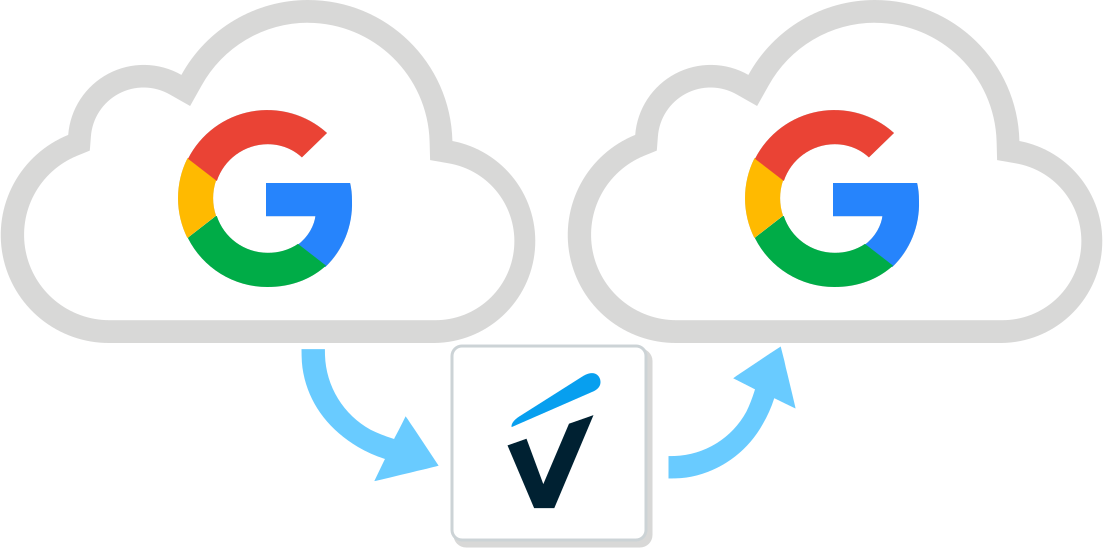
Before diving into how to actually do this, part of the process is understanding why users are looking for a way to merge their Google accounts.
Switching Digital Identities
One common reason users seek to merge Google accounts is simple: their previous email address no longer represents their digital identity. Whether due to a name change or opting for a more professional email account, they may not want to lose their past interactions.
In this sense, they might be able to forward emails from the old account to the new one and inform correspondents of the new address.
Transitioning from Personal to Professional
When a business owner or manager starts their venture, they might manage with basic Gmail assets and the free Google Workspace application. However, as the business grows, professional resources can make a significant difference.
For instance, the Google Workspace environment comes with more cloud storage, custom domains, and collaboration features like video calls and an admin dashboard with security protocols.
However, when they decide to invest and switch to a professional account, there is still a need for some files from their personal email.
This is where Google Takeout, Google's native backup tool, can be a lifesaver. This resource can help you merge two Google accounts into one by exporting Google Drive files and photos, Google contacts, Google favorites, Chrome bookmarks, Google Meet and chat history, and even Google Calendar.
Managing Multiple Accounts in the Process
But what if you don't need to merge two Google accounts, but rather need to consolidate and manage multiple streams of communication?
Here's a scenario: a business manager decides to implement a sales team address that will be available to all team members. But until now, all business communications have been conducted through each employee's account.
Now they will have to migrate each account individually and sort through email messages accordingly so they don't lose important customer and purchase data.
This is where a shared inbox solution can help.
How to Merge Two Google Accounts with Gmail Migration

If your need is to merge two Google accounts, you can try migrating from Gmail to Gmail. This means forwarding incoming messages from your old account to your new account and updating your contacts with the new address.
Here's how to do it:
- Log into Gmail on the web from your old account
- Go to the settings page
- Click on the Forwarding and POP/IMAP tab
- To set up your old account for merging, select Enable POP for all mail
- Click Save Changes
- Log into your new Gmail account
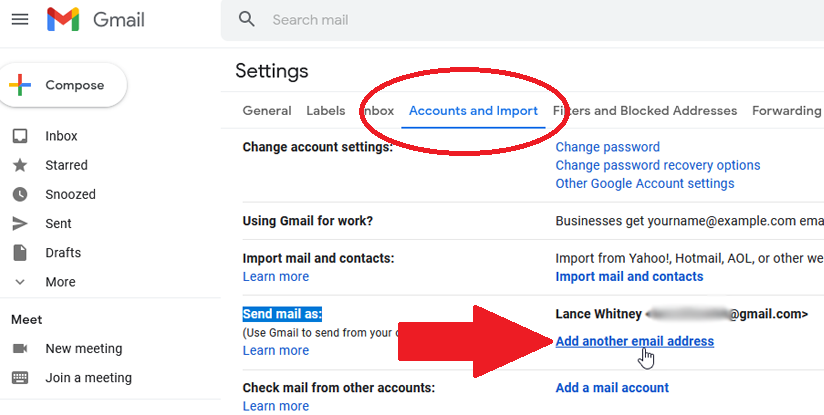
- Return to the Accounts and Import tab and go to Check mail from other accounts
- Click on Add a mail account and select Import emails from my other account (POP3)
- Enter the server information and click Add Account
Now you have added the old email as a means to view incoming messages in the new inbox. But how can you reply from your old address using the new inbox?
Here’s a step-by-step guide on email aliases:
- Open Gmail in your browser
- Go to Settings, then to the Accounts tab
- Scroll down to Send mail as and click Add another email address
- Enter the name and address of your old account
- Click Next Step and then Send Verification
- Log into the old account
Now, when you write an email, Gmail will allow you to select the account from which you are sending the email
With these guidelines, you can receive, manage, and reply to emails sent to one address from both addresses. Essentially, this is how you merge two Google accounts at the email level.
Limitations of this Method
In short, this only works with emails. So if your business extends beyond the inbox, like Google Drive files, calendar meetings, and detailed contact information, you'll need to transfer them one by one. This is a lengthy and unproductive process that most users prefer to avoid.
Frequently Asked Questions about Merging Two Google Accounts
1. Can I merge two Google accounts into one?
No, Google does not provide a direct way to merge two accounts. However, you can manually transfer data from one account to another using Google Takeout and email forwarding and other available tools.
2. What happens to my old Google account if I transfer data to a new account?
Your old account remains active unless you choose to delete it. Transferring data does not affect the original account unless you manually delete files or emails.
3. How can I transfer emails from one Google account to another?
You can enable email forwarding or use the POP/IMAP feature in Gmail settings to import emails into your new account.
4. Can I transfer Google Drive files between accounts?
Yes, you can share files and folders using your new account and assign yourself as the owner. Alternatively, you can download files using Google Takeout and re-upload them.
5. Will my Google Calendar events automatically transfer?
No, you need to export your Google Calendar from one account and manually import it into the new account.
6. How can I transfer my contacts between Google accounts?
You can export contacts from Google Contacts as a CSV or vCard file and import them into the new account.
7. Can I keep my Google Photos when switching accounts?
Yes, you can use Google Takeout to download your photos and re-upload them to your new account.
8. What about purchases and subscriptions on Google Play?
Google Play purchases and YouTube subscriptions and other paid services cannot be transferred between accounts. You will need to repurchase them in the new account.
9. How can I merge Google Docs, Sheets, and Slides?
You can share them with your new account and transfer ownership, ensuring access to all files in one place.
10. Is there an official tool from Google to merge accounts?
No, Google does not provide an official merging tool. The best way is to manually transfer your data using available features like Google Takeout and sharing permissions.


