


How to Lock Notes on iPhone and iPad: Do you enjoy using the Notes app? You can enhance your privacy by locking notes on your iPhone and iPad, as well as on your Mac. This means you can set a password or use Face ID/Touch ID to access specific notes, which is useful for keeping your notes secure, especially if they contain sensitive information. Follow along to learn how to protect your notes with a password.
How to Lock Notes on iPhone and iPad
Open the Notes app on your iPhone.
Press and hold the note you want to lock.
Select Lock Note.
Enter your password.
You can also enable Face ID/Touch ID to lock the note.
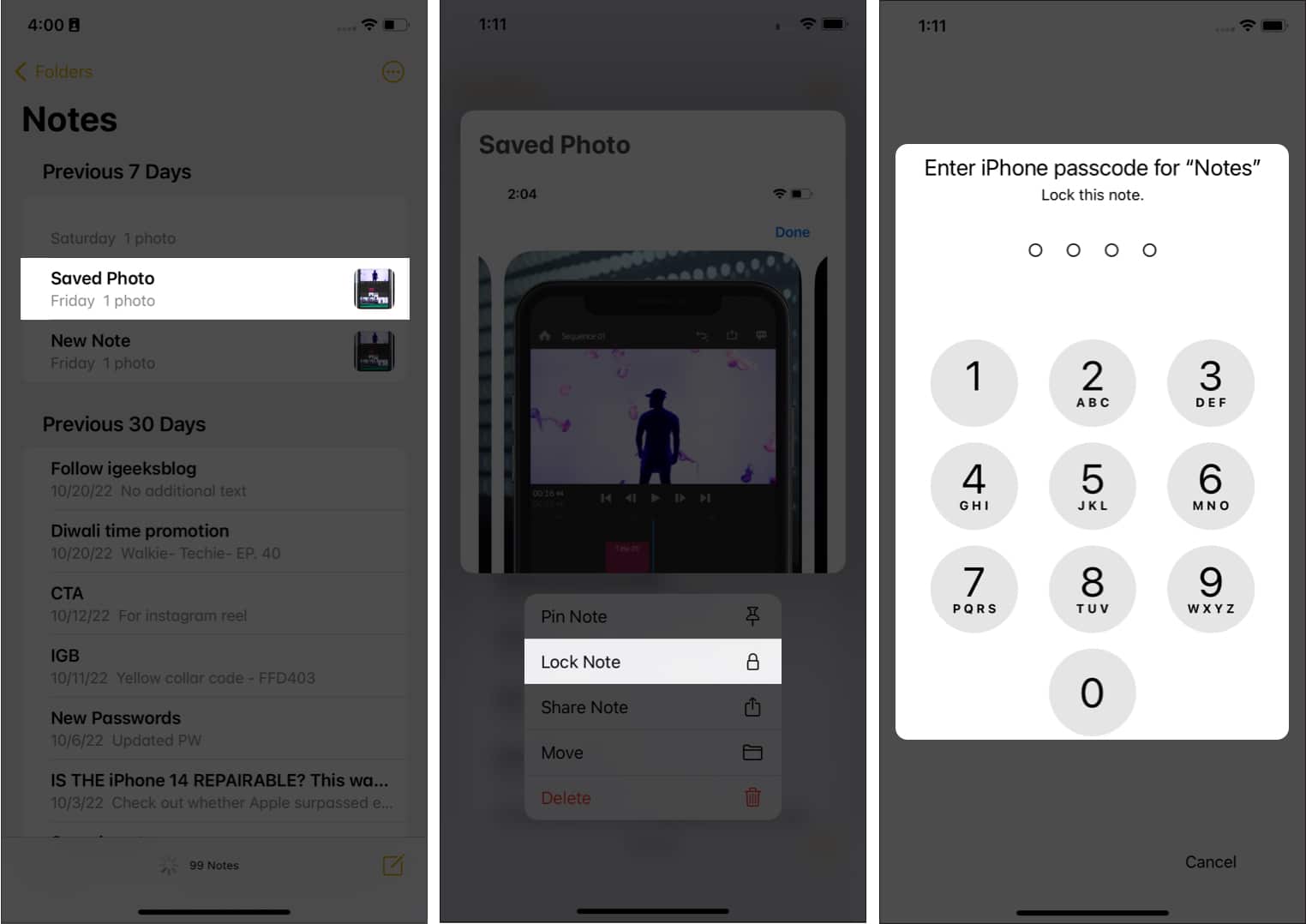
How to Lock Notes on iPhone
You will now see a lock icon next to that note. Since you just enabled the lock, the app will show it as unlocked, but when you reopen the app after some time or after removing it from the background, you will see a locked lock icon next to that note.
Besides this method, there is another way to lock notes on iPhone
Open the note you want to lock.
Tap the three dots in the upper right corner.
Select Lock.
Enter your device's passcode.
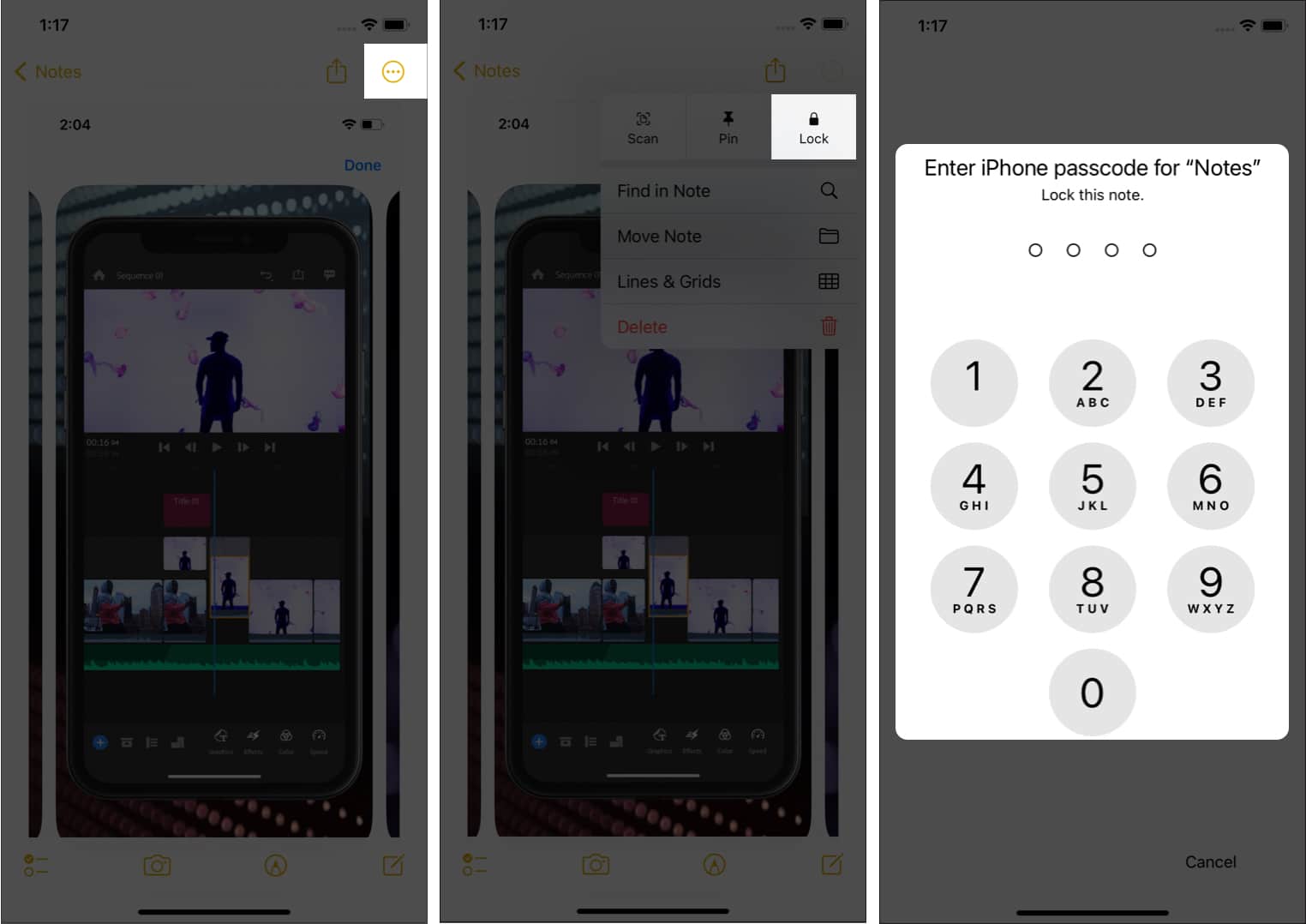
Another way to lock notes on iPhone.
How to Set a Password for Notes on iPhone
You can create a unique password specifically for your notes.
Open Settings.
Tap on Notes.
Select Password.
Now, click on Use Custom Password.
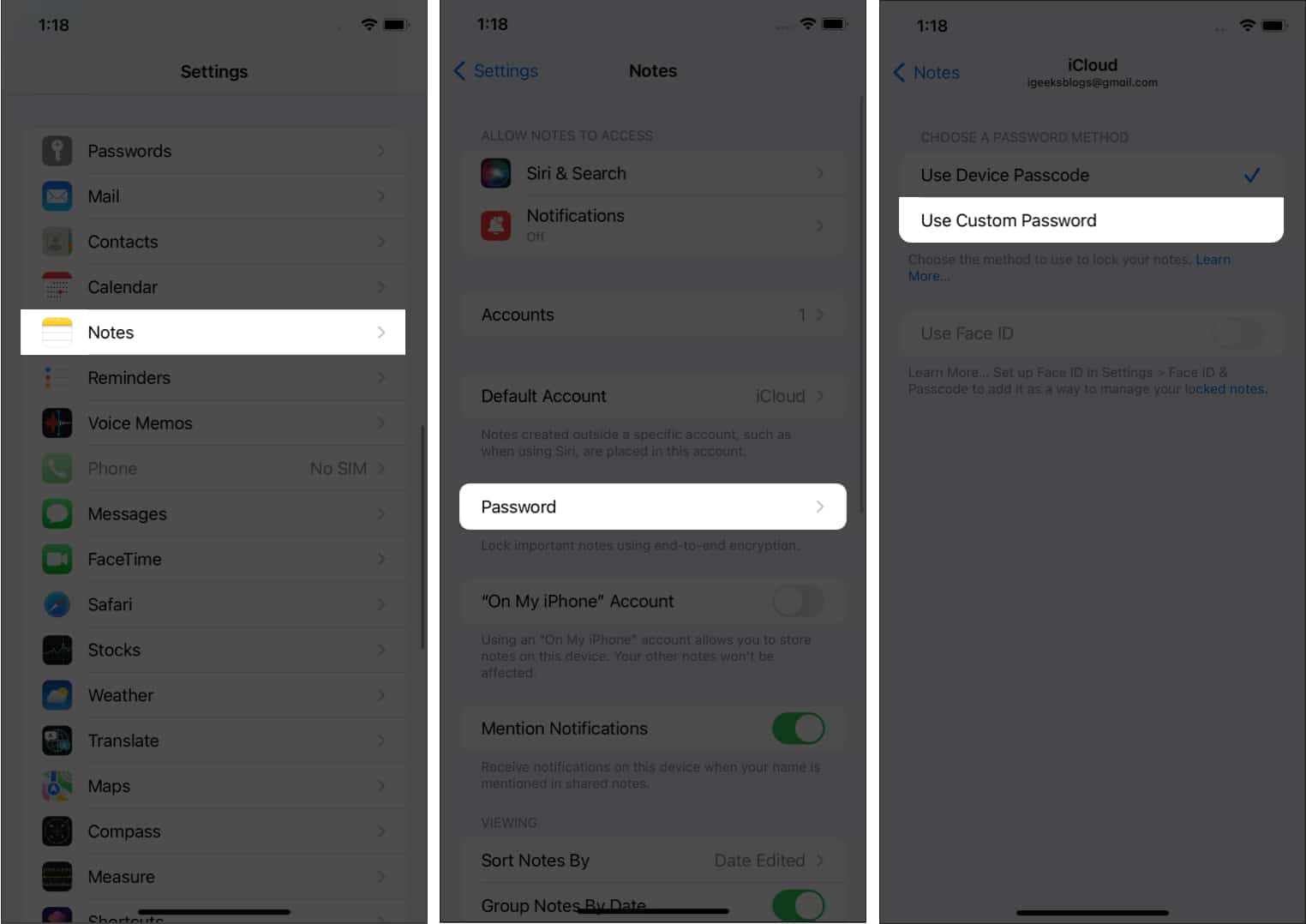
Tap on Use Custom Password to lock notes in Settings on iPhone
Use your passcode or Face ID/Touch ID to confirm.
Enter the new password.
Then, enter it again to verify.
Click Done.
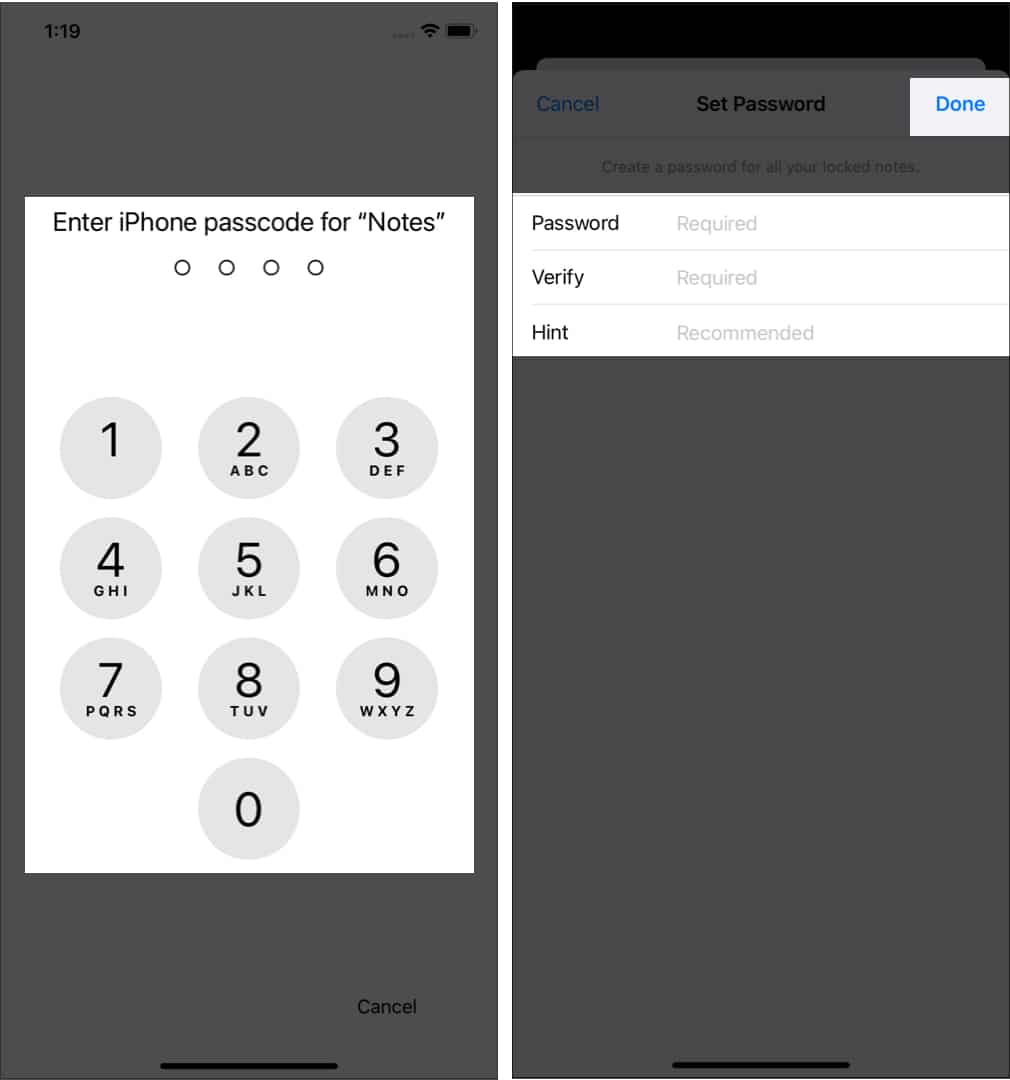
How to use the password to lock notes from the app settings on iPhone
You will see a confirmation that the password has been changed; tap OK to confirm the changes. Now, when locking new notes or trying to open notes, you will be prompted to use this new password instead of your iPhone's passcode.
Locking Notes: Passcode vs. Password
If you are using your iPhone passcode to lock a note: to access the note across your Apple devices, you need to enter the passcode for that specific device.
If you are using a password to lock a note: you can unlock the note on any of your Apple devices using that specified password.
How to Change the Notes Password on iPhone
Go to Settings → Notes → Password.
Tap Change Password.
Enter your current notes password.
Now, enter the new password.
Then, enter it again to verify.
You can also add a notes password hint and then click Done.
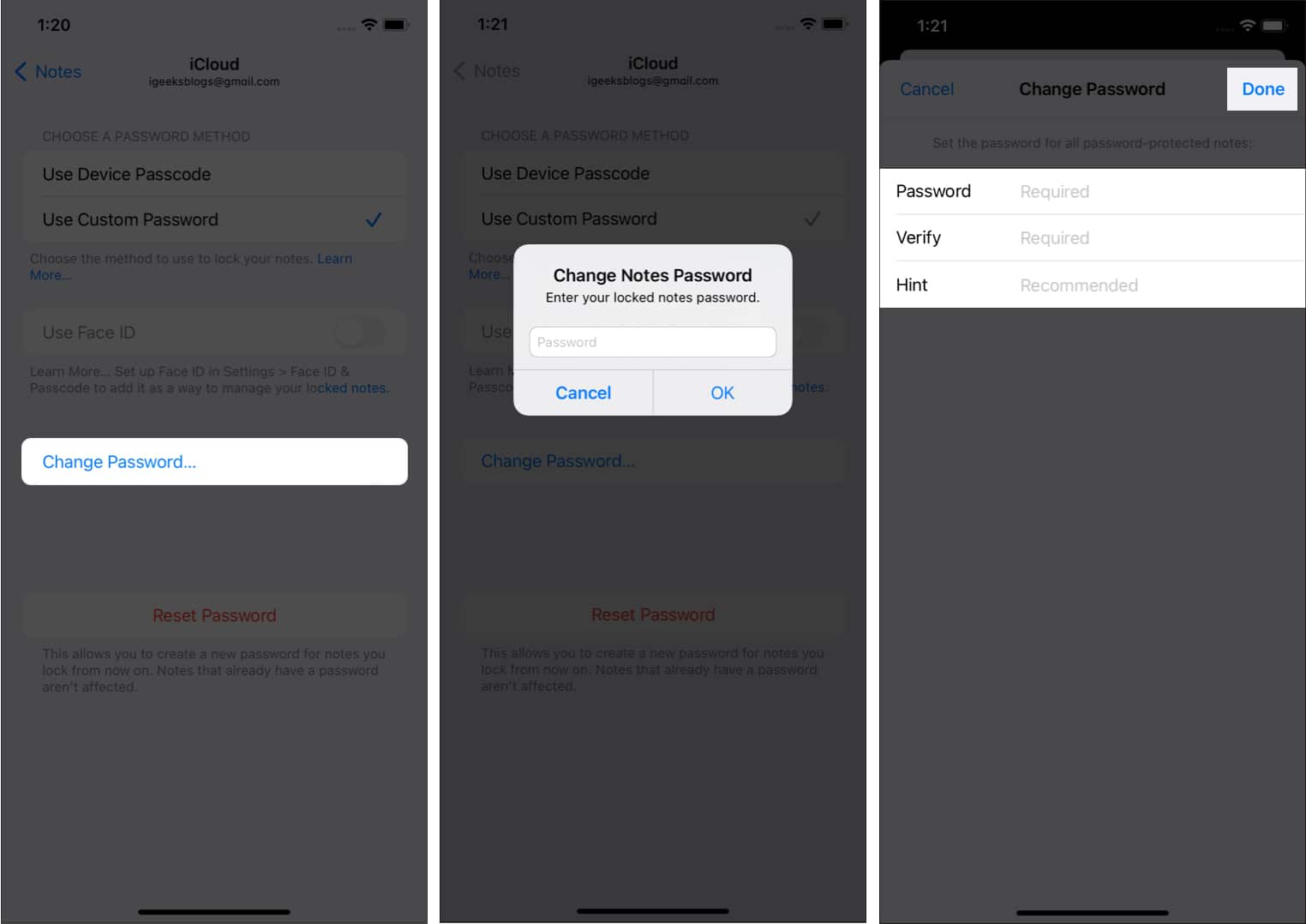
Change the notes password in the Settings app on iPhone
Reset the Notes Password on Your iPhone if You Forgot It
Go to Settings → Notes → Password.
Enter your Apple ID password.
Follow these steps if you forgot your Apple ID password.
Tap Reset Password to confirm.
You may be prompted to switch to the device passcode.
You can choose accordingly. Here, we are using Not Now.
Enter the new password and click OK.
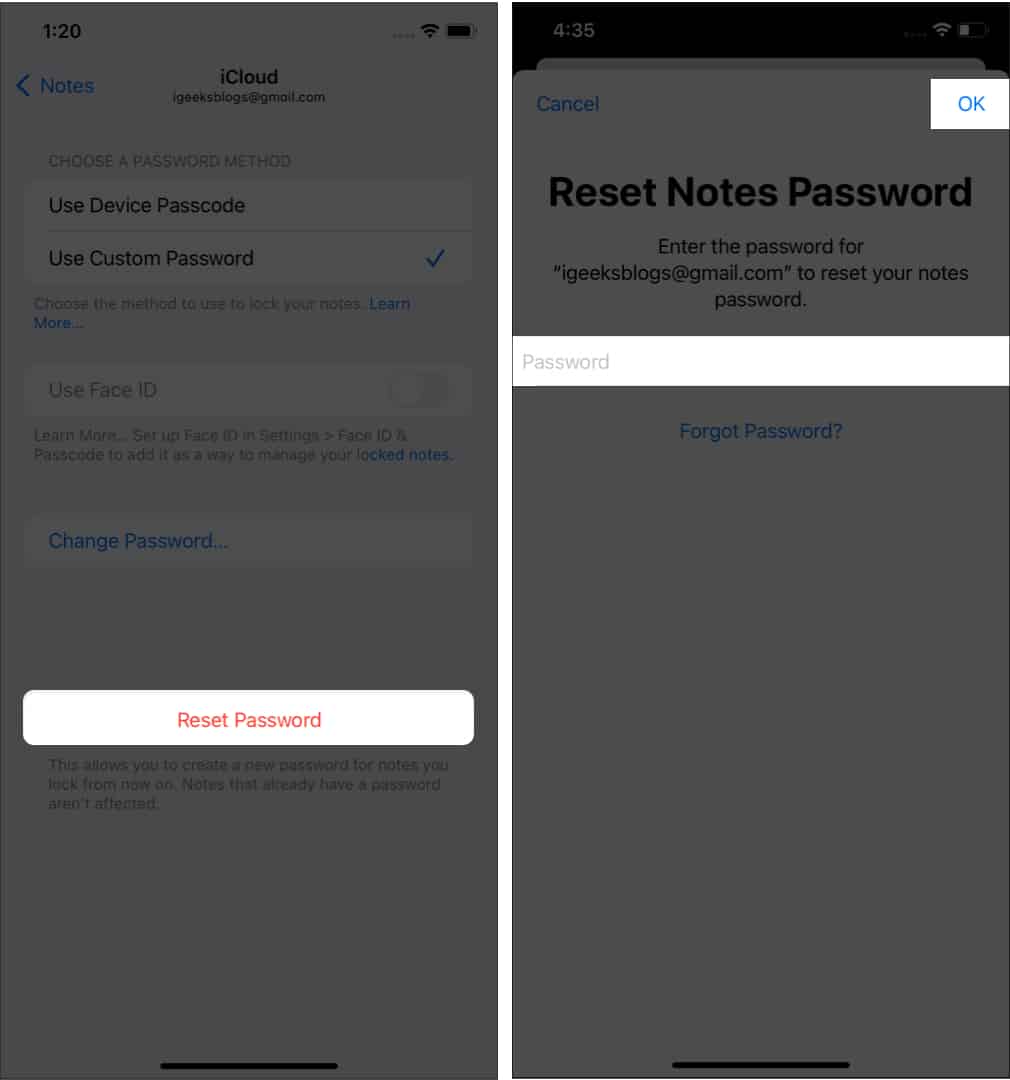
Reset the notes password in the Settings app on iPhone.
How to Open a Locked Note on iPhone
Now that you know how to lock notes, you will eventually need to open them when necessary. Here’s how to unlock locked notes on your iPhone:
Open Notes.
Tap the locked note you want to open.
Select View Note.
Enter your passcode or notes password.
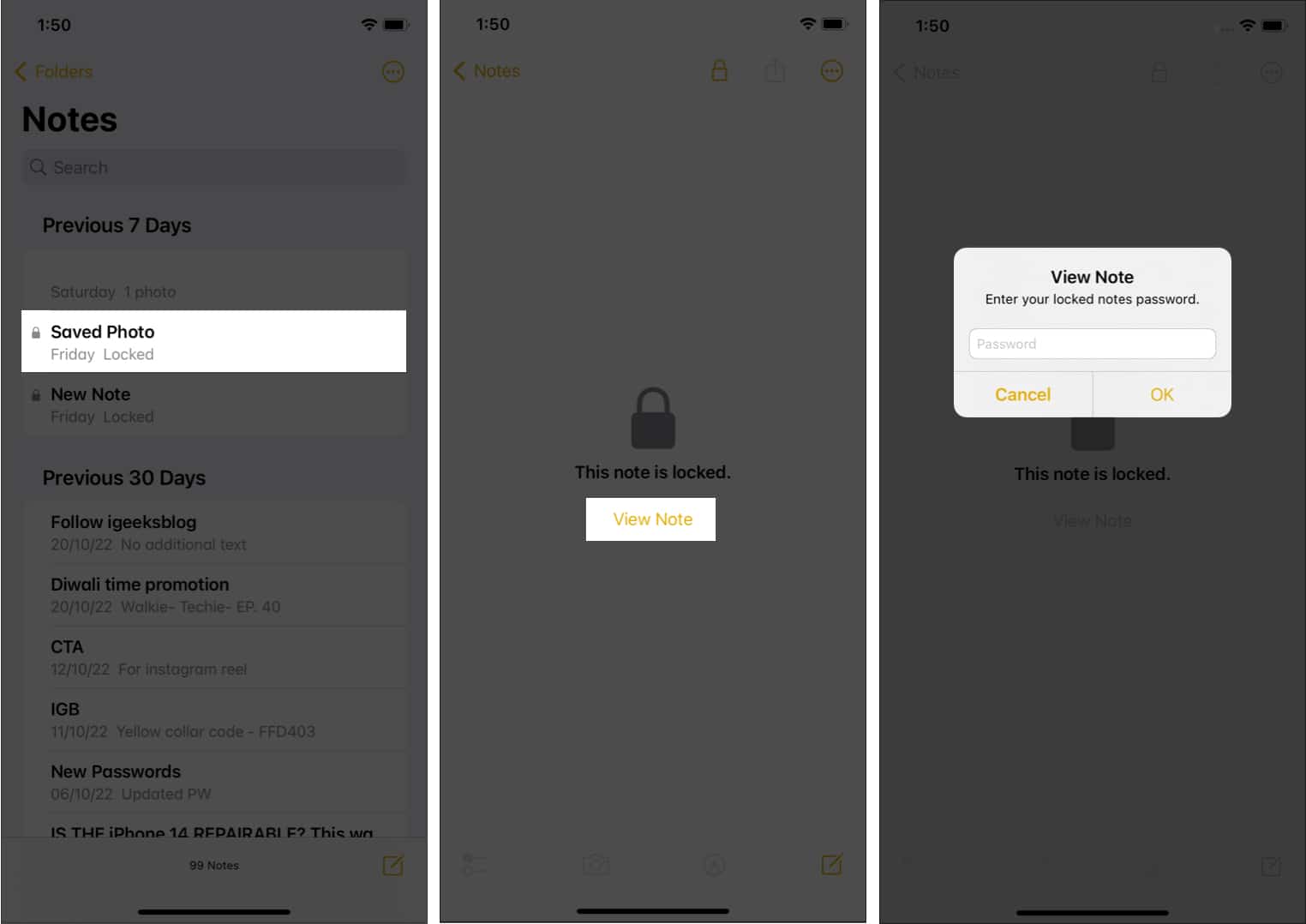
Open a locked note on iPhone
How to Remove the Lock from a Note on iPhone
Open the Notes app.
Press and hold the note you want to unlock.
Select Remove Lock.
Enter your passcode/password.
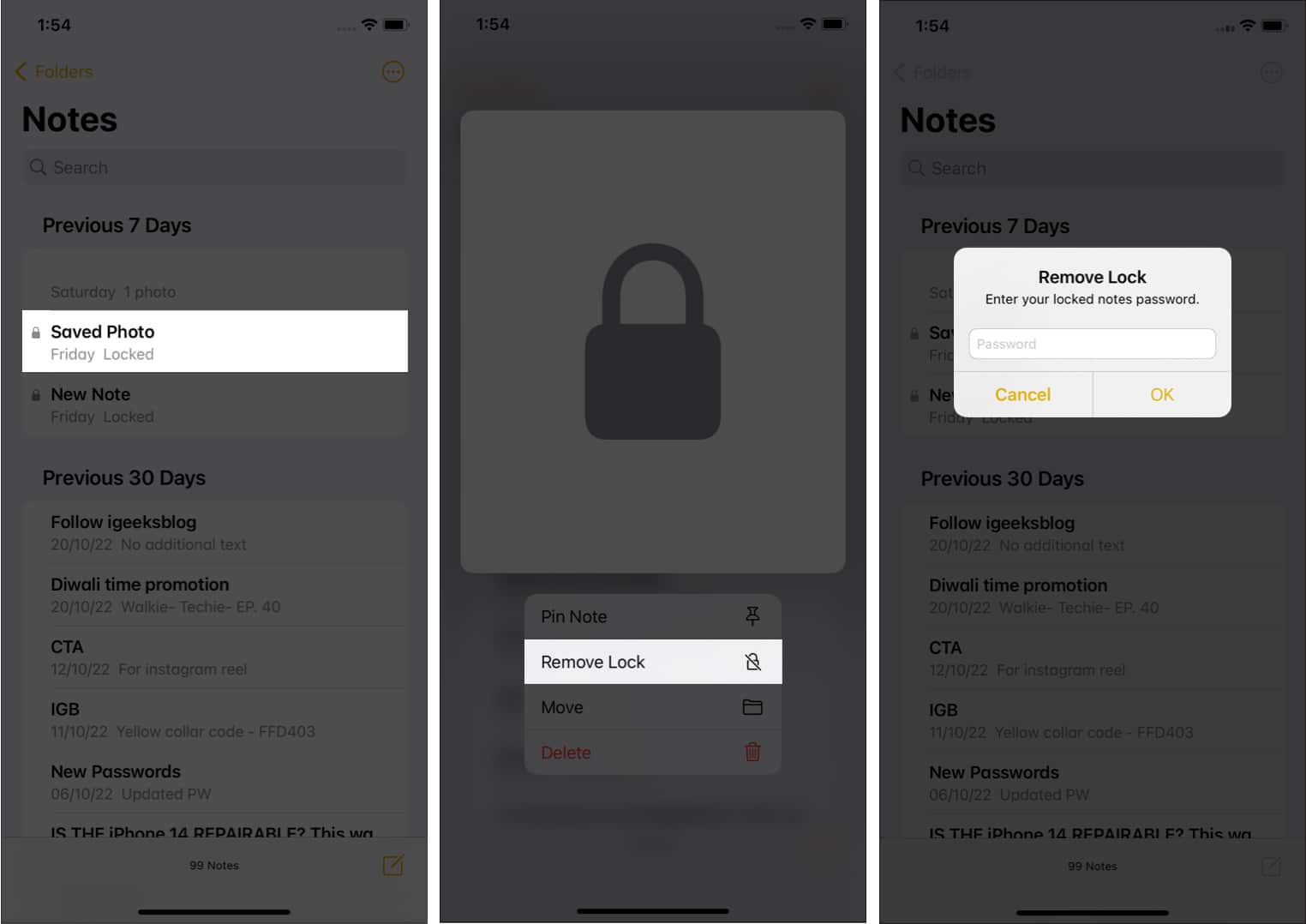
How to remove a lock from a note on iPhone
Here’s another way to unlock notes on iPhone:
Open the note you want to unlock.
Tap the three dots in the upper right corner.
Select Remove.
Enter your passcode/password.

Things you need to know before locking notes on iPhone and iPad:
You can lock notes in two ways: either using your iPhone passcode or using a custom password.
Locked notes with a password cannot be retrieved if you forget the password.
Once unlocked, locked notes will remain unlocked for up to 15 minutes unless you remove the app from the background or lock them again immediately.
Conclusion
In this article, we discussed how to lock notes on iPhone and iPad. Locking notes on iPhone and iPad is a useful feature, especially if you are considering securing your sensitive information. We hope this article has helped you achieve the privacy you desire.
Frequently Asked Questions
1. How do I lock a note on my iPhone or iPad?
To lock a note, open the Notes app, find the note you want to lock, tap the share icon (a box with an arrow), and then select "Lock Note." You will be prompted to set a password for the note.
2. Can I use Face ID or Touch ID to lock notes instead of a password?
Yes, if your device supports Face ID or Touch ID, you can use either of these methods to lock and unlock notes instead of entering a password.
3. How can I unlock a locked note?
To unlock a locked note, simply tap on the locked note in the Notes app. You will be prompted to authenticate using either your password or Face ID/Touch ID, depending on your device settings.
4. Can I change the password for a locked note?
Yes, you can change the password for a locked note. Open the note, tap the share icon, select "Lock Note," then choose "Change Password." You will need to enter the old password before setting a new one.
5. Can I unlock all locked notes at once?
No, unfortunately, you will need to unlock each locked note individually; there is no feature to unlock all locked notes at once.
6. What happens if I forget the password for a locked note?
The bad news is that if you forget the password for a locked note, there is no way to recover it. You will need to reset the password for all secured notes, which will permanently delete their content. To do this, go to Settings > Notes > Password and select "Reset Password."
7. Are locked notes stored securely on my device?
Yes, rest assured that locked notes are encrypted and stored securely on your device. They are protected by strong encryption and can only be accessed using the correct password or Face ID/Touch ID.
8. Can I share a locked note with others?
Yes, you can share a secured note with others. When you share a secured note, recipients can view the contents of the note but cannot unlock it unless they have the password or Face ID/Touch ID set up on their devices.
9. Can I lock notes on iCloud?
Yes, you can lock notes stored in iCloud. The locking mechanism applies to individual notes regardless of whether they are stored locally on your device or in iCloud.
10. Can I delete a secured note?
Yes, you can delete a secured note. When you delete a secured note, it is permanently removed from your device and from iCloud if you have iCloud sync enabled.


