

Do you know how to manage Chrome extensions? If not, this article is just what you need. You can learn how to create keyboard shortcuts for extensions, remove extensions, and much more.
Extensions are very useful in Chrome and can help you accomplish many tasks, but if you have too many extensions and don’t know how to manage them, your browser might slow down and become cluttered. So, keep reading to find out how to manage your Chrome extensions.
How to manage Chrome extensions?
First, you need to know how to access your Chrome extensions. You may notice several small icons in the Chrome toolbar representing your extensions. Follow these steps to access your Chrome extensions:
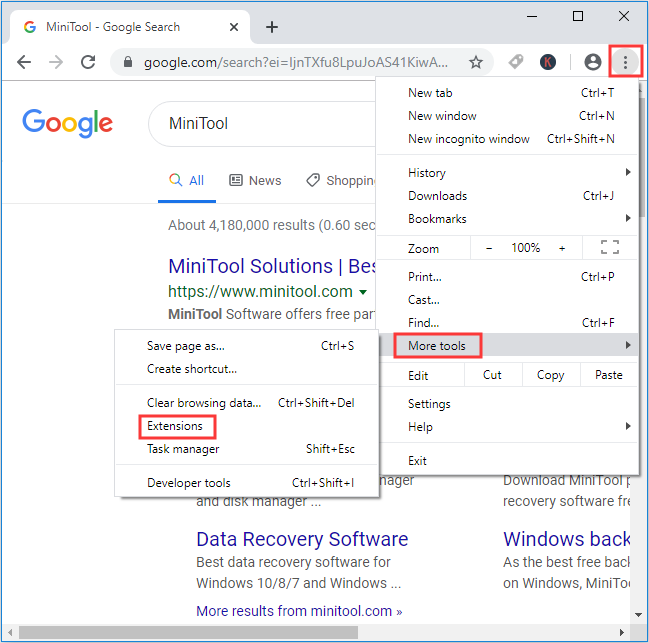
Step 1: Click on the three vertical dots in the upper right corner of the toolbar.
Step 2: Click on More tools and then select Extensions. You will then see the complete list of your extensions along with the installed Chrome apps.
There’s another way to access your Chrome extensions:
Right-click on any extension in the Chrome toolbar and choose Manage extensions. Click the left arrow to view all extensions.
Note: If you want to hide extensions from the toolbar, you can right-click on the toolbar and select Hide from the Chrome menu.
You will notice two buttons and a toggle switch below the extension. You can click on Details for more information about the extension and click Remove to uninstall it. You can toggle the switch on or off to enable or disable the extension.
Some extensions have another button – Options – that allows you to configure the extension.
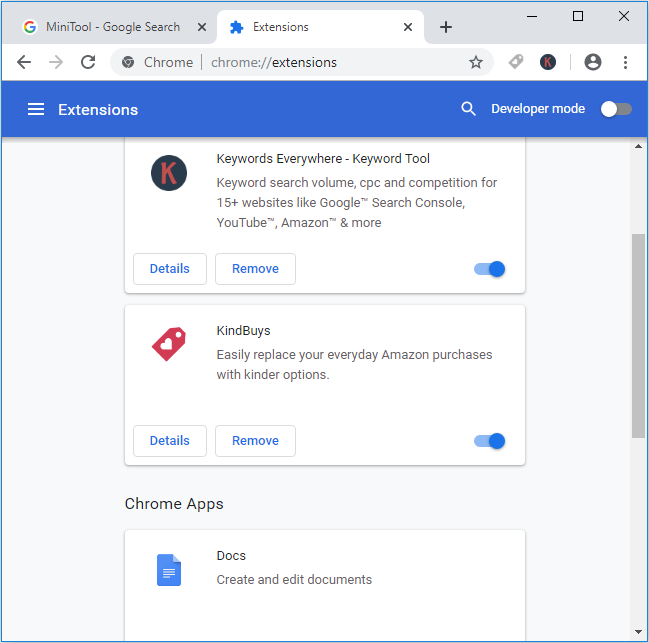
From the paragraphs above, you can learn how to access Chrome extensions, how to remove Chrome extensions, and how to enable/disable Chrome extensions.
How to update Chrome extensions?
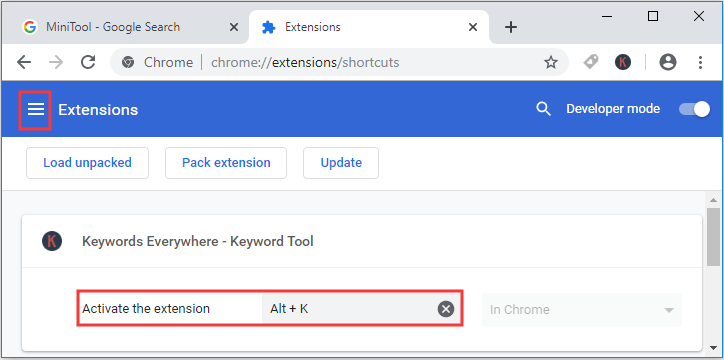
Do you notice the Developer mode? Turn it on, and three buttons will appear: Load unpacked extension, Pack extension, and Update. Click on Update, and you can refresh your Chrome extensions.
How to set keyboard shortcuts for Chrome extensions?
If you frequently use an extension, you can create keyboard shortcuts to save yourself a click. Follow these steps:
Step 1: Go to the Extensions page, then click on the three dots next to the extensions.
Step 2: Select Keyboard shortcuts. Then press the designated shortcut key combination (it must include either Ctrl or Alt) for your extension, for example, press Alt + K. After that, it will activate just as if you had clicked on it.
Note: Please note that Chrome allows you to override other keyboard shortcuts, so make sure the combination you use isn’t assigned to other functions.
Now that you know all the information about how to manage Chrome extensions, you can manage them to make your browser run faster.
How to identify problematic extensions and disable them
Sometimes, a specific extension may slow down Chrome or cause it to crash. To identify problematic extensions, disable them one by one while monitoring Chrome's performance.
Go to the Extensions page, turn off one extension, and see if the issue persists. Once you identify the problematic extension, consider removing or updating it.
How to back up and restore extensions
If you are switching to a new computer or resetting Chrome, you can back up your extensions. Chrome syncs extensions if you are logged in with a Google account. However, for manual backup, you can locate the extension files in the AppData folder in Chrome and transfer them to the new setup. This method ensures you keep all configurations.
Chrome allows you to create multiple profiles, enabling you to organize extensions for different purposes. For example, one profile can focus on work-related tools, while another can include entertainment-related extensions. To create a new profile, click on your avatar icon in the upper right corner and select "Add." Each profile has separate settings, extensions, and bookmarks.
Frequently Asked Questions
Q1: How can I see all installed extensions on Chrome?
Click on the three vertical dots in the upper right corner of Chrome, go to More tools, and select Extensions. Or type chrome://extensions/ in the address bar.
Q2: Why is Chrome slow with many extensions?
Extensions consume system resources like RAM and CPU. Having too many active extensions can slow down Chrome. Disable or remove unused extensions to improve performance.
Q3: Can I hide extensions from the toolbar?
Yes, right-click on the extension in the toolbar and select Hide from the Chrome menu. You can still access hidden extensions.
Q4: How do I make an extension work in incognito mode?
Go to the Extensions page, click on Details under the desired extension, and toggle Allow in incognito mode. Be cautious, as this may affect your privacy.
Q5: Can I create shortcuts for frequently used extensions?
Yes, go to Extensions > Keyboard shortcuts, and set custom shortcut keys for your extensions. Ensure they do not conflict with other shortcuts.
Q6: How can I manually update Chrome extensions?
Enable Developer mode on the Extensions page and click the Update button. This ensures your extensions have the latest features and fixes.
Q7: Is it possible to restore extensions that were accidentally removed?
Yes, go to the Chrome Web Store, search for the extension, and reinstall it. If it was synced with your Google account, settings may be restored.
Q8: Can I temporarily disable all extensions?
There is no direct way to disable all extensions, but you can use a new Chrome profile or guest mode, which operates without extensions.
Q9: Are extensions safe to use?
While most extensions are safe, some may collect data or contain malware. Always install extensions from reputable developers via the Chrome Web Store.
Q10: How can I uninstall multiple extensions at once?
Unfortunately, Chrome does not allow bulk removal. You will need to remove extensions individually by going to the Extensions page and clicking "Remove" under each extension.
Conclusion
How do you manage Chrome extensions? Now, you can understand how to manage Chrome extensions, such as how to remove extensions from Chrome, how to hide extensions, how to set keyboard shortcuts for extensions, and more. If you have any questions, please feel free to reach out to us in the comments.


