

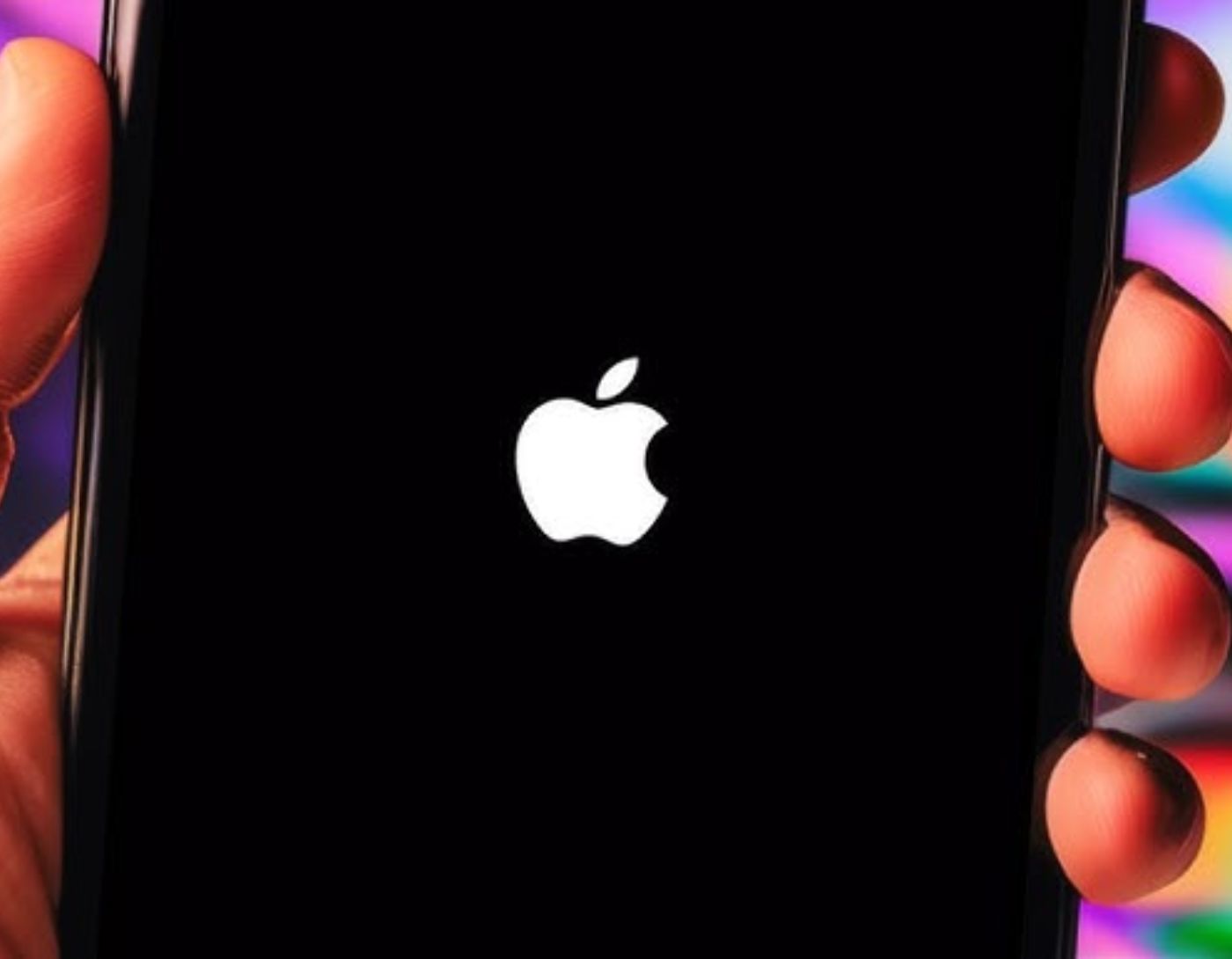
iPhones have become widely popular recently, and many users are facing issues that hinder their experience with these devices. One of the most significant problems that iPhone users are encountering lately is the device getting stuck on the Apple logo. When an iPhone is stuck on the Apple logo, it indicates that it may be facing several issues, which we will discuss along with some solutions to overcome these problems.
Why does the iPhone get stuck on the Apple logo?
There are many reasons why an iPhone might be stuck on the Apple logo, the most important being an issue with the iOS system startup. Sometimes, when updates occur, they can cause a problem that leaves the iPhone stuck on the Apple logo, making the phone unusable at that time.
This can also happen due to the presence of unsafe applications on the phone or if there is some damage to the system or the device itself.
The iPhone may be stuck because the storage space is full, preventing updates that require at least 5 GB.
Additionally, a strong reason for the iPhone being stuck on the Apple logo is if you are transferring a backup from your computer or iCloud that is larger than the phone's available space or has some corruption or malfunction.
How to fix the iPhone stuck on the Apple logo without a computer
-
Method 1: Force Restart the iPhone
This involves restarting the iPhone. You can do this by pressing the volume up button, then the volume down button, and finally the power button, allowing the device to restart automatically. This method is effective when the issue is superficial and does not require complex steps. It is simple, free, and does not take much time or effort, but it varies from device to device based on the model.
For example, for iPhone X \ XR
If someone complains that my iPhone X is stuck on the Apple logo, in this case, you need to press the volume down button while simultaneously pressing and holding the side button. When the Apple logo appears, you can release your fingers from the buttons.
Another example for iPhone 11\12\13\14\15
When someone presents their issue, like iPhone 12 stuck on the Apple logo or iPhone 11 stuck on the Apple logo, you should press the volume up button and release it, then press the volume down button and release it, and finally press and hold the power button. This method is suitable for the newer iPhone models.
Thus, we find that it is easy to restart iPhones when the device is stuck on the Apple logo without hassle and with simple steps.
-
Method 2: Fix the iPhone stuck on the Apple logo without losing your data [Recommended]
You can restart the phone easily by visiting the site https://ar.ultfone.com/howtouse/ios-system-repair.html and following the necessary steps to resolve the issue of the iPhone and iPad being stuck on the Apple logo easily. This is one of the best recommended methods because it is safe, easy, and does not require much time.
Step 1: Download and run the UltFone iOS System Repair program
Free download for Windows Free download for Mac
Note The program supports Arabic, English, and other languages
Download and run this program on your computer, whether it’s a Mac or Windows, then connect your iPhone/iPad/iPod to the computer. Click on "Start Repair" to enter the iOS system repair section.

Step 2: Choose Standard Repair
Identify the specific problem you are facing and then click on "Repair Now."

On the next screen, click on "Standard Repair" to proceed.

Notes:
1. If the program cannot detect your device, it will guide you to manually put your device into recovery mode or DFU mode to detect it.


2. As we see on the program interface, there are two types of repair modes available: Standard Repair and Deep Repair. The only difference between them is that with Standard Repair, iOS system issues can be resolved without losing data. On the other hand, Deep Repair mode erases everything on your device and helps you fix more severe iOS issues that were not resolved by the Standard Repair option. If Standard Repair does not fix your problem, or if you want to reset your iPhone/iPad to factory settings without a password, please choose Deep Repair mode.

Step 3: Download the Firmware Package
You need to click on the "Download" button to download the firmware package that automatically matches your device before performing the system repair. You can change the save path by clicking on "Browse" to select a different location to save the firmware package.

Notes:
Please click on "Import Local Firmware" to import the firmware package if you have downloaded the firmware previously.

The firmware package is approximately 2.5 GB, so please wait patiently and maintain a good internet connection.

Step 4: Start the Operating System Repair
Please click on "Start Standard Repair" to fix iOS system issues on your device after successfully downloading the firmware package.

Wait a few minutes for the iOS system to be repaired.

Step 5: iOS System Repair Completion
Your iOS device will automatically restart, and everything will return to normal once the iOS system restoration is complete.

-
Method 3: Put your iPhone into Recovery Mode and Restore (Risk of Data Loss)
This method is effective and resolves the issue 100%, but you need to back up your data because this method may lead to data loss. By connecting your iPhone to the computer, you can solve the problem of the iPhone being stuck on the Apple logo by downloading iTunes, through which you connect the iPhone to the computer. After that, a small screen will appear where you click on Restore, and then it will reset the iPhone settings and restore your backup data.
-
Method 4: Restore iPhone from DFU Mode
You can also restart your phone using DFU mode, which can resolve your issue by connecting the iPhone to the computer with a USB cable and using the volume down button pressed together with the power button. Through DFU mode, you can revert to the iOS version of your iPhone.
-
Method 5: Contact Apple for Assistance
Finally, if your device remains stuck on the Apple logo after the previous attempts, you can head to an Apple Support Center for a device check. This may take longer, but if there is a problem or damage to the device, you can have it repaired through the support center or replace the device.
iPad stuck on the Apple logo
If your iPad is stuck on the Apple logo, you will need to follow some steps to resolve this issue:
- First, ensure that the progress bar on the iPhone has not moved for at least half an hour.
- You should connect the iPhone to your computer, then enter recovery mode and follow these steps:
- Press the volume up button and release it, then do the same with the volume down button, and finally press the power button to enter recovery mode.
- After that, continue holding the volume down button and the alert button; this method is in case the first method did not work.
- For a Mac running macOS Catalina 10.15 or later, open Finder on the Mac, and if using Mojave 10.14 or earlier, open iTunes, but it must be updated. Then select your device from the program and choose your iOS version and select (Restore), but this will erase all your data.
</ol


