

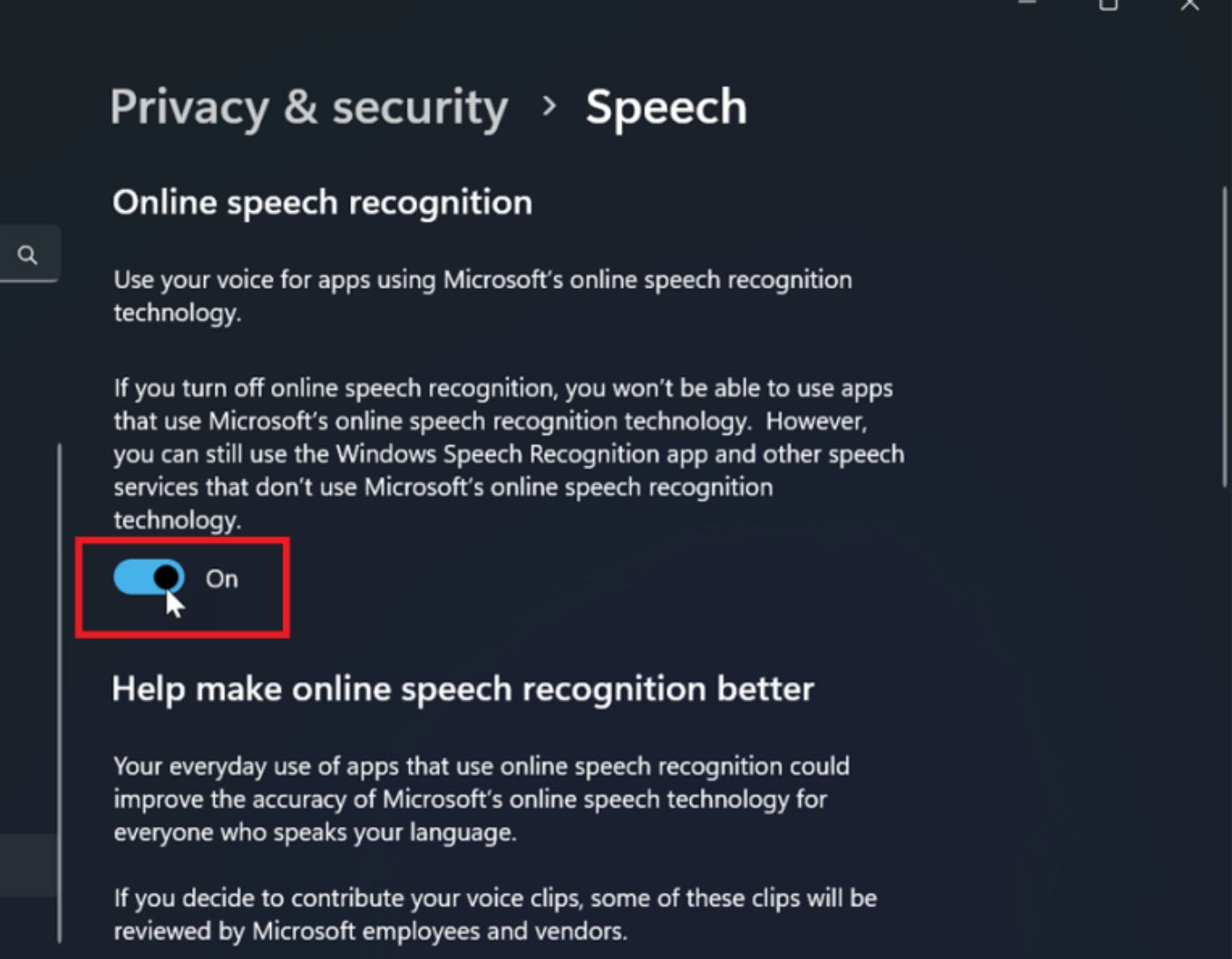
What is speech recognition in Windows 11 and how to enable it? Here’s everything you need to know about speech recognition in Windows 11 and how to enable it. Keep reading for the details!
Users of Windows 11 and Windows 10 can fully manage their computers using voice commands, allowing users to browse, launch applications, dictate text, and perform a variety of other functions, specifically designed for individuals with disabilities who cannot use a keyboard or mouse.
In this article, we will explain what speech recognition is in Windows 11 and how to enable it.
What does speech recognition mean?
Speech recognition in Windows, also known as speech-to-text conversion, automatic speech recognition (ASR), or computer speech recognition, is the ability of a device or software to detect spoken words and convert them into text. You can simply talk to Windows using the speech recognition feature, which specifically allows voice commands to control the desktop user interface, dictate text in documents and emails, browse websites, execute keyboard shortcuts, and fully operate the mouse pointer.
How to set up speech recognition in Windows 11?
To configure the speech recognition feature in Windows 11, you will need to follow the steps below:
Step 1: Press the Windows + R keys simultaneously, then type "Control Panel" in the Run dialog box.
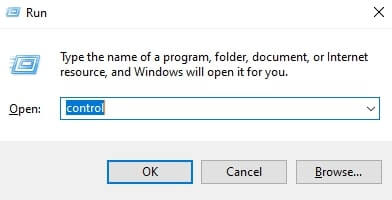
Control Panel dialog box
Step 2: Next, select "Ease of Access" by clicking on it.
Step 3: Go to "Speech Recognition" and choose the option "Start Speech Recognition."
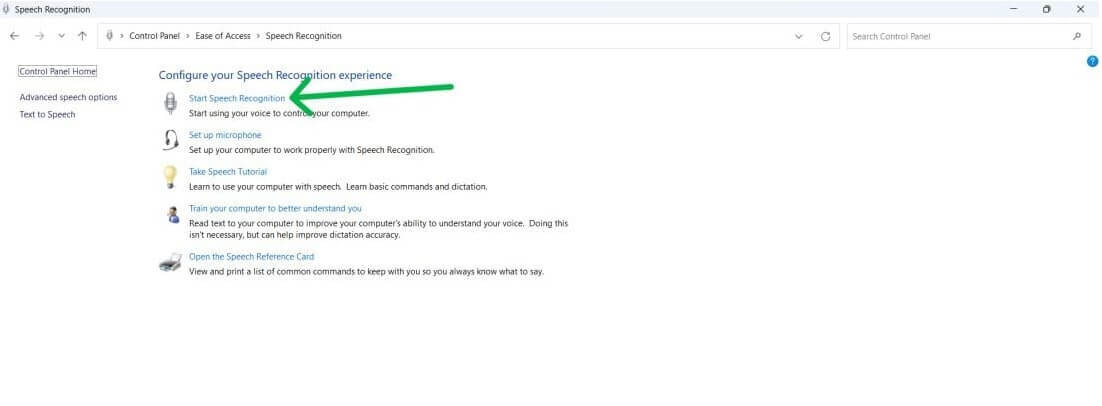
Start Speech Recognition
Step 4: Click "Next" to continue.
Step 5: Now, you will be prompted to select the type of microphone you want to use on your device.
Desktop microphones are not suitable.
Headsets or array microphones are the recommended options by Microsoft.
Headsets or array microphones
Step 6: After selecting the type of microphone, click the next button to proceed with the setup.
Step 7: Again, click the next option.
Step 8: Now, adjust the microphone volume and click next to continue.
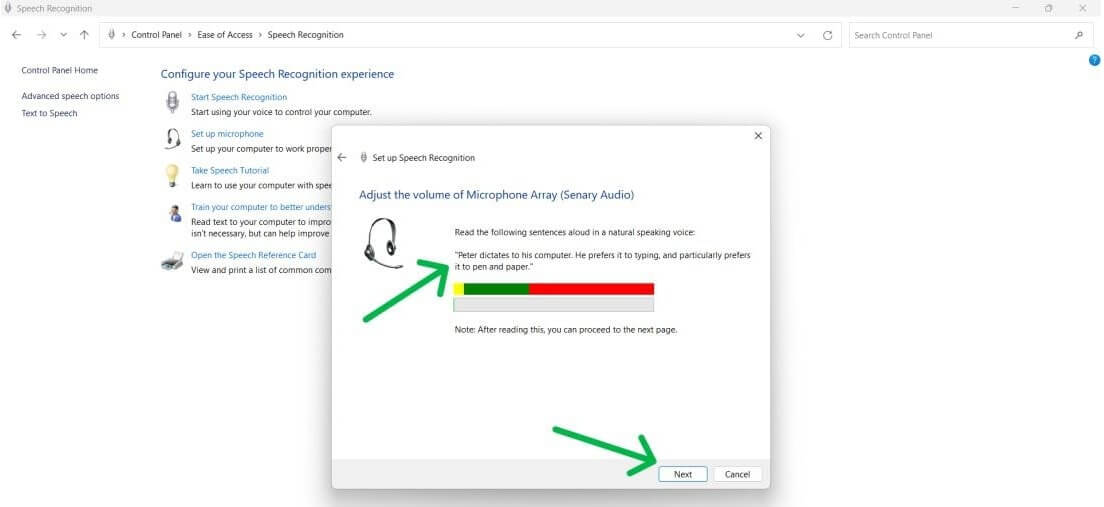
Step 9: Click the next button again.
Step 10: Speech recognition, which analyzes the user's language for reviewing documents and emails, allows enabling or disabling document review as a way to address privacy concerns.
Step 11: Select the next button.
Step 12: At this stage, you have the option to activate voice recognition through either of two different options.
Both manual activation and voice activation options are available.
Step 13: Click next.
Step 14: In the next step, choose the button to view the reference sheet.
Step 15: To continue, click next.
Step 16: Next, you will need to check the box labeled "Run Speech Recognition at Startup" to activate voice recognition at the beginning of the process.
Step 17: Select the next option.
Step 18: To finish the setup, click the button to skip the tutorial.
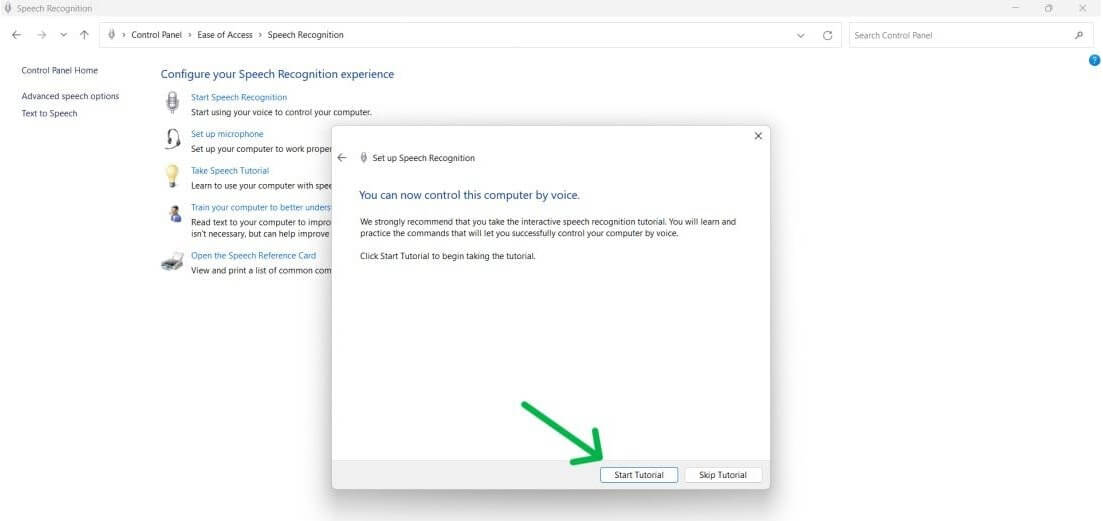
Skip the tutorial skip button.
You should have no trouble setting up voice recognition on your laptop or computer if you follow the steps outlined above.
How to use the speech recognition program in Windows?
Once configured, using the speech recognition feature in Windows is straightforward. To do this, follow these steps:
Step 1: To start, on the taskbar, select the system tray and click on it.
Step 2: The next step is to open the speech recognition settings menu by clicking on the microphone-like icon.
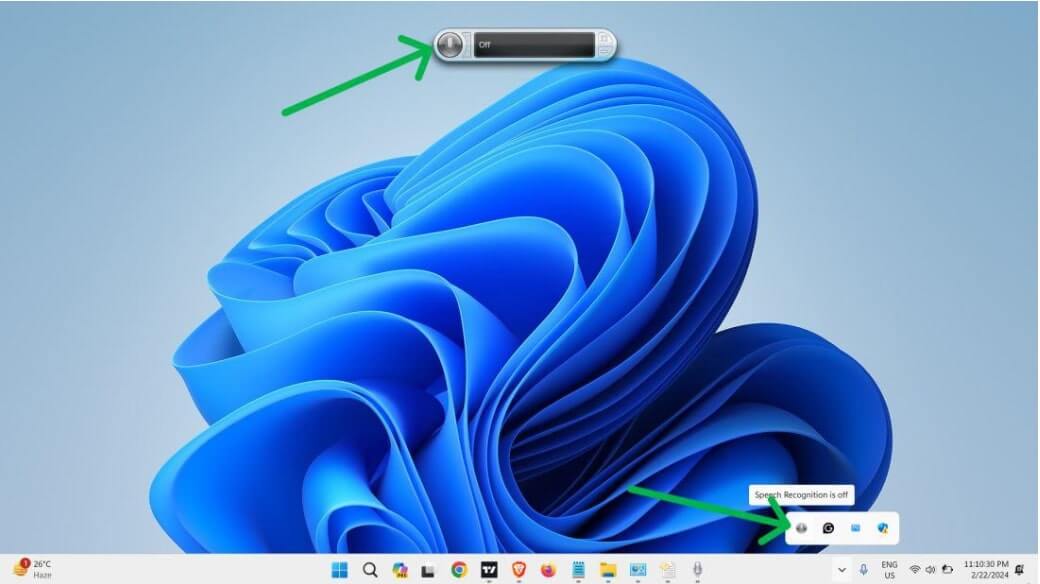
Speech recognition settings menu
You are now ready to use the speech recognition feature in Windows 11.
What are the different speech recognition settings and how to modify them?
Here’s how to change the settings of the speech recognition feature in Windows 11, 10, or earlier versions.
Step 1: Search for Control Panel and select "Control Panel" to start the process.
Step 2: Next, select "Ease of Access."
Step 3: Choose "Speech Recognition" from the list that appears.
Step 4: From the left sidebar, select the advanced speech option and click on it.
Step 5: In the "Speech Properties" section, you have the ability to customize things like:
Recognition profiles
Language
Microphone
User settings
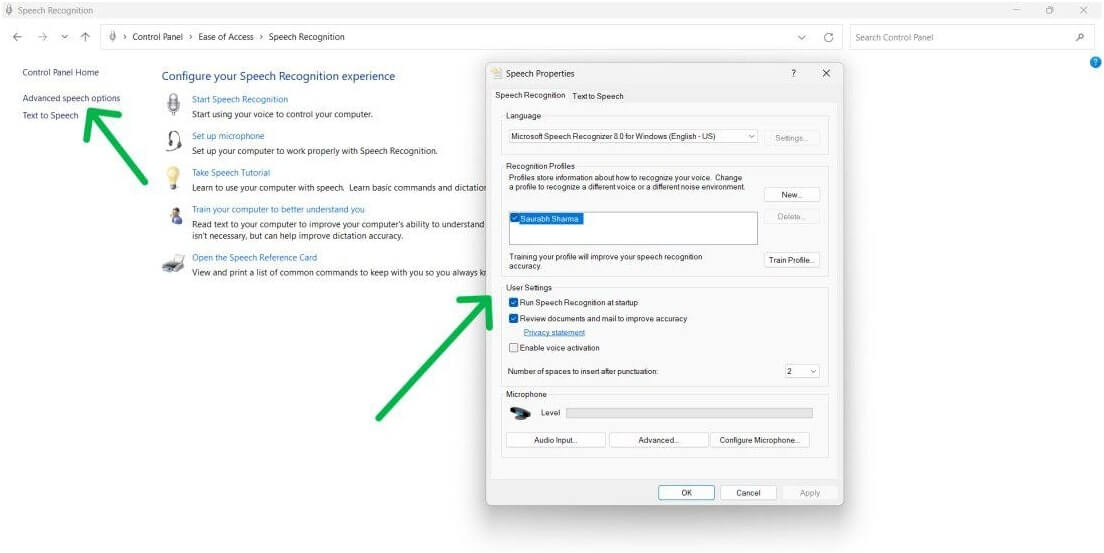
Speech properties
How can you improve speech recognition accuracy through training?
You can train speech recognition to improve accuracy; the speech recognition program will gain a deeper understanding of your voice when trained. To successfully train and set up speech recognition, follow these steps.
Step 1: Press the Windows + R keys simultaneously to bring up the Run dialog. Then enter "Control Panel" in the Run box and hit Enter on your keyboard.
Step 2: Next, locate "Ease of Access" and click on "Ease of Access" to proceed.
Step 3: Open the "Speech Recognition" section, then select the option *Train your computer to understand you better* and click on it.
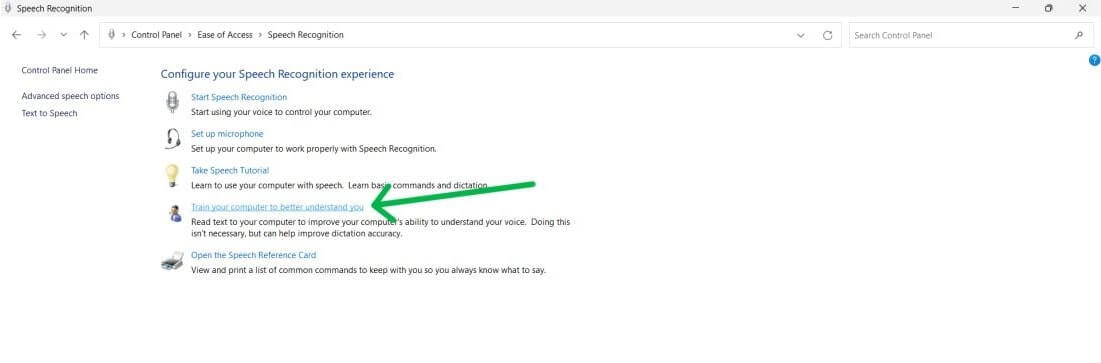
Train your computer to understand you better
Step 4: Select the next button.
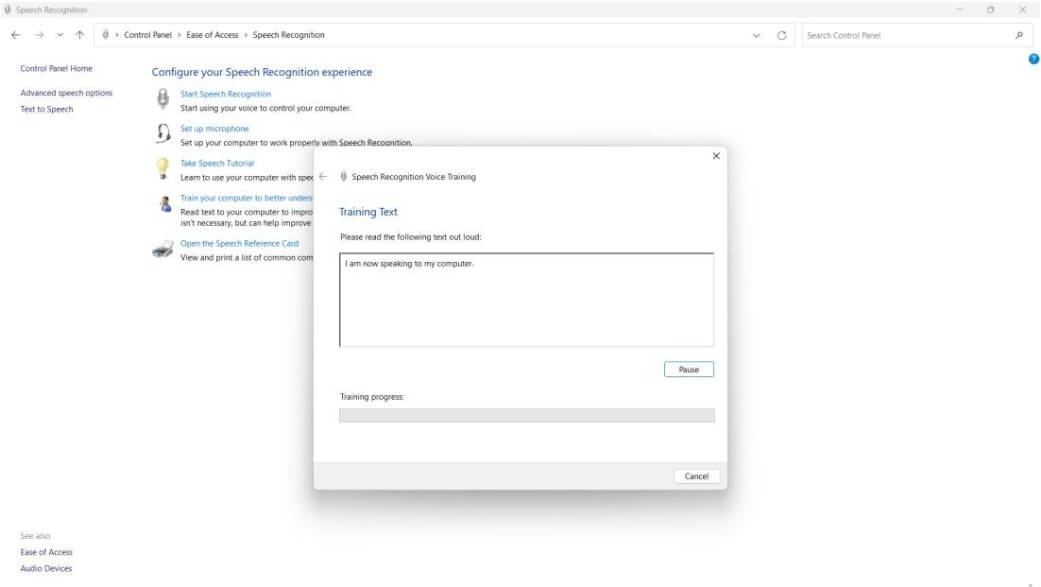
Select the next button
Frequently Asked Questions
1. How accurate is speech recognition in Windows 11?
The accuracy of speech recognition can vary based on factors such as microphone quality, background noise, and individual speech patterns, but generally, it is good.
2. Can I use the speech recognition feature for typing and controlling applications?
Yes, speech recognition in Windows 11 allows you to dictate text in applications like Word or Notepad, control system functions, open applications, and more.
3. What languages are supported by speech recognition in Windows 11?
Windows 11 supports multiple languages for speech recognition; you can check and change language settings in the speech settings menu.
4. Does speech recognition work offline in Windows 11?
Yes, Windows 11 supports offline speech recognition for certain languages; you can enable this option in the speech settings if you prefer not to rely on an internet connection.
5. How can I improve speech recognition accuracy?
To improve accuracy, ensure the microphone is set up correctly, reduce background noise, speak clearly and naturally, and consider conducting voice training through the speech settings.
Conclusion
In this article, we discussed what speech recognition is in Windows 11 and how to enable it. The powerful capability of speech recognition allows you to operate your computer using your voice, perform tasks with ease, dictate text, launch applications, navigate menus, and much more. You can create, train, and customize the voice recognition feature on Windows 11 to meet your specific needs and preferences.


