


(5 ways to access the advanced startup menu in Windows 10 and 11) 5 طرق لفتح قائمة بدء التشغيل المتقدمة في نظامي التشغيل Windows 10 و11: Microsoft has done a fantastic job by adding the advanced startup menu option in Windows 8, 10, and 11. I remember the old days when I was working on Windows XP and Windows 7, and there were no such advanced tools available for troubleshooting.
Whether you're facing blue screen errors, system crashes, or encountering any other error on your Windows computer, the advanced boot option allows you to fix all these issues easily.
The advanced startup option is used to troubleshoot and repair Windows 8, 10, and 11 operating systems, offering various options including safe mode, which helps you repair your operating system, troubleshoot Windows issues, restore/reset your computer, startup repair, and much more.
In this article, I will explain 5 ways to access the advanced startup menu in Windows 10 and 11.
There are two scenarios for your computer when you need to boot into the advanced startup option:
➀ Your computer is booting/loading correctly.
➁ Your computer is not booting and has a startup issue.
Fixing Windows Issues with the Advanced System Repair Tool
Windows is a massive program in itself and requires regular maintenance and repairs. There can be dozens of issues that may arise on your Windows device, such as corrupted or missing system files, corrupted registry files, outdated software and drivers, malware/virus issues, blue screen errors, driver errors, and so on.
You can use the advanced system repair tool to fix all Windows issues with just one click.
Windows consists of a large number of dll files, exe files, sys files, various types of services, databases, and so on, so it's not feasible to constantly monitor all files. A great PC optimization tool repairs damages, fixes errors, updates Windows and drivers, and removes various types of errors quietly.
The Outbyte PC Repair Tool performs all the above tasks effortlessly and provides you with a smooth, error-free Windows environment to work in so you can focus solely on your tasks.
3 Steps to Fix This Error
Step 1. Download the Outbyte PC Repair Tool [File Size: 16.4 MB]
Step 2. Scan your Windows computer
Step 3. Click the "Repair" button to fix the error
Scenario 1: Your Computer is Booting/Loading
If you can boot your computer correctly, this section is for you. In Windows settings, there are several options and tricks to easily access the advanced startup options.
Method 1: Shift + Restart
This is one of the easiest ways to start an advanced troubleshooting option; hold down the Shift key while clicking the Restart option in the power menu.
❶ Via the Start Menu
Start ➜ Power ➜ Hold down the Shift key on the keyboard ✚ Restart

Shift + Restart to open the advanced startup menu for Windows 10 and 11.
❷ Via Task Manager
Open Task Manager by pressing CTRL ✚ ALT ✚ DEL, there you will see the power option. Click the power button and then press Shift ✚ Restart.
❸ Via the Login Screen
Click the power button on the login screen ➜ Shift ✚ Restart.
Method 2: Using Windows Settings
Go to the following location and restart your computer using the advanced startup menu option.
Windows 11:
Start - Settings - System - Recovery - Advanced startup - Restart now.
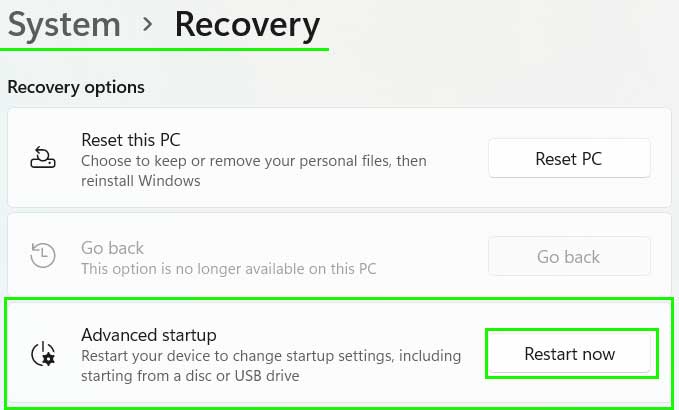
Open the advanced startup menu using Windows 11 settings.
Windows 10:
Start ➜ Settings ➜ Update & Security ➜ Recovery ➜ Advanced startup: Restart now.
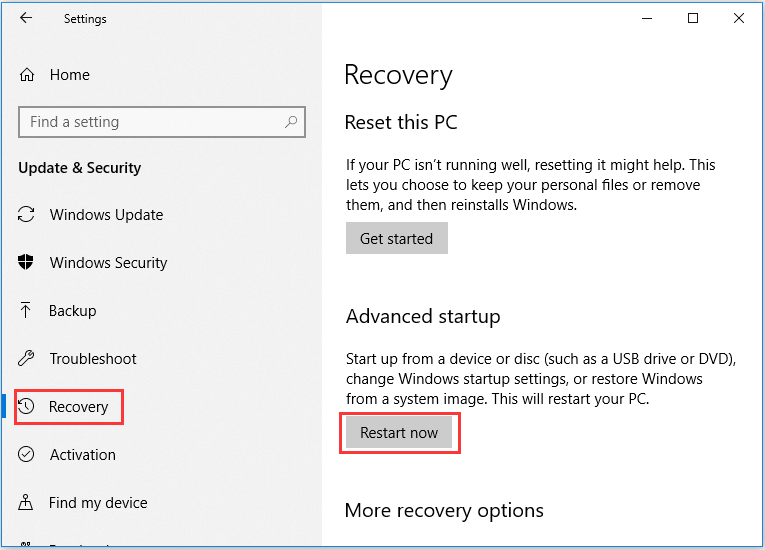
Open the advanced startup menu using Windows 10 settings.
Method 3: Via Command Prompt
You can also access the advanced startup option in Windows 11, 10, and 8 using the Command Prompt. Follow the steps to open the advanced settings.
Step 1: Open an elevated Command Prompt.

Open Command Prompt as an administrator in Windows 8, 10, and 11.
Step 2: In the Command Prompt, run the following code.
shutdown.exe /r /o
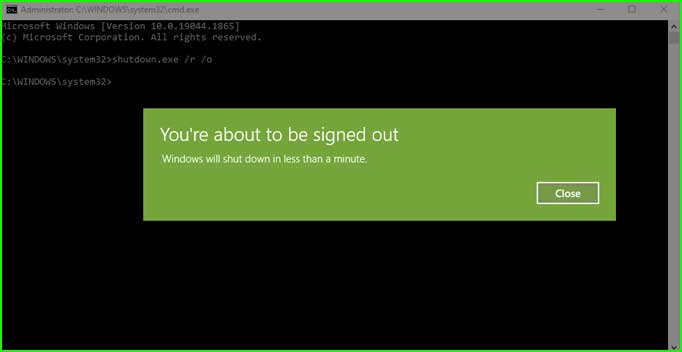
Shut down your computer using Command Prompt and open the advanced startup menu for Windows.
Scenario 2: Your Computer is Not Booting and Has a Startup Issue.
Method 4: Force Shutdown 3 Times Unexpectedly.
Yes! I mean what I say, force shutdown your computer 3 times during the boot process, and you will be greeted with the advanced startup option for Windows.
Step 1: Click the power button to turn on your computer.
Step 2: When Windows starts loading, hold the power button for 5 seconds to force shut down your computer.
Step 3: Repeat this process 3 times.
Step 4: On the fourth attempt, you will see an "Automatic Repair" message. Click on Advanced Options to open it.
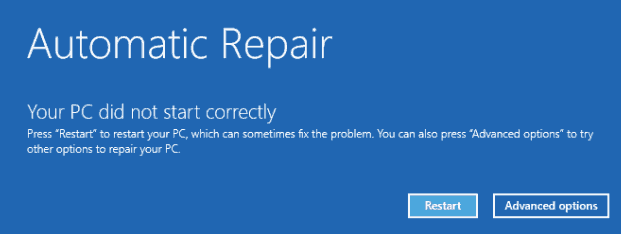
Automatic repair for Windows 10 and 11 at startup.
Method 5: Use a Bootable USB Drive for Windows 10.
This is one of the useful methods to access the advanced startup option when you're locked out due to a blue screen error and need to troubleshoot or repair startup.
You need to arrange a bootable USB drive for Windows 10/11 before proceeding with this process.
Step 1: Connect the USB drive to your computer/laptop and restart your computer.
Step 2: Boot your computer using the USB drive.
Step 3: You will see the Windows installation screen.
Step 4: Click Next and then select Repair your computer. The advanced Windows startup menu will open.
Conclusion
In this article, we discussed 5 ways to access the advanced startup menu in Windows 10 and 11.
I explained the five methods to reach the advanced startup menu/advanced boot option on computers running Windows 11, 10, and 8. Try these methods when you need to troubleshoot your computer.


