


( 6 Ways to Fix DPC_WATCHDOG_VIOLATION Error) 6 Ways to Fix DPC_WATCHDOG_VIOLATION Error: Many users of Windows 8/10/11 have reported encountering the DPC_WATCHDOG_VIOLATION Blue Screen of Death occasionally or frequently during system startup.
If you are experiencing the DPC_WATCHDOG_VIOLATION blue screen error on your system, you should follow the steps below to resolve this issue in your operating system.
How to Fix DPC_WATCHDOG_VIOLATION Error?
There are 6 methods to fix the DPC_WATCHDOG_VIOLATION error:
Method 1: Repair Using Advanced System Repair Tool
This error often occurs due to corrupted system files, missing dll files, corrupted registry files, incompatible software and drivers, etc. It can be quite challenging to identify and fix all these issues manually, so you should use an advanced system repair tool to fix your system with just one click.
Windows consists of a large number of dll files, exe files, sys files, various types of services, databases, and so on, so it’s not feasible to constantly monitor all files. A great PC optimization tool repairs damages, fixes errors, updates Windows and drivers, and silently removes various types of errors.
The Outbyte PC Repair Tool performs all the above tasks effortlessly and provides you with a smooth and error-free Windows environment so you can focus solely on your work.
3 Steps to Fix This Error
Step 1. Download the Outbyte PC Repair Tool [File Size: 16.4 MB]
Step 2. Scan your Windows computer
Step 3. Click the "Repair" button to fix the error
Method 2: Reinstall Graphics Drivers
The DPC_WATCHDOG_VIOLATION error is primarily caused by a graphics driver issue. Installing many other applications on your computer may change or modify the system's graphics settings and files. Reinstalling the graphics drivers may permanently resolve your issue.
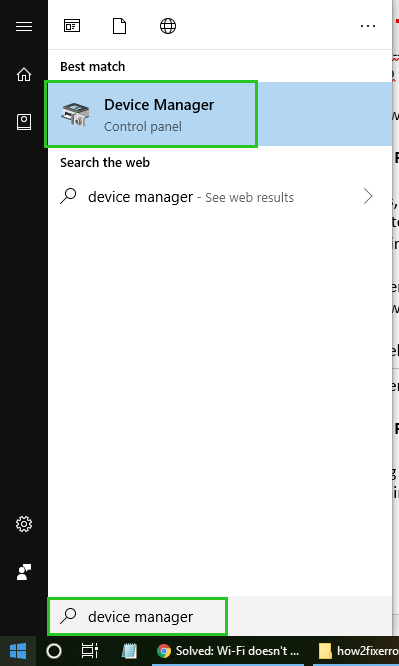
Step 1: Click on the Start menu and search for Device Manager.
Step 2: Expand Display Adapters and right-click on each graphics driver and select Uninstall device.
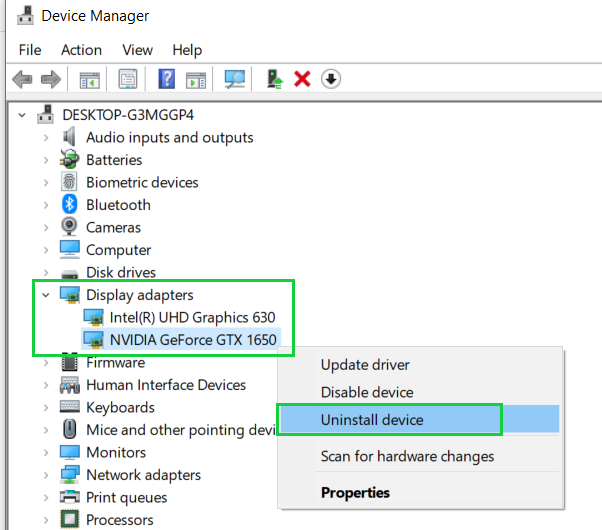
uninstall_graphics_driver
Step 3: After uninstalling each graphics driver, simply restart your computer, and Windows will attempt to reinstall the graphics driver automatically.
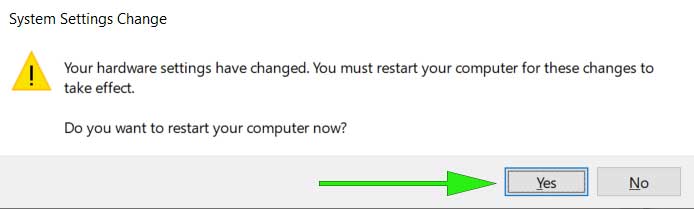
Restart_pc
Method 3: Update SSD Firmware
This error is mostly related to SSDs. If your system is installed on an SSD or NVMe and you encounter a watchdog issue, you should update the SSD firmware.
Step 1: Open Device Manager, right-click on the Start menu, and select Device Manager.
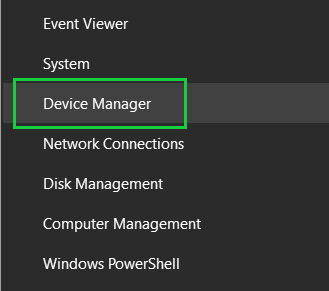
open_device_manager
Step 2: Expand Disk Drives and right-click on your SSD and select Update Driver.
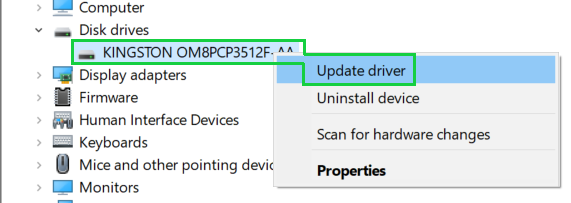
update_disk_driver
Step 3: Select Browse my computer for drivers.
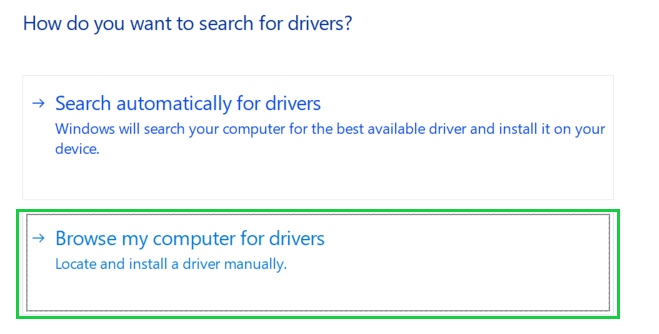
Browse_disk_drivers
Step 4: Click on Let me pick from a list of available drivers on my computer.
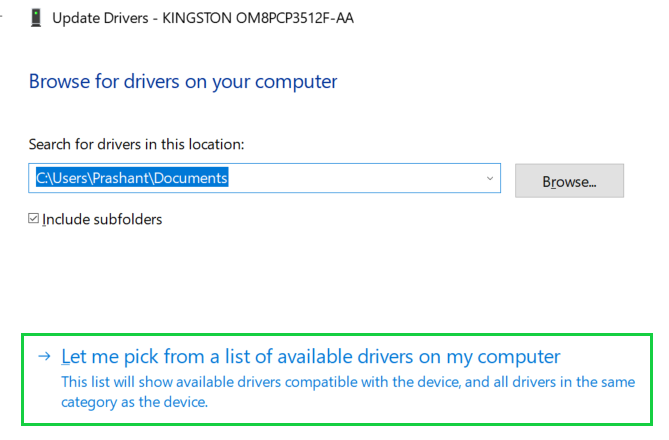
Let_me_pick_ssd_driver
Step 5: Select the drive and click the Next button.
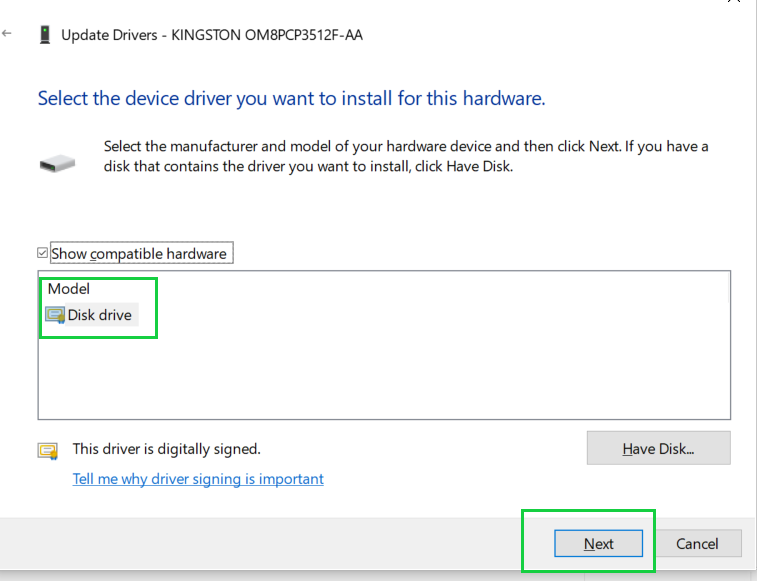
Select_disk_drive
Step 6: It will start updating your SSD firmware, and you will see the message "Windows has successfully updated your drivers."
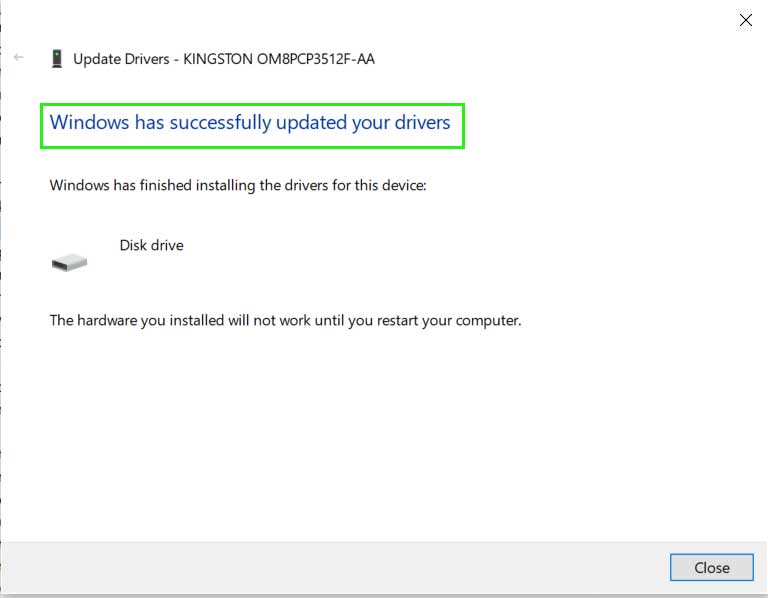
ssd_updated_successfully
Step 7: When you close the message, Windows will prompt you to restart your computer to apply the changes, restart your computer.
Restart_pc
Method 4: Repair Windows File System Corruption
If there is any type of corruption in the Windows file system, you are likely to encounter the DPC_WATCHDOG_VIOLATION error on your computer. File system corruption can lead to another error, so it’s essential to check and repair any file system damage. You don’t need to install any third-party tool to fix the file system; you can do this simply through the command prompt.
Step 1: Open Command Prompt as an administrator.

Step 2: Run the chkdsk command as follows; it will prompt you to restart your computer, so press Y and hit Enter to restart your computer. Make sure to save all your work before restarting your computer.
chkdsk c: /f /r
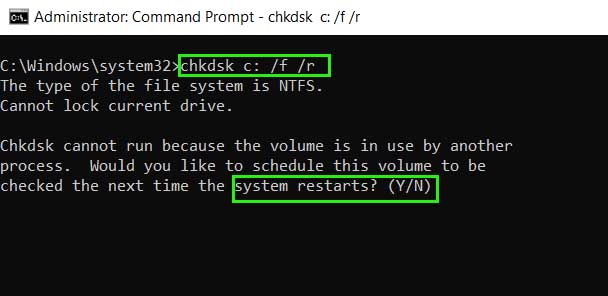
Step 3: Upon restarting, the disk check process will begin; do not cancel it and wait for the process to complete.
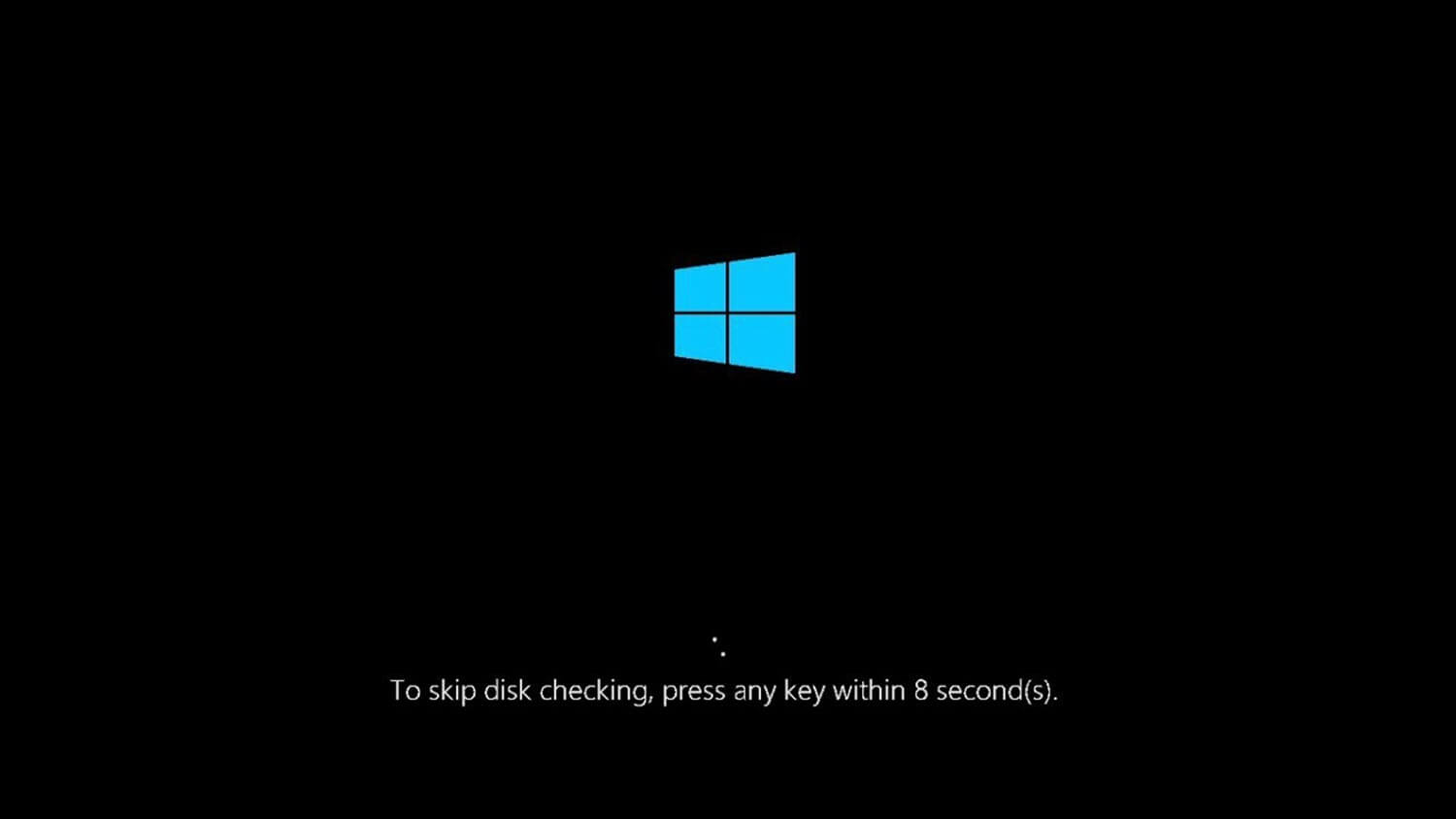
Running chkdsk on restart
Method 5: Repair Windows Files Using the sfc Command
If the issue is with Windows system files, you are likely to encounter this error. You can repair corrupted Windows files using the sfc command, which is a system file checker that scans and repairs your Windows files if it finds any corruption.
Step 1: Open Command Prompt as an administrator.
Step 2: Run the following command and press Enter.
sfc /scannow
Step 3: It may take about 10 to 15 minutes to scan and repair Windows files.
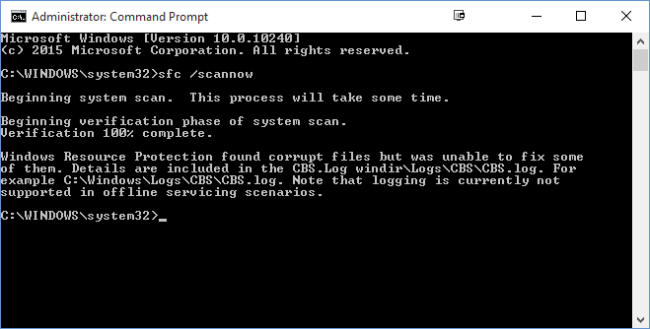
Scanning SFC now
Method 6: Restore Your Windows Operating System.
If none of the above methods work for you, you can simply restore your computer to a previous restore point before the error occurred, easily avoiding the DPC_WATCHDOG_VIOLATION error.
Step 1: Open Settings > System > About. Now click on the System Protection link on the right sidebar.
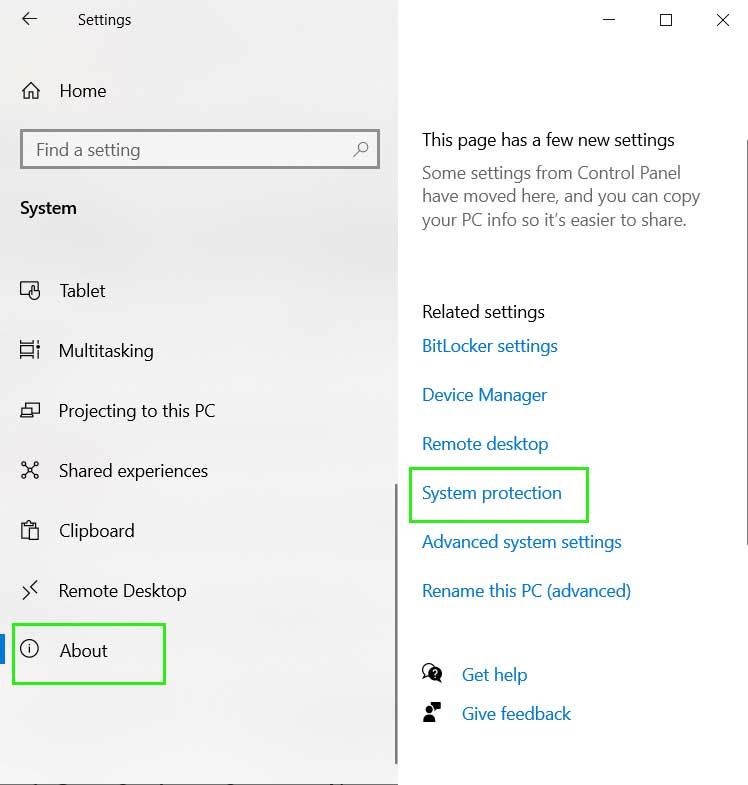
System Protection
>Step 2: Click on the System Restore button, which will launch the restore wizard that will help you restore your computer to a previous point, click the Next button.
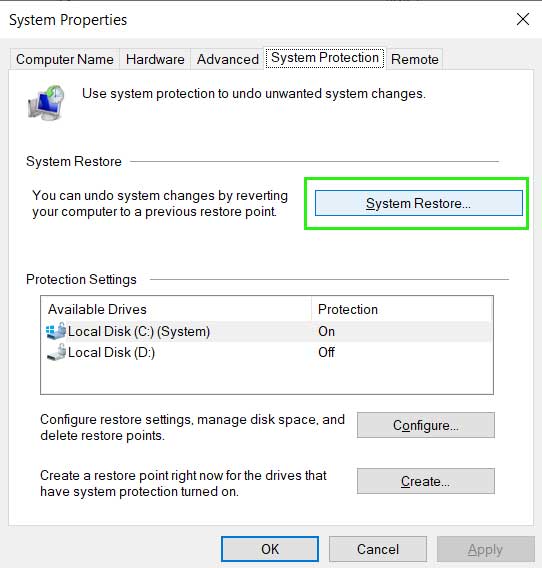
system_restore
Step 3: Select a restore point and click Next.
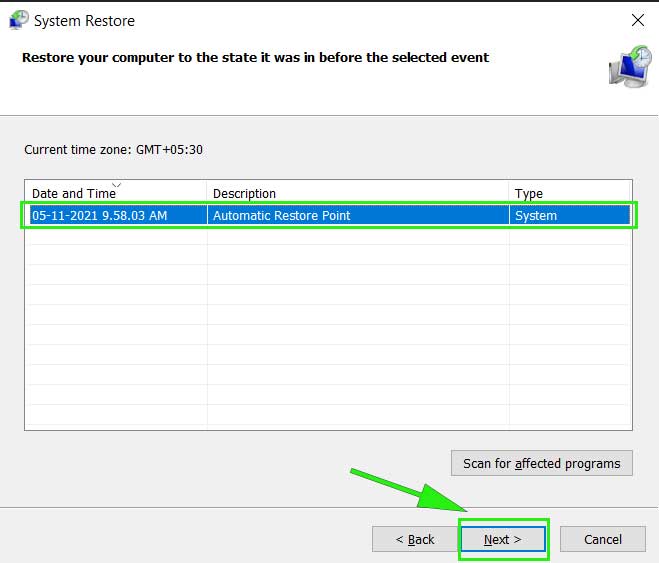
Restore_pc_earlier_point
Step 4: It will ask for your confirmation, click "Finish" to start the process, it will take a few minutes to complete, and you should fully charge your laptop or connect the laptop charger.
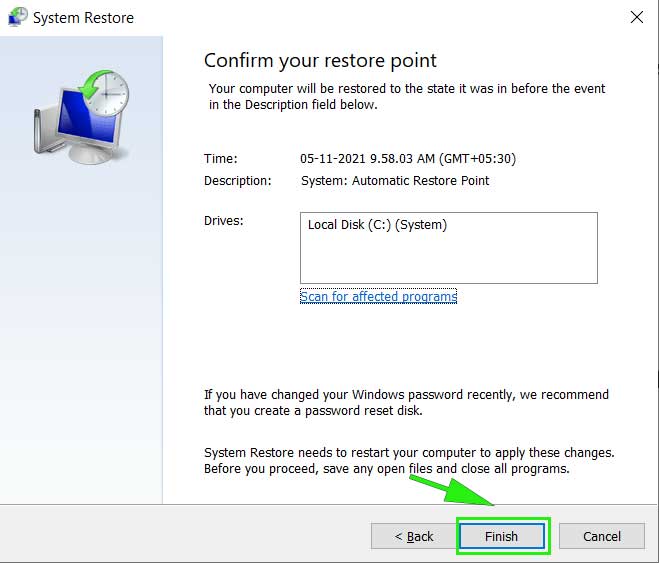
Confirm_restore_point
Conclusion
This article mentioned 6 unique and useful methods to fix the DPC_WATCHDOG_VIOLATION error on a Windows 8/10/11 device. You can apply each of these methods one by one and easily resolve the above error.
You might also like
7 Ways to Fix BSOD Error for Bad System Configuration Information on Windows
How to Fix Error 0xc004f050 in Activating Windows 10
4 Ways to Fix Brightness Control Not Working in Windows 10/11
<a href="https://3almalt9nia.com/5-%d8%b7%d8%b1%d9%


