


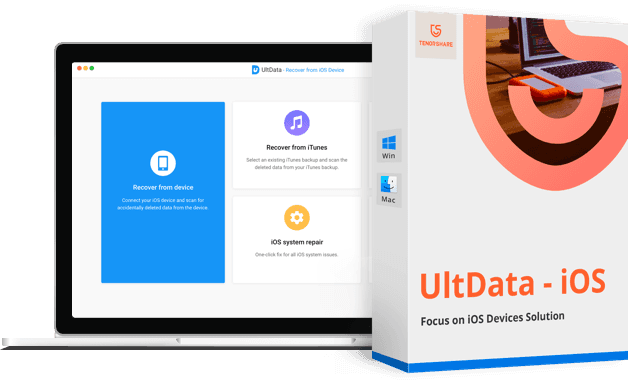
Many of us face a significant problem when we lose photos on our iPhone, and the search begins for how to recover deleted files and images. Today, we will explain how to recover deleted photos using Tenorshare Ultdata - iOS. This program has many features, and we will explore them in this review.
Tenorshare Ultdata - iOS is a top-rated program that can easily recover all deleted or lost data directly from your iPhone without any backup file, or restore iPhone data from an iTunes backup file, or recover iPhone data from an iCloud backup. With its high functionality, it can recover lost data from a damaged, disabled, broken, or shattered iPhone, and retrieve lost data after jailbreaking, upgrading iOS, or factory resetting.
is an iOS data recovery program created by Tenorshare. It retrieves data from your iOS device, iTunes backup, and iCloud backup. It can also be used to fix the operating system of your iPhone, iPad, or iPod.
If you've lost important data from your iPhone, iPad, or iPod Touch, you know how difficult it can be to recover it—especially if you don't have an iTunes or iCloud backup. The best way to recover data in this case is to use a recovery program designed for iOS. Ultdata by Tenorshare is one of these programs.
In the following video, there is a quick explanation of the program's great capabilities. Watch the video to learn how to use the program.
Special thanks to the video source
Channel: Azmi Assad عزمي on YouTube.
Using the Program: A Step-by-Step Guide
1 | Download and install Tenorshare Ultdata - iOS, launch the program, and click on "Recover Data from iOS Devices."
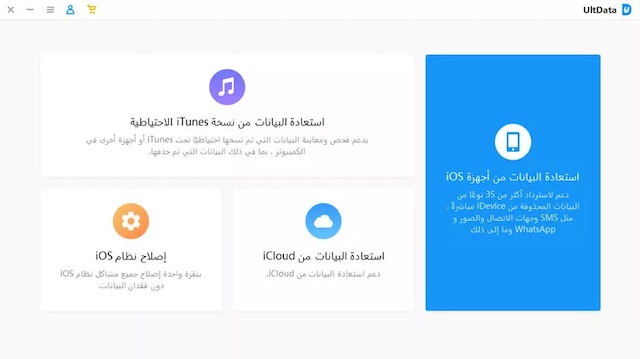
2 | Connect your device to the computer, ensure it is powered on, and click "Trust the computer" if prompted on your iOS device. Make sure the device is unlocked and not password-protected.
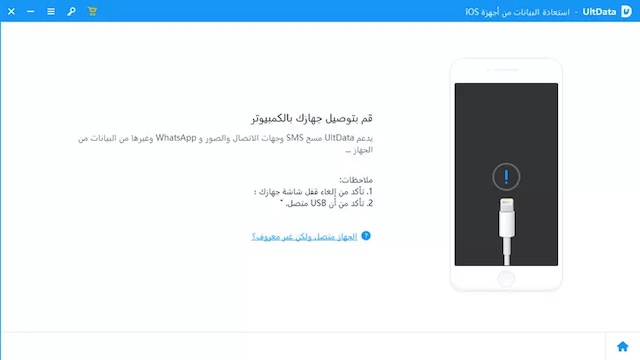
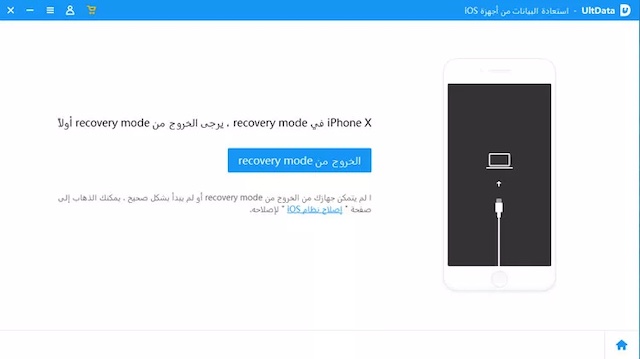
Note: If your device gets stuck in recovery mode after connecting to the computer, you can click the "Exit Recovery Mode" button, and after a few seconds, your device will restart. If your device is frozen on a black screen or is unresponsive, you can click the "Repair iOS System" option at the top of the program before proceeding with data recovery.
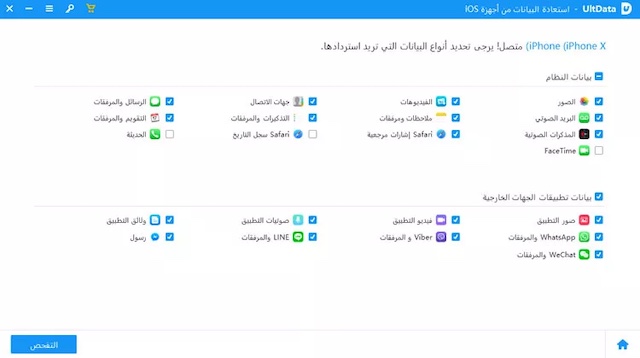
3 | After connecting your device, select the type of files you want to recover, then click "Scan" to proceed.
4 | Here, you will see the files found after the scan is complete. You can display all files or click "Show Deleted Only" to make searching easier. From here, you can select the files you want to recover, and now you can click "Recover."
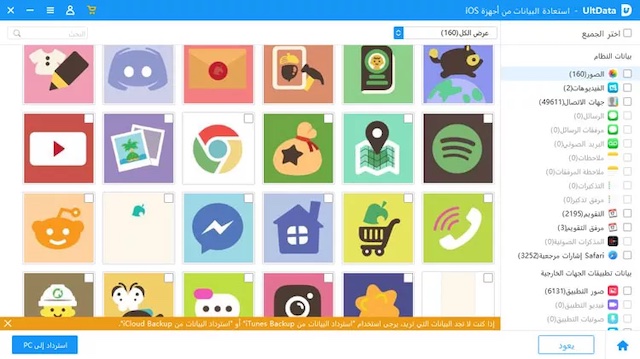
You can now view the recovered files on your computer or iOS device (except for contacts and emails, which can only be restored to the iOS device and not viewed on the computer). Also, there are current limitations on some file types.
Features of Tenorshare UltData iOS
- Three smart data recovery modes are provided:
These are the recovery modes available when using this data recovery program:
Recover Data from iOS: In this option, Ultdata scans your device for data that has just been deleted but not saved to iTunes or iCloud.
Recover Data from iTunes: Here, the program retrieves data from an iTunes backup.
Recover Data from iCloud: Use this method when you want the program to recover data from an iCloud backup.
- Supports 20 types of iPhone files: photos, call history, contacts, text messages, WhatsApp (messages, photos, and videos), SMS attachments, notes, Safari bookmarks, calendar, reminders, voice memos, camera roll, Tango, and videos.
What Types of Data Does Ultdata Recover?
With Ultdata, you can recover a complete range of data, including:
- Call history
- Contacts
- SMS attachments
- Messages
- Notes and attachments
- Recover deleted photos
- Reminders
- Voice memos
- WhatsApp messages and attachments
- Messaging data
- KIK chats and attachments
- Snapchat videos
- Voicemail and much more
- Preview lost files such as photos, messages, contacts, notes, call history, etc., to determine what you want to recover before restoring. Backup iPhone data freely on the local computer, or sync recovered contacts, messages, and notes directly to your phone.
- Easy to use.
- Free technical support and a full money-back guarantee.
- Quickly recovers lost data from iCloud or iTunes Backup or directly from iOS devices.
- Deep scan technology to recover files from iDevice without backup.
- Successfully retrieves common and encrypted files quickly.
- Offers a free version; prices are great for individuals.
- Free option to scan and preview data without restrictions.
- Partition search for specific data you need.
- Can recover over 20 different types of files completely.
- Works well on the latest iOS 15 and iPhone 14.
- Save and export data in CSV or HTML format.
Conclusion:
The Tenorshare UltData - iOS program is fantastic, packed with many features, including file recovery, fixing system errors when it freezes on the startup screen, and recovering many types of files that other programs cannot restore.
You can download and purchase UltData for Windows and here for Mac by clicking the previous link directly from your computer's browser.
We recommend trying Tenorshare UltData iOS so you don't waste your time and effort on fake and ineffective programs.


