


Fixing Corrupted WinRAR Files
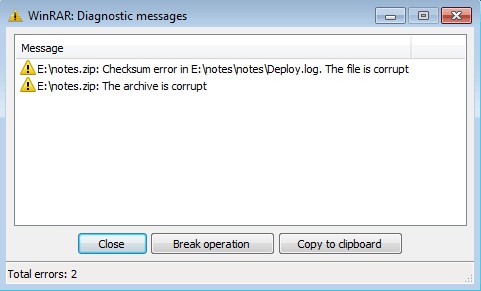
Sending files via email or online platforms can expose them to the risk of corruption or damage. Recently, I received some compressed RAR image files from a friend that unfortunately got corrupted during the download process. I was pleased to repair the corrupted RAR file using WinRAR, which was quite straightforward. Following either of the methods below will help you easily fix a RAR file, depending on its level of damage.
Part 1. Main Causes of RAR File Corruption
Most files fail to open because they are corrupted or damaged. Roshal Archive (RAR) is a file that contains one or more compressed archived files. Archiving RAR files aids in file sharing over the internet. Compressing a file into RAR can expose it to corruption. Hence, there is a need to know how to repair a corrupted RAR file.
Main Causes of RAR File Damage.
Virus infections / external threats that corrupt files by deleting, modifying, or overwriting them. In severe cases, a virus may affect the applications used to create those files.
Changing the file extension can lead to RAR file corruption if the extension is accidentally altered. Uncorrupted or corrupted RAR file extensions should appear as '.rar'.
Interrupted RAR file downloads. Any disruption during the download of a RAR file can corrupt it, necessitating the need to know how to repair the RAR file. This highlights the importance of ensuring that the download process is uninterrupted.
Part 2. Solutions to Repair Corrupted RAR Files
When a file is corrupted, extracting it is not easy, hence the need to repair the corrupted RAR file before extraction. In this article, we discuss the most effective methods to repair a corrupted RAR file.
Method 1: Repair Corrupted ZIP/RAR Files Using WinRAR
To repair the compressed file, a repair function is integrated into WinRAR. Therefore, to fix a corrupted RAR file, try using WinRAR after installing it on your computer. You can always download the program here.
Step 1. Launch WinRAR and navigate to the location of the corrupted file using the address bar, then open it with WinRAR.
Step 2. Select the corrupted RAR/ZIP file and click the 'Repair' button in the 'Tools' bar, then choose 'Repair archive' from the dropdown menu.
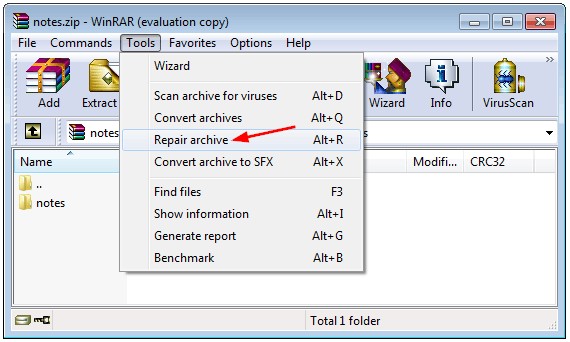
Step 3. A dialog box will appear where you can choose where to save the repaired file. Confirm your choice and click 'OK' to start the repair process.

Step 4. Once completed, go to the selected folder to save the repaired file. The repaired archive will appear as _rebuilt.rar or _rebuilt.zip.
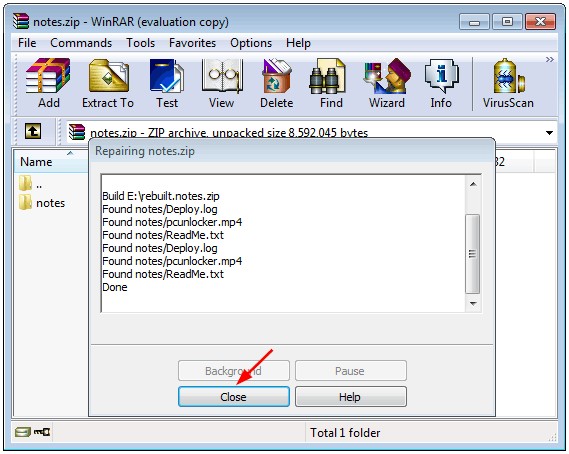
If the file is not severely corrupted, the success rate is high.
Method 2: Extracting from a Broken RAR/ZIP Archive
Undoubtedly, after repairing a corrupted RAR file, WinRAR may still identify the file as corrupted. If this happens, you can try extracting the contents from the RAR/ZIP archive. WinRAR has an option for severely damaged files, allowing you to extract the corrupted archive files while ignoring errors.
Step 1: Open the folder containing the corrupted RAR/ZIP file and open it with WinRAR. Double-click the 'Extract to' button in the toolbar to open the archive and begin repairing the corrupted RAR file.
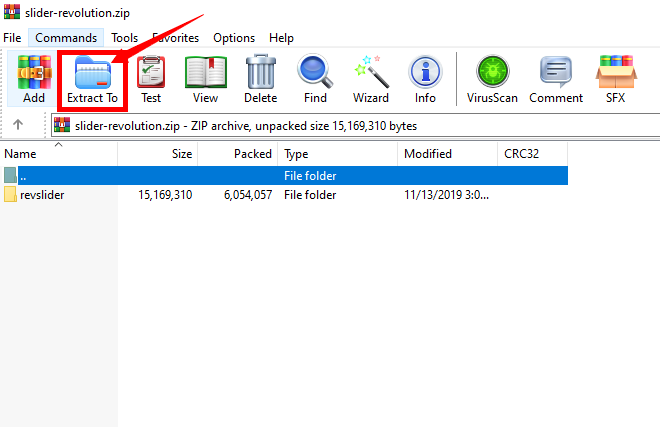
Step 2. Select the destination folder, which can be the same folder to overwrite it or a new separate folder to save the extracted files. Be sure to check the 'keep broken files' option under the miscellaneous section.
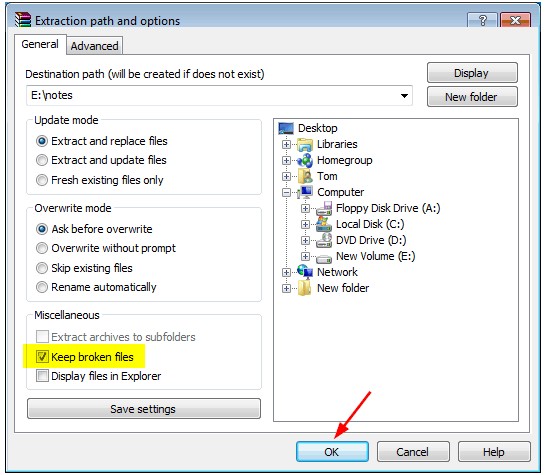
Step 3. Click 'OK' to extract the files. Once finished, all files will be in the RAR archive.
Part 3. How to Open an Encrypted and Password-Protected RAR File
In cases where you find an RAR archive encrypted after repairing a corrupted file, use the most professional and powerful password recovery tool - Passper for RAR to decrypt it. Passper for RAR retrieves forgotten passwords for RAR archive files created by WinRAR and RAR, as well as other compressed programs. Most importantly, this tool is very user-friendly, requiring just 3 steps to find the encrypted RAR archive without a password. Now follow this guide to decrypt the file using Passper for RAR.
Free download of the program - for Win 10/8/7 / XP / Vista
There are paid versions of the program available in limited quantities; leave a comment with your email to receive the program.
Step 1. Import the encrypted file
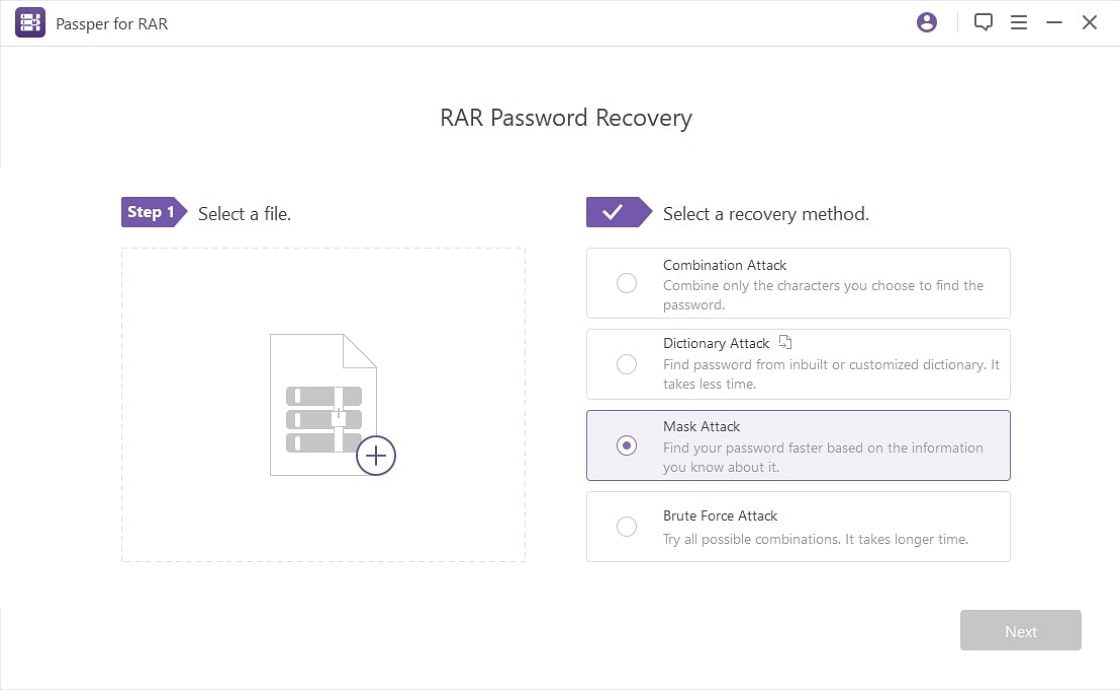
Open the program and import the password-protected RAR file by clicking the add icon in the program.
Step 2. Select an attack method
Next, you need to select the recovery mode from dictionary attack, hybrid attack, mask attack, and brute-force attack. For a detailed introduction to the four attack modes, just click here.
Choose the most suitable attack method based on the password information.
Step 3. Recover the RAR password
Then, start the recovery process for the RAR file. Once completed, the recovered password will be displayed on the program interface.
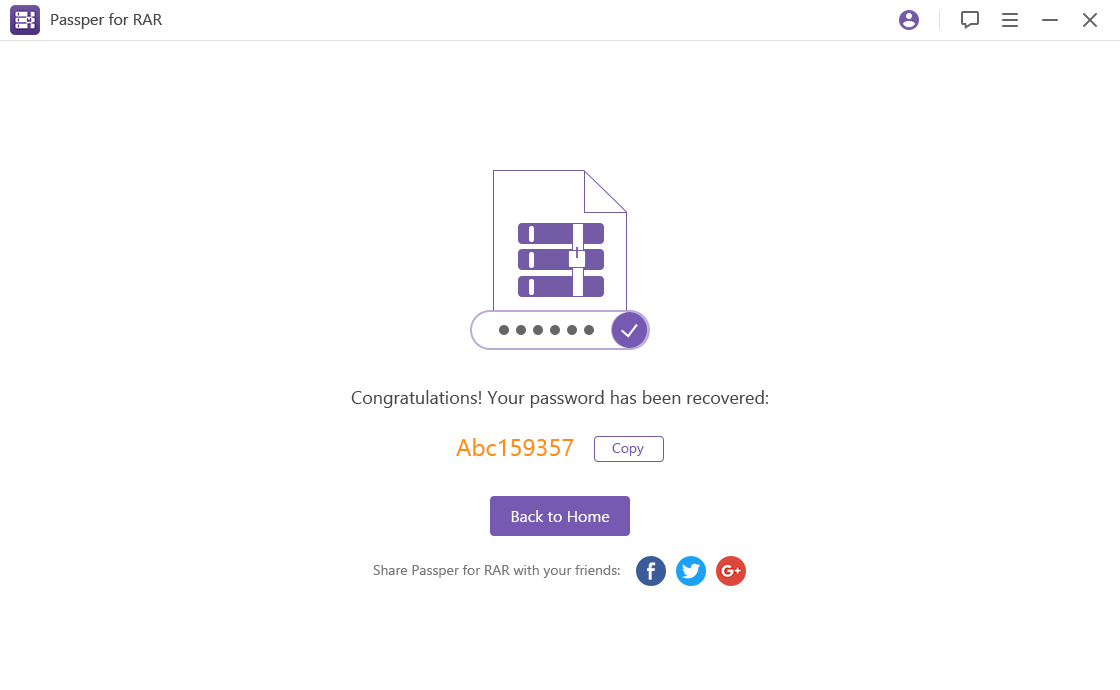
After these three simple steps, you will soon be able to open the password-protected RAR file. Then you just need to extract and open the RAR file.
Conclusion
Repairing a corrupted RAR file becomes easy using the highlighted methods. With WinRAR, you can then use the extraction of the corrupted RAR/ZIP archive to retrieve the file if recovery is difficult. Additionally, you can unlock an encrypted RAR file using Passper for RAR, which retrieves the password using the available hints. The duration of password recovery can range from minutes to days or months, depending on the hints and complexity of the password. By following the provided guide, both you and I will be happy to safely recover your files.


