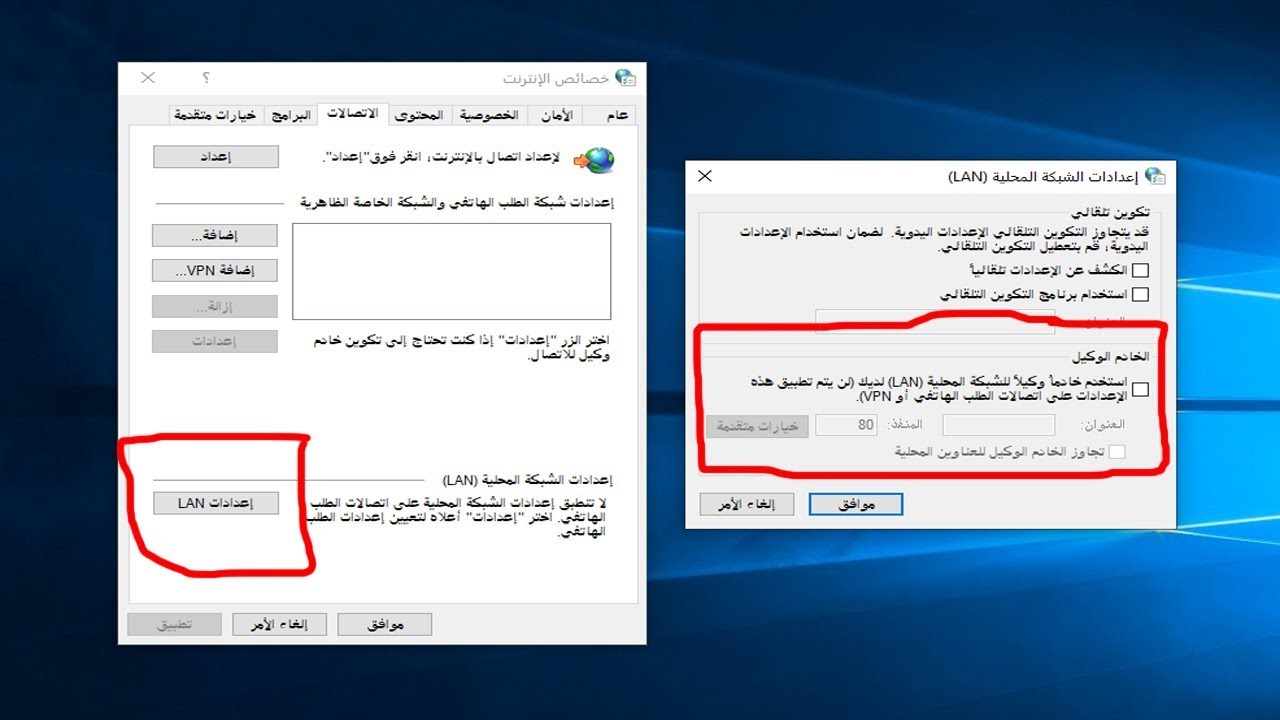
Continue reading for more details on proxy servers, their uses, and instructions for creating a proxy server. Note that the instructions for setting up a proxy server will apply to both Windows and Mac operating systems.
Proxy Servers 101
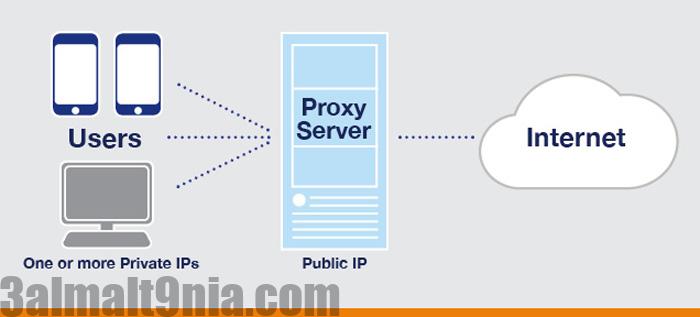
What is a proxy server? It’s an intermediary or alternative server. It gives your computer a different IP address. Simply put, proxy servers add more privacy to your online presence and provide a lot of bandwidth.
When using a proxy server, all internet traffic and files are compressed, leaving out all unnecessary parts (for example, annoying ads on web pages). Proxies are very beneficial for businesses with many employees who have similar browsing habits (news sites, etc.).
Proxy servers are also faster because they look for cached versions of websites without downloading any other unnecessary files. Proxy servers can be divided into two simple categories: private and public. Generally, private proxy servers are much faster because fewer people use them. Private proxies are also more secure for the same reason.
In terms of privacy and security, when compared to a VPN service, proxy servers are much less effective. If you’re looking for a VPN, check out NordVPN; it’s one of the fastest and most secure virtual private networks.
What Are the Uses of Proxy Servers?
Proxy servers are mainly set up by schools, employers, and other places where many people are connected to the same network. They provide network owners with better visibility and control over what’s happening.
For example, to use the internet at school, you must connect to the proxy network at your school. Proxies are the reason network administrators can easily block many sites. But what defends the proxy server?
Well, it might just be a basic firewall. That’s how sites are restricted, and nothing should breach the network. If there are any firewall violations, you can bet they’re coming from malware or intruders on your network.
You don’t need to own a company or anything else to set up a proxy. Feel free to install it at home if you have multiple devices and want better control over your home internet usage. Spoiler alert: your kids won’t enjoy the proxy as much as you will!
How to Create and Activate Proxy Servers on WINDOWS
There are two basic ways to create a proxy server on a Windows computer. One is with a setup script, and the other is manual. Let’s start with the script instructions:
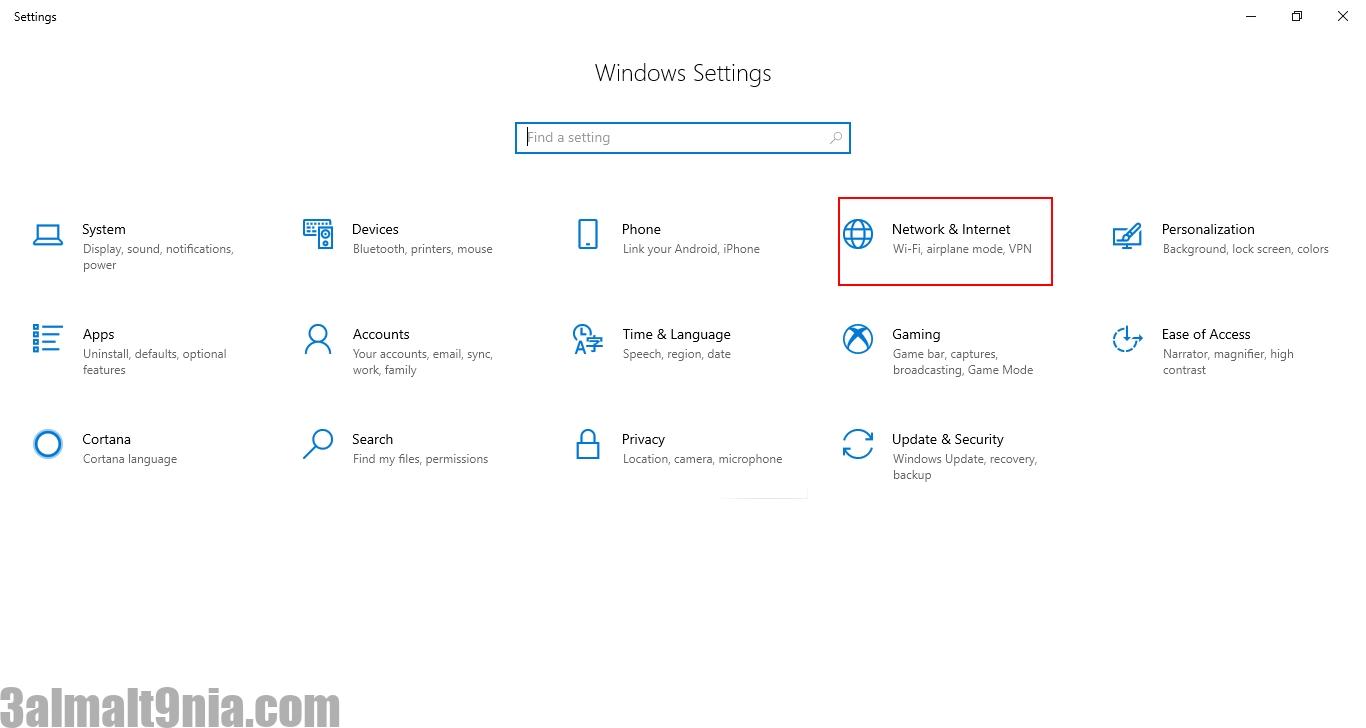
1- On your Windows computer, open Settings (Start>Settings).
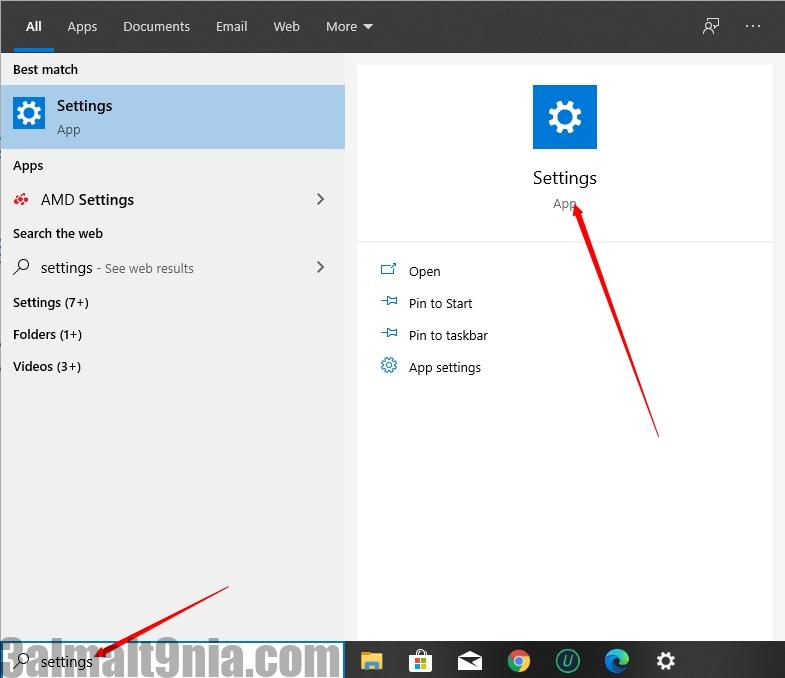
2- Click on the - Network and Internet option
3- Select the Proxy option from the sidebar
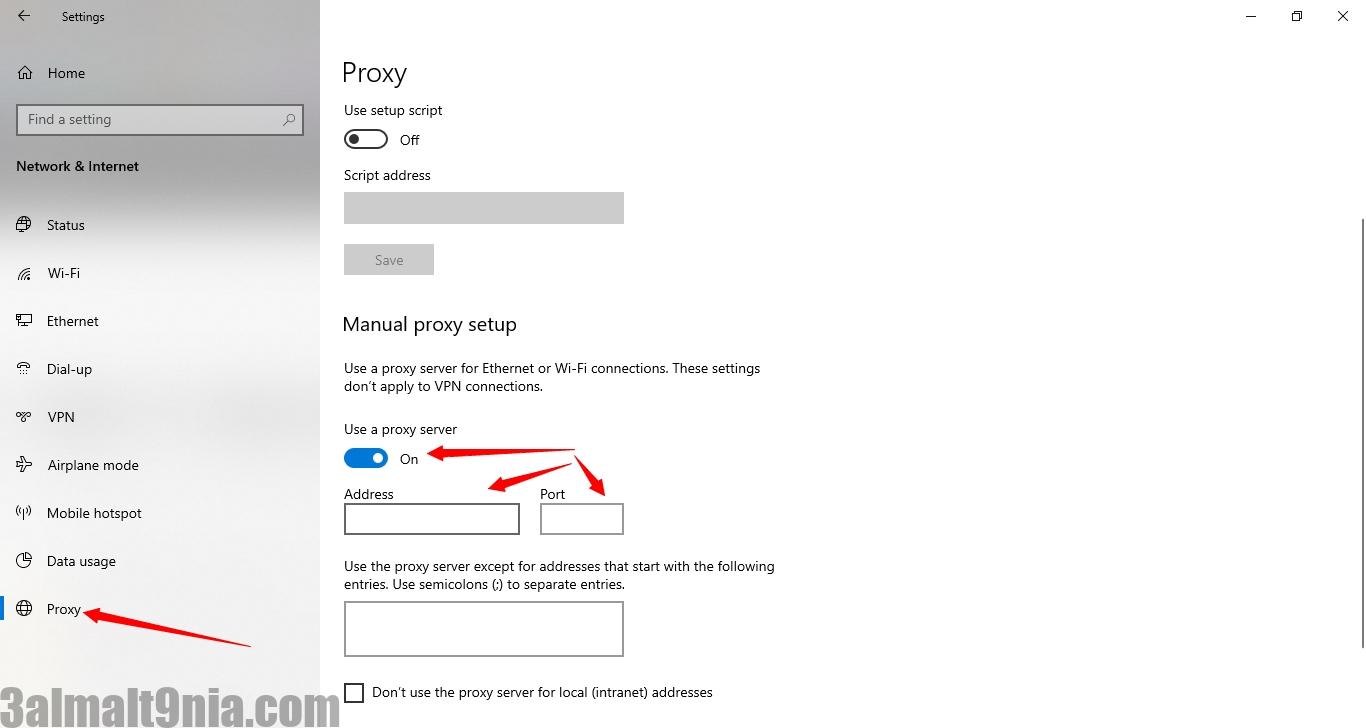
4- Enable the Use Setup Script option as shown in the following image
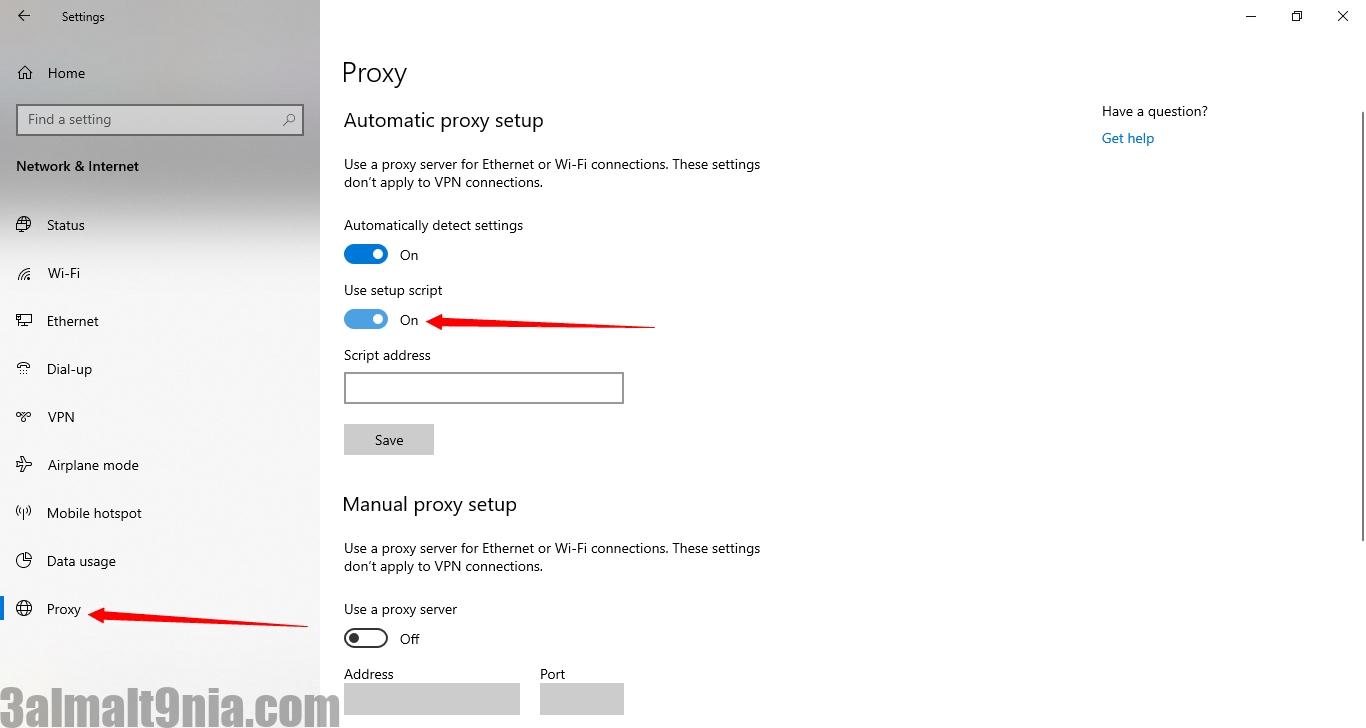
5- Enter the script address provided to you (by your employer, school, or another server owner) and choose save. You can then exit the settings, and the script should take effect immediately.
The other method is to create a proxy server manually:
1- Again, open Windows Settings.
2- Select Network and Internet options.
3- Select the Proxy option.
4- Enable the Use a Proxy Server option under the Manual Proxy Setup tab.
5- Enter the IP address under the Address tab, and the Port number in the appropriate field.
6- When you’re done, save the changes and exit this menu.