GitHub Desktop Download (Latest 2026) - 3almalt9nia
Free download GitHub Desktop 3.5.12 Latest full version - Manage Git repositories on your desktop.
If you're looking for an easy, effective, and safe way to manage GitHub repositories without diving into the complexities of the command line, then GitHub Desktop is the perfect solution for you.
Whether you're a beginner developer taking your first steps in the programming world, or part of a large tech team that needs to coordinate projects smoothly,
you'll find that this program provides a sleek graphical interface that helps you manage code, branches, commits, and pull requests with professionalism.
In this article, we will take you on a detailed tour to learn about the program, its most popular uses, key features in the new version, how to download and install it,
as well as answers to the most common questions users are searching for. All of this in a comprehensive format that gives you the complete picture before you start using it.
What is GitHub Desktop?
In the modern software development landscape, code management and version control tools have become an integral part of developers' daily workflows. While Git is a powerful tool for managing repositories, GitHub Desktop
offers an easy-to-use graphical interface that simplifies interaction with GitHub and removes technical barriers for both beginners and professionals alike.
The new version comes with noticeable improvements in performance, user experience, and broader support for modern features like Git LFS and integrating artificial intelligence for automatic commit message generation.
All of this makes GitHub Desktop an ideal tool for anyone looking to develop their software efficiently and organized.
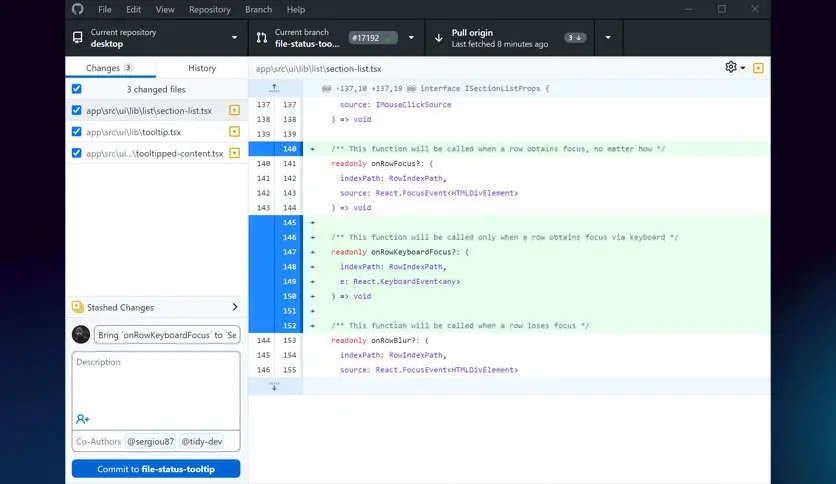
GitHub Desktop is a free, open-source application that allows users to manage GitHub repositories through a graphical interface without the need to use the command line.
Users can clone repositories, create branches, merge changes, push commits, and review pull requests from within the application.
GitHub Desktop is an excellent choice for developers who want to focus on writing code rather than dealing with the complexities of Git, and it also provides direct integration with GitHub.com, making collaboration between tech teams easier.
Uses of GitHub Desktop
the uses of GitHub Desktop have expanded to encompass a wide range of technical and educational fields, making it a multifunctional tool suitable for various environments:
Personal and Home Use
GitHub Desktop is used by independent developers and hobbyists who want to manage their software projects easily. Whether you're working on a small application or an open-source project,
GitHub Desktop provides you with visual tools to manage branches, commits, and changes without the need for complex commands.
Academic and Educational Use
In universities and technical institutes, GitHub Desktop has become an effective educational tool for teaching Git and GitHub concepts.
Students can learn how to create branches, push commits, and review code in a visual manner, which facilitates understanding and enhances interaction within classrooms.
Corporate and Tech Team Use
Software teams rely on GitHub Desktop to coordinate teamwork, especially in projects that require continuous code review.
Teams can create branches for each feature or fix and then merge them after review, improving code quality and reducing conflicts.
Use in AI and Machine Learning Projects
GitHub Desktop is used to manage repositories of models and data for AI projects
It allows tracking changes to training files, code, and results, making it easier to reproduce experiments and improve models.
Use in Open Source Programming
GitHub Desktop helps contributors to open-source projects submit pull requests, review changes, and interact with the community easily, enhancing participation and reducing technical barriers.
Features of GitHub Desktop
GitHub Desktop offers a range of features that enhance the user experience and facilitate professional repository management:
Core Features
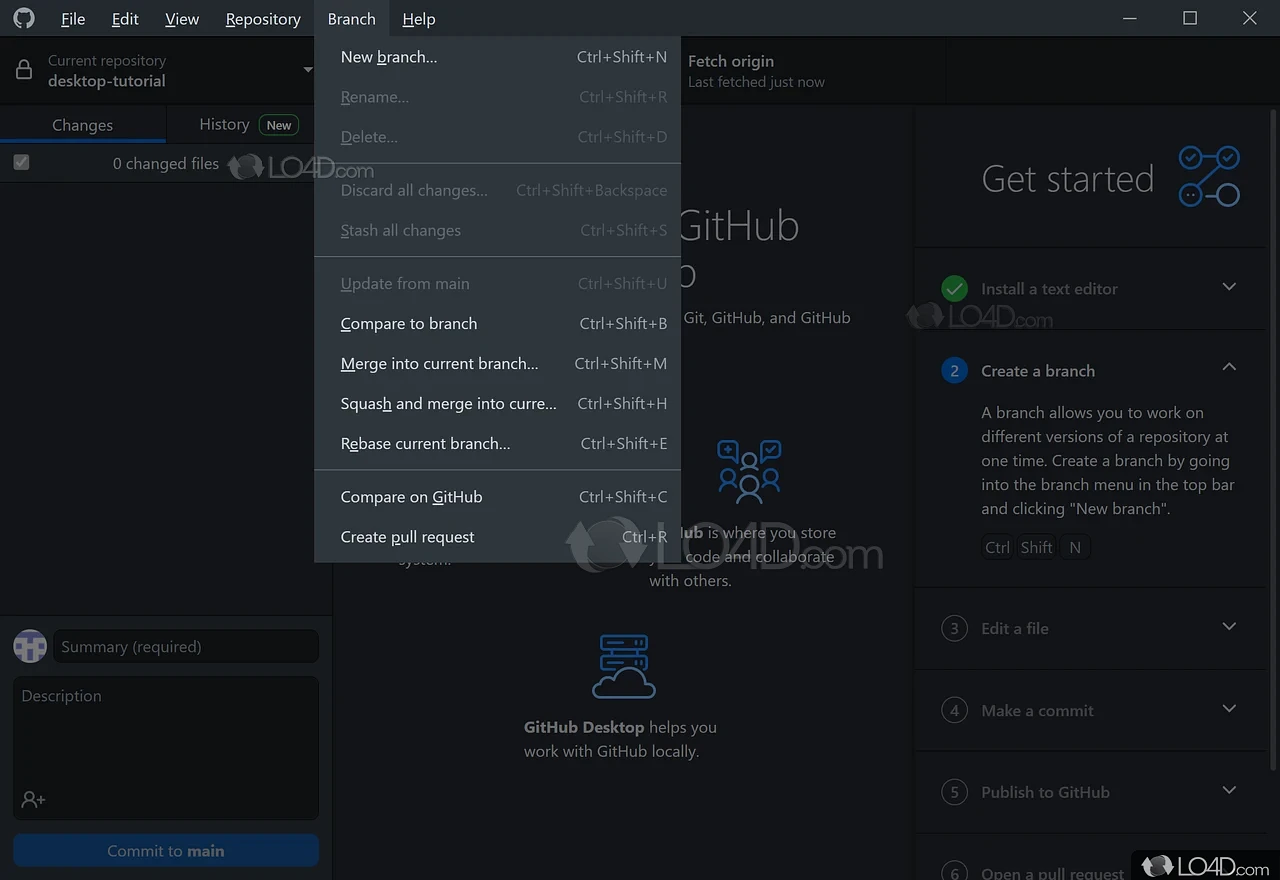
- An easy-to-use graphical interface that allows users to manage repositories, branches, and commits through a visual interface without needing the command line, reducing errors and speeding up work.
- Flexible branch management allows you to create branches, switch between them, and merge them easily, facilitating work on multiple features or fixes simultaneously.
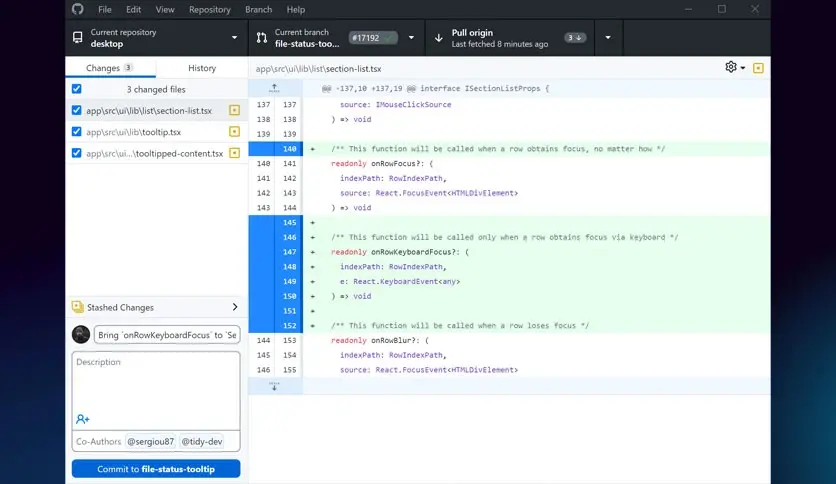
- View commit history and changes
- The program provides the ability to view the commit log, differences between versions, and details of each change, aiding in tracking and analyzing changes.
- Support for Git LFS for large files allows you to handle large files
- such as images, videos, or training models using Git Large File Storage, improving performance and reducing storage issues.
- Resolve merge conflicts visually when conflicts occur during merging
- The program provides a graphical interface to resolve them easily without the need for complex manual editing.
- Direct integration with GitHub allows you to manage repositories, push commits, review pull requests, and interact with issues from within the application.
New Version Features
- Performance improvements on Windows and macOS have enhanced startup speed and responsiveness,
- providing a smoother experience on modern systems.
- Built-in support for Git 2.47.3 allows the use of the latest Git features, enhancing compatibility and security.
- Create commit messages using AI thanks to Copilot integration, users can automatically generate commit messages based on changes, saving time and improving documentation.
- Improvements in branch and pull request management have made the branch management interface clearer, with new tools for filtering changes and reviewing code.
- Better support for accessibility has improved voice navigation and interface to be more compatible with accessibility tools, allowing everyone to use the program.
How to Download via Direct Links
Step-by-Step Download Instructions
- Go to the official download page on Filepuma.
- Choose the appropriate operating system (Windows 10/11 64-bit).
- Click the "Free Download" button.
- Wait for the download to finish (the file size is about 169MB).
- Open the file and start the installation.
Tips to Avoid Issues During Download
- Ensure you are connected to the internet.
- Use a reliable browser like Chrome or Edge.
- Do not install the program from unofficial sources.
- Check system compatibility (it should be 64-bit).
- Temporarily disable security programs if they prevent installation.
Installation and Activation After Download
Installation Method
- After opening

 File Name:
 Downloads:
 Version:
 Full Version:
 Created By:
 License Type:
 Release Date:
 What's New:
 Languages:
 Tags:
Tags: