

Have you ever faced the challenge of organizing or repartitioning your hard drive without losing your valuable files? If your answer is yes, the ideal solution lies in downloading Paragon Partition Manager for disk management - a direct link that provides you with all the necessary tools to manage your disks flexibly and securely. This software allows you to create new partitions, merge or redistribute free space, and even fix issues with various disks. What sets it apart is that it is a comprehensive and activated program that covers most storage management needs, thanks to its simple interface and advanced technologies. With direct download links available, obtaining it has never been easier.
How to Use Paragon Partition Manager
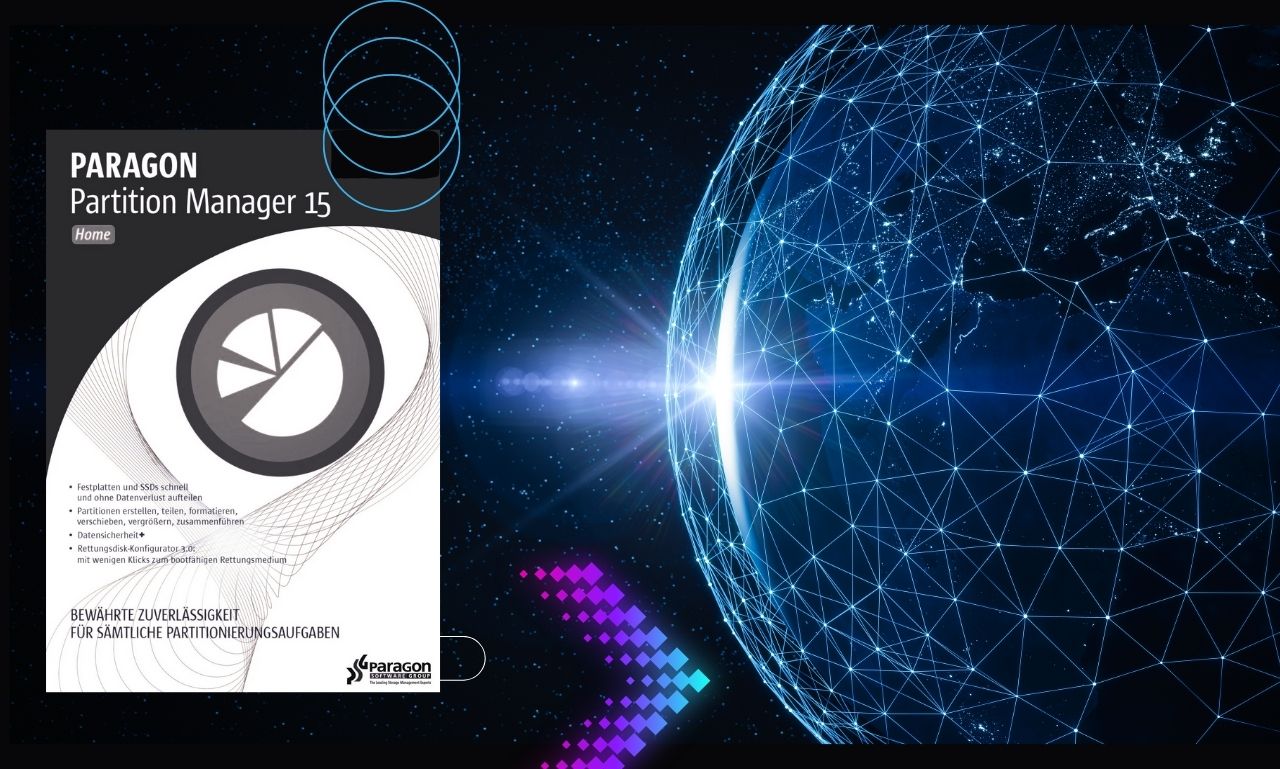
This is a powerful and professional program for managing hard disk partitions. It allows you to create new storage spaces, delete them, merge them, resize them, copy them, and convert them between file systems (such as NTFS, FAT32, EXT) without data loss (in most cases).
1- Download and Install the Program
Click on the link at the end of the article, run the installation file, and follow the on-screen instructions (Next -> Accept -> Install).
After installation, you may be prompted to restart your computer.
2- Main Interface of the Program
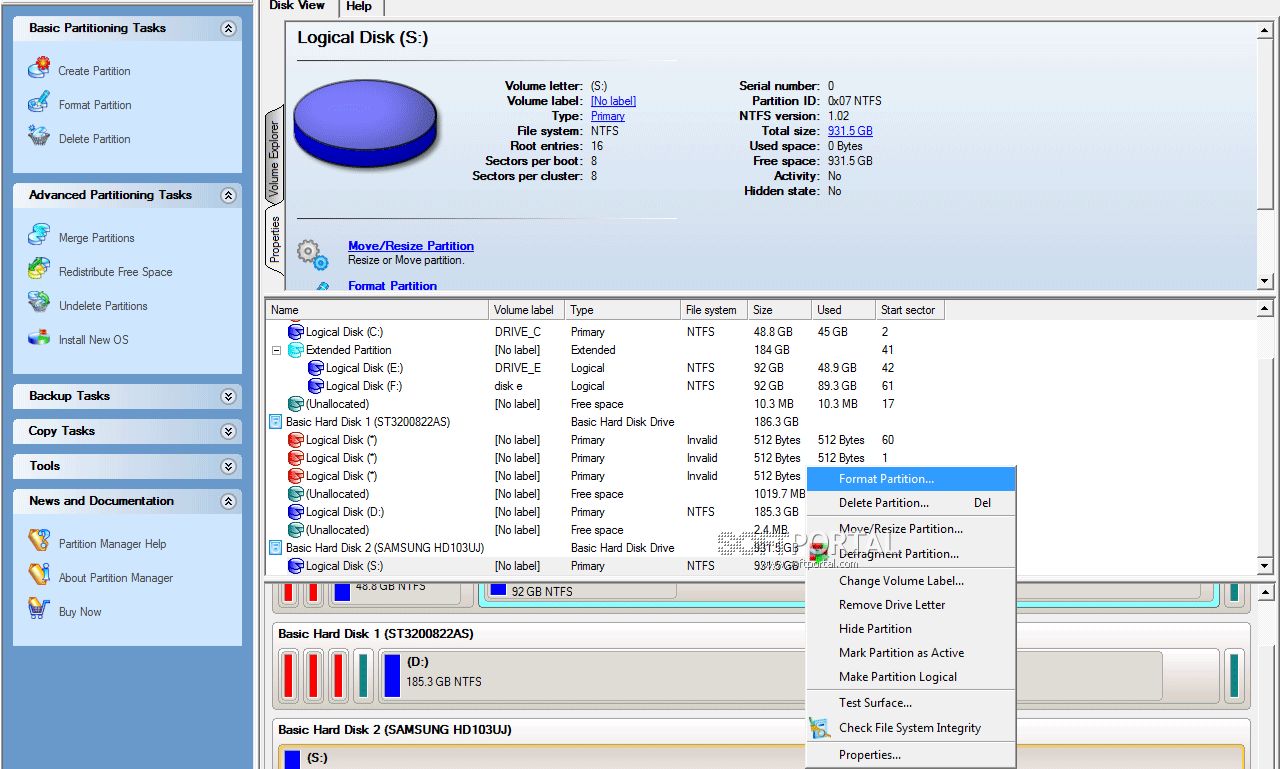
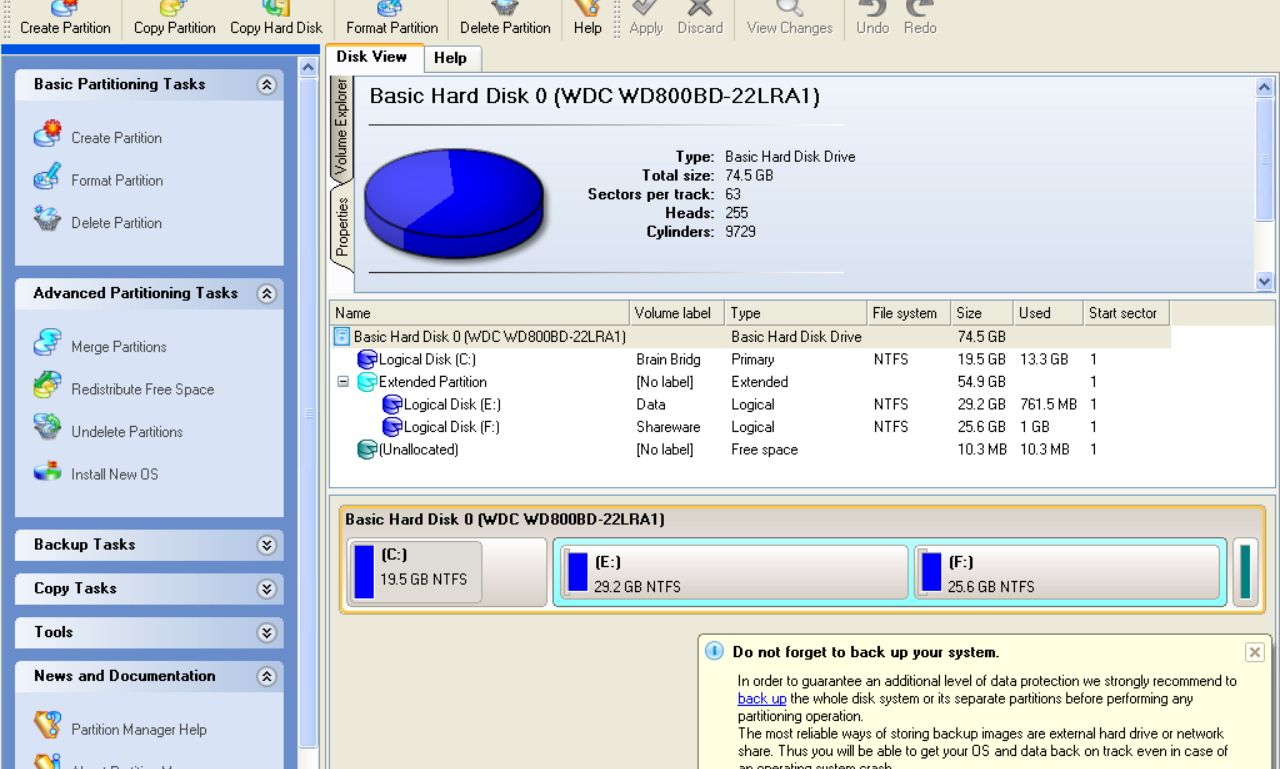
When you open the program, a clear and organized main interface will appear:
The top ribbon menu contains all the main tools categorized into tabs like Home, Partitions, and Tools.
The left pane displays a list of common tasks you can perform, such as "Create Partition" or "Resize/Move Partition."
The central area shows a visual representation of all the hard drives connected to your device and their partitions, along with information like capacity and file system.
The bottom taskbar displays a list of tasks you have planned but not yet executed. You should always click the Apply button to execute these tasks.
3- How to Perform Basic Tasks (Step by Step)
Task of resizing a partition/drive:
This is one of the most commonly used tasks to increase or decrease the space of a specific partition.
1. From the main interface, right-click on the partition you want to modify.
2. From the pop-up menu, select Resize/Move.
3. A new window will appear with a visual bar representing the partition.
- To decrease space: Drag the left or right edge of the bar inward to free up unallocated space.
- To increase space: Ensure there is unallocated space next to the partition, then drag the edge to extend into that space.
4. You can also manually enter the desired size in the Partition Size field.
5. Click OK.
6. You will notice that the operation has been added to the Pending Operations list at the bottom.
7. To actually execute the change, you must click the Apply button (marked with a check ☑) in the top bar. You will be asked to confirm, and your computer may need to restart if the partition is in use (like the system partition C).
Discover for yourself what makes Paragon Partition Manager stand out from its competitors.
1. Flexible Partitioning for Drives
The main feature of Paragon Partition Manager is its ability to handle both physical and virtual disks with complete flexibility. You can easily repartition any drive while keeping your data safe. It also provides tools to adapt to different work environments, whether you are using it on your personal computer or a virtual server. This capability makes the program unique as it combines power and simplicity in one tool.
1- Creating Separate Partitions for Different Types of Data
In work environments, organizing disks becomes crucial to ensure smooth performance. With this program, you can create separate partitions for each type of data such as databases, applications, or backup files. This method provides you with a more organized system and reduces the chances of data loss. Additionally, it allows for redistributing space between partitions if one becomes full. This feature makes the tool very important for both small and large organizations.
2- Allocating a Partition for Personal Files
On an individual level, you can use the program to allocate a specific partition for personal files like photos and videos, and another for applications. This organization makes it easier to access your data and prevents loss when reinstalling the system. You can also control the size of each partition based on your daily needs. Thanks to its ease of use, you won’t need extensive technical knowledge to perform these tasks. This makes the program a suitable download application for beginners as well.
2. Full Support for SSDs and Hard Drives
The program supports the latest storage technologies, making it capable of operating efficiently on fast SSDs as well as traditional HDDs. This feature gives it comprehensive flexibility that covers almost all devices. With this full support, the program is an ideal choice for anyone looking to optimize their storage space usage.
1- Wide Compatibility
The program can work with various operating systems and disk types without compatibility issues. This means you won’t have to use multiple programs to meet your needs. It replaces other tools thanks to its comprehensiveness.
2- Enhanced Performance
On SSDs, the program provides tools that help reduce wear and improve disk lifespan. It also ensures faster speeds when transferring or copying files. These advantages make the tool a smart solution for users looking to enhance performance alongside organization. Therefore, it is considered one of the best download options for storage management.
3. Performance Optimization with Paragon Alignment Technology
One of the innovative technologies that sets the program apart is the smart alignment feature. This property ensures that new partitions are correctly aligned with the disk structure. The result is faster performance and greater stability, especially with large files or heavy applications.
1- Precise Alignment
This technology reduces the strain on the disk during reading and writing. This, in turn, maintains performance for a longer period. Precise alignment also helps reduce errors that may occur when using modern disks. It’s a feature that allows the program to outpace many competitors.
2- Extending Disk Lifespan
Correct alignment not only improves performance but also helps reduce wear on SSDs. This means a longer lifespan and better data stability. With this feature, the program offers significant practical value for users seeking long-term solutions.
4. Converting Between File Systems and Switching Disk Schemes
The program allows you to convert between file systems like NTFS and FAT32 with complete ease. You can also change disk schemes like MBR and GPT without needing to format the disk or lose data. These capabilities provide you with greater flexibility and prepare you for any updates in hardware or software.
1- File System Conversion
The program allows you to change the file system to suit your device or applications. This process is done safely without deleting data. Thus, you won’t need to use external or complex tools.
2- Changing Partition Schemes
The program gives you the ability to switch between different disk schemes easily. This is very useful when moving to newer devices that require a GPT scheme. However, the process is done safely while preserving your data. It’s a feature that makes the program an essential choice for any professional user.
5. A Powerful Tool for Creating Recovery Media
The program provides a powerful tool for creating recovery media. This tool acts as a ready emergency plan to protect you in case of any system failure. It gives you the ability to repair or restore partitions, even if the system is unable to boot.
1- Easy Creation
The steps to create recovery media are extremely simple and do not require advanced technical knowledge. With just a few clicks, you can prepare a USB drive or recovery disk. This quick process makes the tool accessible to any average user.
2- Effective Recovery
When you encounter a serious issue, such as a system boot failure, you can use the media to get your device back up and running quickly. This reduces downtime and maintains your workflow. It’s an indispensable feature for any user concerned about data security.
6. Fast Hard Disk Partitioning
The most requested feature from users is the ability to partition the disk without losing files. With this program, you can create or modify partitions at high speed while keeping your data intact. This feature makes the tool essential, especially for beginners.
1- High Speed
The program uses modern techniques to speed up the disk partitioning process. Therefore, you won’t have to wait for long hours to complete the operation. It is done in a very short time.
2- Complete Security
Despite the speed of execution, the program maintains the security of files and


 File Name:
 Downloads:
 Version:
 Full Version:
 Created By:
 License Type:
 Release Date:
 Languages:
 Tags:
Tags:


