

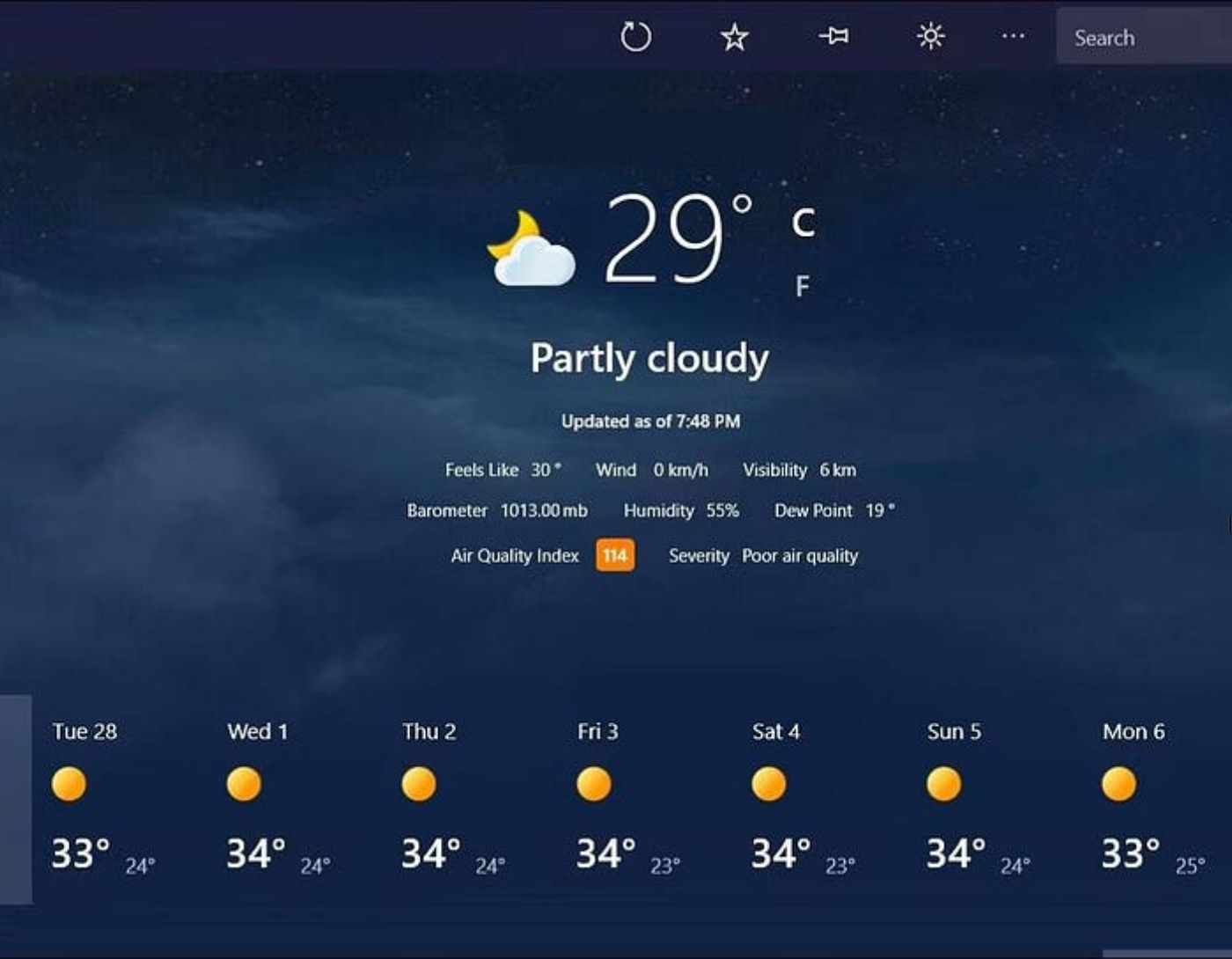
The 7 Best Weather Tools for Windows: Monitoring the weather may not be the most enjoyable activity, but sometimes it’s essential. While a few people have the luxury of living in areas with stable climates, many of us reside in regions where the weather can change in just a few minutes.
There are various ways to check the weather, and one of those methods is using Windows tools. Unfortunately, Windows 10 does not have a built-in weather gadget feature, as Microsoft removed it when they released Windows 8.
But don’t worry - there’s an alternative solution. Let’s take a look at the best weather tools for Windows to keep track of the weather.
How to Get Weather Tools for Windows 10
Before diving into the list of desktop weather tools for Windows, you should know how to get these tools working in the first place. Windows 10 no longer has the handy gadget feature that came with Windows 7, so you’ll need to install a third-party application.
First, install 8GadgetPack. By default, 8GadgetPack comes with some applications that I’ve included in this list, such as Chameleon Weather and MSN Weather.
The other applications in the list come from Win7Gadgets, a site worth checking out if you’re looking for more tools to add to your desktop.
The 7 Best Weather Tools for Windows
The following weather tools are still functioning well, even after several years.
1. msn-weather-widget
The default display of the MSN app simply shows your city name, the temperature, and a chart indicating the current weather conditions and time. Clicking on the city name will open the weather page in your browser on MSN, while clicking elsewhere on the widget will bring up a five-day extended forecast.
Although there are no options to display information like humidity, wind speed, or radar, it remains a useful and enjoyable weather tool to check daily.
2. Chameleon Weather

Among all the applications in this list, Chameleon Weather is the simplest. It only displays the highs and lows for your city and shows the current weather conditions. Double-clicking on the current weather chart will open extended forecasts.
After searching for your city and selecting it in the settings, the app will do the rest of the work for you - it automatically pulls the forecasts for your area. Plus, it’s small enough to fit in a corner of your desktop without taking up much space.
3. AccuWeather

AccuWeather is not only one of the best websites for checking upcoming forecasts, but it also comes in the form of a small Windows weather widget.
Clicking on the blue icon in the upper left corner of the AccuWeather widget allows you to set your location. The widget will then display the current temperature and weather conditions for your city. Click the center of the widget to open the five-day weather forecast.
You can view more detailed forecasts by clicking on your city name, which will redirect you to the AccuWeather website for more information. Similarly, clicking the plus sign button below one of the days in the weekly forecast will take you to that specific day on the AccuWeather website.
4. My Weather
If you want detailed forecasts on your desktop, this Windows 10 weather tool is the perfect choice. At first glance, the “My Weather” tool looks like a simple widget displaying a weather chart and temperature. However, once you expand it, you’ll see a three-day weather forecast, along with humidity, wind speed, and temperature.
In addition to all these useful features, this tool also offers extensive customization options. You can change the background color of the widget, modify the font style, and even integrate sunrise and sunset times.
5. WeatherEye
WeatherEye is another great weather tool for Windows 10 desktops. Once you enter your location and zoom in, the widget will display the temperature, weather conditions, humidity, wind speed, pressure, and a two-day weather forecast.
Clicking on the weather maps link at the bottom of the widget will show you a radar on the weather network site in your browser. Just keep in mind that links to weather cameras and traffic routes are no longer functioning properly.
6. Yrweather Windows
The Yrweather Windows weather tool for Windows 10 may not look the most appealing, but it still provides accurate forecasts. However, this tool does not offer forecasts for small towns and cities. When browsing the list of cities available for your country, you’ll only find major cities listed.
The main screen of the widget displays the current rainfall amount, weather conditions, temperature, wind speed, and wind direction. To view forecasts for the next four days, click the blue arrow in the lower left corner of the widget.
7. M's Black Glass Weather
The next tool is M's Black Glass Weather. The background of the widget is a transparent black color. This way, your weather tool won’t cover anything on your desktop completely. It looks almost identical to the Chameleon Weather tool, with only minor aesthetic differences, such as its slightly darker color and rounded corners.
Like most widgets in this list, it displays minimal information on its default screen. You’ll only see the weather conditions and temperature before expanding the widget. Clicking on the widget will show you the forecasts for the rest of the week. It also includes a brief written description of the forecasts.
Frequently Asked Questions
1. What is a weather tool for Windows?
A weather tool is an application or small widget that displays current weather conditions, forecasts, and relevant data directly on your Windows desktop. It eliminates the need to open a browser or app to check the weather.
2. Why should I use a weather tool on my Windows computer?
Weather tools provide quick and easy access to real-time weather updates, saving time and effort. They also enhance productivity by reducing distractions caused by switching between applications or web pages.
3. Are weather tools for Windows customizable?
Yes, most weather tools allow customization, including adjusting themes, layouts, locations, temperature units (Celsius/Fahrenheit), and the type of data displayed (e.g., hourly forecasts, radar maps).
4. Are these tools free to use?
Most weather tools are free, but some, like Weather Radar Pro or premium versions of other tools, may include in-app purchases or subscriptions for additional features.
5. Do weather tools require an internet connection?
Yes, weather tools need an active internet connection to fetch weather data and real-time updates. Offline weather tools may display outdated information until reconnected.
6. How do I install a weather tool on Windows?
Visit the official website or Microsoft Store.
Download the widget or application.
Follow the installation instructions.
Configure your preferences, such as location and units.
Install the widget on your desktop or taskbar for easy access.
7. Can weather tools affect my system's performance?
Lightweight tools like My Weather typically have a minimal impact on performance. However, resource-intensive tools, especially those with animations or radar maps, may use more CPU or RAM.
8. Do weather tools work on all versions of Windows?
Most modern weather tools are compatible with Windows 10 and Windows 11. Some may also work on older versions, but it’s essential to check compatibility before downloading.
9. Are there alternatives to desktop tools for getting weather updates?
Yes, alternatives include browser-based weather sites, standalone applications, and virtual assistants that can provide weather updates on demand.
Conclusion
In this article, we discussed the best 7 weather tools for Windows. While you might think that Windows gadgets have become a thing of the past, some are still quite good on Windows 10. Not to mention, having weather tools directly on your desktop is incredibly convenient - you can check the forecasts with just a quick glance!


