


(Fix dwm.exe – 0xc0000142 error in Windows 10 and 11) Fixing the dwm.exe – 0xc0000142 error in Windows 10 and 11: You may encounter the following error message on computers running Windows 10 or 11 when trying to start your computer, install certain applications, or open applications on your PC.
dwm.exe – Application error,
The application failed to start correctly (0xc0000142). Click OK to close the application.
If you see this error in the form of a Windows dialog box, you don’t need to worry too much. However, if you encounter the dwm.exe error during Windows startup on a gray screen, you have a serious issue. You might end up with a black/blue/gray screen of death.
Regardless of the forms of the dwm.exe application error you encounter, in this article, I will guide you on the right path to a solution. But before diving into the fix, you should know a bit about the dwm.exe error.
What is dwm.exe and is it safe?
The Desktop Windows Manager (dwm.exe) is responsible for loading desktop computers with all those beautiful effects like the taskbar, thumbnails, essential processes, screen support, etc., in the Windows operating system. When applications are running, it is dwm.exe that assembles all the application files and processes and renders the image on the screen.
Is it safe or a virus?
Chances are you’ve seen the dwm.exe file in the task manager and are confused about whether it’s a virus or something else. As mentioned above, dwm.exe is a core Windows process, so it cannot be stopped. Dwm.exe is a safe and necessary process for your operating system, but sometimes it may show high CPU and RAM usage for various unknown reasons.
Regarding viruses, yes, it is possible for viruses to replace this file with their own, and you could have a virus running under the guise of dwm.exe.
Why does DWM.EXE use high CPU and RAM?
If malware or viruses have replaced this file with their own, it will start using high CPU and RAM. On the other hand, there are also many reasons that can lead to high CPU usage.
For instance, if you are running an outdated version of a driver/Windows.
There are pending Windows updates waiting to be installed.
Your computer is infected with viruses/malware.
You recently installed a driver.
You recently installed a game controller.
Corrupted system files or registry files can also be a reason for high CPU usage by dwm.exe.
How to fix the dwm.exe – 0xc0000142 error in Windows 10 and 11?
I believe I have briefly explained what the dwm.exe file is and why it uses a significant amount of CPU and RAM resources. Now, it’s time to tell you how you can fix the dwm.exe application error – 0xc0000142 yourself if you can’t start your computer or run an application due to this error. Read this article carefully and apply the methods diligently to overcome this issue.
Method 1: Fix using Advanced System Repair Tool
If you are unsure about fixing this error and need immediate assistance, you can download an advanced system repair tool to resolve this error. There is a high chance that this error is caused by missing or corrupted system files, missing DLL files, corrupted registry files, outdated drivers, software and Windows updates, and due to viruses/malware. This tool efficiently scans your computer for these issues and fixes them.
Windows consists of a large number of dll files, exe files, sys files, various types of services, databases, and so on, so it’s not feasible to constantly monitor all files. A great PC optimization tool repairs damages, fixes errors, updates Windows and drivers, and silently removes various types of errors.
The Outbyte PC Repair Tool performs all the aforementioned tasks effortlessly and provides you with a smooth and error-free Windows environment to work in so you can focus solely on your tasks.
3 Steps to fix this error
Step 1. Download the Outbyte PC Repair Tool [File size: 16.4 MB]
Step 2. Scan your Windows computer
Step 3. Click the "Repair" button to fix the error
Method 2: Repair your Windows installation
If you see a black/blue/gray screen of death and cannot start your computer due to "dwm.exe - Application error (0xc0000142)", you need to repair your Windows installation.
Step 1: Create a bootable drive using the Media Creation Tool or Rufus.
Step 2: Insert the bootable drive into your computer and restart it. Upon rebooting, go to the BIOS settings and set the bootable drive as the primary boot device. If you don’t know how to access BIOS, keep pressing the Del/F2/F8/F12 key when you see the manufacturer’s logo during startup. Accessing BIOS settings can vary by manufacturer, so check their official website for instructions on how to open BIOS based on the brand of your device.
Step 3: In the Windows setup, click Next.
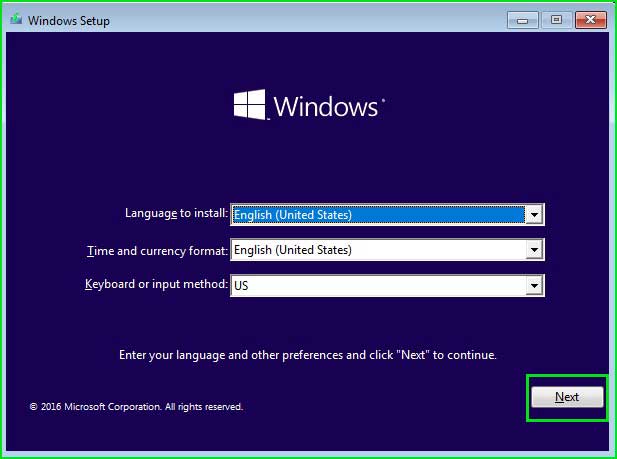
windows_installation
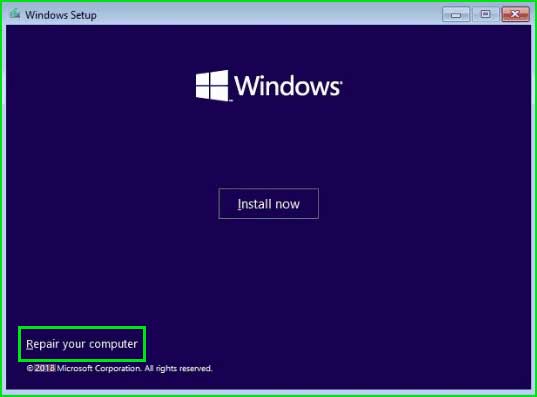
Step 4: In the next window, select the “Repair your computer” option.
Step 5: The advanced startup menu will open. Choose Troubleshoot.
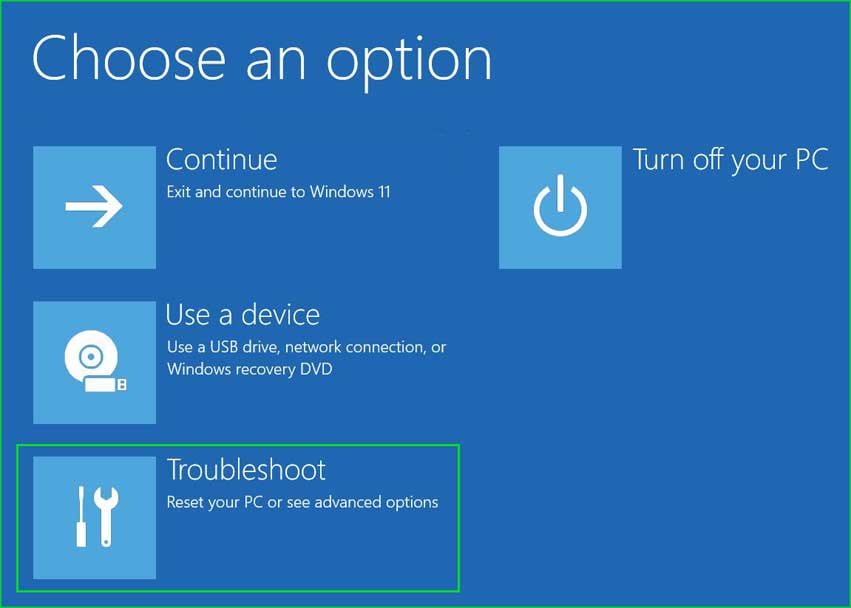
Advanced options menu in Windows 10 and 11
Step 6: Select the Advanced option.
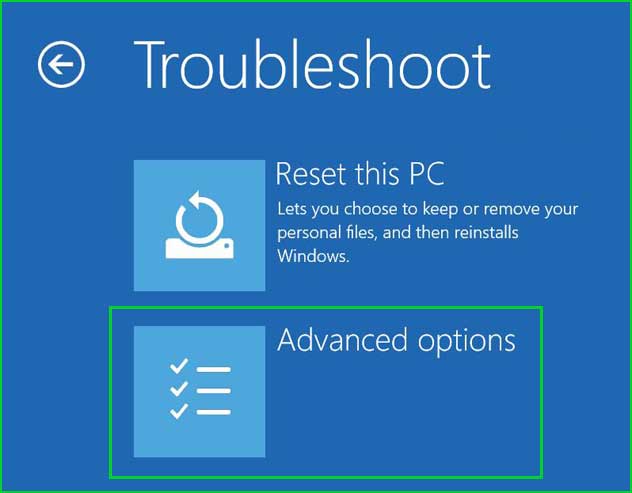
Advanced option in the advanced menu for Windows 10 and 11
Step 7: Select Startup Repair.
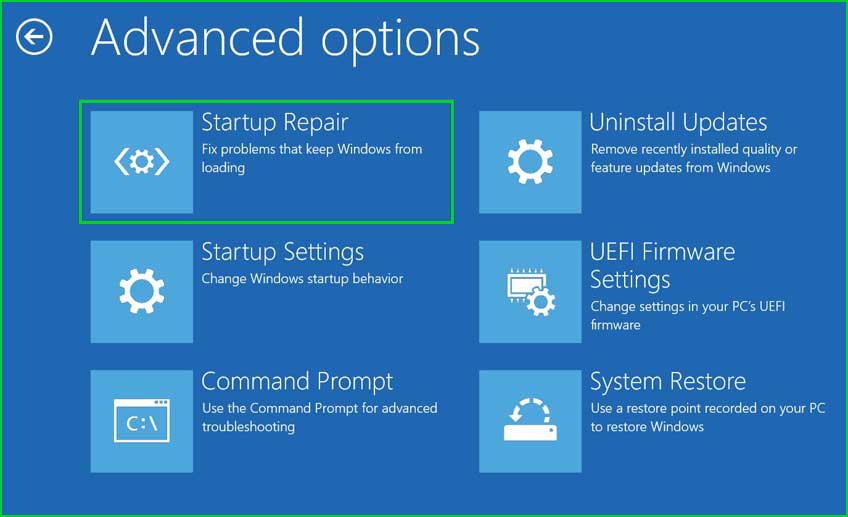
Starting repair
Step 8: Wait for the process to complete. After the repair process is finished, your Windows operating system will boot up, and you will be able to log into your computer.
Method 3: Update everything on your computer
This is the first step you should take to resolve the aforementioned issue. Update everything on your computer, including Windows updates, installed drivers, firmware, and game controllers. By updating all these areas, you ensure that nothing outdated is running.
Update Windows OS - Go to Start > Settings > Windows Update > Check for updates.
If there are any pending cumulative updates, download and install them as well.
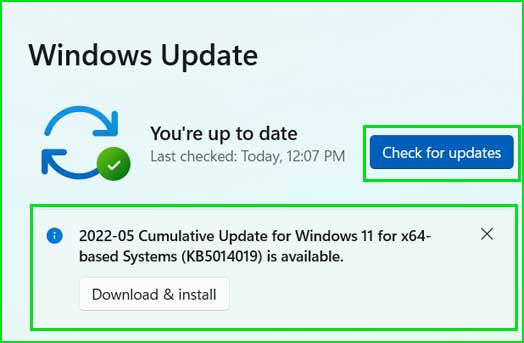
Windows Update settings in Windows 11 and 10
Update Driver - Right-click on Start > Select Device Manager > Right-click on the device and select Update.
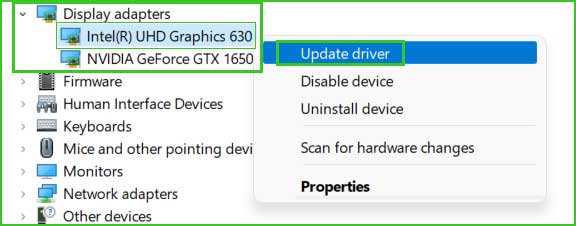
update_driver
Update Firmware – To update BIOS, you need to visit the manufacturer’s website and follow the instructions on how to update BIOS.
Game Controller - Download the latest driver from the manufacturer’s website and install it.
Method 4: Remove malware/Trojans and other malicious software
You should scan and remove malware using the advanced system repair tool. This tool effectively scans and removes all viruses and malware.
Method 5: Reset your computer
Using a system restore point, you should restore your computer to eliminate the dwm.exe – 0xc0000142 application error from your system. A system restore point returns your computer to the last known good state you choose. It does not remove your stored files on the hard drive; it only reverts changes in settings and configurations.
Resetting Windows 10 and 11 using a system restore point
Conclusion
In this article, we discussed how to fix the dwm.exe – 0xc0000142 error in Windows 10 and 11.
There are also many ways to fix the dwm.exe – 0xc0000142 application error, but the most important and effective methods are explained in this article.


