

The difference between iCloud and iCloud Drive: This article discusses both iCloud and iCloud Drive, their differences, and everything you need to know about them in detail.
Both iCloud and iCloud Drive are cloud storage services offered by Apple, but have you ever wondered what the difference is between iCloud and iCloud Drive? Understanding the distinction between the two will help you make the most of their individual benefits, so stay with us.
The Difference Between iCloud and iCloud Drive
Apple understands users' storage needs, which is why it offers two options: iCloud Drive and iCloud for storing your documents, photos, contacts, videos, and more.
To understand the difference between them, you first need to get to know each one individually, so let's start by exploring each one before comparing them.
iCloud
Apple iCloud is a cloud solution that allows you to store and back up your data, such as photos, documents, contacts, and more, helping you save space on your iPhone.
Additionally, it has the following advantages and a few drawbacks.
Pros and Cons of iCloud
Pros
Easy file sharing, storage, and connectivity across different platforms and devices.
iCloud facilitates collaboration with others.
You can use iCloud to locate lost devices, share web activities, and passwords and sync constantly changing information.
Cons
You need to know Apple to view files on iCloud.
It only allows you to share files with other Apple users.
However, after considering the pros and cons of iCloud storage, if you want to give it a try, you can follow these steps:
How to Access iCloud
First, go to the settings on your Apple device.
Then, select your name and choose iCloud.
Now that you hopefully know about iCloud, let's learn about iCloud Drive.
iCloud Drive
Apple is the parent company of both iCloud and iCloud Drive, and both have similar features. What we mean is that iCloud Drive is quite similar to iCloud in terms of features; for example, like iCloud, it allows you to sync and store data across different Apple devices. However, it differs slightly from iCloud in file organization and management.
Let's first focus on the pros and cons of iCloud Drive and how to access it.
Pros and Cons of iCloud Drive
Pros
It features a reasonably priced structure.
iCloud Drive provides seamless integration with all Apple devices.
The iCloud Drive interface is intuitive and user-friendly.
Cons
It is not suitable for those who do not own Apple devices.
iCloud Drive has significant privacy and security concerns.
After looking at the strengths and weaknesses of iCloud Drive, here’s how to access it if you wish to do so.
How to Access iCloud Drive
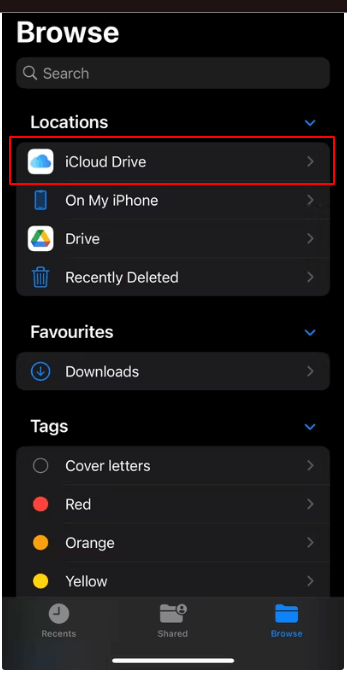
On iPhone/iPad
First, go to the Files app on your iPad or iPhone.
Then, select Browse from the bottom section of the Files window.
A list of locations will appear on your screen; you can choose Cloud Drive to access your files in iCloud Drive.
On Mac
First, open Finder on your Mac.
Then, select iCloud Drive from the left section of the window that appears on your screen.
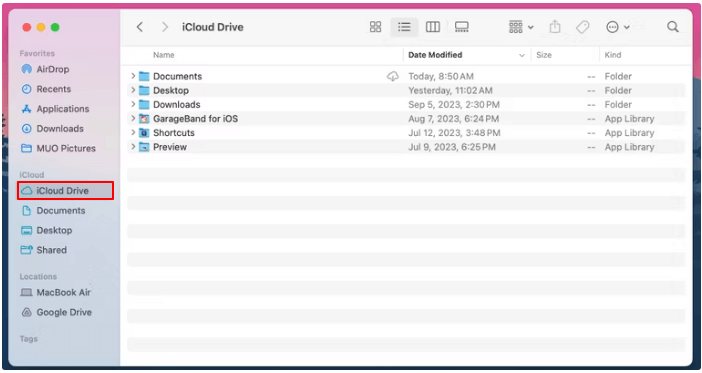
Note: If you don’t see the iCloud Drive option in Finder, you can access it by following the path Finder > Preferences > Sidebar tab > iCloud Drive.
On Windows PC
First, open File Explorer on your computer.
You can now access iCloud Drive from the Quick Access list on the right side of the File Explorer window.
On Android
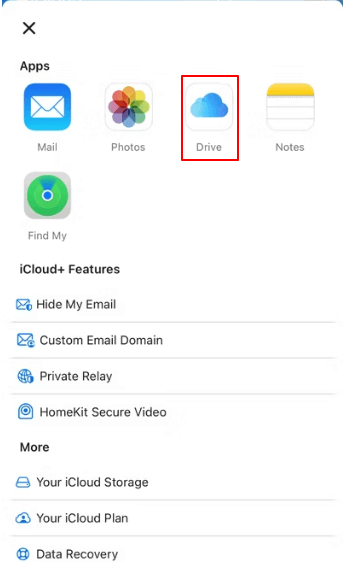
First, open a web browser on your device.
Then, go to iCloud.com and log in using your Apple ID.
After logging into iCloud, select the app icon from the upper right corner, next to your profile picture.
You can now click on Drive to view your iCloud Drive files.
That’s all about iCloud Drive, its pros and cons, and how to access it. Now that you have a clear understanding of iCloud and iCloud Drive, we can discuss the differences between them in the next section.
Differences Between iCloud and iCloud Drive
A comparison between iCloud Drive and iCloud reveals the following differences between the two.
File Management
iCloud primarily focuses on file storage and offers limited features when it comes to organizing and managing files, while iCloud Drive, in addition to storage and syncing, provides better file management and organization.
Compatibility with Non-Apple Devices
If cross-platform compatibility is what you’re looking for, we recommend using iCloud Drive, as it has better compatibility with devices other than Apple devices.
Collaboration Features
Although both iCloud Drive and iCloud feature collaboration capabilities, collaborating with others is easier with iCloud Drive. You can allow others to view, comment on, or edit your files in real-time using iCloud Drive.
Backup Options
iCloud works better when it comes to backups; you can use iCloud to review your data across different Apple devices effortlessly. Moreover, it automatically creates backups for devices, which is useful when switching devices or wanting to restore lost data.
On the other hand, iCloud Drive offers more file-focused syncing options, allowing you to specify which folders and files you want to sync across your devices.
Considering the features of iCloud and iCloud Drive, along with their pros and cons and the differences mentioned above, we found that iCloud Drive is a slightly better option for data storage, organization, management, and collaboration. However, since iCloud Drive is also limited to 5GB of free storage, it’s easy to run out of space. Therefore, here are some effective tips on how to free up storage space in iCloud Drive if it gets full.
Tips for Freeing Up iCloud Drive Space
You can clean up iCloud Drive by following these simple tips.
Delete Unnecessary Backups
Old backup files that you may no longer need can take up space on your drive. Therefore, deleting these files can free up space on iCloud Drive for other important files and data.
Remove Large Videos and Delete Unwanted Photos
Photos and videos often make up a large part of iCloud Drive for most users. However, there may be some duplicate or unwanted photos/videos in iCloud Drive that consume space. Therefore, you can find and remove them from the drive.
Turn Off Automatic Backups
Your Mac may automatically create backups of data on iCloud Drive, taking up significant space on the drive. Therefore, you can disable automatic backups to free up space.
Remove/Move Large Files
Large files or folders can significantly consume a lot of iCloud Drive space. Therefore, you can remove or move them to another location.
Conclusion
This article explained the difference between iCloud and iCloud Drive to help you choose what suits your needs. It also covered how to free up iCloud Drive space for effective storage and management. We hope you found everything you were looking for.


