

Unable to use the WhatsApp camera on Android, iPhone, and PC: WhatsApp is a favorite app for millions of users worldwide, allowing you to use the camera to take a picture and add it to your status, make a video call with friends or family, or simply capture a photo and send it to anyone on WhatsApp. Unfortunately, some users are facing issues with the WhatsApp camera not working.
Are you one of those experiencing a similar situation? If so, you can set aside your worries and focus on this article. We have thoroughly researched this issue to identify its causes and the best solutions. Let's start by discussing the reasons behind this problem before addressing how to fix it on Android, iPhone, and PC.
Why is the WhatsApp camera not working?
The following factors may be causing the camera on your WhatsApp app to malfunction:
WhatsApp lacks permission to access your device's camera.
Other background apps are interfering with WhatsApp's camera usage.
There may be a bug in the WhatsApp application.
Your device may not have enough storage space.
The version of WhatsApp on your device may be outdated.
Having listed the potential causes of the issue, let's discuss the solutions.
Fixing the WhatsApp camera issue on Android, iPhone, and PC
You can apply the following solutions to resolve the issue of the WhatsApp video call not working on Android, PC, or iPhone.
Fix 1: Ensure WhatsApp has the required permissions
Third-party apps like WhatsApp need permission to use your device's camera and other features to ensure your privacy. The WhatsApp camera may not work on iPhone/Android/Desktop because it lacks the necessary permissions. Therefore, you can follow the instructions below to grant the required permissions to the WhatsApp app.
Allow WhatsApp to use the camera on Android
First, long-press the WhatsApp icon on your device and select the info icon from the menu that appears on your screen.
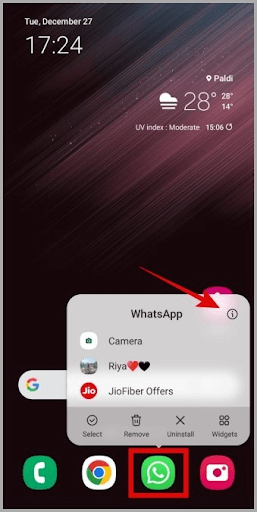
Allowing WhatsApp to use the camera on Android.
Tap on the permissions option to access the authorizations WhatsApp has on your phone.
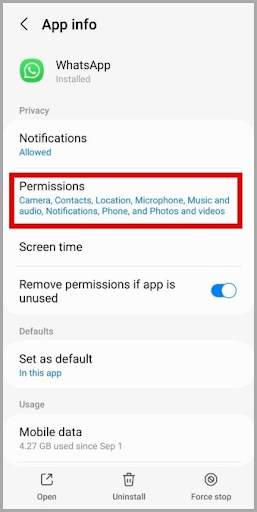
Tap on the permissions option to access WhatsApp's permission.
You can now select the camera from the available options.
Select "Allow only while using the app" from the camera access options for this app.
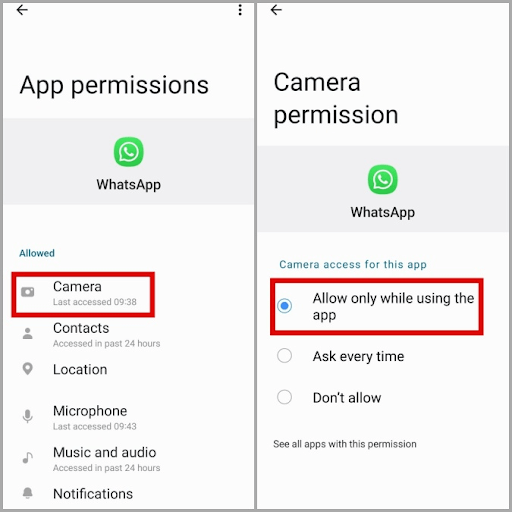
Allow only while using the app from the camera access options
Finally, restart the app after completing the above steps.
Note: If you have Android 12 or a newer version, you will need to enable camera access in the privacy settings. You can follow the path Settings > Security & Privacy > Privacy > Camera Access to do this.
Allow camera access to WhatsApp on iPhone
To start, you need to open your iPhone settings.
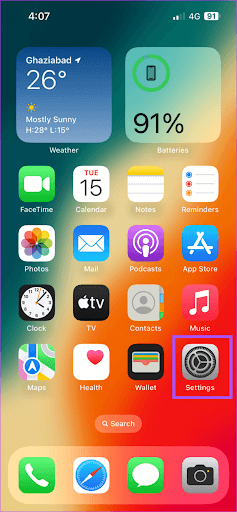
After opening settings, scroll down until you see WhatsApp.
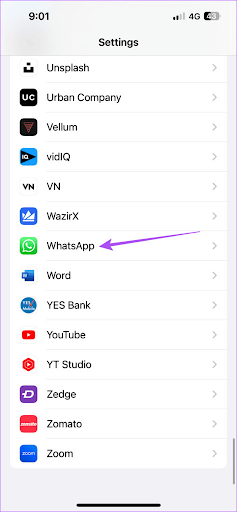
Scroll down until you see WhatsApp
Tap on WhatsApp after finding it in the list of apps.
You can now toggle the camera permissions to use it with the WhatsApp app.
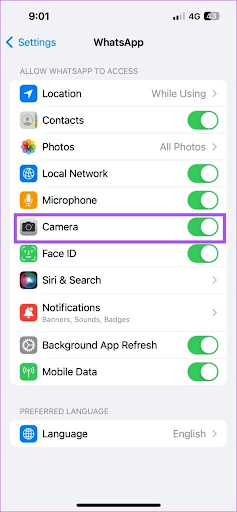
Toggle camera permissions
Finally, you can exit settings and check if the issue is resolved.
Allow WhatsApp to use the camera on PC
First, you need to enter the computer settings using the shortcut key Win+I.
Second, select Privacy from the settings menu on your computer screen.
You can now go to the Camera settings.
Finally, allow WhatsApp to use the camera on your computer.
Fix 2: Clear the app's accumulated cache
WhatsApp's cache helps it load faster on your device; however, the accumulation of unnecessary cache interferes with the app's functions and causes issues like the camera not working. Therefore, you can clear the cache by following the steps below to resolve the issue.
Clear WhatsApp cache on Android
To start, press and hold the WhatsApp icon until a menu appears on your screen.
Next, tap the info icon to view the app information.
Tap on the storage option and then select Clear Cache from the bottom right corner of the screen.
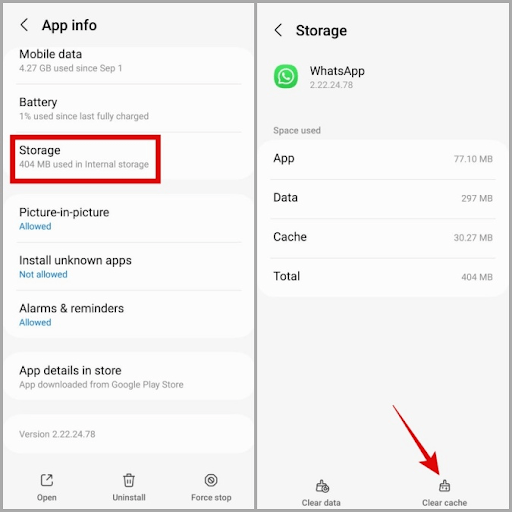
Tap on the storage option and then select Clear Cache
Clear WhatsApp cache on PC
The easiest way to clear the WhatsApp cache on your PC is to use one of the best PC cleaning software for Windows 10/11.
Fix 3: Close other background apps
WhatsApp may not be able to access the camera if other apps are using it on your device. Therefore, you can close the apps that are using the camera to resolve the issue of the WhatsApp camera not working on iPhone, Android, or Desktop. Here’s how to do it:
Close background apps on Android
First, open the recent apps view on your phone.
You can now clear any apps that may be using your phone's camera.
Clear background apps on iPhone
To start removing background apps, swipe up from the bottom of the iPhone screen to the middle of the screen to access the app cards/previews.
After performing the above step, you can swipe the background app card up to force close it.
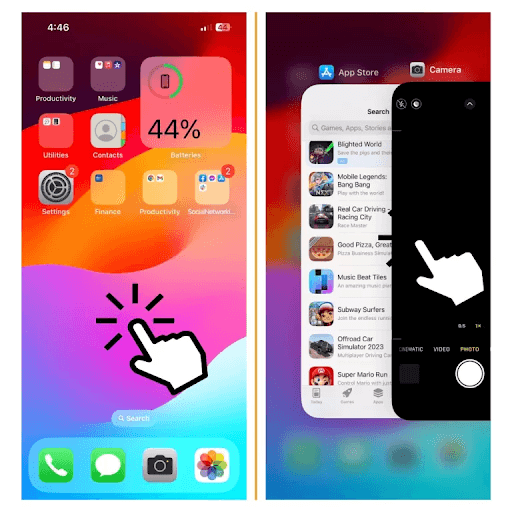
Clear background apps on iPhone
Remove background apps on PC
To start removing background apps on your PC, use the shortcut key Win+I to open the settings panel.
Second, select Privacy from the available options and go to Background Apps.
Go through the list to choose which apps can run in the background and turn off the apps you want to close.
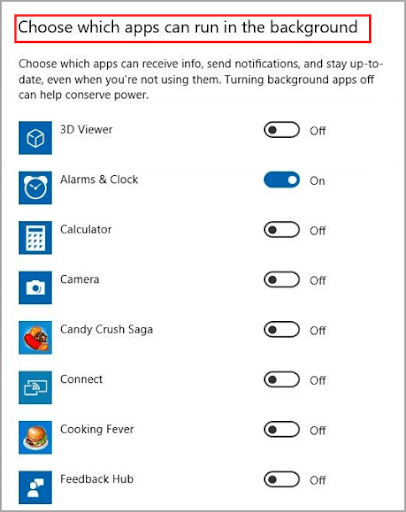
Select the apps that can run in the background.
Fix 4: Clean up device storage
Your device may automatically disable the camera if there isn't enough storage space available, leading to issues like the WhatsApp camera not working. Therefore, you can free up storage space to resolve the issue.
Here’s how to clean up storage on Android, iPhone, or PC.
Clean up storage on Android
While you can manually check and clean your device's storage, it can be a tedious task. Therefore, we recommend using one of the best Android cleaning apps to free up space and enhance your device's performance.
Clean up storage on iPhone
Cleaning up iPhone storage can be quite challenging unless you use one of the best iPhone cleaning apps to complete this task quickly and efficiently.
Free up storage on PC
Like any other manual process, manually cleaning storage can be a daunting task. Thus, there are many reliable programs to clean RAM on your computer to enhance its performance. You can choose one of these programs and use it to clean up the storage.
Fix 5: Uninstall and reinstall WhatsApp
Uninstalling and reinstalling the app can fix random bugs that may be causing the issue you are trying to resolve. Therefore, you can follow the instructions below to uninstall and reinstall WhatsApp.
Uninstall and reinstall WhatsApp on Android
First, go to the Google Play Store on your phone.
Second, use the search function to find Whats


