

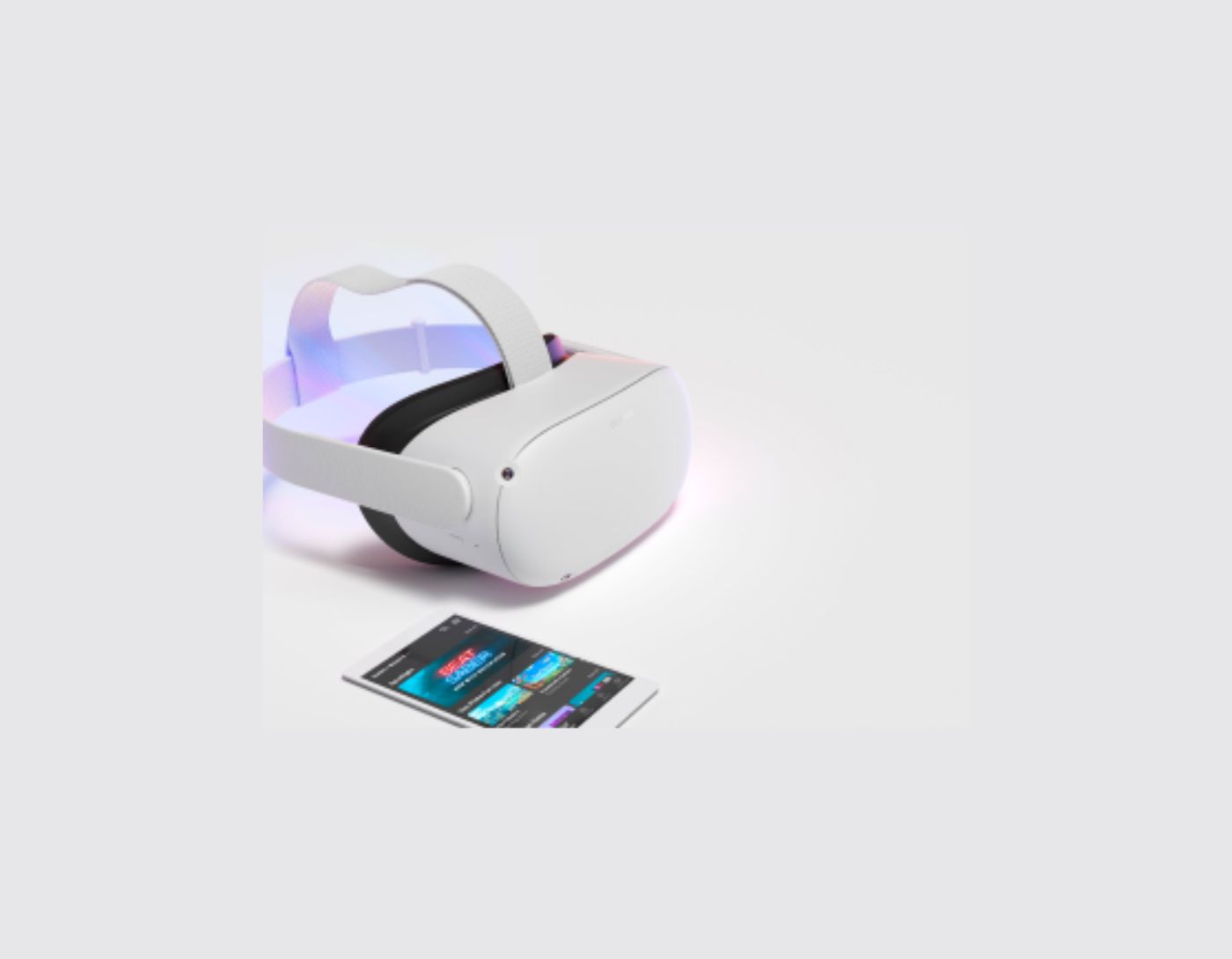
Download the Meta Quest app for PC: This quick and simple guide will help you enjoy a unique experience on your computer by downloading the Meta Quest VR headset app and using it.
The Meta Quest app (formerly known as Oculus Quest) is designed to assist VR headset owners in using their headsets on their computers. However, if you need clarification on downloading the headset and connecting it to the Meta Quest app for PC, this article is for you.
Here, in this article, we will explain the complete process of downloading the app and using it to connect your headset to your computer in the best possible way. Let's get right to it without wasting your valuable time.
Download the Meta Quest app for PC and connect the headset
Here’s how to download the Meta Quest app for PC and use it to connect your VR headset to your computer.
1. Download the Meta Quest app
In this section, we will explain the steps to obtain the Meta Quest app for PCs running Windows 10. But first, let's take a look at the requirements your computer must meet before downloading and installing the app.
System requirements for the Meta Quest app for PC
Minimum component specifications:
Intel i5-4590 / AMD Ryzen 5 1500X processor or higher.
Nvidia 970-series / AMD 400-series graphics card.
8 GB or more of RAM.
Windows 10, Windows 11.
USB ports: 1x USB port (USB 3.0).
You can check if your computer meets the above compatibility requirements by using the keyboard shortcut Win+I, selecting System from the available options, and going to the "About" section. After viewing your computer specifications, you can take the necessary steps (like upgrading your graphics card) to match them with the Meta Quest system requirements.
Once the specifications and requirements match, you can proceed with the following steps to download the Meta Quest app for PC.
Steps to download the app
The first step is to go to the official Meta Quest website.
You can now click the download button in the Quest setup section to download the app package.
After that, wait a few seconds for the download to complete.
At this step, double-click the downloaded app setup and follow the instructions to install the app.
After installing the app, use your email address or Facebook account to sign up for Meta to use the app.
Once you register with Meta, you can follow the steps in the next section to connect the headset using this app.
2. Connect the headset to the Meta Quest app for PC
There are two ways you can use the Meta Quest app to connect the headset to your PC. Let's discuss both methods.
Connecting the headset via Meta Quest Link
You can use the Link (cable) method to connect the headset. To do this, you need to purchase a USB-C cable. If your computer has a USB-C port, you can get a USB-C to USB-C cable. Otherwise, you can buy a USB-C to USB-A cable. Please ensure the cable is long enough to allow movement, as this method ties you to the computer, limiting your ability to move freely. Once you have the required cable, you can proceed with the following steps.
First, make sure the headset is powered on.
Second, open the Meta Quest app and select Devices.
Next, choose the option to add a headset.
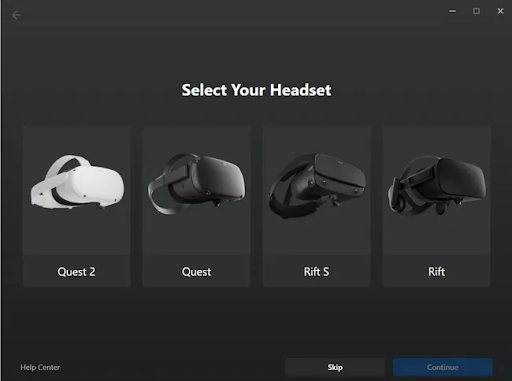
At this step, you can select the headset from the available options and click Continue.
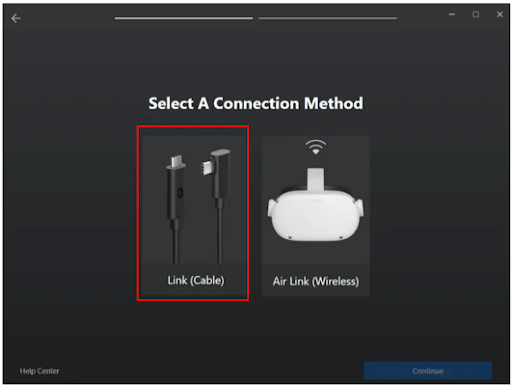
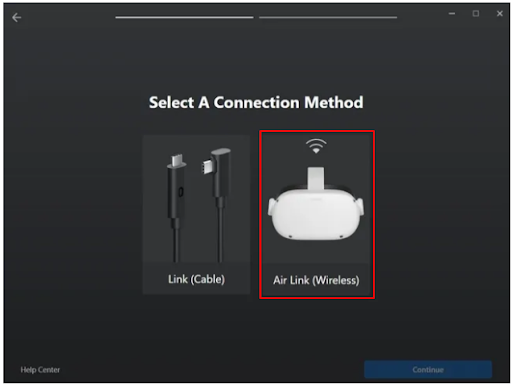
You will now be prompted to select a connection method; choose Link (cable) from the options displayed on the screen and click Continue, then select Air Link (wireless).
You can now connect one end of the cable to the headset and the other end to the computer.
Click the Continue button to proceed to the next step.
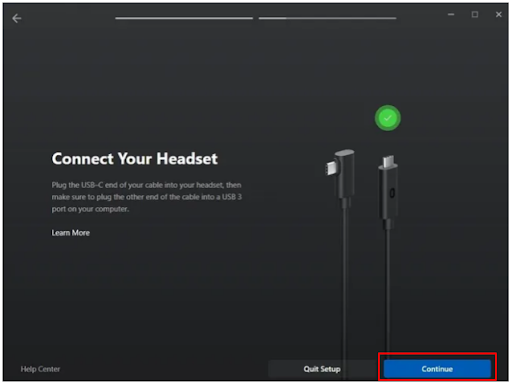
Connect the headset and press Continue.
Finally, you can test the connection or click Continue to complete the process.
Using the Meta Quest Air Link to connect the headset
Unlike Link, Air Link does not restrict your movement. Here’s how to use it to connect the headset to your PC.
First, ensure that both your headset and computer are on the same WiFi network. It is recommended to use a 5 GHz network connection.
Next, go to the Meta Quest app for PC.
Select Devices and click on the option to add a headset.
At this step, select your headset and then choose Air Link (wireless) as your connection method.
Next, put on the headset.
Now, hover the clock icon on the left side of the navigation bar and select the clock to open Quick Settings.
You can now access the full settings menu by clicking the gear icon in the upper right corner of the window that appears on the screen.
Select the System box from the options displayed on your screen.
Next, look for Quest Link and toggle it on.
Select your computer from the available computers on your network.
Then, remove the headset and ensure the code displayed in it matches the code on your computer screen.
After matching the code, click Continue to complete the headset pairing process.
Conclusion
This article has guided you through the complete process of downloading the Meta Quest app for PC to achieve a unique experience. We hope you found this article helpful. However, please leave a comment if you have any further questions.
Frequently Asked Questions
How do I connect Meta Quest to my PC?
Connect a USB 3 cable to the USB 3.0 port on your computer, then connect the other end to the headset, wear the headset, and press the right controller to pull up the universal menu, hover the mouse pointer and click on the clock on the left side of the universal menu. When the Quick Settings appear, select them.
Why is the Oculus app not installing on my PC?
If you are having trouble downloading or installing the Oculus software update, it may be that the disk space available on your computer is insufficient. You need to ensure that you have at least 9 GB of free disk space available.
Do you need the Meta Quest app for PC?
To use Quest Link, you need to download the Oculus app for PC on a Windows computer. Once you download the Oculus app for PC, make sure the app is updated and that your Meta Quest headset is running the latest operating system.
How to use Quest Link with Steam?
Download the Steam Link app from the Meta Quest store and install it from the Meta Quest store in the headset. You can also download it from the Meta Quest app on your phone. After installing the Steam Link app, open it and follow the on-screen instructions to connect the headset to your home PC.
How do I install games on Meta Quest?
To download new content from the headset:
Press the right controller to pull up the universal menu.
Select Store.
Select what you want to download.
Select the purchase price, or select Free if it’s a free download.
How does Meta Quest work?
The device's position is tracked using four ultra-wide sensors that capture real-time input from the surrounding environment. The Quest controllers, engineered for comfort, translate physical hand movements into the virtual world, making virtual experiences more engaging.


