

Download and update the infrared camera driver for Windows 11: Here’s a comprehensive guide to help you make the most of your infrared camera by downloading software to run, install, and update it.
The infrared camera on your computer provides secure access and enables Windows Hello; however, the camera can only function properly with a compatible and updated infrared camera driver installed on your system. The absence of the driver can lead to issues like the camera not working, as the driver is the interface your computer uses to communicate with the camera to execute your commands. Therefore, this article guides you through the best ways to download and install an updated infrared camera driver for Windows 10/11. Let’s get started right away.
Methods to Download and Update the Infrared Camera Driver for Windows 11
You can download and install the latest Windows 11/10 driver for infrared cameras using the following methods.
Method 1: Download and Install the Driver from the Manufacturer's Website
The official website of the manufacturer is one of the safest sources for drivers. There, you can find all the necessary drivers if you are familiar with your computer's operating system (OS). However, if you are unsure about your device's operating system, you can follow the path Win+I hotkey > System > About before following these steps to download and install the infrared camera driver.
The first step requires you to go to the official website of the device manufacturer.
Next, navigate to the support section and look for your infrared camera.
At this step, you can go to the driver download section and search for the latest driver for your operating system.
Click on the download option to download the driver to your computer.
After that, double-click the downloaded setup and follow the instructions to install the driver.
Finally, restart your computer to save the changes and allow the driver to take effect.
Note: Please be aware that the above steps may vary slightly from one manufacturer to another, but generally, they remain the same.
Method 2: Get the Windows 10 / Windows 11 IR Camera Driver Using Device Manager
Device Manager is a built-in tool in Windows for downloading, installing, updating, and uninstalling drivers to fix various issues. You can use this tool to obtain the necessary driver for your infrared camera on your computer. Here are the steps to do so.
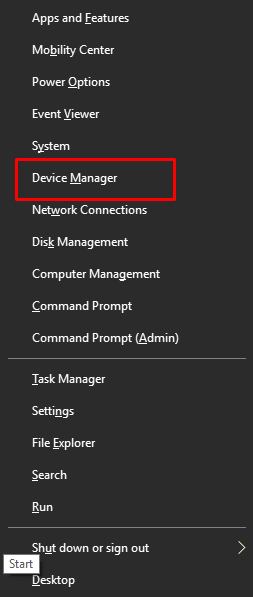
First, right-click the Windows icon on the taskbar to open the quick access menu.
Next, select Device Manager from the available options in the menu that appears on the screen.
Select Device Manager
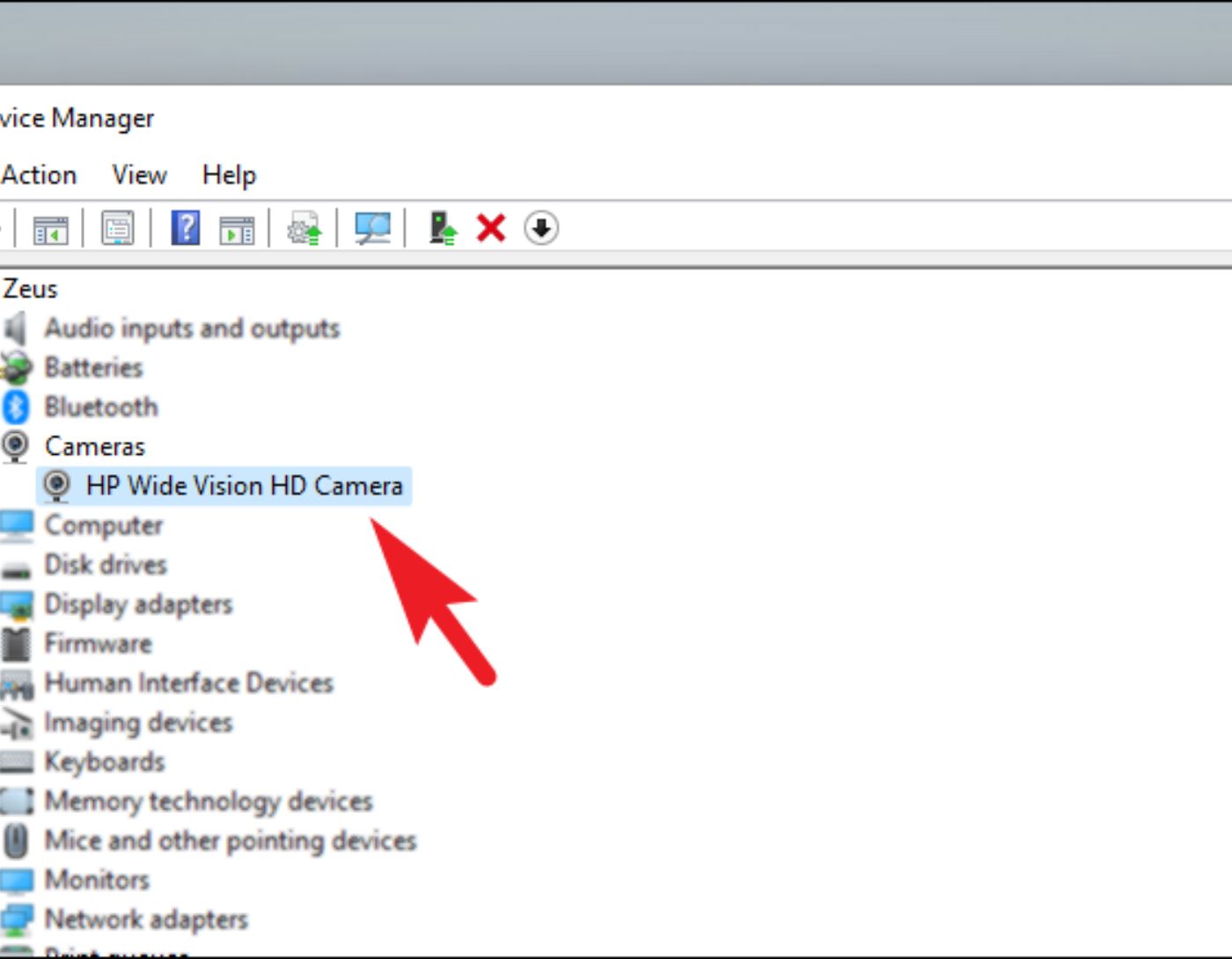
Device Manager will appear on your screen; you can now double-click on the category for your infrared camera. Generally, the infrared camera is found under Imaging devices, Cameras, or Biometric devices.
At this step, right-click on the infrared camera and select Update Driver or Update Driver Software from the options that appear on the screen.
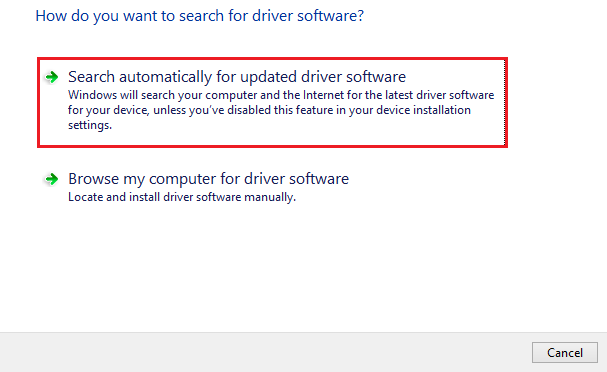
When prompted on how to update the drivers, choose the option to search automatically for drivers or search automatically for updated drivers.
Search automatically for updated drivers
Wait a few moments for Windows to find the required drivers and download and install them.
Finally, restart your computer to activate the new drivers.
Method 3: Automatically Download and Install the Infrared Camera Driver Using Win Riser
Manually downloading, installing, and updating drivers can be time-consuming and tedious. Therefore, you can automatically obtain all the required drivers using Win Riser, which is one of the best driver update solutions available today.
This program automatically updates all drivers, creates and restores driver backups, cleans up unwanted files, deletes invalid registry entries, removes malware, and offers many other computer performance optimization features.
Download and install the program.
After downloading and installing the program, here’s a simple series of steps to update the drivers and fix issues.
Allow Win Riser to scan your system for a few seconds.
Review the scan results displayed on your screen.
Click on Fix Issues Now to automatically update the drivers and resolve the detected problems.

Win Riser Driver Update Program for Epson LQ310 Driver for Windows 10, 11
Finally, restart your computer to save the changes and complete the process.
Frequently Asked Questions
Why do I need to update the infrared camera driver?
Updating the infrared camera driver ensures compatibility with the latest Windows 11 updates and fixes any bugs or issues that may exist in previous versions. It can also enhance performance and add new features.
How can I check if the infrared camera driver needs updating?
You can check for driver updates through Device Manager in Windows 11. Right-click on the Start menu, select "Device Manager," find the infrared camera under "Imaging devices" or "Cameras," right-click on it, and choose "Update Driver."
Where can I download the latest infrared camera driver for Windows 11?
First, visit the official website of your infrared camera manufacturer or the device manufacturer (like Dell, HP, Lenovo) to get the latest driver, as they often provide driver updates for your model.
Can I use Windows Update to update the infrared camera driver?
Absolutely, Windows Update provides driver updates, including those for infrared cameras, but it’s preferable to visit the manufacturer's website for the latest drivers for your device.
What should I do if Windows Update does not provide the latest driver for my infrared camera?
If Windows Update does not offer the latest driver, visit the support site of your infrared camera manufacturer, search for your model, and download the latest driver from there.
Is it important to uninstall the old driver before installing the new driver?
It is advisable to uninstall the old driver before installing the new driver to avoid conflicts or issues. You can do this by right-clicking on the old driver in Device Manager and selecting "Uninstall," then proceed to install the new driver.
What should I do if I encounter problems after updating the infrared camera driver?
If you experience issues after the update, you can try rolling back to the previous driver in Device Manager. Right-click on the infrared camera, select "Properties," go to the "Driver" tab, and choose "Roll Back Driver" if available. If that doesn’t work, you can reinstall the older driver from the manufacturer's website.
How often should I update the infrared camera driver?
It’s best to update the driver regularly to avoid issues that hinder the camera's performance.
Conclusion
In this article, we discussed downloading and updating the infrared camera driver for Windows 11. This article outlined various methods to obtain the required driver for the infrared camera. You can use the method you feel most comfortable with. However, if you have any questions about this guide, feel free to let us know. You can also leave your valuable feedback to improve this article in the comments section.


