


(Fix Blender crash issue on Windows 10 and 11) Resolving the Blender crash issue on Windows 10 and 11: Blender is a powerful and frequently used software for 3D modeling and animation. If you're using Blender on Windows 11 and experiencing frequent crashes, it can be incredibly frustrating and hinder your work.
The good news is that there are several steps you can take to resolve this issue on your Windows 11 computer.
Blender crashing on Windows 11 is a common problem, and in this comprehensive article, we will explore the various reasons behind these crashes and provide specific strategies to fix them.
What causes Blender to crash while running on Windows 10 and 11?
There are several potential reasons for Blender's failure on Windows 11. Once we have a better understanding of the causes, we will be better equipped to address Blender crashes at startup by implementing the appropriate solutions.
Here are some possible causes:
Resource-intensive applications: Running multiple resource-heavy applications simultaneously can strain your device's performance, potentially leading to Blender crashes.
Outdated application version: Using an older version of Blender can lead to various issues. On the other hand, Blender developers frequently release updates that include bug fixes and improvements; therefore, it's essential to use the latest version for a better experience.
Old graphics card drivers: The graphics card drivers for Blender play a crucial role in ensuring compatibility and achieving optimal performance. Crashes may occur when the graphics card drivers are outdated or incompatible, making it extremely important to keep your graphics drivers updated.
Compatibility issues with Windows: Blender may sometimes crash on Windows 11 due to compatibility issues between the software and the operating system, which may arise from different versions of Windows.
How to fix the Blender crash issue on Windows 10 and 11
While there are various factors that may contribute to Blender crashing, we have compiled a list of solutions that have worked for many Windows Blender users. In this post, you will learn how to resolve the Blender crash issue on Windows 10 and 11 easily and effectively.
Fix 1: Update your graphics driver
In most cases, an outdated graphics driver is the primary cause of issues with Blender. Therefore, there is a chance you may encounter problems with the application if you haven't updated your graphics driver in a long time or if the driver file has issues.
Graphics card manufacturers, such as Nvidia, AMD, and Intel, continuously update their associated graphics drivers, which improves graphics card performance and resolves bugs present in the latest driver version.
You can try updating your drivers to see if that resolves Blender's crashing issues.
If you lack the time or expertise to update the driver manually, you can use Win Riser Driver Updater to automate the update process.
The program will automatically recognize your computer's system and locate the appropriate drivers for it. You don't need to have a specific understanding of the operating system your computer is running; now you don't have to worry about downloading the wrong driver or making mistakes during installation, as Win Riser takes care of everything.
Simple steps to use Win Riser Driver Updater to update old graphics drivers on Windows 10 and 11
Step 1: First, download Win Riser from the button below.
Step 2: Double-click the downloaded file and follow the on-screen instructions to complete the installation.
Step 3: After successful installation, run Win Riser or restart your computer and allow it to thoroughly scan the device for old, damaged, or missing drivers.
Step 4: Check the scan results and click on the "Fix issues now" option.

This will install all available driver updates at once.
Update Win Riser for all old drivers, and click on Fixes Now.
Once done, restart the system to save the new drivers.
Run Blender on your computer and test the issue.
If Blender continues to crash on Windows 10 and 11 computers, proceed with the other solutions mentioned below.
Fix 2: Disable resource-intensive applications
Insufficient memory is another reason for Blender crashing. If you are running a large number of applications in the background simultaneously, your computer's RAM may run out, causing Blender to crash.
To avoid Blender crashing at startup, you should close programs that consume a lot of resources by following these steps:
Step 1: To prevent data loss, save any unsaved work in those programs.
Step 2: The next step is to right-click on the taskbar in Windows and select Task Manager.
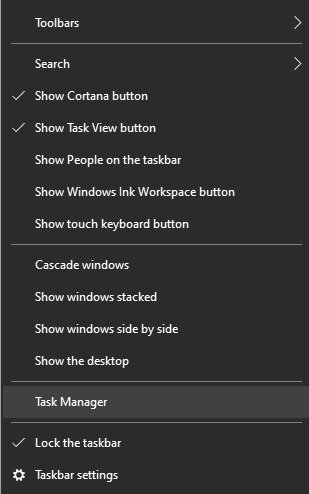
Step 3: Identify the processes or programs that are using a lot of resources but are not needed at the moment.
Step 4: To stop any of these applications or processes, right-click on them and select End Task.
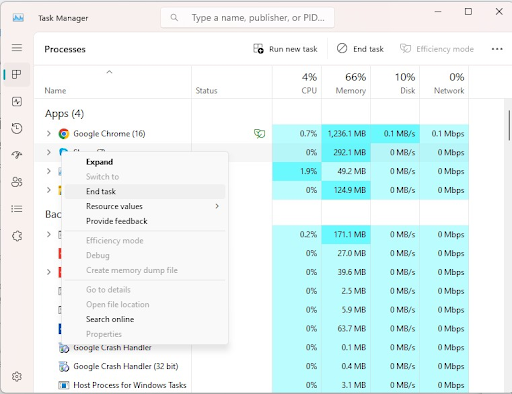
Perform the debugging, then click on End Task.
By freeing up system resources, you can provide Blender with the processing power it needs to function correctly, thereby reducing the occurrence of crashes. However, if Blender continues to crash, try the next tactic.
Fix 3: Download and install the latest version of Blender
Using an older version of Blender puts you at risk of bugs and instability, which can ultimately lead to crashes. To properly install the latest version of Blender, follow these steps:
Step 1: Visit the official Blender website.
Step 2: On the website, navigate to "Download."

Download Blender from the official site
Step 3: The next step is to choose the version of Blender that is compatible with your operating system (in this example, Windows 11).
Step 4: Once the download is complete, locate the downloaded file and start the installation process.
Step 5: To install the latest version of Blender on your computer, you will need to follow the instructions displayed on your screen.
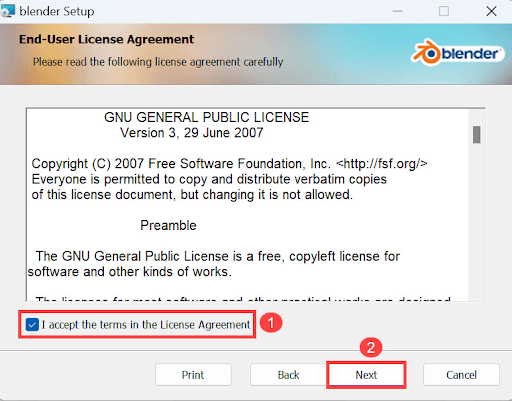
By installing the latest version of Blender, you ensure access to bug fixes and improvements, which will enhance the program's reliability and reduce the likelihood of crashes.
Unfortunately, if Blender continues to crash on Windows 10 or 11, try the last solution.
Fix 4: Install the latest Windows update
Microsoft regularly provides Windows updates to address issues and improve the efficiency of the Windows operating system.
Whether your computer is running Windows 10 and you haven't updated Windows in a long time, you can try installing a Windows update.
To install the latest update for Windows, follow the steps outlined below:
Step 1: To open Windows Settings, you will need to press the Windows logo key + the I key on your keyboard simultaneously.
Step 2: Next, select Update & Security.
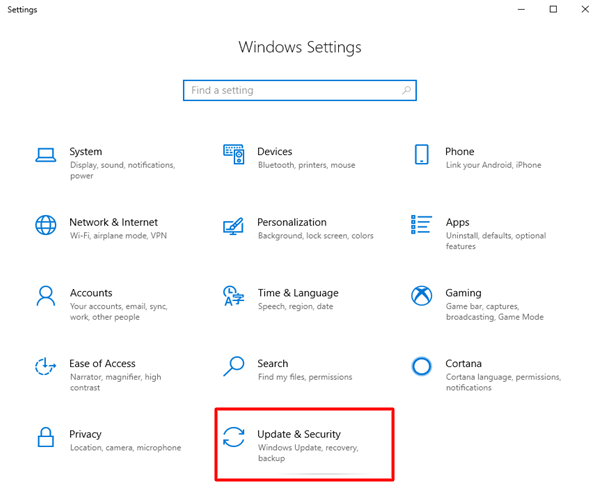
Click on Updates and Security
Step 3: To download and install the available updates for your computer, click on Check for updates.
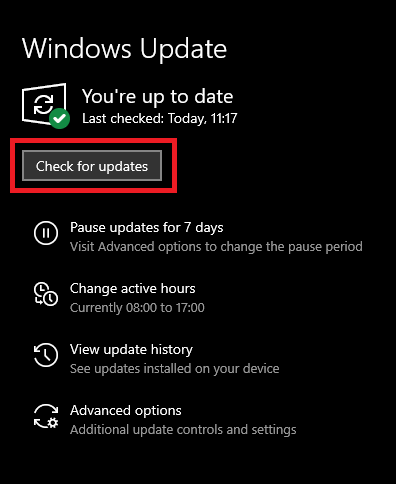
Check for Windows updates to get the latest driver update.
After installing the latest Windows updates, you should restart your computer.
Conclusion
Using Blender on Windows 10 and 11 while facing frequent crashes can be a disappointing experience; however, if you follow the methods outlined in this article, you will be able to resolve the Blender crash issue on Windows 10 and 11.
Remember to close resource-heavy applications, update your graphics drivers, install the latest version of Blender, and ensure Windows 11 is always updated. If crashes persist, you may want to consider reaching out to technical support for further assistance.
You might also like
How to use Windows Sandbox on Windows 11 and 10
How to fix RESULT_CODE_HUNG error in Chrome
<a


