

How to fix the issue of some websites not opening in Google Chrome: Almost everyone has encountered the "This site can't be reached" error in Chrome, but only a few know the reasons behind this error and the necessary fixes. Follow this article to learn how to resolve the "This site can't be reached" error in Chrome.
Fixing the issue of some websites not opening in Google Chrome
Here are the methods that can help resolve the "This site can't be reached" error in Chrome:
1. Change DNS Address

The IPv4 DNS address helps assign the DNS server address provided by your Internet Service Provider and can also obtain a DNS server automatically. Sometimes, the DNS service settings can be the reason behind the "This site can't be reached" error in Chrome. Changing to Google's DNS server address can help eliminate this issue.
Here’s how to fix the "This site can't be reached" error in Chrome by changing the DNS address:
Press Windows key + R.
Now, type ncpa.cpl in the Open bar and hit OK.
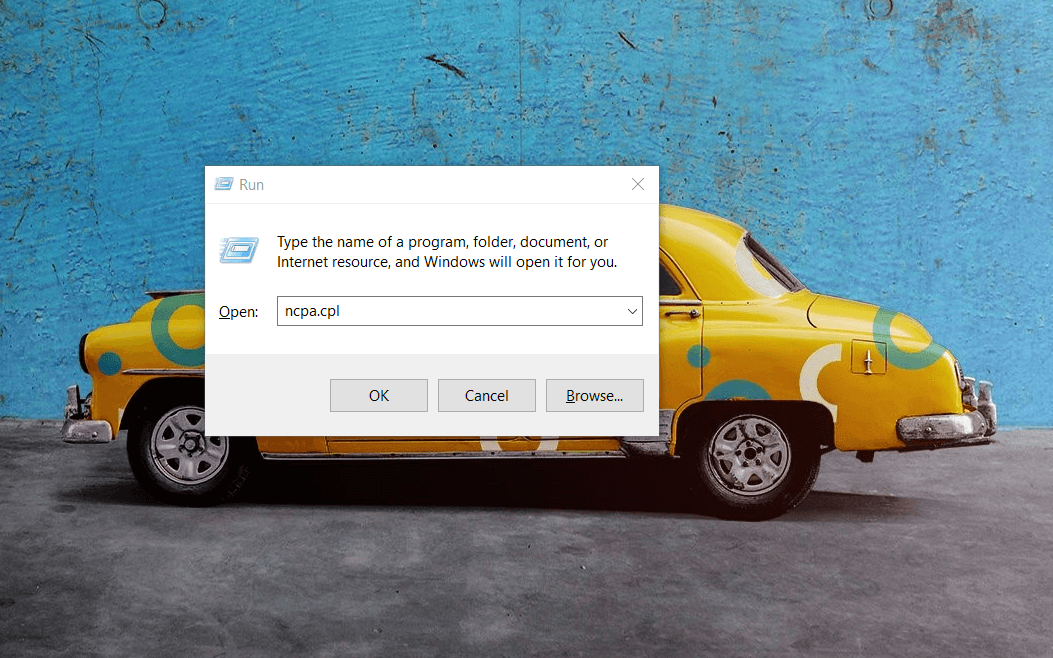
Type ncpa.cpl in the Open Bar to change the DNS address
Then, double-click on your internet connection. Once the Internet Connection Status window opens, click on the "Properties" button you’ll find there.
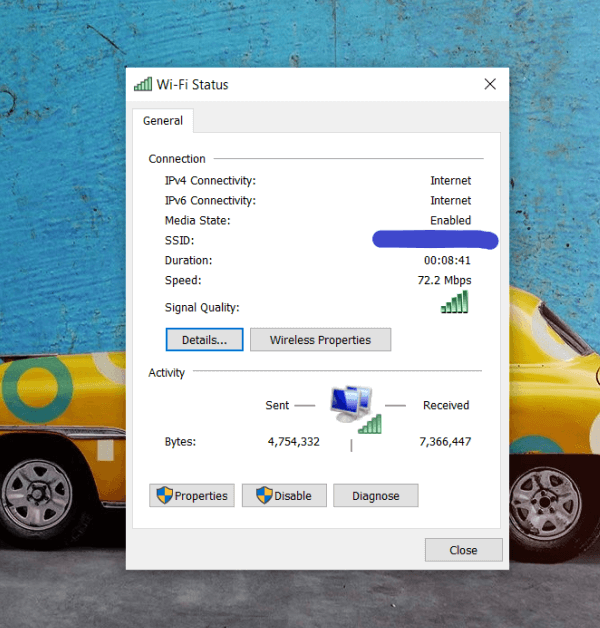
Double-click on the Internet connection
Once the properties window opens, look for the Internet Protocol Version 4 (TCP/IPv4) option under the Networking tab and double-click it.
Find the Internet Protocol Version 4 option under Networking
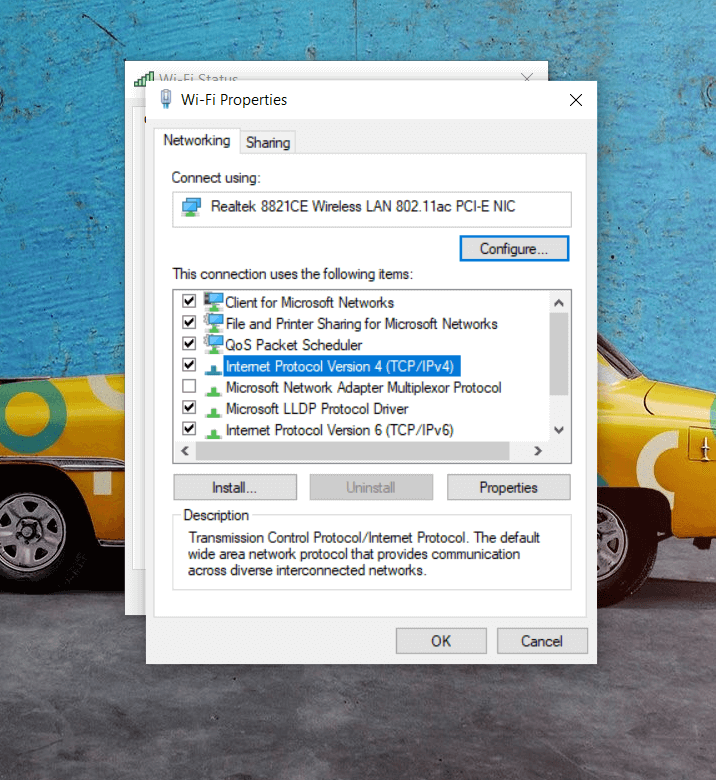
Now, you will find the option to set the DNS address manually. Select the option to use the following DNS server address if it’s not already selected, then enter the public DNS server addresses for Google listed below:
8.8.8.8
8.8.4.4
Check the box for Validate settings upon exit before clicking OK to save the new DNS server settings.
Once you’ve completed these steps, go back to Chrome to see if the "This site can't be reached" error has been resolved.
2. Clear Your Browser Cache

If you’re looking for an easy way to fix the "This site can't be reached" error, this method might be one of the simplest to try. You can clear your browser cache to resolve this issue.
Here’s how to do it:
Go to Google Chrome and click on the three dots (menu icon) located in the upper right corner of your screen.
Then select More Tools and click on Clear Browsing Data. You can also open this option by pressing Ctrl+Shift+Del together.
Once the Clear Browsing Data window opens, set the time range to All Time and then click the Clear Data button to clear your browsing data.
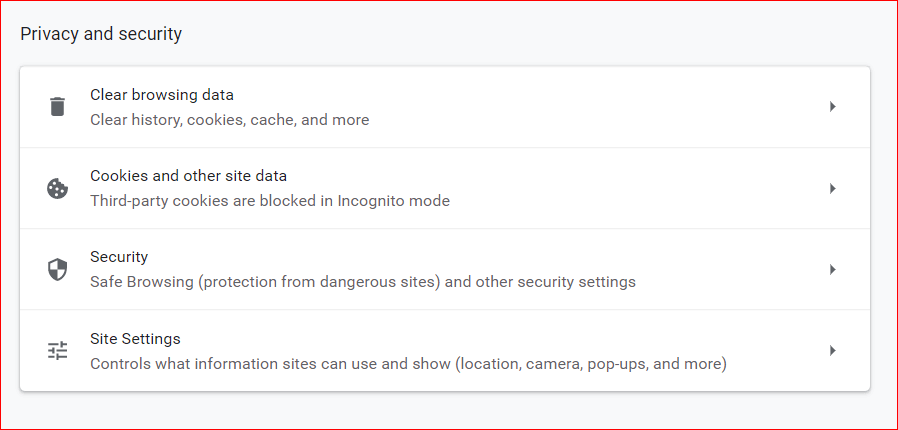
Click the Clear Data button to clear browsing data
Now that you’ve cleared your browsing data, check to see if the error is resolved.
3. Reset Chrome Settings
If the previous methods didn’t help resolve the "This site can't be reached" error in Chrome, it might be time to reset Chrome settings. Sometimes, resetting the settings can fix the issue.
To reset the settings in Chrome, follow these steps:
Type Chrome://flags/ in the Chrome address bar and hit Enter.
Now, look for the Reset option at the top of the flags page and click it to reset all Chrome settings.
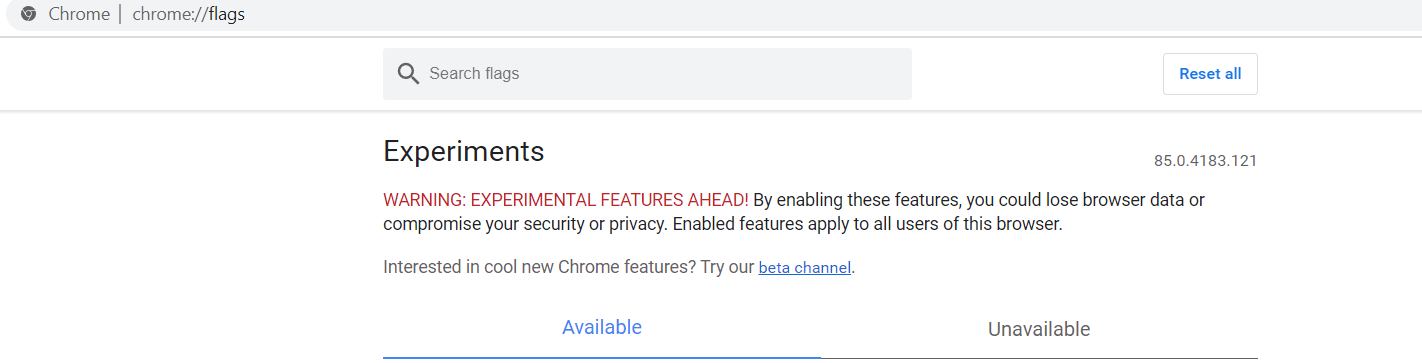
Click to reset all Chrome settings
Once you’ve done that, you can check Chrome to see if your issue has been resolved.
4. Restart DNS Client
Restarting the DNS Client can help fix the "This site can't be reached" error in Chrome.
Here’s a simple explanation of how to restart the DNS Client:
Step 1: From your keyboard, press the Windows key + R keys to bring up the Run dialog on your screen.
Step 2: Then type services.msc in the Run dialog box and click OK, or alternatively, you can press Enter on your keyboard.
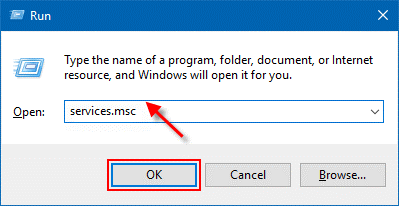
Step 3: This will take you to Windows Services, where you need to navigate to Network Store Interface Service.
Step 4: Right-click on the same (Network Store Interface Service) and select Restart from the context menu.
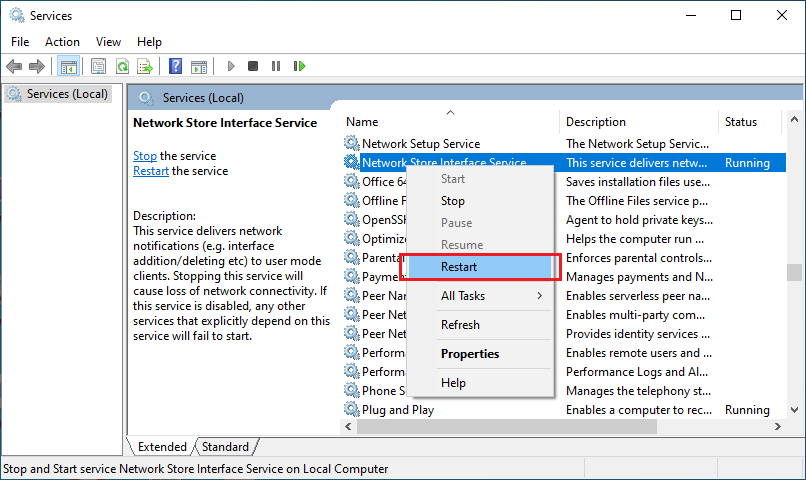
Restart the Network Store Interface Service
Step 5: Next, repeat the same step to restart the DNS Client and DHCP Client services.
Step 6: Now, wait for the DNS Client to restart the services.
Once that’s done, check to see if the issue has been resolved. If not, move on to the next solutions.
5. Reset TCP/IP
If you’re still facing the "This site can't be reached" error in Chrome, try resetting all IP protocols within your Windows operating system. This can fix various specific configuration errors.
Follow these steps:
Step 1: Type Command Prompt in the Windows search bar Windows and then click Run As Administrator to run it with administrative privileges.
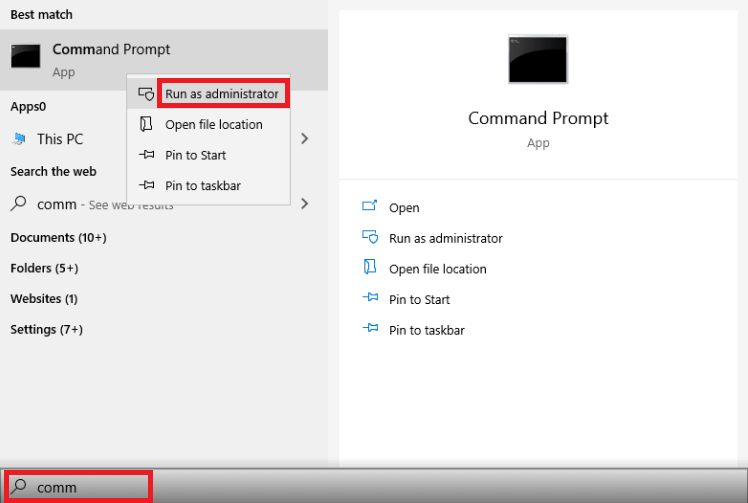
Type Command Prompt in Windows search
Step 2: Once the Command Prompt opens as an administrator, execute the following commands. Press Enter after each command.
ipconfig /release
ipconfig /all
ipconfig /flushdns
ipconfig /renew
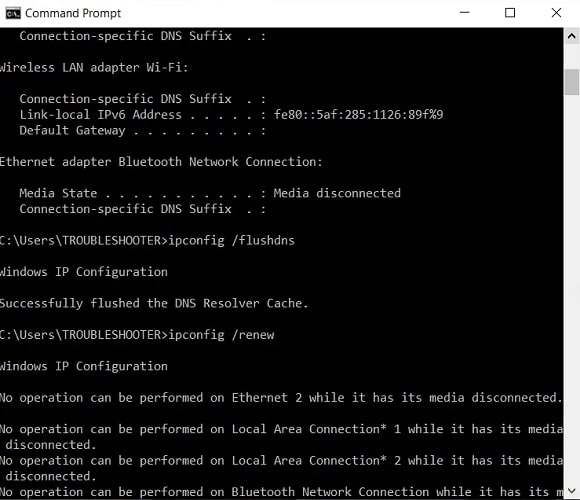
Step 3: Finally, restart your computer to save the new changes.
After that, check to see if the "This site can't be reached" error in Chrome has been fixed.
6. Run Windows Network Diagnostics to Fix Chrome Issues
Running a Windows system scan is likely the optimal solution for any system issue. To identify the actual network-related problem, you can run Network Diagnostics, which can help you detect and fix the cause.
To do this, follow these simple steps:
Open RUN by pressing the Windows key + R together.
Now, type inetcpl.cpl in it, then press "OK".
Type inetcpl.cpl to run Windows Network Diagnostics.
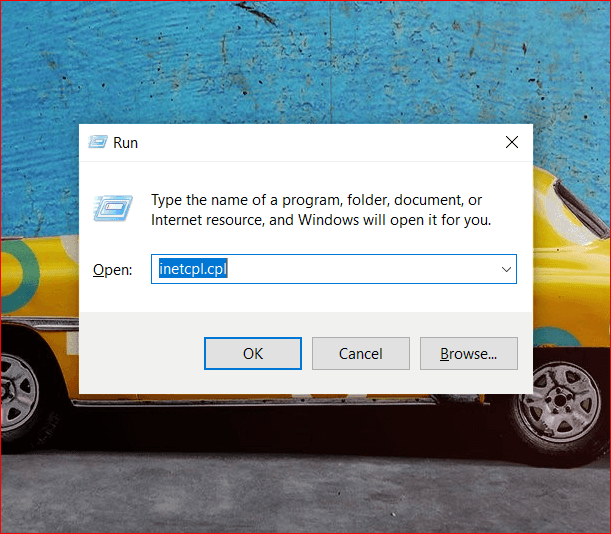
Click the "Diagnose" button, which will run the network troubleshooter.
Wait for the diagnostics to finish. Once completed, disable your internet connection and then enable it again. Then return to Chrome and try loading the page to see if the "This site can't be reached" error still exists.
Conclusion
We discussed how to solve the issue of some websites not opening in Google Chrome and provided several solutions to eliminate the "This site can't be reached" error in Chrome. There’s surely a solution or another to get rid of this error from your screen.
Moreover, it’s important to ensure that the version of Chrome you are currently using is up to date. If not, update it as it may be the cause of this error. Typically, this error does not occur due to a fault in Chrome, but give it a try. Share your comments and suggestions in the comments section. Stay safe and healthy.


