

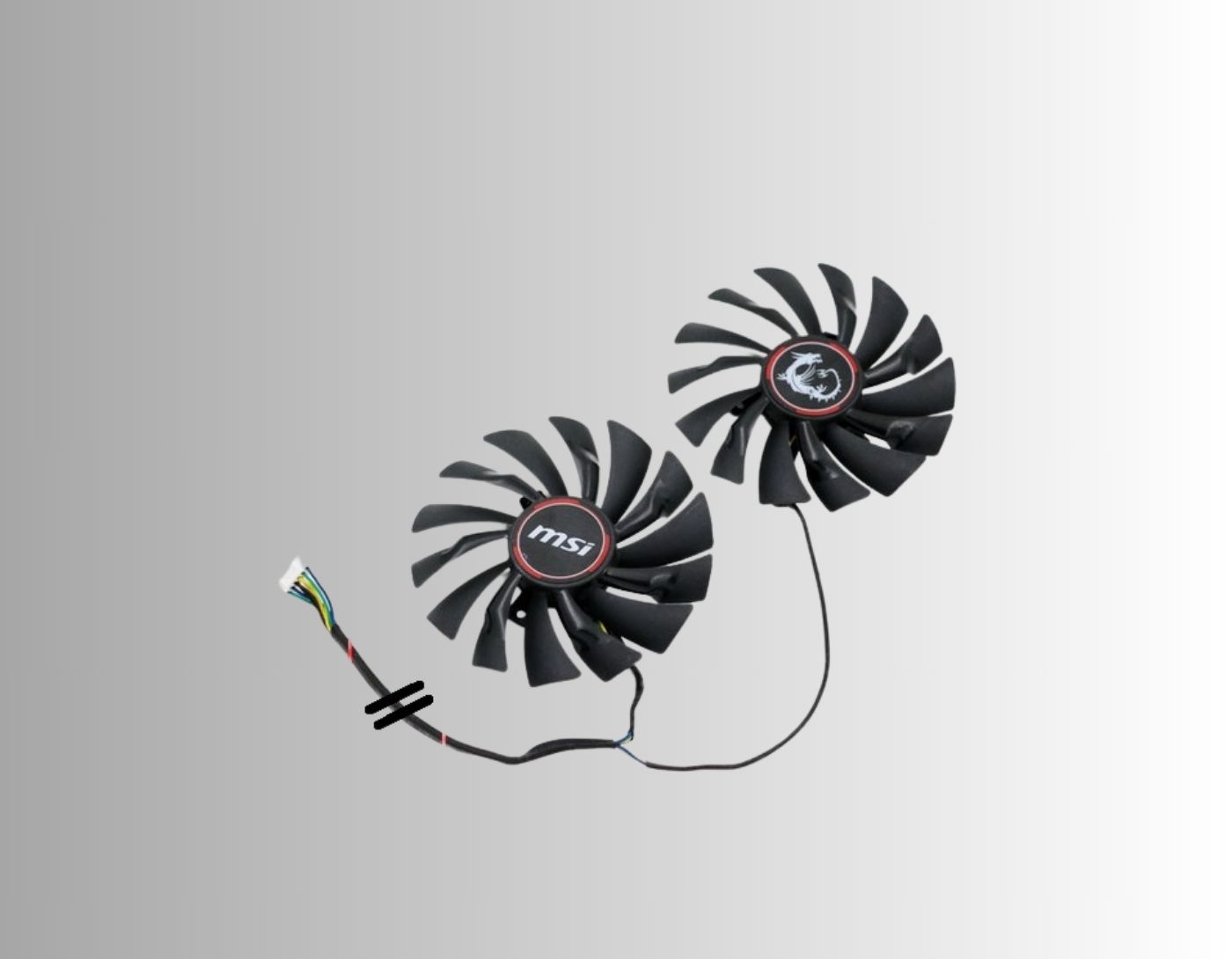
Fixing the issue of a non-working graphics card fan: One of the common problems users face is that their graphics card fan doesn't spin. This can be quite frustrating and may indicate a potential issue. However, in most cases, this problem is due to a simple oversight by the manufacturer, and the solution is easy. Therefore, in this article, we will explore the reasons why your graphics card fan may not be spinning and how to resolve it.
The most common reason for your graphics card fan not spinning is that the fan is designed to operate in a passive cooling mode to help reduce system noise. Therefore, it won't activate until the temperature reaches a certain level.
If you often engage in resource-intensive tasks, such as gaming on your computer, you may experience a rise in temperature. If the graphics card fan doesn't spin to cool the processor, you could face serious issues with your device, such as system crashes.
While it may be a feature of modern graphics card fans to stop spinning when not needed (when temperatures are not too high) to save resources, the fan not moving even when temperatures are high is a significant problem. Therefore, we have delved into all the potential reasons for the fan not spinning and how to fix the issue. Let's start with the reason why the graphics card fan doesn't spin at high temperatures.
Why doesn't the graphics card fan spin at high temperatures?

Here are the reasons that can cause your graphics card fan to stop spinning:
The cables are not connected properly.
The graphics card driver is outdated.
Dust in the graphics card.
Corrupted GPU BIOS.
Now that we understand the causes of the problem, let's look at how to fix it.
How to fix the graphics card fan not working

You can apply the following solutions to fix the issue if your graphics card fan does not spin even at high temperatures.
Fix 1: Check the cables
The first thing you should do is check your PCIe power cables to ensure they are connected properly. Checking the cables requires disassembling the graphics card, turning off the computer, and then opening the case. However, don't worry if the problem persists; we have more solutions.
Fix 2: Clean your graphics card
Dust could be another reason your graphics card fan isn't spinning. Therefore, turn off your computer, use your fingers to spin the fan, and then clean it with a cotton swab to resolve the issue.
Fix 3: Update the graphics card driver (recommended)
Outdated drivers are often the cause of annoying issues you face. Therefore, updating drivers is one of the sure solutions to eliminate this problem. You can update drivers and improve your computer's performance automatically using Win Riser, a program dedicated to updating and optimizing drivers.
Win Riser comes with many useful features to elevate your computer's performance to the next level. For instance, this program detects and removes malware, deletes invalid registry entries, cleans unwanted files, and allows you to back up and restore currently installed drivers if things go wrong in the future. You can download this program and then follow the quick steps below to use it.
After downloading the program package, double-click the downloaded file and follow the instructions to install the program. The installation takes just a few seconds.
Wait patiently for two to three seconds while Win Riser completes a thorough scan to identify issues on your computer.
Review the results displayed on your screen.
Click the "Fix Issues Now" button to update drivers and automatically fix all issues.
Use Win Riser to update all outdated drivers, and click Fixes Now.
Fix 4: Update your GPU BIOS
A corrupted graphics card can be another reason for issues with the graphics card fan. Therefore, updating the GPU BIOS can help resolve the problem.
Here are some guidelines to do this:
First, find out your graphics card model.
Second, download the latest version of the BIOS for your graphics card from the manufacturer.
Now, get the AMD Flashing tool or the Nvidia Flashing tool depending on whether you have an AMD or Nvidia graphics card.
AMD users should place the BIOS file they downloaded earlier in the same folder where they extracted the nvflash tool. Then, right-click on the ATIWinflash.exe file, choose to run it as an administrator, and update the BIOS.
Nvidia users should ensure that the BIOS file and nvflash.exe (along with related files) are in the same folder. Then double-click nvflash.exe to run it. After running the file, enter nvflash yourfilename.bios in the window that appears on the screen (please replace yourfilename with the name of your BIOS file) and let the process complete.
Fix 5: Reset or customize fan curves
Modern graphics cards support fan customization through built-in software tools. You can adjust your graphics card fan speed according to speed levels and temperature, which helps fix the fan not spinning issue while reducing fan noise at the same time and improving fan performance.
Although there are many fan customization programs available, MSI Afterburner is the most recommended. You can use it by following these steps:
To start, download and install MSI Afterburner.
Second, run the program and select User Define from the available options. This option is located at the bottom right of the interface (next to the Fan Sync option).
Enable the options to allow automatic fan control by a user-defined program and override the zero fan speed using the hardware curve.
You can now customize the fan curve speed according to your requirements. However, make sure the temperature does not correspond to a fan speed of 0%.
Finally, click the "Apply" and "OK" buttons to save the changes.
Fix 6: Send the GPU for warranty service
Unfortunately, if the above solutions did not resolve the issue of the graphics card fan not spinning, you will need to send the graphics card to the manufacturer for maintenance. As long as it is under warranty, they will repair the faulty fans and restore your GPU's functionality. If the issue is more severe, it may take some time, but be patient; the service center will either repair your graphics card or provide you with a replacement card if necessary.
Keep in mind that physical damage is not covered by the warranty; it only includes manufacturing defects. If your graphics card is out of warranty and you are skilled in handling electronics, the recommended fix for most users is to consider opening the graphics card and repairing the faulty fan yourself.
Frequently Asked Questions
What causes GPU fan failure?
A GPU fan failure can occur for various reasons - manufacturing defects, age, dust accumulation inside the motors, or physical damage. Fortunately, we have listed several fixes that apply to these issues.
What is the lifespan of a GPU fan?
A GPU fan can last anywhere from five to ten years. However, if it runs constantly at 100%, its lifespan will be much shorter. We recommend setting an optimal fan curve that works for the temperatures you desire while balancing noise levels as well.
Can fan speed damage the GPU?
The GPU itself cannot be harmed by the fan, even if it runs at full speed 24/7. However, running the fan at 100% speed can also shorten the lifespan of your GPU fans, and you may need to replace the fans sooner than expected to keep your GPU functioning optimally.
Conclusion
In this article, we discussed how to solve the issue of a non-working graphics card fan. We hope your graphics card fan operates correctly after applying the fixes mentioned here. However, if you have any questions, please write to us in the comments; we would be happy to engage with you.


