

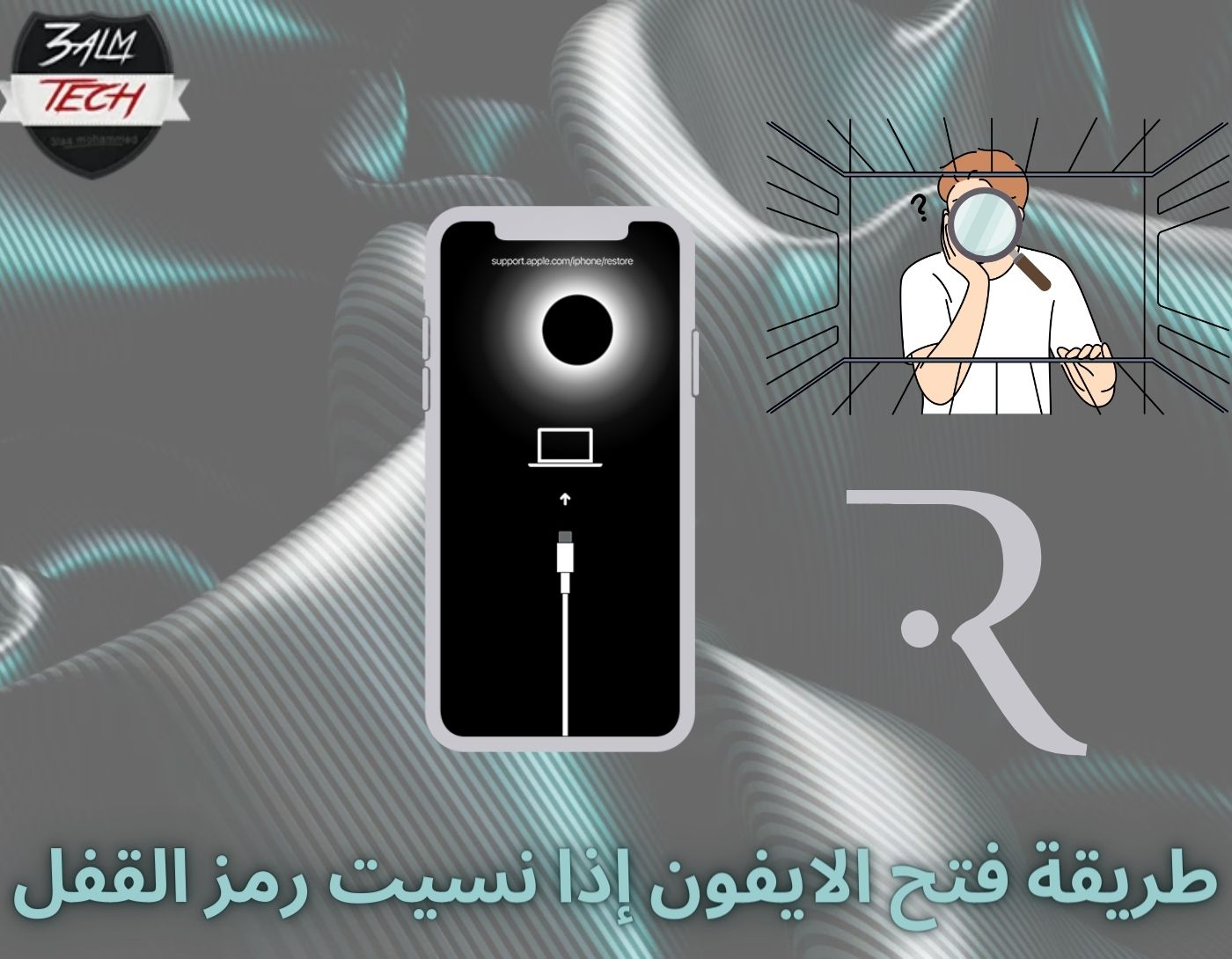
Did you forget the passcode for your iPhone? If you're facing this issue and wondering what to do, this article provides you with all the information you need on how to unlock your iPhone if you've forgotten the passcode. Stay with us as we offer various solutions to resolve the problem in just a few minutes.
To enhance the security of your personal data, it's common for users to create complex passcodes for different accounts and devices. Although newer iPhone models have the feature to unlock using facial recognition, it doesn't always work, and you may encounter a problem if you forget your passcode for your iPhone.
After several incorrect attempts, you may see a message saying the iPhone is disabled on the screen. This can be very frustrating, especially if you don't have a recent backup of your photos or other data on the phone.
If you find yourself in such a situation, don't worry: there are several ways to regain access to your iPhone.
Tips to Avoid Losing Your iPhone Passcode
- Choose a memorable drawing pattern that makes sense to you.
- Use letters and numbers that have personal significance.
- If you're using a passcode that consists only of numbers, make sure they are related to you, not birthdays, as it's not safe to use such dates as passwords.
- Write down the passcode in a secure place and keep it separate from your iPhone.
- Test the passcode right after creating it to ensure you didn't press an incorrect number or letter while setting it up.
Why Do You See the "iPhone Disabled" Message on the Lock Screen?
The "iPhone Disabled" message usually appears when someone enters their passcode incorrectly multiple times. On the iPhone 8 and newer models, the locked device will display a message saying "iPhone Disabled" on the lock screen.
When it comes to Apple devices, encryption makes it impossible for anyone who doesn't know the passcode to access the iPhone. Therefore, the only way is to restore your device to its original state after entering the wrong passcode several times.
How to Unlock Your iPhone If You Forgot the Passcode
If you've forgotten your iPhone passcode and it's disabled, you have a few options to choose from. You can either use recovery mode, iTunes, or iCloud to restore your device.
However, these options will erase your phone's data and restore it from a backup. If you don't have a recent backup, you can remove the lock screen and regain access to your iPhone using recovery software.
If your iPhone is running iOS 15.2 or later, you can reset your iPhone passcode from the Security Lockout screen or the iPhone Unavailable screen without connecting it to a computer. Another option is to use a third-party passcode removal tool, which allows you to remove the forgotten iPhone passcode without having to restore using iTunes.
1. Unlock Your iPhone Without the Passcode Using iCloud
Even if you've forgotten your iPhone passcode, you can still access it using your iCloud account. Follow these steps:
Back up your iPhone using iCloud for your iPhone.
Connect to a Wi-Fi network.
Connect your iPhone to the computer via cable.
Use a computer with iTunes installed (it can be a Mac or Windows):
Step 1. Connect the iPhone to the computer and enter recovery mode.
To do this on iPhone 8 or later, press and hold the side button.
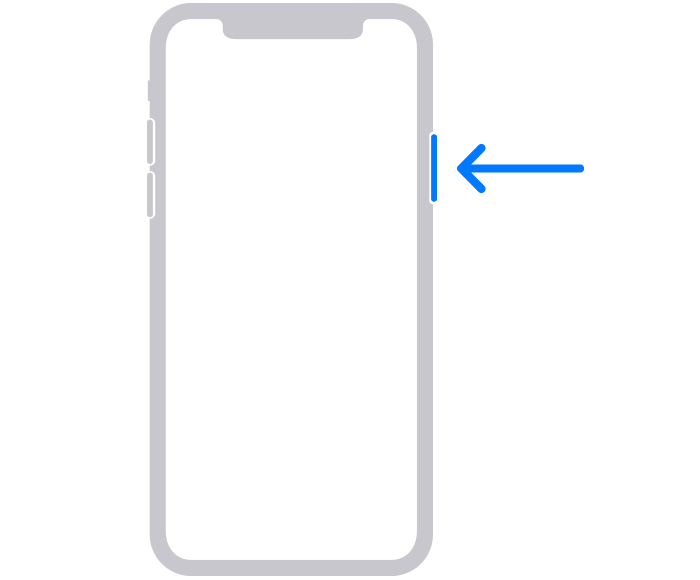
Put iPhone 8 and later into recovery mode
Step 2. Click on the restore and update option and set up your iPhone as if it were a new device. Then, in the apps and data step, choose the option to restore from an iCloud backup.
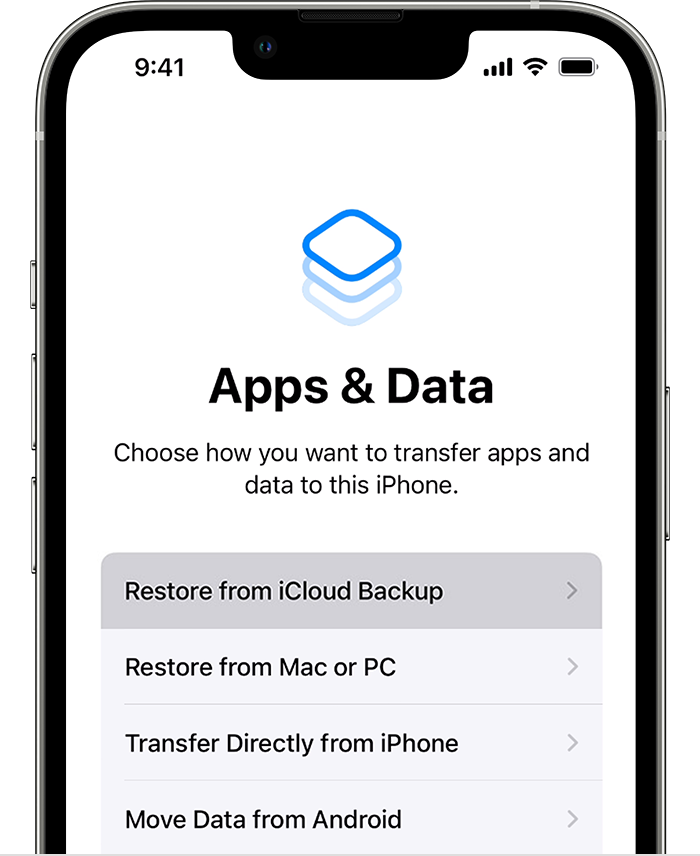
Select the backup you want to restore and wait for the process to finish.
2. Use iTunes to Unlock Your iPhone Without Restoring
If you have an iTunes backup, you can regain access to your iPhone after forgetting its passcode. Just follow these steps:
Get an iTunes backup for your iPhone.
Connect to a Wi-Fi network.
Connect your iPhone to the computer via cable.
Use a computer with iTunes installed (it can be a Mac or Windows).
Step 1. Connect your iPhone to the computer using a USB cable and open iTunes. If prompted for the passcode, restart your iPhone.
Step 2. Find your iPhone on iTunes and click on "Restore Backup," choose from the backup options, and follow the on-screen instructions.
Step 3. Enter recovery mode and let the iPhone restart.
3. Unlock Your iPhone Without Passcode Using Find My iPhone
If you've forgotten your iPhone passcode but have the Find My iPhone feature enabled, you can unlock the device from a computer. Follow these steps:
Enable the Find My iPhone tool.
Get an iCloud backup for your iPhone.
Connect to a Wi-Fi network.
Use a computer with iTunes installed (it can be a Mac or Windows).
Step 1. Go to the Find My iPhone website and authenticate using your Apple ID.
Step 2. Then select your iPhone from your list of devices and choose to erase it. Once your iPhone is erased, you can also remove its passcode.
Step 3. After that, restart the iPhone and use the iCloud backup to restore your data.
4. Use a Third-Party Tool to Access Your iPhone Without Restoring
Third-party applications are a way to access your iPhone when you don't have a recent backup of your files. These applications can remove the lock screen while keeping your data intact, meaning you can access your device when you forget your iPhone passcode.
While this is the only way you can access your iPhone when you forget your passcode without restoring it, you should only do this as a last resort!
5. Access Your Data Using Your iPhone's Recovery Mode
The recovery mode method involves connecting your phone to a computer (Mac or Windows) running iTunes and putting it into recovery mode so it can be reset from scratch.
First, turn off your iPhone, then press and hold the button that leads to recovery mode.
To do this on iPhone 8 or later, press and hold the side button.
Put iPhone 8 and later into recovery mode.
On iPhone SE (1st generation) and iPhone 6s and older models, use the home button.
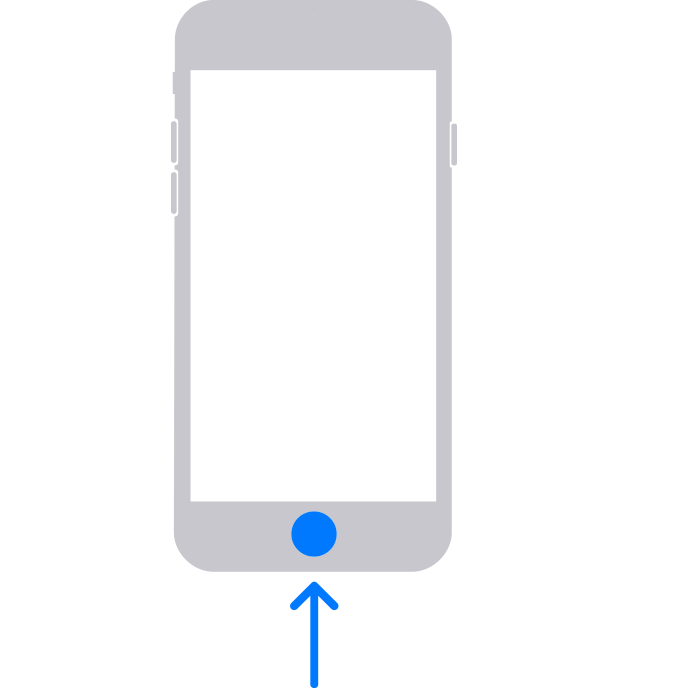
Put iPhone SE into recovery mode.
Next, connect the iPhone to your computer using a USB cable, with iTunes or Finder open, and continue holding the button until you see the recovery screen.
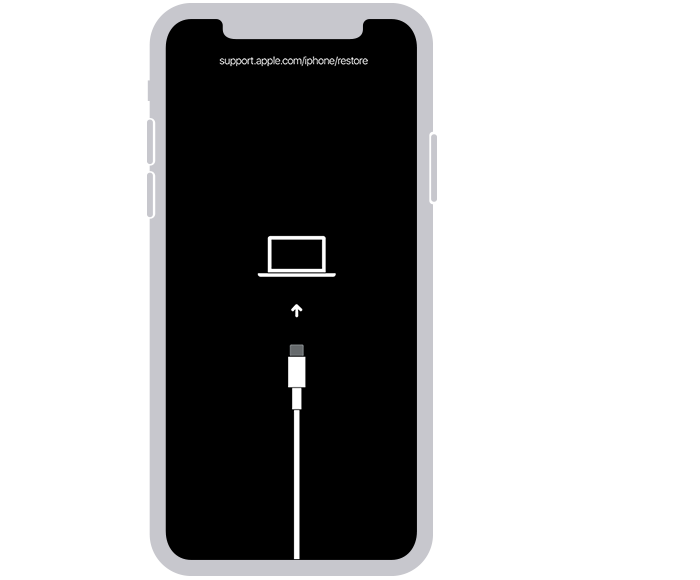
iPhone recovery mode screen
If you see the lock screen, try these steps again. However, if you can't get your phone into recovery mode, you should contact Apple Support for further assistance.
Then, find your iPhone on i


