


(How to Fix Activation Error 0xc004c003 and 0xC004E002 on Windows) How to Fix Activation Error 0xc004c003 and 0xC004E002 on Windows: You are likely to encounter activation error codes 0xc004c003 and 0xC004E002 when trying to activate Windows Server, 8, 10, or 11. In this article, we will guide you on how to resolve these activation errors and easily activate your Windows version.
You may receive one of the following errors:
Code: 0xC004C003
Description: The activation server has determined that you do not have a valid digital license.
Code: 0xC004E002
Description: The software licensing service reported that the license store contains inconsistent data.
KB5001692: Windows activation failed due to error 0xc004c003.
Causes of Activation Error 0xc004c003 and 0xC004E002 on Windows
You may encounter this error due to one of the following reasons:
You do not have a valid digital license.
Incorrect permissions are set on the Tokens.dat file.
The Tokens.dat file is corrupted.
You are using an OEM key to activate Windows.
The registry file is corrupted.
Presence of malware on your computer.
How to Fix Activation Error 0xc004c003 and 0xC004E002 on Windows
To resolve this issue, you need to follow several troubleshooting steps such as setting the correct permissions, repairing registry files, arranging a new product key, or fixing the Tokens.dat file. We will try to cover everything that can help solve your problem in this article.
Method 1: Repair Using the Advanced System Repair Tool
This tool is designed to find and fix issues on Windows 8 and Windows 10 and Windows 11 and Windows Server by detecting and fixing errors in the registry file, repairing missing DLL files, exe files, sys files, and other missing file issues, updating Windows drivers, fixing driver errors, and more. It is an all-in-one Windows optimization tool that repairs and enhances your Windows device for smooth and fast performance.
Windows consists of a large number of dll files, exe files, sys files, various types of services, databases, and so on, so it is not possible to constantly monitor all files. This excellent computer optimization tool repairs damages, fixes errors, updates Windows and drivers, and silently removes various types of errors.
The Outbyte PC Repair Tool performs all of the above tasks effortlessly and provides you with a smooth and error-free Windows environment to work in so you can focus solely on your tasks.
3 Steps to Fix This Error
Step 1. Download the Outbyte Repair Tool [File size: 16.4 MB]
Step 2. Scan your Windows computer
Step 3. Click the "Repair" button to fix the error
Method 2: Fix the "Activation Failed" Issue Using the Windows Activation Troubleshooter
The Windows Activation Troubleshooter automatically fixes activation issues when run; however, the troubleshooter settings only appear when your Windows 10 or Windows 11 operating system is not activated. You can run the activation troubleshooter as follows:
Windows 11
Step 1: Start > Settings > System > Activation.
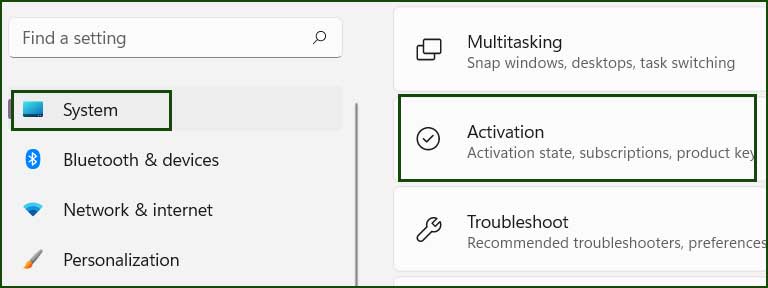
1_activation_settings
Step 2: Click on the troubleshooter link to run the troubleshooter.
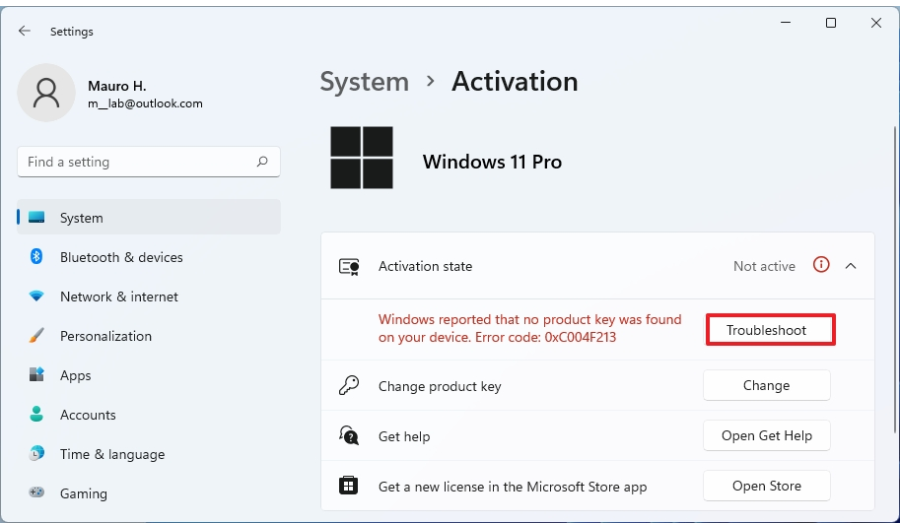
activation_troubleshooter
Windows 10
Step 1: Start > Settings > Update & Security > Activation
Step 2: Select Troubleshoot to run the troubleshooter.
Method 3: Run the Slmgr.vbs Command
Slmgr is a short form of Software Licensing Management Tools, a VBS script used to perform advanced Windows activation management. If you are tired of activating Windows using traditional activation windows, you should try this command-line tool to activate Windows.
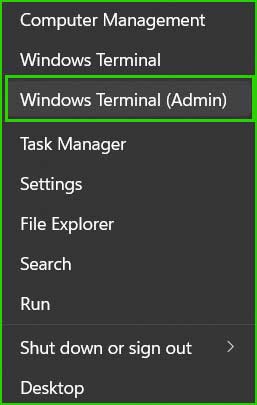
Step 1: Open Command Prompt as Administrator or right-click on the Start menu and select Windows Terminal (Admin).
Step 2: Now, paste the following command into the Command Prompt to activate Windows. You need to replace xxx with your product key.
slmgr.vbs –ipk XXXXX-XXXXX–XXXXX–XXXXX–XXXXX
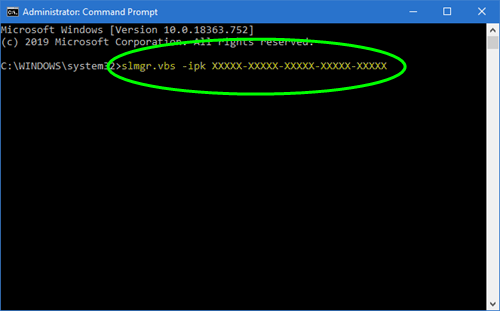
activation-error-code-0x004f074
Step 3: After executing the above command, enter the following command to activate Windows.
slmgr.vbs –ato
Step 4: Restart your device for the changes to take effect.
Method 4: Set the Correct Permissions
Step 1: Open Command Prompt as Administrator.
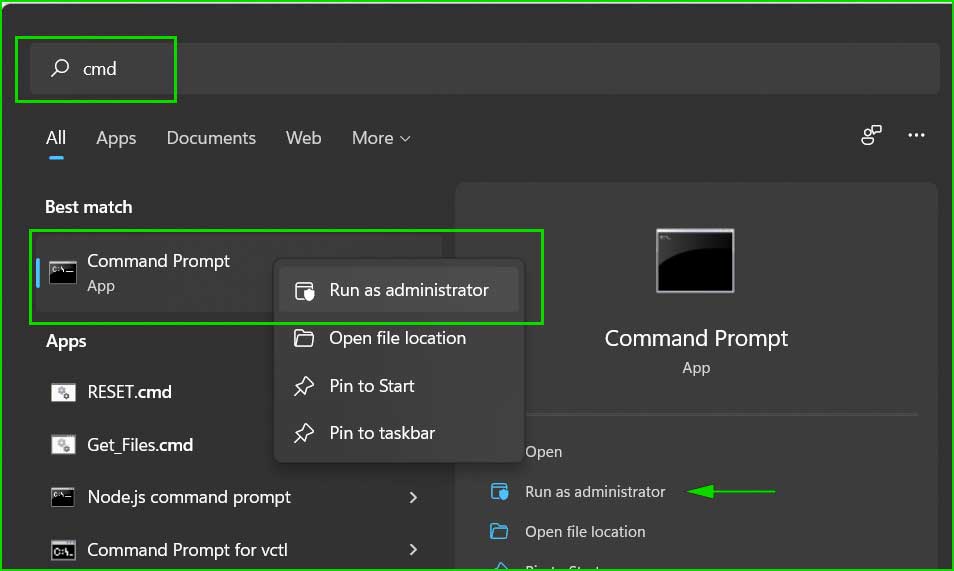
Step 2: Paste the following command and execute it.
icacls "%windir%\ServiceProfiles\LocalService\AppData\Local\Microsoft\WSLicense" /grant "BUILTIN\Administrators:(OI)(CI)(F)" "NT AUTHORITY\SYSTEM:(OI)(CI)(F)" "NETWORK SERVICE:(OI)(CI)(F)"
Method 5: Rename the Tokens.dat File
Step 1: Open Command Prompt as Administrator.
Step 2: Run the following commands step by step.
net stop sppsvc
cd %windir%\ServiceProfiles\LocalService\AppData\Local\Microsoft\WSLicense
ren tokens.dat tokens.bar
net start sppsvc
cd %windir% \System32
cscript slmgr.vbs -rilc
Step 3: Restart your computer twice for the changes to take effect.
Step 4: Now, activate Windows using your keys, and you should not encounter activation error 0xc004c003 & 0xC004E002.
Additionally, you should keep trying to activate Windows because whenever a new version is released, the server experiences heavy loads and sometimes fails to provide activation services.
So, keep trying at different times of the day and night, and you will be able to successfully activate Windows. If this does not help, contact the manufacturer for new keys or reach out to Microsoft support.
Conclusion
In this article, we discussed how to fix activation error 0xc004c003 and 0xC004E002 on Windows.
I have tried to explain all possible methods to fix Windows activation errors 0xc004c003 & 0xC004E002. If you have found another effective method to resolve this error, we hope you will mention it in the comments section so that everyone can benefit.


