

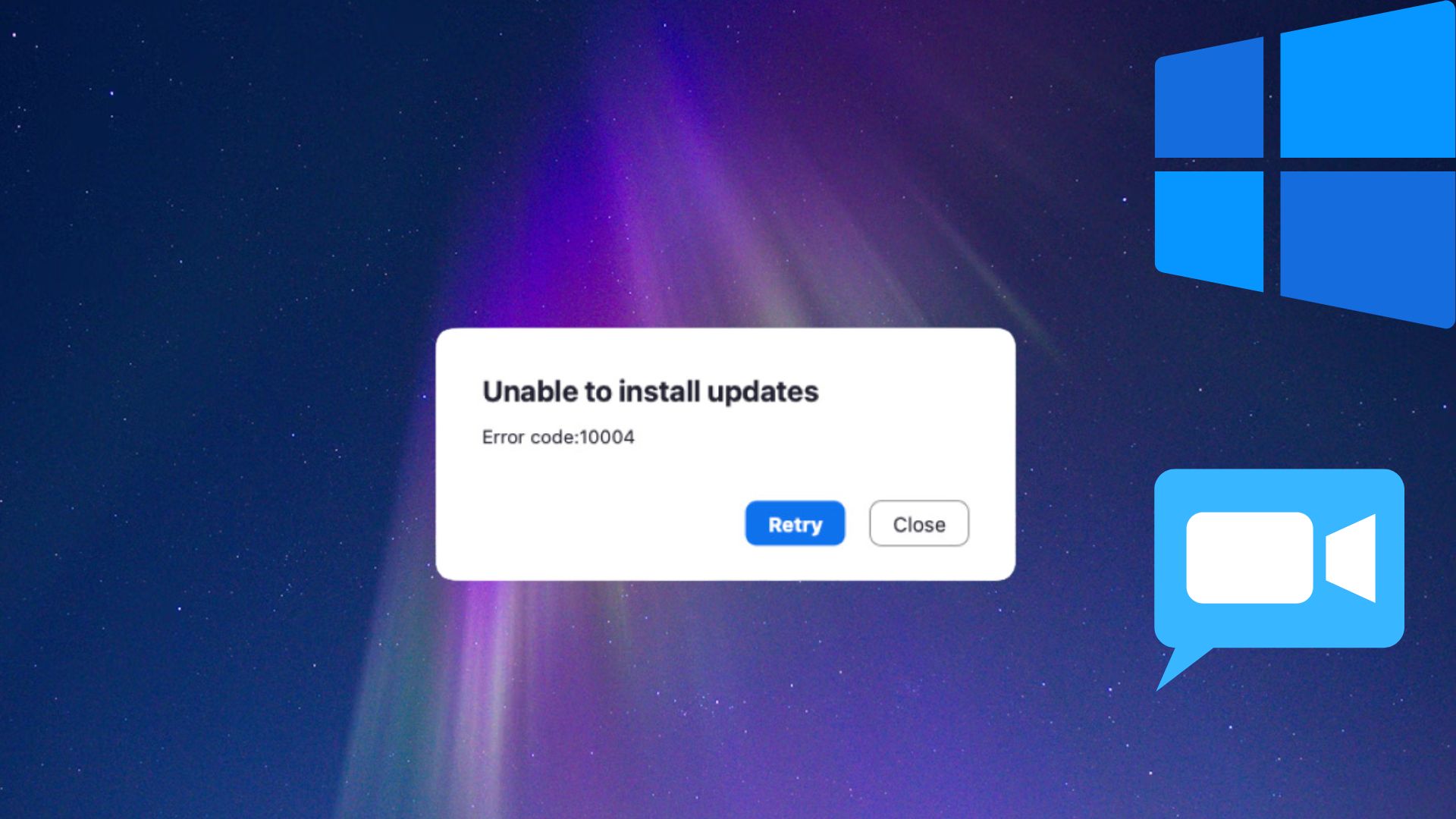
How to Fix Error Code 10004 in Zoom: Zoom is a well-known application, favored by many for virtual meetings, online chatting, and VoIP phone systems. However, numerous users have reported encountering error code 10004 in Zoom, which prevents it from updating automatically.
Are you facing the same issue or a similar one? If so, this article will be very helpful for you, as we will guide you on how to fix error code 10004 in Zoom.
However, it's good to understand the reasons behind the problem before attempting to fix it. So, let’s start by discussing what might be causing the issue you’re struggling to resolve.
Causes of Error Code 10004 in Zoom
The following factors may have led to the appearance of error code 10004 in Zoom:
- You have a weak or unstable network connection.
- Zoom servers are undergoing maintenance.
- Your device's firewall is blocking Zoom from connecting to the server.
- Accumulation of application cache.
- Your Zoom client needs an update.
Now that we’ve looked at the potential reasons for encountering installation error code 10004 on Zoom, let’s learn how to fix it.
How to Fix Error Code 10004 in Zoom
You can try the following methods to resolve error 10004 in the Zoom application on your device.
Fix 1: Check Your Internet Connection
Since a network-related issue may have caused the Zoom error, you should first check your internet connection before trying other fixes.
Here are the steps to do that:
First, open the settings panel using the shortcut command Win+I.
Once you access your computer's settings, you can select Internet from the available options.
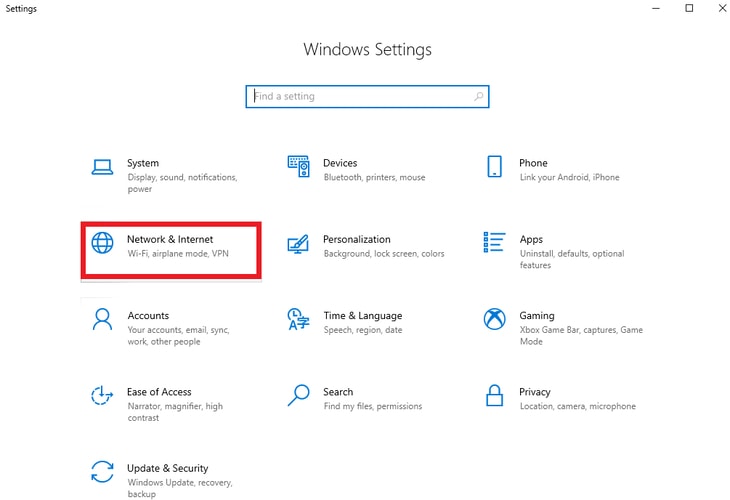
Network and Internet
Select Status from the left panel of the network and internet settings.
If your connection status indicates that you are connected to the internet, you can proceed to the next solution.
If you find any issues with your internet connection, scroll down to the Network Troubleshooter and click on it.
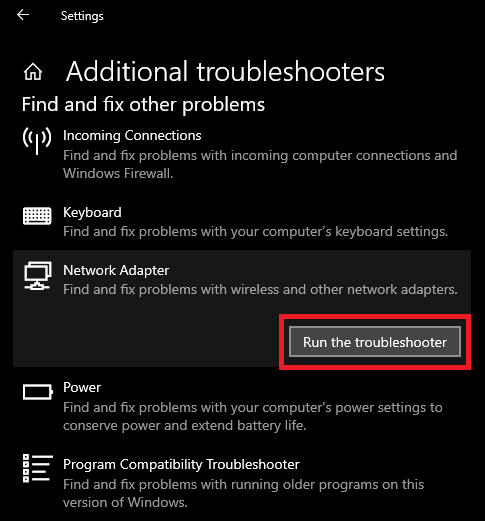
Run the Network Troubleshooter
Finally, patiently wait for Windows to diagnose and resolve your internet connection issue.
Fix 2: Check Zoom Server Status
Zoom servers may be down or under maintenance, causing error code 10004. Therefore, you can check the server status by following these instructions.
First, go to the Zoom status page.
Then, wait for the maintenance to complete if you notice any issues on the page.
Fix 3: Clear Application Cache for Zoom
While cache can be helpful for loading the Zoom application faster, an accumulation of unnecessary cache may lead to errors. Therefore, you can follow these steps to clear the application cache and fix installation error 10004 in Zoom.
To start the cache-clearing process for Zoom, open the Zoom application on your computer.
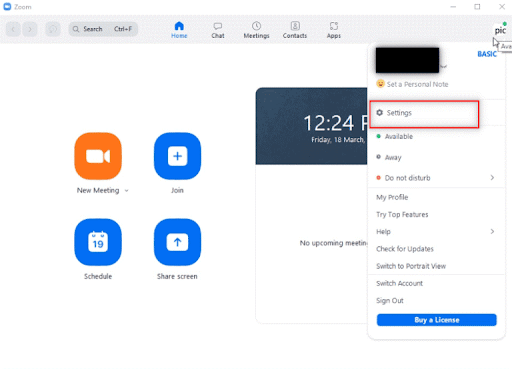
You can now click on the profile icon located in the upper right corner of the application window.
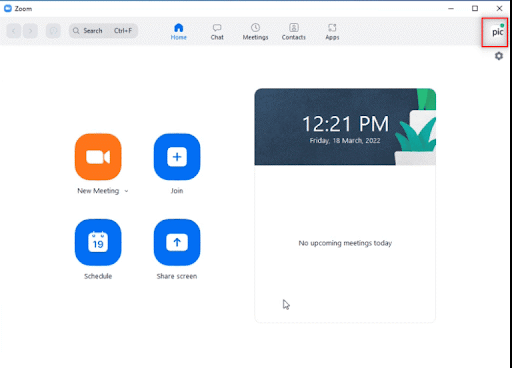
Click on the profile icon in Zoom
Next, select Settings from the options that appear on your screen.
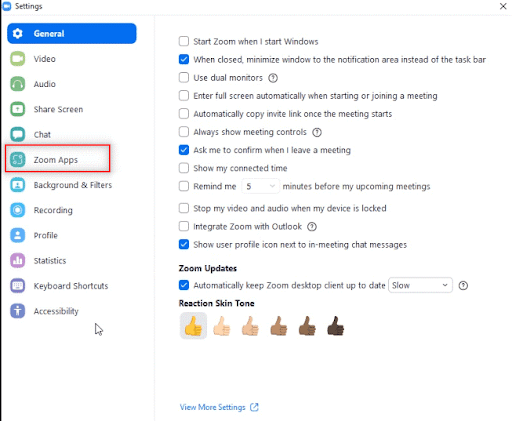
Select the Zoom Apps option from the left panel.
Select the Clear option next to Local Zoom Apps Data and Cookies.
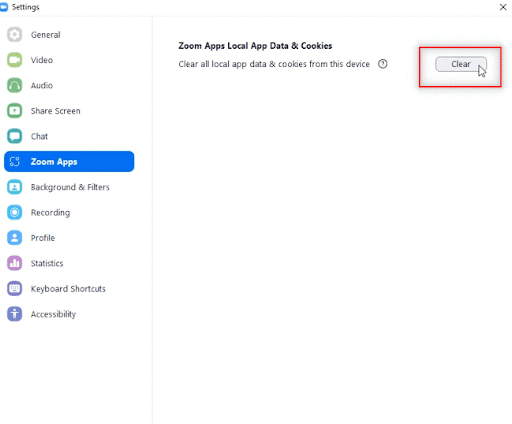
Clear option next to Zoom Apps
A prompt will appear asking for your permission to clear local app data and cookies; just click the "Clear" button to complete the process.
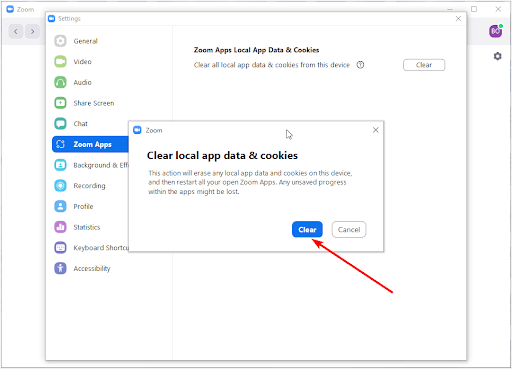
Clear local app data and cookies for Zoom
Fix 4: Ensure Zoom Can Pass Through the Firewall
The Windows Defender firewall may not be allowing Zoom to pass through, resulting in error code 10004. Therefore, allowing the firewall to let Zoom through can resolve your issue. You can follow the instructions below to do this.
First, you need to access the Run tool using the shortcut key Win+R, or alternatively, you can open Run via the Windows search function.
In the Run box that appears on your screen, type firewall.cpl and click the "OK" button to access the Windows Defender Firewall.
You can now select the Allow an app or feature through Windows Defender Firewall option from the left panel of the Defender window.
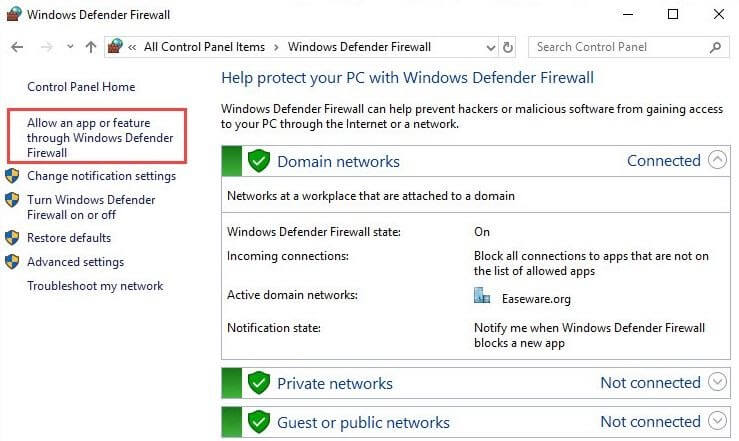
Click on "Allow an app or feature through Windows Defender Firewall."
Click the "Change" button to modify the current Windows Defender Firewall configuration.
Look for Zoom Video Conference and allow it through both public and private connections by checking the relevant boxes.
Note: If you cannot find Zoom Video Conference in the list of applications in Windows Defender Firewall, you can click on the Allow another app option.
After clicking this option, press the Browse button, find the Zoom folder using the search feature, and then click OK. You can now allow Zoom Video Conference through both private and public networks.
Fix 5: Update Your Zoom Application to the Latest Version
Outdated applications can cause various issues, such as error 10004 on Zoom. Therefore, you should update the application; you can follow these instructions to fix the problem.
To start the update process, left-click the "Start" button on the taskbar, and you will now see the search tool on your screen.
You can now search for Zoom and open it on your computer.
After opening the Zoom application window, click on the profile icon located in the upper right corner of the screen.
Select Check for Updates from the list that appears on your screen to check for a new version of the application.
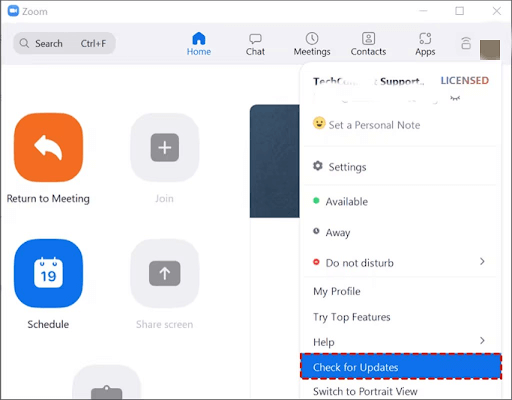
Check for Zoom updates
If a new version of Zoom is available, download and install it on your computer before restarting the application.
Fix 6: Uninstall and Reinstall the Zoom Application
Corrupted application files may be responsible for error code 10004 on Zoom. Therefore, you can try uninstalling and reinstalling the application to resolve the issue.
Here are the details of this process step by step:
First, access the search tool by left-clicking the Start icon available on the taskbar.
Type apps and features in the search box that appears on your screen.
You can now select Open from the right panel of the search tool to access the apps and features on your computer.
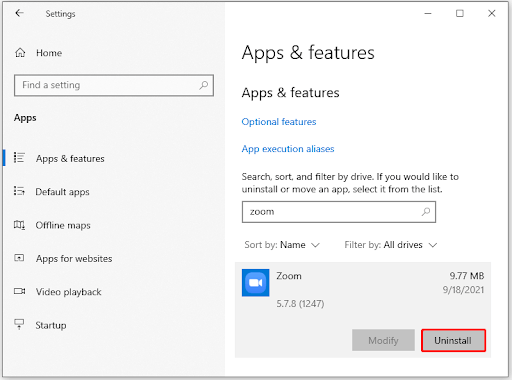
You are now prompted to search for Zoom and select it from the list of installed applications on your device.
After selecting Zoom, click the Uninstall button to remove the application.
You can now go to your browser and open the official Zoom download page.
Download the Zoom setup from the official site.
After downloading the setup file, double-click the downloaded file to start the installation process.
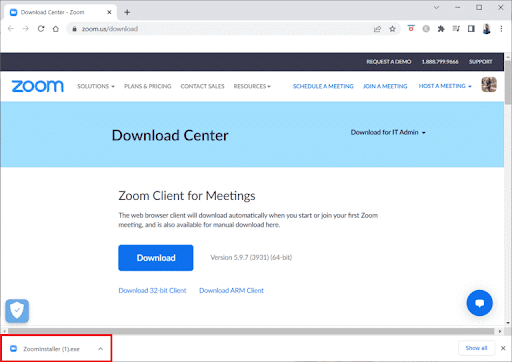
Download the Zoom file and open it
Finally, follow the prompts that appear on the screen to complete the installation of Zoom on your computer.
Fix 7: Contact Zoom Support
If your situation is rare and none of the above solutions have resolved the issue, you can reach out to Zoom experts for assistance.
Conclusion
That’s all about how to fix error code 10004 in Zoom. We hope this article has been helpful to you. However, if you have any questions or suggestions, feel free to reach out and leave us a comment.


