

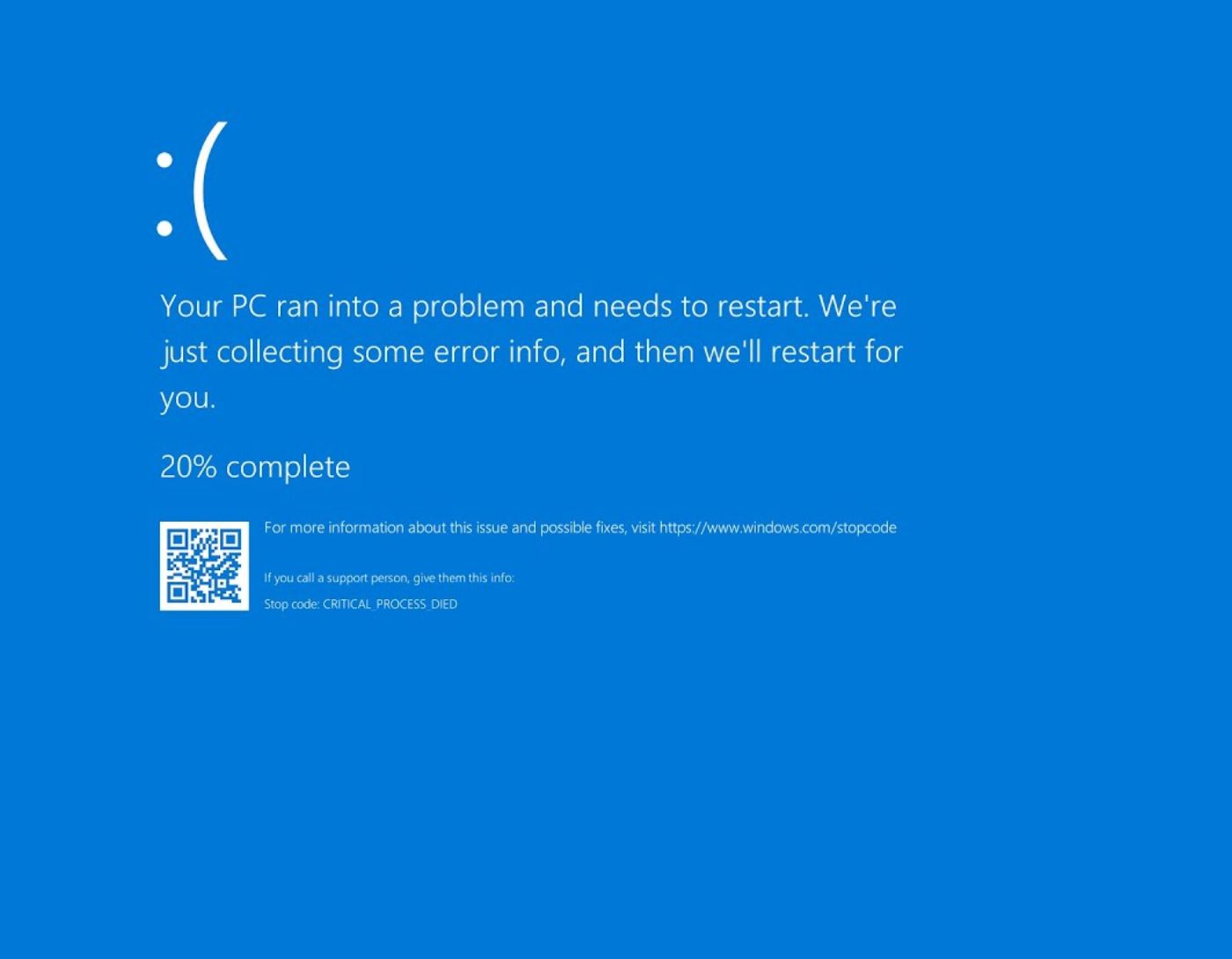
How to Fix NTFS.sys Failure in Windows 10: The NTFS.sys error in Windows 10 is a widely encountered issue. In this article, you will discover several simple solutions to this problem, so keep reading.
However, before we dive into the solutions, it's important to understand what the NTFS.sys blue screen error is and what causes it on your Windows 10 PC. Let's get started.
What is the NTFS.sys Error?
NTFS.sys is one of the critical system files in Windows. Essentially, it is a driver file for NTFS (New Technology File System), which determines how the Windows operating system stores and organizes files or data on the hard drive. This file is vital for the smooth operation of read and write processes on your drive.
What Causes the NTFS.sys BSOD in Windows 10?
If you encounter the NTFS.sys BSOD in Windows 10, it indicates that there are some issues with the device driver; it may be outdated or incompatible. If you receive a blue screen error (BSOD) stating "SYSTEM_SERVICE_EXCEPTION (NTFS.sys)," it means that corrupted system files are responsible for the error.
In addition to outdated drivers and corrupted system files, the error can also occur due to malware infections, software conflicts, and disk corruption. There can be multiple reasons for blue screen errors in Windows operating systems, but fortunately, there are many solutions available to resolve BSOD errors.
How to Fix NTFS.sys Failure in Windows 10
Here are some different fixes for the NTFS.sys blue screen error on your computer; choose the one that suits you best.
Fix 1: Update Outdated Device Drivers
As you may know, most blue screen errors are caused by outdated, corrupted, or missing drivers on your system, and it can be quite challenging to identify which drivers are responsible for the blue screen errors. Therefore, when you encounter the NTFS.sys error, you should try updating all outdated or problematic drivers on your computer to resolve the issue.
You can update outdated drivers using a built-in tool in Windows called Device Manager. All you need to do is open Device Manager, expand each category you want to update, and right-click on the device with a yellow exclamation mark. After that, Device Manager will search for the latest updates and install the available updates.
Sometimes, Device Manager fails to find the correct drivers, and this can take a lot of time, patience, and a fair amount of computer skills. So, if you don't have the time, patience, or technical knowledge required, you can use the best third-party driver updater software like Win Riser Driver Updater to update outdated drivers effortlessly. Win Riser also provides original and compatible drivers.
The Win Riser program is a globally recognized solution for updating drivers that automatically detects your system and scans for outdated, disabled, or incompatible drivers, then provides you with the necessary drivers. Not only for drivers, but Win Riser is also the perfect solution for all security and optimization issues in Windows. Unlike others, Win Riser features a built-in malware detection and removal tool to keep your computer free from malware and viruses.
Solution 2: Run SFC Scan
The NTFS.sys error can also occur due to missing or corrupted system files on your computer. Therefore, you can try running an SFC Scan to check for any corrupted system files to fix this blue screen error. To do this, you can follow the steps below:
Step 1: On your keyboard, press the Win Logo + R keys together to open the Run dialog.
Step 2: Type cmd in the Run box and press CTRL + SHIFT + ENTER keys simultaneously. This will open the command prompt with administrative rights.
Step 3: Now, type sfc/scannow in the command prompt (admin) screen and press the Enter key on your keyboard.
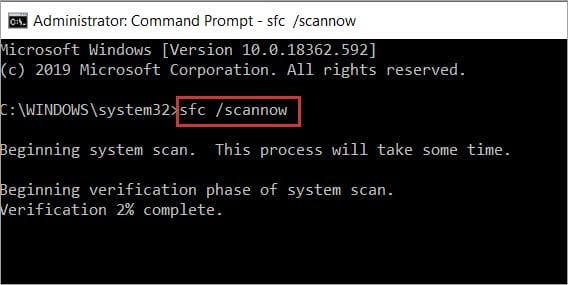
Open the command prompt and then enter the SFC-Scannow command and press Enter again.
Step 4: This will start the system scan verification process, which may take some time.
Step 5: Once completed, it will automatically repair any corrupted or disabled system files.
Restart the system to check if the error has been resolved. If the error persists, try another solution.
Solution 3: Check for Windows Updates
Windows often releases patches, bug fixes, performance improvements, new features, and other system updates to ensure smooth operation. Updating Windows can help you resolve blue screen issues on your system. Here’s how to fix the NTFS.sys failure in Windows 10:
Step 1: Press the Windows + I keys together on your keyboard to open the Windows Settings menu.
Step 2: Look for Update & Security and click on it.
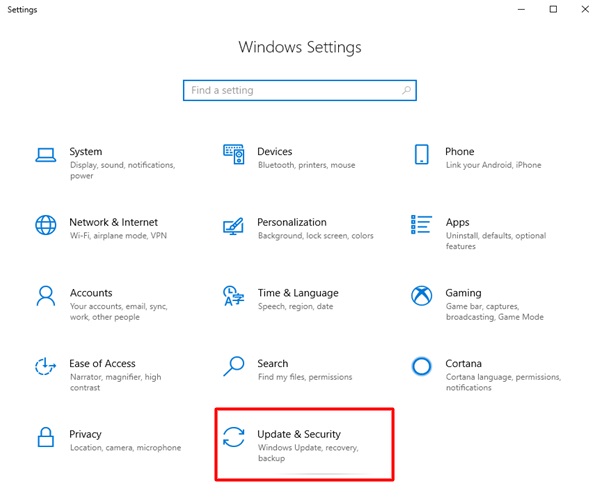
Updates and Security
Step 3: Make sure to select Windows Update from the left menu pane. Then, click on Check for updates on the right.
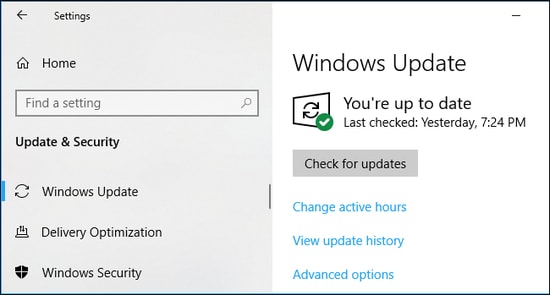
Checking for updates in Windows settings
Step 4: Now, Windows will provide you with the latest available updates. Click on the Install now option to get all pending updates installed on your computer.
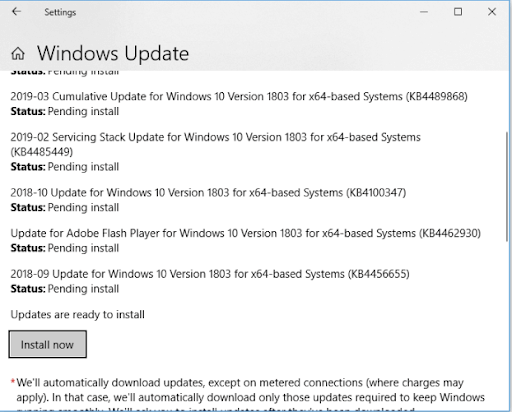
Windows Update
Once all available updates are installed, restart the system to apply those system updates.
Solution 4: Check for RAM Issues
System memory issues such as faulty RAM modules can cause this error. To fix the problem, you need to uninstall each RAM module on your system and reinstall them one by one to find the faulty one.
If there is no hardware issue, you need to check the frequencies and timings of the RAM. You can get the recommended values from the manufacturer, and you can use third-party software to check the original values of the RAM. If they do not match, you simply need to enter the BIOS to set the RAM values according to the recommended values.
Solution 5: Reset Windows to Factory Settings
If everything else fails, you should reset Windows to factory settings to resolve the NTFS.sys failure. Keep in mind that you may lose all your data and installed applications after resetting your computer. Therefore, before proceeding with the factory reset of Windows, please ensure that you back up your system.
Conclusion
In this article, we discussed how to fix the NTFS.sys failure in Windows 10. These are some tried and tested solutions that you can also consider to resolve the NTFS.sys blue screen error in Windows 10. We hope you found the fixes shared in this article helpful.


