


(How to fix YouTube Vanced not working issue) Having trouble with YouTube Vanced? It can be quite frustrating, but don’t worry, if you’re facing this issue, you’ve come to the right place. We’ll show you how to resolve the problem quickly and easily. For more details, read on!
YouTube Vanced is a popular modification of YouTube that allows users to access many advanced features of the platform for free. This well-known third-party app provides all the premium features of the stock YouTube, including additional functionalities like background playback, an integrated ad blocker, and more. To be more specific, YouTube Vanced includes all the main features and functionalities of the original YouTube app, allowing you to easily log in with your Google account and sync your watch history or data across all your accounts.
Recently, we’ve seen many users complaining that YouTube Vanced isn’t working properly, which is indeed frustrating. The main culprits for this annoyance are usually an outdated version of the app or corrupted app data. However, the good news is that this issue can be fixed.
Here are some potential reasons why YouTube Vanced might not be working:
If users are using an outdated version of YouTube Vanced, it may lead to the app not functioning correctly, as older versions might not be compatible with newer features.
Incompatible device
YouTube Vanced may not work on all devices, and compatibility issues can lead to performance problems.
Network issues
A weak internet connection can cause problems such as YouTube Vanced not loading or connecting to the internet.
Corrupted app data
Sometimes, app data can become corrupted, causing YouTube Vanced to stop working.
Rooted device
This can cause issues with YouTube Vanced; unrooting the device or using a different device may resolve the problem.
So, if you’re experiencing this issue, I recommend reading this article to fix it.
How to fix YouTube Vanced not working issue on Android
Here are some tried-and-true troubleshooting methods you can use to fix YouTube Vanced not working properly. Just work through each one and apply what suits you best. Now, let’s get started!
Solution 1: Restart your device
First and foremost, you need to perform a manual restart of your Android device to ensure there’s no issue with cached data. There are many instances where a system restart can be very helpful, so you shouldn’t move on to any other strategy before trying this one first.
Solution 2: Ensure your internet connection is working
If you’re receiving an error message stating that YouTube Vanced isn’t working, you need to check your internet connection. Make sure your Wi-Fi network is on; if not, you’ll need to switch to your mobile data plan. Proceed with the advanced solutions provided below if you’re still having issues with YouTube Vanced.
Solution 3: Try installing the correct path
For the app to work correctly on your device, you need to ensure that the relevant path with YouTube Vanced is installed. To do this, you’ll need to follow these steps:
Step 1: You can download the Vanced Manager app from the official Vanced website.
Step 2: Extract the MicroG & YouTube Vanced app correctly.
Step 3: Next, install the MicroG app, followed by the installation of YouTube Vanced.
By restarting the device, you can ensure that all tabs currently running in the background are closed.
Once everything is done, check to see if the YouTube Vanced app is working correctly. If not, move on to the next tactic.
Solution 4: Clear app data and cache
Clearing the app’s cache and data can often help refresh the app in the vast majority of situations, meaning issues like YouTube Vanced not working can be resolved by clearing the app’s cache and other associated data. If you want to clear the cache and stored data in the YouTube Vanced app, make sure to follow the steps outlined below.
Step 1: Go to the settings menu on your device, then navigate to the section called "Apps & notifications."
Step 2: Now, select "See all apps" from the menu. Go to the YouTube Vanced option within the app details list.
Step 3: Select "Storage & cache," then choose "Clear cache" from the list that appears.
Step 4: When finished, select "Storage & cache" from the list.
Step 5: Next, select the "Clear storage" option. YouTube Vanced - select the "Clear storage" option.
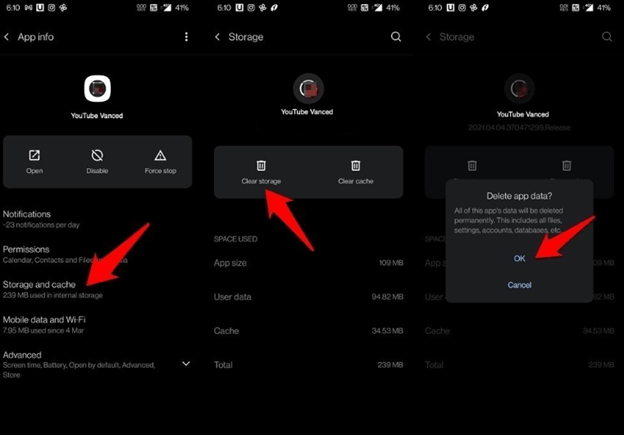
After that, try launching the YouTube Vanced app and check if the issue persists. If YouTube Vanced still doesn’t work, use the next solution.
Solution 5: Disable battery optimization
Is YouTube Vanced not working? This may be due to the battery optimization feature. While battery optimization can be helpful in reducing excessive power usage, it can sometimes cause you a great deal of frustration. Therefore, to ensure the problem is not resolved, you should follow the instructions below to deactivate or turn off the battery optimization option on your device.
Step 1: Go to the settings menu on your device, then select "Battery" from the list of options.
Step 2: Next, select "Battery & performance."
Step 3: Look for settings
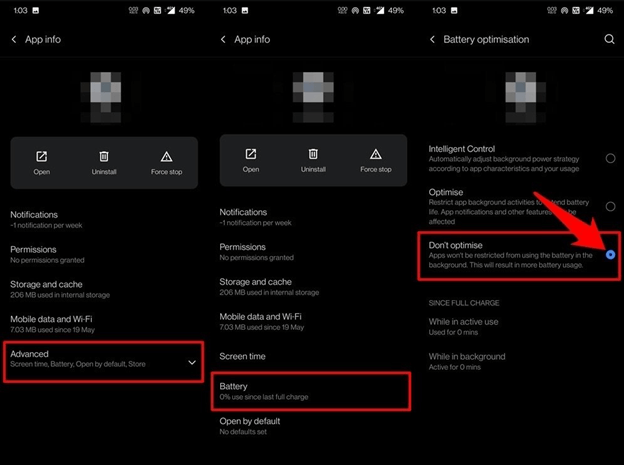
Step 5: Restart your device and check again to see if the issue remains.
Solution 6: Consider some alternatives to YouTube Vanced
There are several free alternatives available to you in case YouTube Vanced continues to crash and you can’t resolve the issue. The best alternative to YouTube Vanced is an app called Newpipe, which is open-source and free to use. There are also Revanced, Skytube, FreeTube, VidLii, TubeMate, and FlyTube that should be considered.
In conclusion, it was all about how to fix the issue of YouTube Vanced not working, easily and quickly. We hope you find this information helpful. Please let us know in the comments below if you have any questions or further suggestions regarding YouTube Vanced not working.
You might like this
How to fix no internet connection issue on Windows 10 and 11
Free duplicate photo finder and cleaner for Windows 10/11


