


How to uninstall Dropbox on a Windows or Mac computer: If you want to remove Dropbox or any similar tool from your device, this article is your guide to learn how to uninstall Dropbox on Windows 11/10 and Mac, making it easier for you.
Cloud storage platforms are becoming increasingly popular day by day, with the storage needs of the average user rising compared to previous years. As more devices enter the market with limited storage options, users are turning to cloud storage solutions. Moreover, the ease of use and increased global accessibility of these platforms have boosted user interest.
You may have heard of several cloud storage platforms like Google Drive, Mega Storage, iTunes, OneDrive, Amazon Drive, iDrive, NordLocker, and many others; but one platform that has successfully attracted millions of users is Dropbox.
Dropbox, an American brand, is one of the most popular cloud storage platforms, offering data hosting services for personal, professional, gaming, and various other purposes, and the platform is also affordable.
Although Dropbox offers many advantages, it also comes with some drawbacks. If you try to opt for higher storage options, the price can be significantly higher compared to other competitors. Additionally, one thing users dislike about the tool is its ease of use, which may negatively impact privacy and security.
These are some of the main reasons why a user who previously installed and used Dropbox might want to remove it from their system and switch to another service. If you are one of those users wondering how to uninstall Dropbox on a Windows 11 or Mac computer, we might be able to help you.
In this article, we will look at some of the most effective ways to delete or uninstall the Dropbox application from your computer. So, if you are using a Windows or MacOS computer, use the solutions provided below to easily uninstall the application from your system.
How to uninstall Dropbox on a Windows or Mac computer
Method 1: How to uninstall Dropbox on a Windows 7/10/11 computer
First, let’s try to understand how to uninstall the Dropbox application from a Windows computer. The procedure outlined below can also help you uninstall other types of applications and software from a Windows computer. There are two main methods you can use to proceed with uninstalling the tool(s). So, follow the instructions carefully and remove the application with ease:
Use Control Panel
One way to uninstall Dropbox from a Windows computer is to get help from the Control Panel. Follow the instructions below to learn how to use it for uninstallation:
Press the Win + R key combination, type Control Panel, and then press Enter.
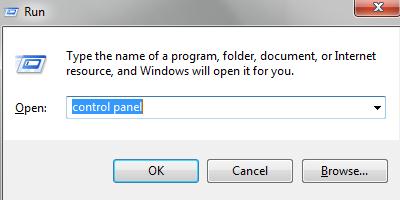
Control Panel
When the utility appears, set the view settings to Category.
Click on the Uninstall a program option to proceed.
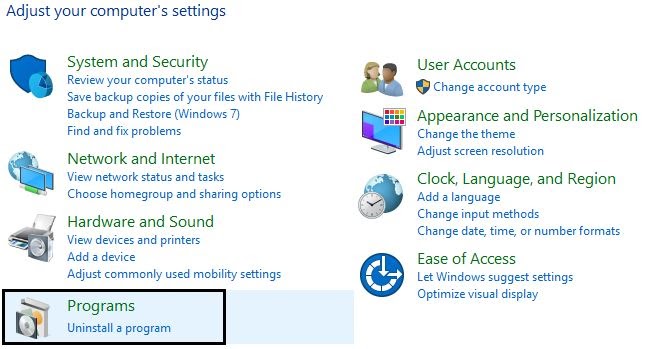
Click on Uninstall a program under the Programs category
Look for the Dropbox program, right-click on it, and then click the Uninstall button.
Some on-screen instructions will appear; follow them to uninstall the tool. If you cannot find the tool in the list of programs, follow the next solution.
Use Apps & Features Settings
Another answer to how to uninstall Dropbox on my Windows 10/11 computer is to get help from Windows Settings. Follow the instructions below to learn how to use it for uninstallation:
Press the Win + S key combination, type Apps & Features, and then press Enter.
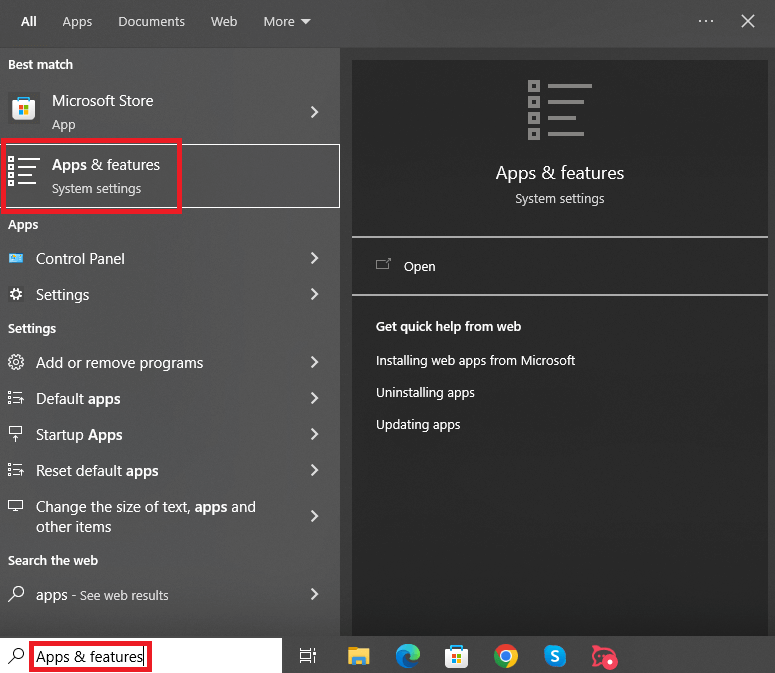
Apps & Features
The app settings for your system will now appear. From the list of applications, find Dropbox, click on it, and then select the Uninstall option.
Method 2: How to uninstall Dropbox on my Mac computer
If you are a Mac OS user and want to get rid of the Dropbox application, here’s a simple solution that can help you:
First, open the Finder utility on your Mac.
Now, select the Applications option available in the sidebar.
Find the Dropbox application and click on it while holding the Control key to proceed.
Finally, choose the option labeled "Move to Trash."
What happens to Dropbox files once uninstalled on a Mac?
You should remember to turn off Dropbox sync with your Mac. Your files mostly remain in the same place.
Files that have already been uploaded to Dropbox remain accessible through your Dropbox account. Therefore, if you do not disable the sync feature, your files will be deleted from your Mac if you follow the steps mentioned above. However, it will still be possible to access the files via Dropbox.com.
For most users, it is safer to uninstall the Dropbox application but not remove the files via Finder.
Method 3: Get help from a third-party tool
If you are still wondering how to uninstall Dropbox on a Windows or Mac computer, here’s another method.
If you want to uninstall an application from any operating system, you can use a third-party uninstaller. There are several uninstaller programs available online for Mac and Windows, and you can try any of these steps to remove Dropbox or any other application from your computer. Moreover, these uninstaller programs also help you remove leftover files.
Conclusion
So, that’s all we have on how to uninstall Dropbox on a Windows or Mac computer. Using the solutions provided in this article, you can easily delete or uninstall the Dropbox application from a Windows or Mac computer. If you have any questions related to this topic, you can get help by reaching out to us through the comments section.
Also, if you have another solution for how to uninstall Dropbox on my computer, feel free to write it in the comments as well. Stay healthy and well.


