

(How to use Windows Sandbox on Windows 11 and 10) Windows Sandbox allows you to run applications or programs in an isolated environment. Once you close the Sandbox, all programs and files are deleted, and it will never affect Windows 10 or 11. Typically, Windows Sandbox is turned off by default. Here’s how to enable or disable Windows Sandbox in Windows 10 and 11.
If you enable or disable Windows Sandbox, you will need to restart your computer after applying the changes. Windows Sandbox makes it easy to run untrusted applications on your device.
The most common way to run some suspicious code on a device is to trick the user into installing malicious software on the target machine. However, Microsoft has put in a lot of effort to find a solution to this problem. They have just announced the availability of a Sandboxed version of Windows 10 and 11 that operates within Windows. The purpose of this sandboxing is to isolate potentially harmful software and thus protect the main system from any potential threats.
What is Windows Sandbox?
Windows Sandbox is a feature that was launched in version 1903 of Windows 10 and has become a significant part of the operating system since then. However, this feature is only accessible in Pro and Enterprise editions, which means there’s a chance your computer may not support it. But don’t worry, there are many third-party tools available that can help you achieve this goal.
Windows Sandbox is a unique and lightweight desktop environment created to run programs securely in isolation from others. This temporary virtual environment gives users the ability to enable or disable it.
This means that if you have any reason to believe that a program is harmful, you can test it in a separate environment to ensure it doesn’t disrupt any normal processes or compromise any important files. Once you close Windows Sandbox, all remaining programs/applications and other data are wiped clean.
To successfully implement Windows Sandbox on Windows 10 and 11, it’s essential to check the minimum system requirements. Take a look at them below:
- Windows 10 or 11 Pro or Enterprise version 18305 or higher.
- Virtualization capabilities enabled in BIOS.
- AMD64 architecture.
- 1 GB of free disk space (SSD recommended)
- 4 GB of RAM (8 GB recommended)
- 2 CPU cores.
What are the features of Windows Sandbox?
Check out the following features of Windows Sandbox:
1- A component of Windows: Windows 10 Pro and Enterprise editions come with all the necessary components for this capability. No need to download a VHD file!
2- Disposes of all programs and data: This means nothing will remain on the device; everything will be discarded once the program is closed.
3- Native: When you run Windows Sandbox, it always feels like a completely fresh installation of Windows.
4- Efficiency: It is efficient because it uses virtual graphics processing, integrated kernel scheduling, and smart memory management.
5- Secure: It uses hardware-based virtualization to isolate the kernel, relying on Microsoft’s Hypervisor to run a separate kernel that isolates Windows Sandbox from the host computer.
How do I set up Windows Sandbox?
Once you’ve confirmed that your computer is compatible, setting up Windows Sandbox is a very straightforward task. Here’s what you need to do:
Step 1: Open the Start menu and type Optionalfeatures.exe, then press Enter on your keyboard.
Step 2: Next, scroll down the page until you find the Windows Sandbox feature. Once located, check the box next to it.
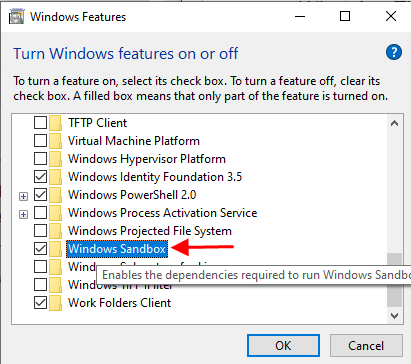
Step 3: Then click "OK" to proceed and wait for the components to install successfully.
Step 4: When prompted, restart your computer.
Step 5: Now, Windows Sandbox should appear as an application in the Start menu.
You’ve now learned how easy and quick it is to set up Windows Sandbox on Windows 10/11. At this point, you can access Windows Sandbox as an optional feature of Windows.
How to use Windows Sandbox on Windows 11 and 10?
Using Windows Sandbox on your computer is simple and quick. Follow the procedure outlined below.
Step 1: Launch Start.
Step 2: Search for Windows Sandbox and right-click on the correct result. Then choose the "Run as administrator" option to proceed.
Step 3: Next, open File Explorer on your system.
Step 4: Then, open the folder using an untrusted program to test the issue.
Step 5: After that, select the .exe file and click the copy icon available in the command bar.
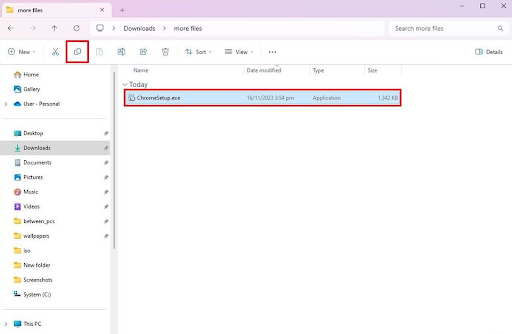
Step 6: On the Windows Sandbox desktop, right-click on the desktop, then choose the "Paste" option to share the installation file on the Windows Sandbox desktop.
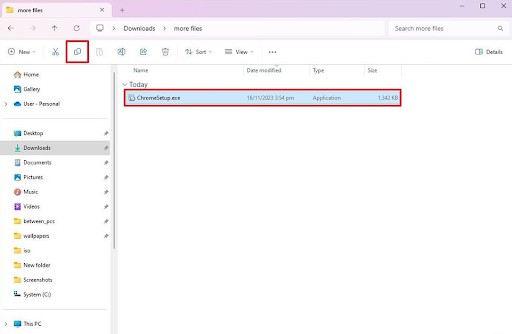
Step 7: Now, double-click the installer to start the installation process.
Step 8: Follow the on-screen instructions to complete the installation.
Once you’ve done that, you can use Windows Sandbox to test applications without compromising your setup. Additionally, you can also take advantage of this environment to use untrusted applications or websites without affecting your device’s settings.
How can I enable Sandbox settings on Windows 10 and 11?
To enable Sandbox on Windows 11 or 10, you will need to open the Windows Features panel on your system and check the Windows Sandbox checkbox.
It will be automatically installed on your device, after which you can restart your computer and run the Windows Sandbox application by searching for it in the taskbar search box. This is how you can get Sandbox on your Windows computer.
So, it was all about how to take advantage of Windows Sandbox on computers running Windows 10 and 11. In this tutorial, we provided you with complete information about Windows Sandbox; how to configure it, how to enable or disable it, and other relevant details.
Will using a Sandbox environment affect my device?
As mentioned earlier, any program installed in your Windows Sandbox will remain in that environment only. Therefore, it cannot affect your host service.
Also, once you close Windows Sandbox, all programs and all related files are permanently deleted.
For those who typically install applications and programs from unsafe sources, a Sandbox environment may be the ideal solution to fully protect your computer and software components.
Additionally, note that it can be used as an effective tool to detect and block malware attacks before they enter the network, especially when enabled in Windows Defender Sandbox.
You can take a look at Microsoft’s full report on configuring Windows Sandbox in the previous version of the operating system, so you have an idea of what Windows 11 should look like.
Conclusion
We hope you find this information helpful. If we missed anything and you have better tips and tricks regarding this, feel free to leave us a comment below. Also, if you have any questions, let us know in the comments section below.
You might also like
Download and Easily Update WAN Miniport Driver
Issue of WiFi Network Not Showing on Windows 10 and 11 Devices


