


How to Extract Text, Data, and Images from a PDF File: Do you want to learn how to extract data and images from a PDF document for reuse? In this article, we will explain how to extract information from a PDF file with a detailed guide, so stay with us.
How to Extract Text, Data, and Images from a PDF
Many reports and research papers are saved as PDF files. Browsing through hundreds of pages manually to find important information can be extremely tedious and time-consuming. Here, we present some methods that will help you extract data from a PDF file.
Extracting Text from a PDF Image Using PDFgear
PDFgear is a free AI-powered PDF editor that offers many advanced PDF editing tools, allowing users to replace, remove, and add any text in a PDF file.
Thanks to its built-in Optical Character Recognition (OCR) feature, PDFgear can help you extract text from image-based PDF files, even if you can't select it. It works in over 10 languages, and you can also select any part of a PDF page to extract text using the OCR feature.
Step 1. Open a Scanned Document
Open the PDFgear application on your computer. If you haven't installed it yet, download and install the PDFgear application from its official website.
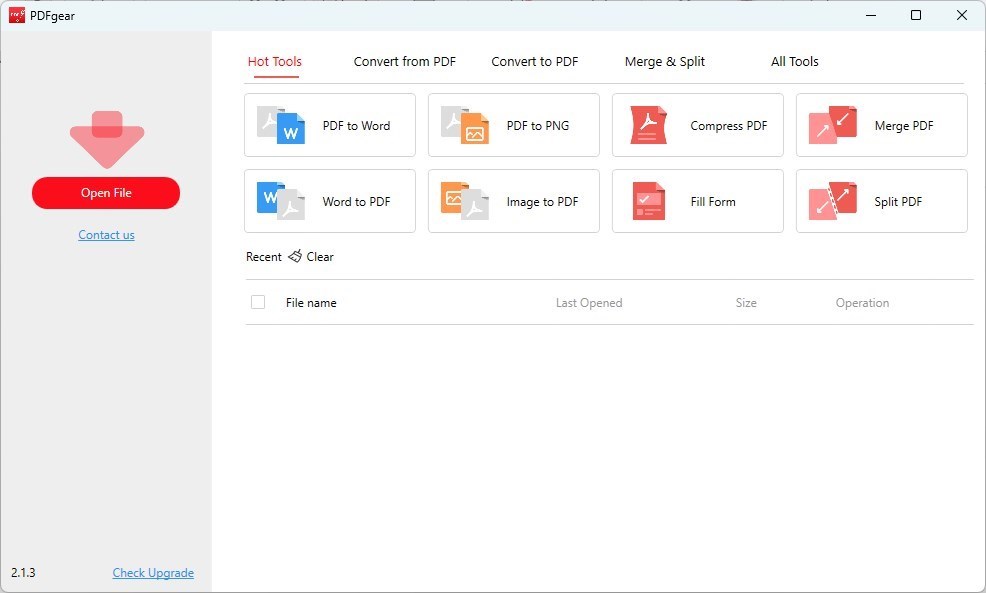
Open the PDF file using PDFgear
Once PDFgear is running, click on the "Open File" option in the main interface. Browse and select the PDF file that contains the scanned image to open it in PDFgear.
Step 2. Activate the OCR Feature
Look for the OCR feature, which is usually found in the "Home" tab.
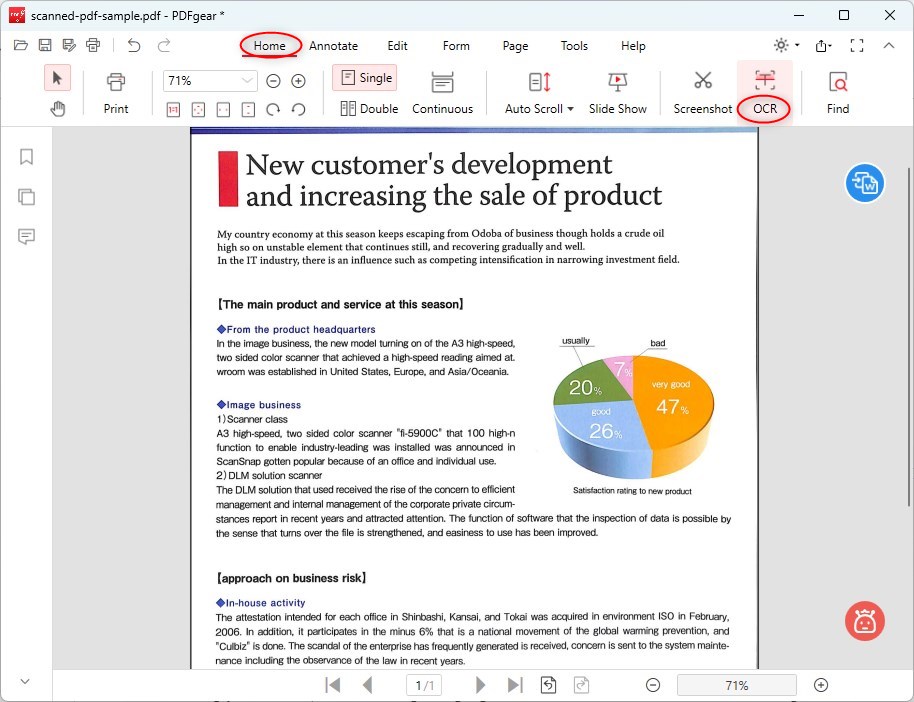
Open the OCR feature in PDFgear
Click on the "OCR" feature to activate the text recognition function.
Step 3. Extract Text from the Image
Using your mouse, click and drag to highlight/select the text areas within the PDF image from which you want to extract text.
Release the mouse button once you have selected the desired text. The selected text should be highlighted.
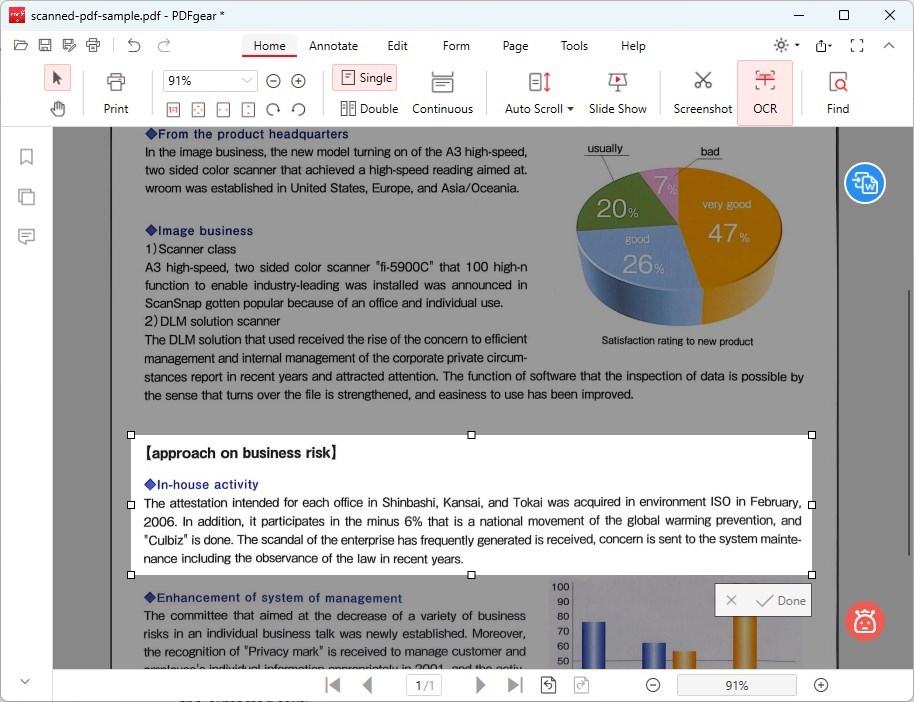
Extract text from a PDF image
Click the "Done" button or a similar option to confirm your text selection and proceed.
Step 4. Copy or Save the Extracted Text
After selecting the text and configuring the OCR settings (if applicable), choose how you want to handle the extracted text.
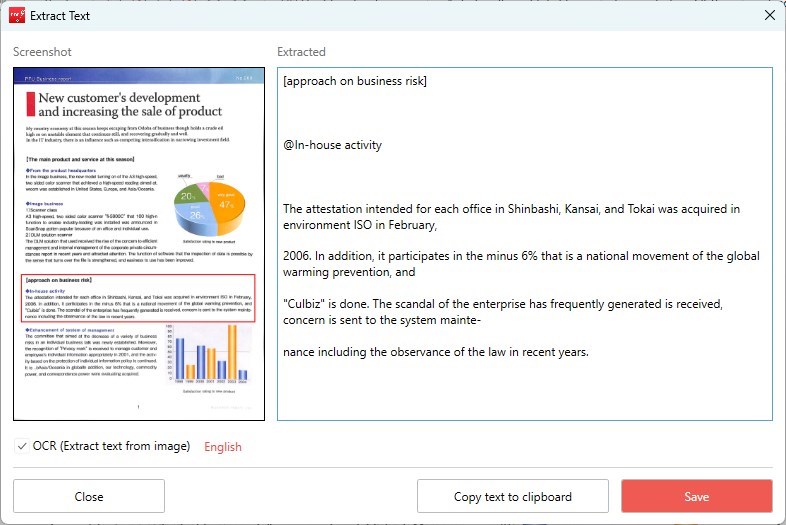
Copy or save the extracted text
Copy to Clipboard: Click the "Copy" button to copy the extracted text to the clipboard, which you can then paste into a text editor or any other application.
Save as a Text File (TXT): If you prefer to save the extracted text as a separate file, click the "Save" button, specify the file name and location where you want to save the text file, and then click "Save" to save the extracted text as a TXT file.
Extracting Invoice Data from a PDF File Using Tabula
Manually entering data into an invoice database program takes a lot of time, and some errors may occur during the data entry process.
Tabula is a tool designed to automatically extract data from PDF files using AI and OCR technology. It is specifically designed to handle tables within PDF files, making it a good choice for extracting structured data such as invoice details.
Step 1. Download and Install Tabula
Go to the Tabula website and download the version of Tabula compatible with your operating system (Windows, Mac, or Linux).
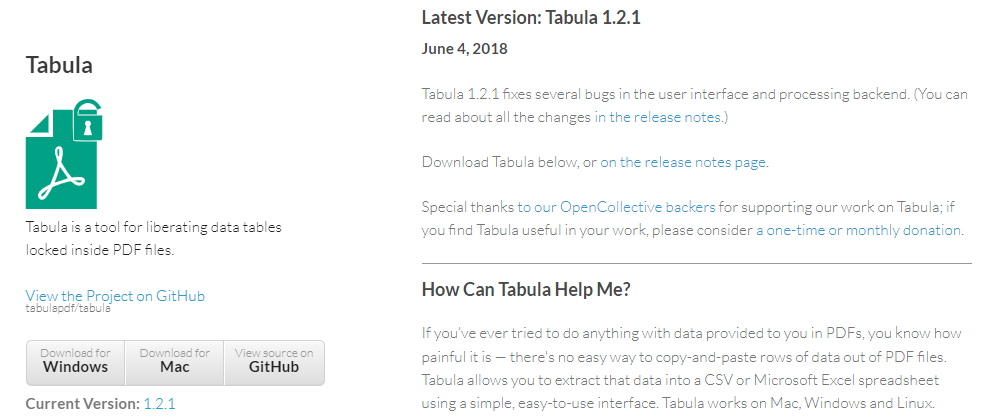
Download and install Tabula
Follow the on-screen instructions to install Tabula on your computer.
Step 2. Upload Your Invoice PDF File to Tabula
Run the application: Open Tabula. It usually runs in your web browser as a local server.
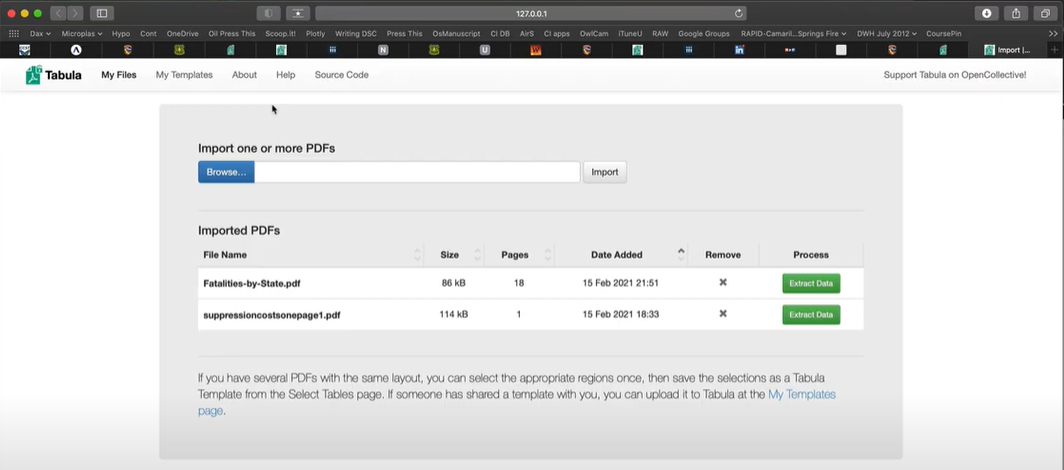
Click Browse in Tabula
Look for the "Browse" option on the Tabula homepage, click on this icon, find your PDF invoice file, and upload it.
Step 3. Select the Data to Extract
Once your PDF file is uploaded, Tabula will show you its contents. Simply use your mouse to draw a box around the table or information you want from the invoice. If the invoice spans multiple pages, you can select what you want from each page.
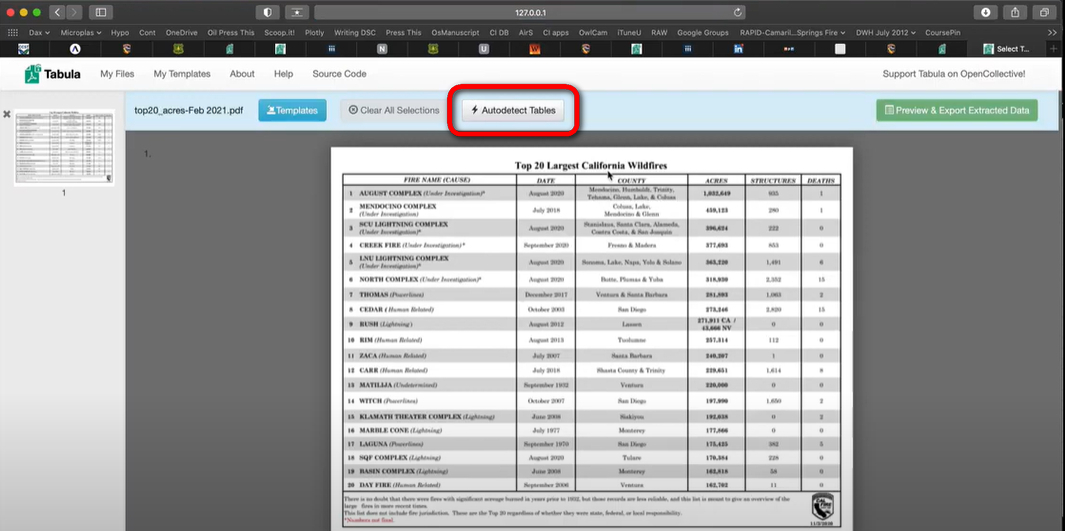
Once you've made your selection, you can verify the information. Tabula allows you to obtain the data in various formats, such as CSV or Excel. Click the "Extract Data" button and choose the format you want.
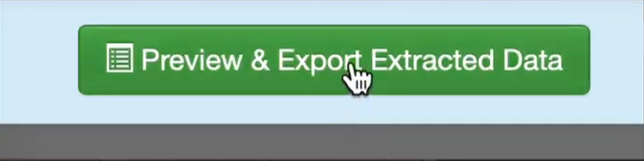
Preview and Export in Tabula
Step 4. Save or Export the Data
Once extracted, you can save or export the data to your computer. If you chose the CSV file, you can open it in any spreadsheet application like Microsoft Excel or Google Sheets for further processing.
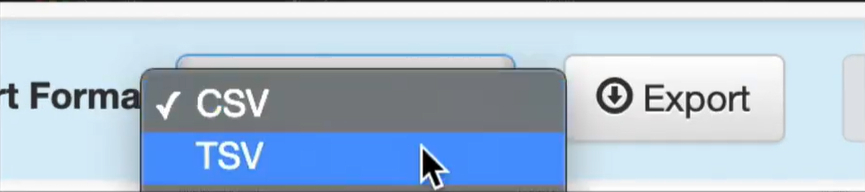
Set Export Format
Extracting Metadata from a PDF File Using Adobe Acrobat
Metadata in a PDF file refers to the information stored within the PDF file that describes the document's details, such as its title, author, subject, and keywords.
Adobe Acrobat allows you to view and sometimes edit the metadata of a PDF file. This is the simplest way for users to access metadata without programming.
Here are some steps to extract the metadata from a PDF file:
Step 1. Open the PDF file in Adobe Acrobat.
Step 2. Access the document properties via the File menu.
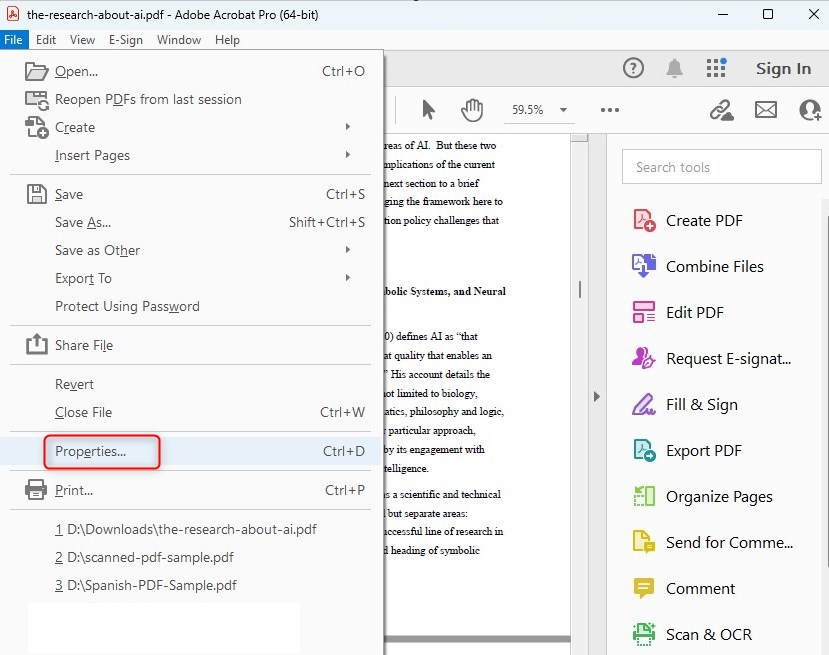
Open Document Properties in Adobe
Step 3. View the metadata in the Description tab, where you can see fields like title, author, subject, and keywords.
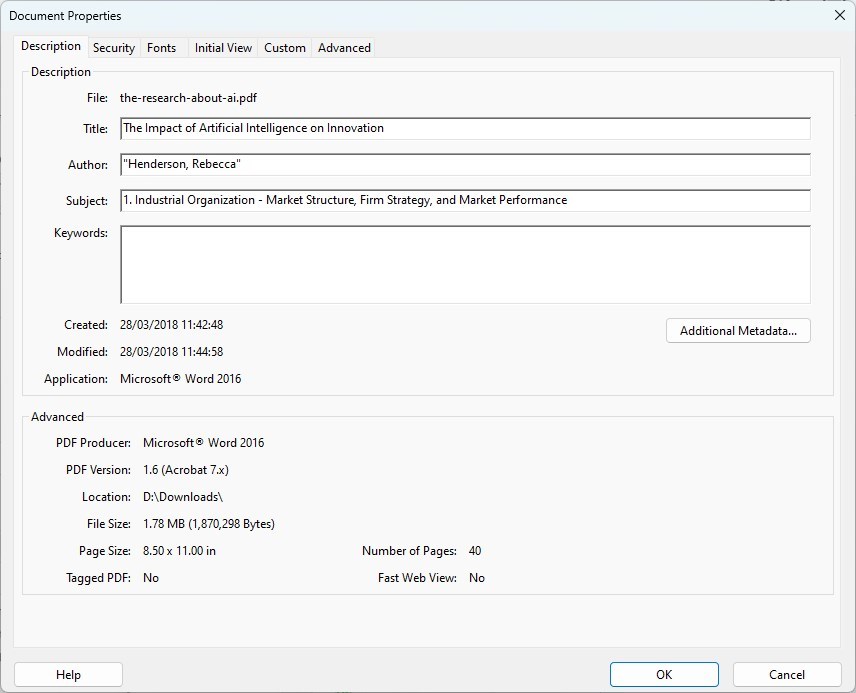
View the metadata of the PDF file
Step 4. Extract the required information by selecting the text and copying it.
Save the extracted metadata in a text document or notes application for future reference.
Extracting Images from a PDF File Using PDF Candy
The images embedded in PDF files can be extracted for use elsewhere. Whether you need a single image or multiple images from a document, you can use software tools to extract them easily.
Using a PDF image extractor, images are extracted in their original format and quality, with no watermarks added to the extracted images.
Follow these steps to extract images from a PDF file in bulk:
Step 1. Open your web browser and go to the PDF Candy image extraction page.
Step 2. You can upload the PDF file from which you want to extract images in several ways:
Simply drag the PDF file from your computer and drop it into the designated area on the webpage.
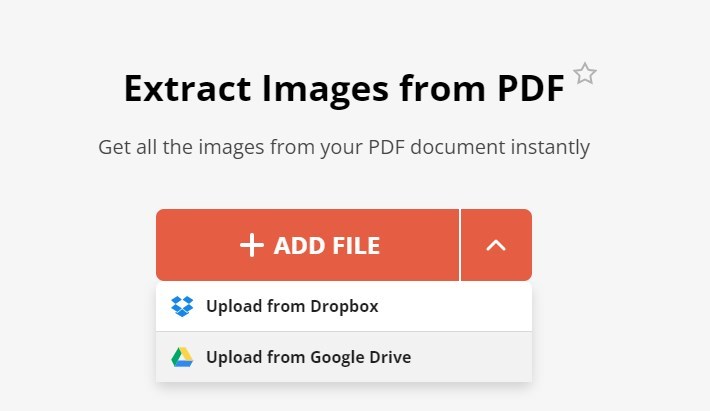
Add PDF file to the online image extractor
Click the "Add File" button to open the file dialog, then navigate to the PDF file you want to use and select it.
If your PDF file is stored in Google Drive or Dropbox, you can upload it directly from these services by clicking on the respective icons.
Step 3. Once the PDF file is uploaded, PDF Candy will automatically start the process of extracting images from the PDF document. You don't have to do anything during this step; the tool takes care of everything.
Step 4. After the extraction process is complete, PDF Candy will provide you with a compressed archive containing all the images extracted from the PDF file.
Download the extracted images online
Click the "Download" button to save the ZIP file to your computer.
If you prefer, you can also save individual images by previewing them and selecting specific images to download.
Conclusion
In this article, we discussed how to extract text, data, and images from a PDF file. PDF files contain valuable texts, data, and images that can be extracted using various methods. This article presents a range of ways to extract information from PDF files for future use.


