


(How to get help in Windows 10) How to get help in Windows 10: There are many resources available to provide you with quick assistance on Windows 10 to fix various issues effortlessly. You can read this article to learn about them.
There is no such thing as a flawless operating system; all operating systems, including Windows 10, have minor bugs or issues that may require assistance. However, if you know how to get help in Windows 10, you won't face any problems at all.
Getting help with Windows 10 is straightforward; all you need to do is follow this guide carefully to discover the best ways to do so.
How to get help in Windows 10
Method 1: Use the Get Help option
Windows 10 comes with a built-in app called Get Help to assist you in resolving various issues. Some of the problems it can help you with include printer connection issues (you can use it to learn how to connect to a printer) and much more.
Now, let’s share how to use it.
First, click on the search button located on the taskbar.
Type "Get Help" in the search box and press Enter.
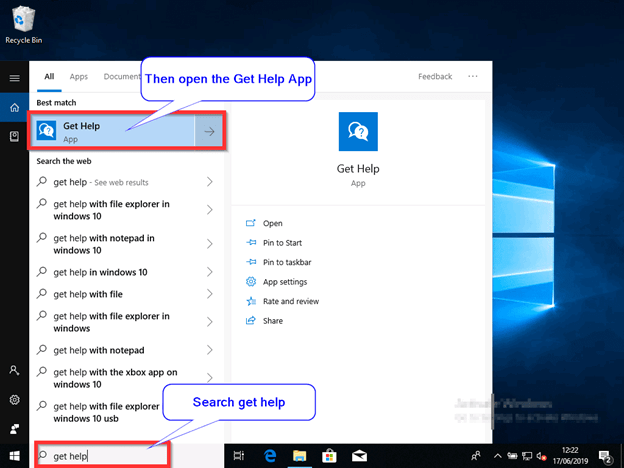
Type "Get Help" in the search box and press Enter.
You can now enter your issue in the search box that appears on the screen.
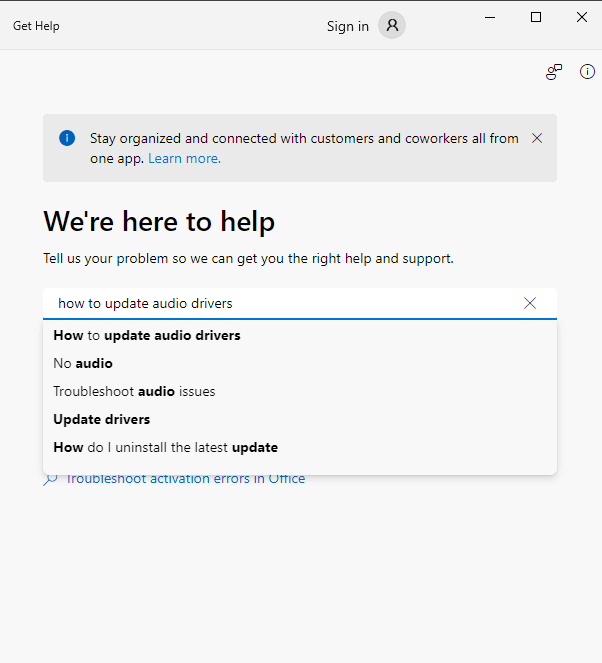
For example, let’s search for "how to update audio drivers." Get help regarding queries like how to update the audio driver.
You can now view the top article for the guidance or solution you need. Note that Windows instructions also allow you to contact an agent; you can specify your product and issue to start a conversation.
Method 2: Use the F1 key
F1 is the shortcut key for help in Windows. You can press F1 on your keyboard whenever you need assistance; pressing F1 will launch a browser search for help related to Windows 10.
For instance, if Chrome is open on your computer, the Chrome support site will appear on your screen, where you can search for the topic you need help with.
Method 3: Use the search box on the taskbar
The Windows search bar is like a magic wand that allows you to find everything you need on your computer. You can get help through the Windows search feature; here’s how to do it.
First, click on the search box and type a keyword describing your issue. For example, our query relates to disk cleanup, so we should enter "disk cleanup" in the search box.
Now, you can choose the best match, which is a built-in troubleshooting feature, or go to online search results.
Method 4: Get help from the Microsoft Support website
If you’re stuck using any Microsoft product, you can visit Microsoft Support to request assistance. Here’s how to do it.
To start, go to the Microsoft Support website.
Now, select "More support" from the navigation bar at the top.
You can also choose to search for articles related to various Microsoft products using the search bar.
If you don’t find an answer to your question, you can ask a new question in the expert community.

Get help from the Microsoft Support website.
Method 5: Use the Windows Troubleshooter
All computers running Windows come with a built-in troubleshooter to fix significant system issues.
Here’s how to use it to analyze and resolve various computer problems.
First, use the shortcut command Windows+I to open the Settings panel.
Now, select "Update & Security" from the available options on the screen.
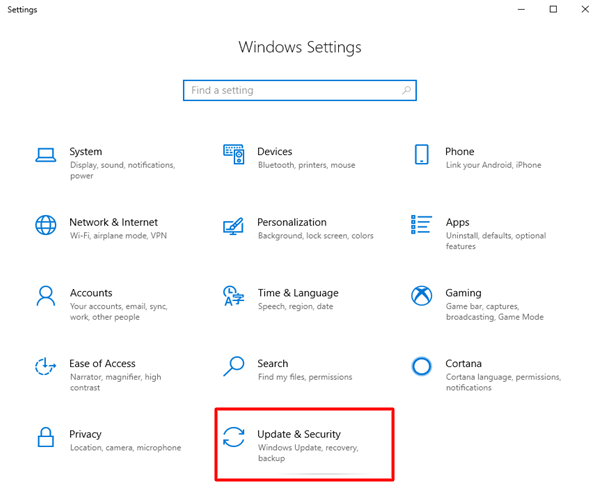
Click on "Updates & Security."
Select "Troubleshoot" from the panel on the left side of the Update & Security window.
Scroll down the list of troubleshooters and select the troubleshooter for the issue you are facing.
For example, click on "Windows Store Apps" if you are having issues with the Microsoft Store.
Select "Run the troubleshooter" to troubleshoot and resolve the issue.
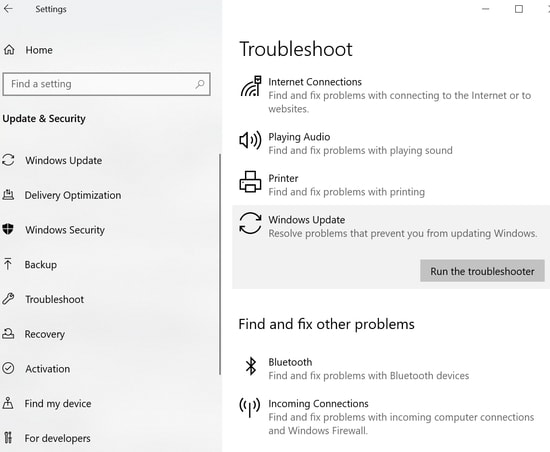
Run the troubleshooter option.
Method 6: Search the internet for solutions
Just as you are searching for how to get help in Windows 10, you can find solutions for almost all issues online.
Just be specific in your query to get all the answers.
For instance, when searching for how to fix a stop error code or error message, you can use the specific words in the error to get more accurate search results.
Method 7: Use the Quick Assist app for help
Windows 10 computers have a tool called Quick Assist that allows you to request support from a friend or someone you trust.
Anyone you trust can remotely access your computer and help you resolve the issues you are facing.
Here’s how to use the Quick Assist app.
First, search for Quick Assist on your computer and open it.
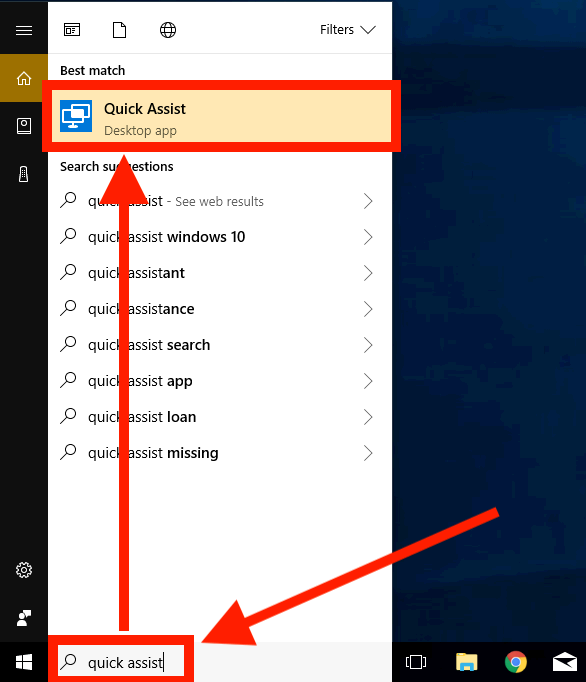
Find Quick Assist on your computer.
Now, enter the security code you received from the person or support team assisting you.
Finally, click the screen sharing/send button to get help.
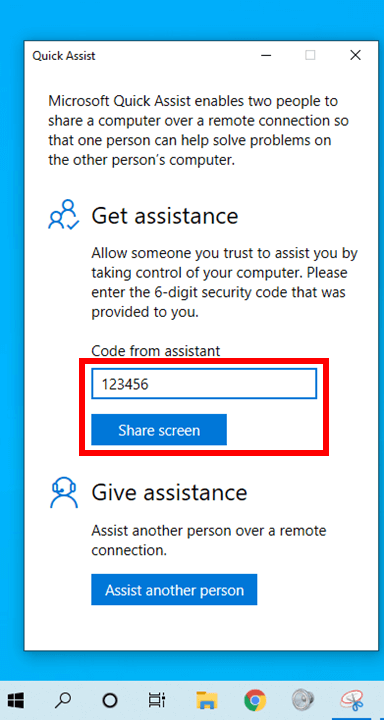
Click the screen sharing button, then send to get help.
Method 8: Get help through social media
Various social media applications, such as Twitter, can help you resolve issues on your computer.
These applications have many users who are facing or have faced similar problems to yours. They can assist you in solving the issue based on their experiences.
Method 9: Use the Windows 10 Tips app
Microsoft offers a dedicated app called Tips to help you make the most of your Windows 10 computer with useful tips and tricks.
Here’s how to access and use the Microsoft Tips app.
First, use the Windows search function to find the Tips app.
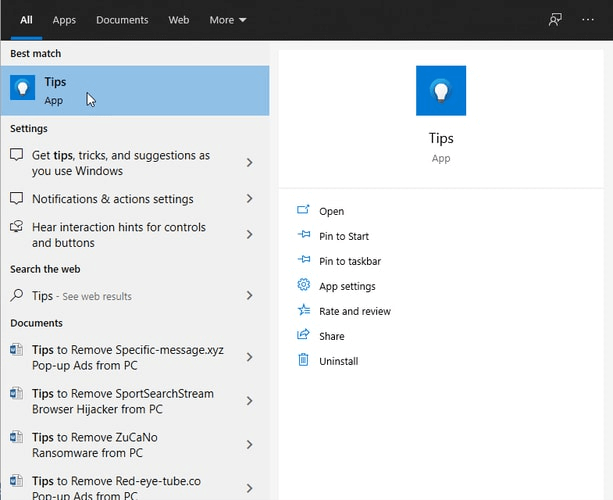
Use the Windows search function to find the Tips app.
Now, click on the first search result to open the app.
Finally, you can view tips related to your issue to resolve it.
Conclusion
This article guides you on how to get help in Windows 10. You can follow any of the methods mentioned above to resolve your issue. If you have any questions or inquiries regarding this article, feel free to contact us through the comments section.
You might also like
What is msedge.exe and how to remove it from your computer
Best file transfer apps from Android to PC
Software to improve computer performance for Windows 10 and 11


