

(How to delete/clean temporary files in Windows) How to delete/clean temporary files in the Windows operating system: You might be surprised to learn that your Windows operating system and the applications running on your computer generate temporary files. This article aims to help you understand the purpose of these temporary files and how they affect your computer's performance and the capacity of your internal hard drive.
We will show you how to delete temporary files in Windows to help keep your device running at peak efficiency.
Temporary files are types of files that are stored temporarily on your storage by applications and Windows. These files may include upgrade logs, update logs, error logs, temporary Windows installation files, cache, cookies, temporary extracted files, and more. However, these files do not pose a risk to your hardware.
To make your Windows 10/8/7 device more secure, you need to clean these temporary files from time to time. I will explain how to delete or clean temporary files from a device running Windows 10/8/7 to keep your device running efficiently.
What are temporary files?
In Windows, temporary files are created by the operating system itself and many applications running on your computer.
Many Windows temporary files are identified by the .tmp file type or start with a tilde (~). Most temporary files created are stored in the Windows Temp folder.
They are used for several reasons, including:
Operating system requirements such as providing space for virtual memory.
Working files for applications that contain data while the program is running.
Files created as backups of ongoing work, such as creating Microsoft Office for open documents.
As the name suggests, temporary files are intended to address a problem temporarily, and ideally, once they have served their purpose, they are deleted by the process that created them. However, this is not always the case, and temporary files can remain on your hard drive for a long time without being needed.
Why should I remove temporary files?
There are two main reasons for clearing temporary files in Windows in this regard. They are:
- Recovering storage space - Temporary files take up a significant amount of storage space, and over time, they can accumulate and represent a large percentage of your disk space. Removing unnecessary temporary files gives you more space to store important data that you need to keep.
- Improving computer performance - Temporary files that are needed by the Windows operating system or other applications can negatively impact your computer's performance as their size increases.
- Loading and searching through these large files can slow down your computer and the applications you use. Getting rid of these files can significantly speed up your device's performance.
For these reasons, you should periodically delete temporary files that may affect your computer. Let's see how you can do that.
How to delete/clean temporary files in Windows
Follow these simple methods to delete temporary files:
Method 1: Use Advanced System Repair Tool
Windows consists of a large number of dll files, exe files, sys files, various types of services, databases, and so on, so it's not possible to constantly monitor all files. The excellent PC optimization tool repairs damages, fixes errors, updates windows and drivers, and removes various types of errors silently.
The Outbyte PC Repair Tool performs all the above tasks easily and provides you with a smooth and error-free Windows environment to work in so you can focus solely on your work.
3 steps to fix this error
Step 1. Download the Outbyte PC Repair Tool [File size: 16.4 MB]
Step 2. Scan your Windows computer
Step 3. Click the "Repair" button to fix the error
Method 2: Use Settings
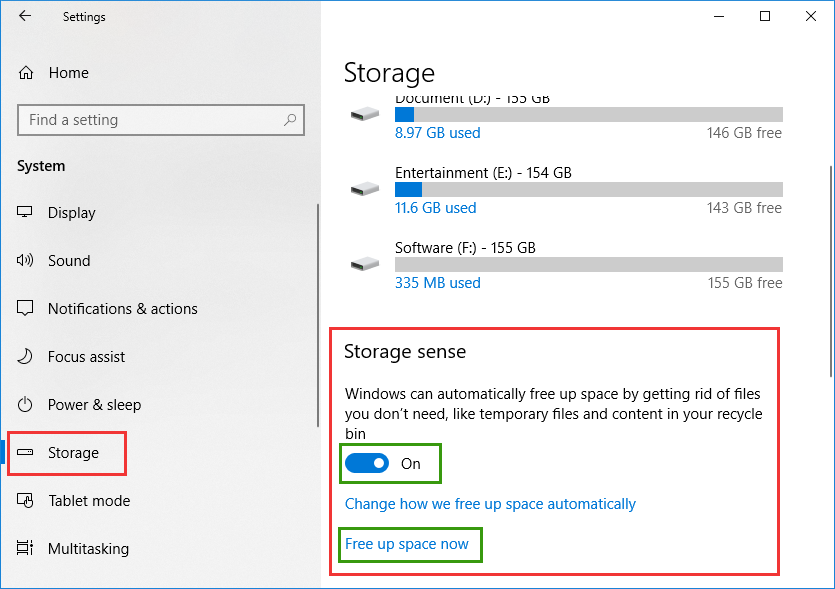
Step 1: Click on the Start menu > Settings > System and click on Storage.
Step 2: Here, turn on the Storage Sense option and then click on the Free Up Space Now link.
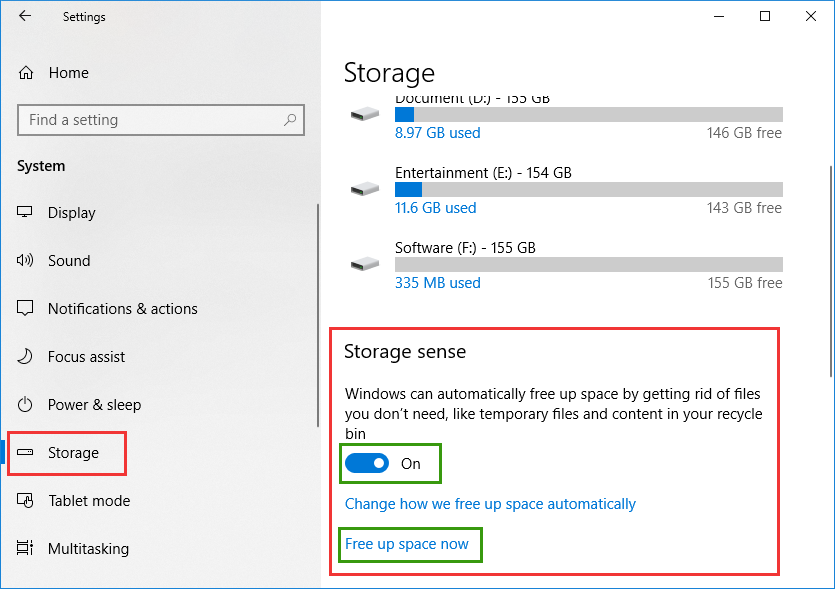
Delete temporary file
Step 3: It will start analyzing the storage space and will inform you of the amount of space that can be cleaned. Here, you can select and deselect individual options to delete files. Click "Remove Files" to delete the temporary files.
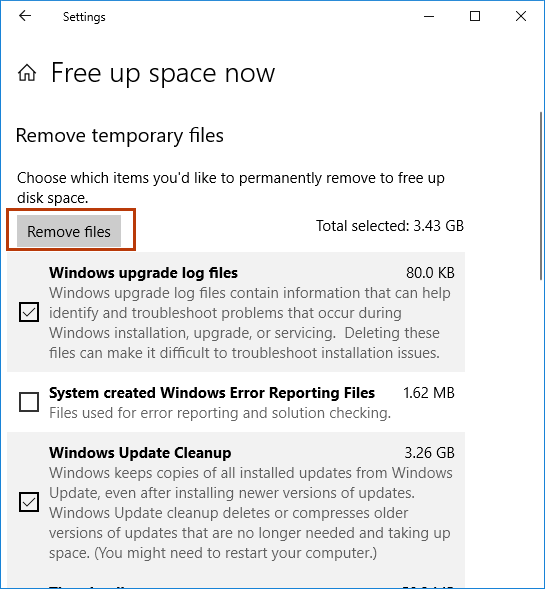
Delete temporary files
Method 3: Use Disk Cleanup Utility
Step 1: Click on the Start menu and search for Disk Cleanup.
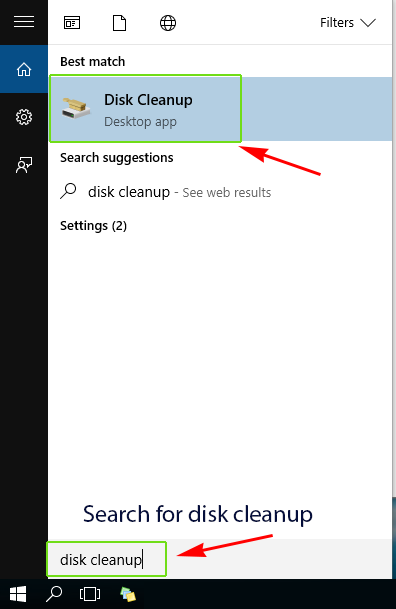
search_disk_cleanup
Step 2: Select the Windows installation drive (C:) and click OK.
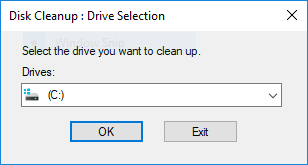
Disk Cleanup
Step 3: Click on Clean up system files.
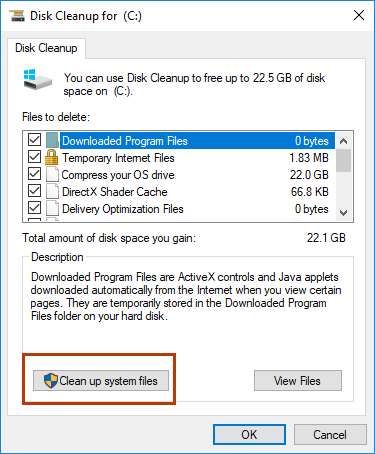
Clean up system files
Step 4: Select the Windows installation drive (C:) again and click OK, wait for it to analyze the storage space. It will take some time, so please wait.
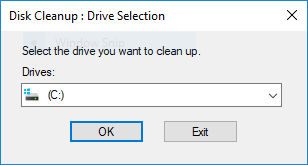
Clean up system files
Step 5: Now select all checkboxes and click OK to delete all temporary files.
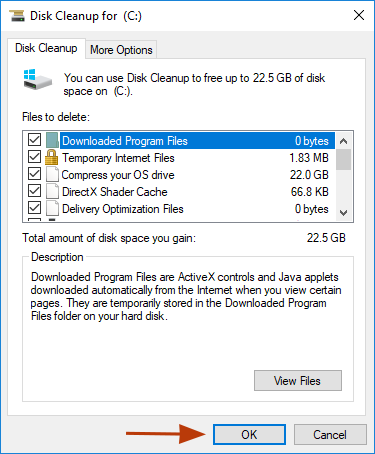
Clean up system files
Conclusion
One way to free up disk space in Windows 10/8/7/Vista and Windows Server is by deleting temporary files that your operating system only needs temporarily during use, but now they are just wasting space.
Most temporary files are stored in the Windows Temp folder, which varies in location from computer to computer. Usually, cleaning this manually in Windows takes less than a minute, but it may take longer depending on the size of the temporary file set.
I have explained in this article how you can clean and delete temporary files from a Windows device. Regularly cleaning temporary files is a good habit to keep your system secure and fast.


