

Firefox is the third most popular web browser in the world. Although it peaked between 2009 and 2011, it is still used by millions of users today. Notably, Linux users are particularly interested in it since it is the default browser in most Ubuntu versions. On the other hand, there are often compelling reasons to decide to uninstall Firefox. For some, the user experience with Firefox is not appealing, while others may point to high resource consumption. Of course, we are not trying to persuade anyone to use one browser over another; our goal is to explain how to delete the Firefox browser.
How to Uninstall Firefox on Windows 10
You can uninstall Firefox in the same way you remove any program from Windows.
Before you begin, close any open Firefox windows to ensure the browser is completely shut down.
1- Type "Apps & features" in the search bar next to the Start menu in Windows, then select "Apps & features" from the dropdown list.
:max_bytes(150000):strip_icc()/001-uninstall-firefox-4587260-4a3318643b0940eeb986a3581eecb478.jpg)
Selected Apps & features in search results
2- Scroll down the list of applications and select Firefox.
:max_bytes(150000):strip_icc()/002-uninstall-firefox-4587260-0bc6cc3ffadf4478b423bf2d8b20d6b3.jpg)
Apps & features settings in Windows 10 with Firefox selected
3- Click on Uninstall.
:max_bytes(150000):strip_icc()/003-uninstall-firefox-4587260-148a01e23d7b41ed91d96b234b29ebc8.jpg)
Uninstall option highlighted for Firefox
4- Click Uninstall again to proceed.
:max_bytes(150000):strip_icc()/004-uninstall-firefox-4587260-e8569dab702c45eea87ca25b7010c1f9.jpg)
Uninstall confirmation dialog
If the User Account Control dialog asks if you want to allow this app to make changes to your device, select Yes.
5- The Firefox Uninstall Wizard opens. Click Next to start the uninstallation process.
:max_bytes(150000):strip_icc()/005-uninstall-firefox-4587260-964c805e342745e3a8bdf49efa356718.jpg)
Firefox Uninstall Wizard with Next highlighted
6- Verify the installation location of Firefox, then select Uninstall.
:max_bytes(150000):strip_icc()/006-uninstall-firefox-4587260-69f169cba5804d3db87b75fc20d174d2.jpg)
Location screen in Firefox Uninstall Wizard with Uninstall highlighted
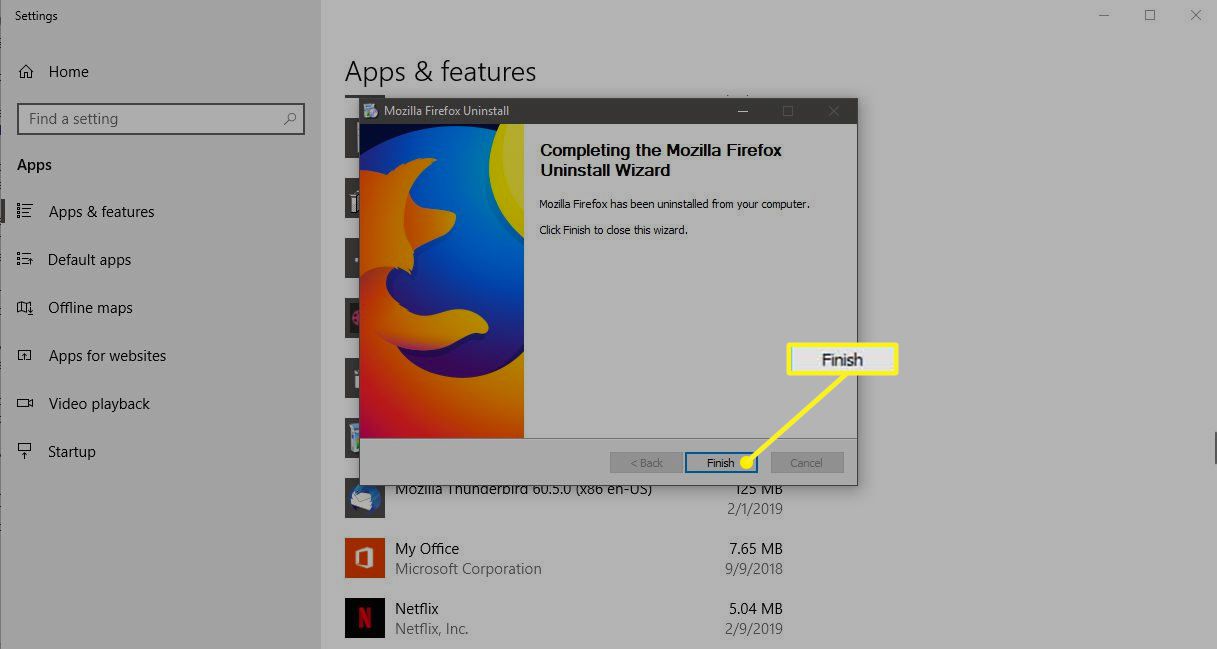
7- Firefox is removed from your computer, and a confirmation message appears. Click Finish to exit the Uninstall Wizard.
:max_bytes(150000):strip_icc()/007-uninstall-firefox-4587260-49a59401bd0f444f93c5e805e69be9d0.jpg)
Confirmation screen in Firefox Uninstall Wizard with Finish selected.
If you plan to reinstall Firefox and want to keep your bookmarks, stop here and skip the rest of the steps in this section.
8- The Firefox application has been uninstalled, but remnants remain on your hard drive, including browsing history, bookmarks, and other data. To find and delete these files, open Windows File Explorer and type %APPDATA% in the address bar.
:max_bytes(150000):strip_icc()/008-uninstall-firefox-4587260-85d8aadc542b47278c0a35e805d317a2.jpg)
Windows File Explorer with %APPDATA% in the address bar
The AppData roaming subfolder is displayed. Open the Mozilla folder.
:max_bytes(150000):strip_icc()/009-uninstall-firefox-4587260-45e57fbea7c54d88911b86b2ff9bb94e.jpg)
Mozilla folder in the AppData roaming subfolder
Right-click on the Firefox folder and select Delete. If you see additional folders for Firefox extensions and add-ons, delete them. All remaining data associated with Firefox will be removed.
:max_bytes(150000):strip_icc()/010-uninstall-firefox-4587260-4f8f6d06da4a45acbb95a5cc7630e4fd.jpg)
Firefox folder highlighted with Delete
How to Uninstall Firefox on Windows 8 and 7
The process for uninstalling programs is different in Windows 8 and Windows 7.
1- Open the Control Panel and select Programs and Features.
2- Scroll down and select Firefox from the list of programs.
3- Click Uninstall.
4- A pop-up dialog asks you to confirm the removal of Firefox; click Uninstall again to proceed.
If you want to remove browsing history and other accumulated data, check the box to also delete browsing data.
5- This process removes Firefox from your computer. Once completed, Firefox will no longer appear in your list of installed applications.
If you plan to reinstall Firefox and want to keep your personal data, stop here and skip the rest of the steps in this section.
6- The Firefox application has been uninstalled, but remnants such as browsing history, bookmarks, and other profile data remain on your hard drive. To delete these files, open Windows Explorer and navigate to Users\AppData\Roaming\Mozilla.
7- Right-click on the Firefox folder and select Delete; all remaining data associated with the browser will be removed.
How to Uninstall Firefox on macOS
To remove Firefox from your Mac, including related browsing data and profile information, first delete the library files associated with the browser.
1- Launch Firefox, then go to the Help tab and select "Troubleshooting Information."
:max_bytes(150000):strip_icc()/201-uninstall-firefox-4587260-1d0d4e7956d9405e84272a6fe16fc982.jpg)
Firefox Help menu on macOS with Troubleshooting Information highlighted
2- Next to the Profile Folder, select Show in Finder.
:max_bytes(150000):strip_icc()/202-uninstall-firefox-4587260-57f446ef28e54099be9219d54e2c9169.jpg)
Troubleshooting Information screen with Profile highlighted and Show in Finder
3- A Finder window opens displaying the profile folders associated with your Firefox browser. Select each folder and move it to the Trash.
:max_bytes(150000):strip_icc()/203-uninstall-firefox-4587260-0ca556aac887459f88e9b6865a47e0b4.jpg)
Firefox Profile folder on macOS
4- Completely shut down the Firefox browser, ensuring all open windows are closed.
5- Open the Applications folder Mac and drag the Firefox icon to the Trash.
:max_bytes(150000):strip_icc()/204-uninstall-firefox-4587260-9d392413551f4efd8e23b9aaecbc6230.jpg)
macOS Applications folder with Firefox app highlighted
6- Firefox has been completely uninstalled from your Mac. If you created shortcuts for the browser elsewhere, such as on the desktop, delete them manually.
How to Uninstall Firefox on Android
To remove the Firefox browser and all associated data from your smartphone or tablet running Android:
1- Open the Google Play Store app and tap the menu in the top left corner.
2- Tap My apps & games.
3- Tap the Installed tab.
:max_bytes(150000):strip_icc()/301-uninstall-firefox-4587260-c21c4c4f8885406781e2e704a95d02c0.jpg)
Google Play app path to installed apps and games
4- Scroll down and tap Firefox in the list of apps.
5- Tap Uninstall to remove Firefox from your Android device.
6- A message appears asking if you want to uninstall this app; tap OK to proceed.
:max_bytes(150000):strip_icc()/302-uninstall-firefox-4587260-363a9c9ac6c8483ab4b9c9b755ac66ac.jpg)
Uninstalling Firefox from the Google Play app on Android
How to Uninstall Firefox on iPhone, iPad, or iPod touch
Removing Firefox from your iPhone, iPad, or iPod touch is easier than ever:
1- Locate the Firefox icon on your device's home screen.
2- Press and hold the Firefox icon until it shakes. Then tap the X that appears above the icon.
3- A confirmation message appears warning you that all data related to the app will be removed. Tap Delete to complete the process, then tap Done in the top right corner of the home screen.
:max_bytes(150000):strip_icc()/303-uninstall-firefox-4587260-de57acb0d6494569962e544c816c61c9.jpg)
How to Uninstall Firefox on Linux
Naturally, we also need to consider how to uninstall Firefox on Linux, as a significant portion of Linux users have this particular browser. Moreover, Mozilla is the default browser on Ubuntu and other Linux distributions. Uninstalling on Linux is certainly different from Windows; we will highlight how to uninstall applications on the latest available version of Ubuntu – 20.04.
Step 1: Open the terminal using the standard keyboard shortcut Ctrl+Alt+T.
Step 2: Type Sudo apt-get purge firefox in the line, the terminal will prompt for a password to confirm. Then check for remaining files; we need to see hidden folders. Open the file manager, right-click on the ≡ item in the top right corner, and select Show Hidden Files.
Step 3: Open the home directory and manually delete the Mozilla folder. To proceed, you need to add the "Open as Administrator" function. The easiest way to do this is to use the Nautilus-admin extension. Run two commands: the first is sudo apt install nautilus-admin and the second is nautilus -q. You can now use elevated user privileges to delete files.
Step 4: Through the file manager, navigate to the etc folder, look for the Other Locations option and click on it. The subsequent actions will depend on whether Linux is the primary operating system; in our case, Linux is secondary, so we need to use the Computer folder, then open the etc folder as an administrator by left-clicking on the icon, and remove the Firefox folder.
Step 5: Open the usr and then lib folders as an administrator, look for Firefox extensions and remove them.
Conclusion
Firefox is a popular web browser due to its speed and robust feature set. In this article, we discussed how to delete the Firefox browser from your computer or mobile device if you are not using it.
The guidelines in this article apply to Firefox on Windows, macOS, Linux, iOS, and Android.


