


How to Open Control Panel in Windows 11/10: In this article, we will explore in detail the most important methods to access the Control Panel on your computer.
The Control Panel is the central hub for managing your computer, providing a centralized area on all laptops, desktops, and tablets running Windows to help you adjust nearly everything in the operating system, such as network settings, passwords, installed programs, keyboard and mouse functions, sounds, and other important configurations. However, if you're unsure how to open the Control Panel on your Windows 10/11 device, you're not alone; many people face similar confusion.
In this article, we will discover the best ways to access the Control Panel to assist you, so stay with us.
The fastest and easiest ways to open the Control Panel
You can open the Control Panel in Windows 10/11 using any of the following methods.
Method 1: Use Windows Search to Access the Control Panel
The search function is handy when you want to open any tool on your computer, and you can also use the search tool to go to the Control Panel. Here’s how to do it.
First, you need to access Windows Search. You can use the shortcut key Win+S to bring up the search box on your screen.
Next, type Control Panel in the search text box and press the Enter key on your keyboard.
Search results will appear on the screen. Click on the best match for your query, which is the Control Panel, to open it.
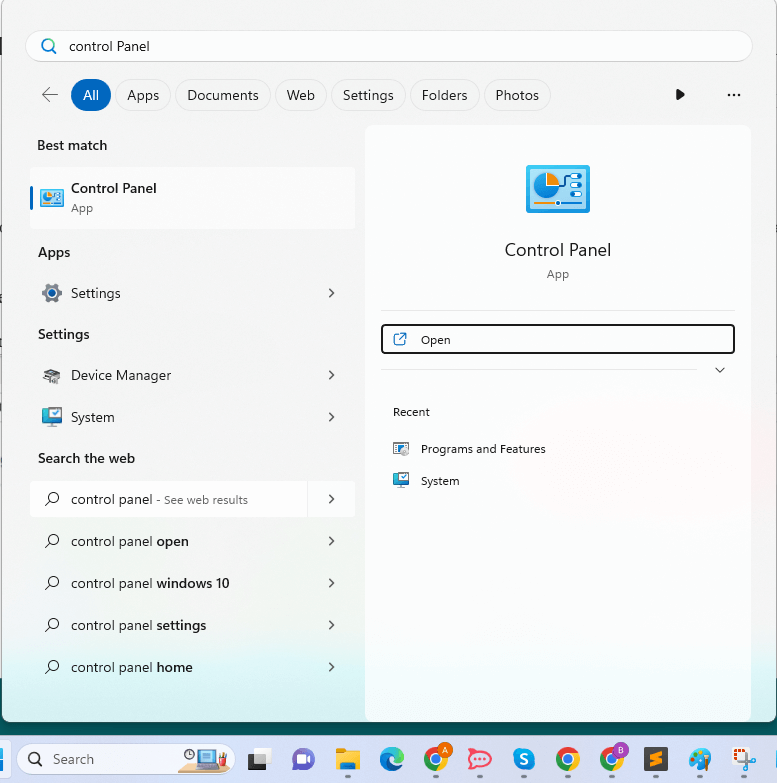
Searching for Control Panel in Windows 11
Method 2: Open Control Panel in Windows 11/Windows 10 via Quick Access Menu
You can access many computer applications and tools, including the Control Panel, from the Quick Access Menu. You can follow these instructions to find and open it from there.
First, right-click on the Start icon at the far left of the taskbar.
The Quick Access Menu will appear on your screen. You can now choose either Run or Search from the available options.
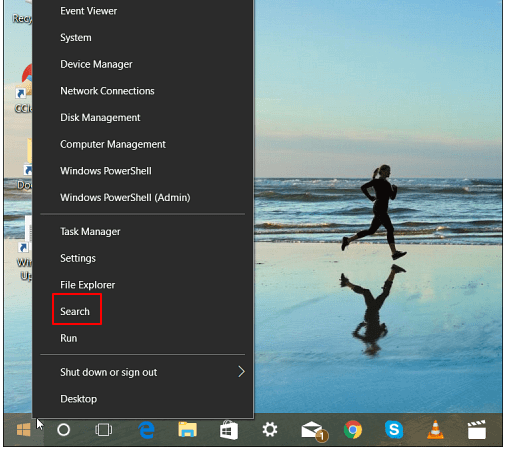
Search
Finally, type Control Panel in the text box that appears on your screen and press Enter.
Method 3: Use the Run Tool to Open Control Panel
The Run command in Windows allows you to open any application, tool, or document with a known path. Here’s how to access the Control Panel in Windows 11 / Windows 10 using the Run utility.
First, use the shortcut key Win+R to bring up the Run box on your screen.
Once the Run box appears, type Control Panel in the available space.
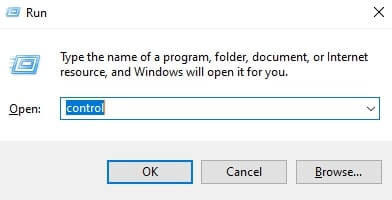
Control Panel dialog box
Finally, press Enter or click OK to access the Control Panel.
Method 4: Access Control Panel from the Start Menu
You can find all computer tools and applications in the Start Menu. Therefore, the following steps show how to open the Control Panel on Windows 10 through the Start Menu.
The first step is to click on the Start icon.
After clicking the Start icon, an alphabetically categorized list will appear. Scroll down to W and click on Windows System.
Finally, select Control Panel from the Windows System list to open it.
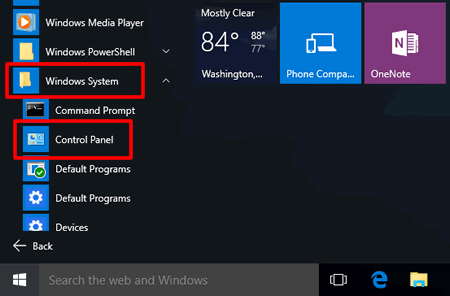
Control Panel from Windows System
Method 5: Go to Control Panel via File Explorer
File Explorer is an easy way to access various programs on your computer. Here’s a detailed step-by-step guide on how to navigate to the Control Panel through the File Explorer menu.
First, open File Explorer using the shortcut key Win+E.
Next, type Control Panel in the address bar in the File Explorer window.
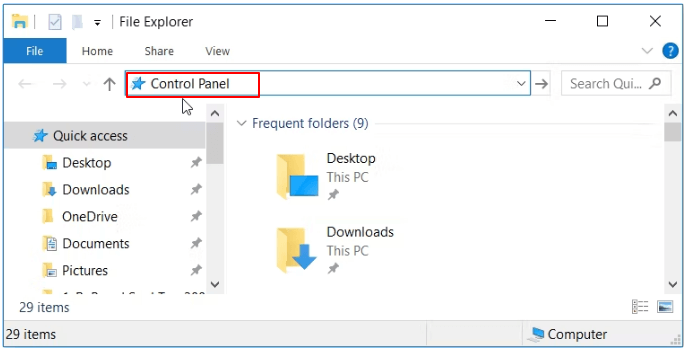
Control Panel in the address bar
Finally, press Enter on your keyboard to display the Control Panel.
Method 6: Run Control Panel via Task Manager
Task Manager helps you gain insights into your computer's performance, and you can also use this tool to run the Control Panel. Here’s how.
The first step is to right-click on an empty space on the taskbar and select Task Manager to open it.
Once Task Manager is open, select File from the menu at the top of the Task Manager window.
You can now choose the option to Run a new task from the File menu.
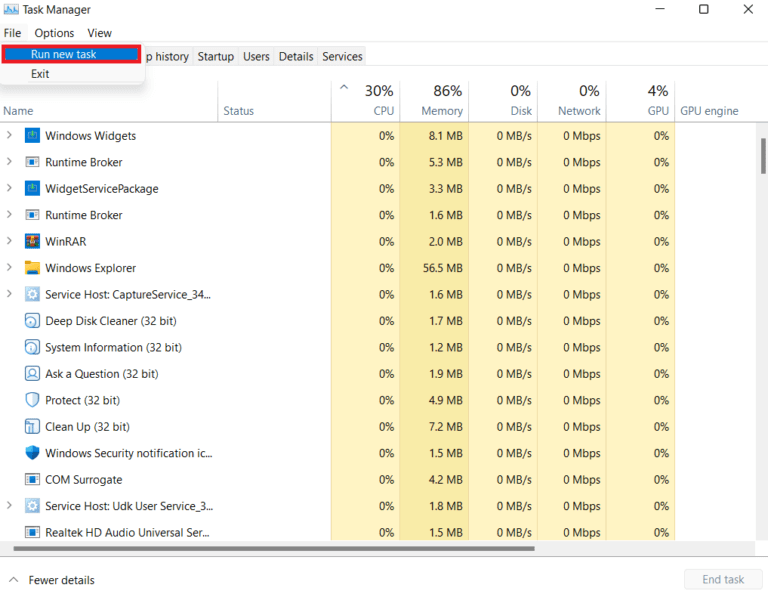
Run a new task
A new task creation box will appear. Type control.exe in the open box and click OK to access the Control Panel.
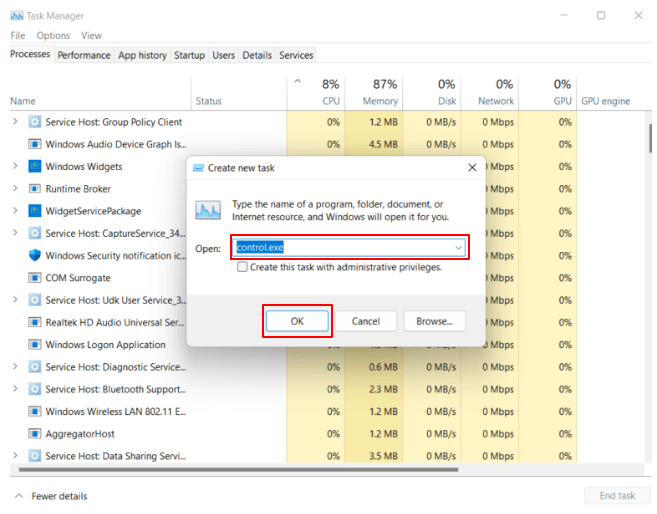
control exe
Method 7: Go to Control Panel through Settings
Settings help change the overall configuration of your computer. Moreover, it provides a way to access the Control Panel. Here’s how to open the Control Panel on your Windows 11/10 device via Settings.
First, you need to open your computer's Settings. The simplest way to do this is by using the shortcut key Win+I.
Once the Settings panel appears on your screen, type Control Panel in the search settings box.
You can now select Control Panel from the results displayed on the screen to open it.
Method 8: Use Cortana Voice Search to Find Control Panel
Cortana not only helps you find information on any topic but also allows you to open various applications and tools, including the Control Panel. Therefore, you can follow these instructions to use it.
First, click on the Cortana icon on the taskbar.
Next, ask Cortana to open the Control Panel for you.
Method 9: Access Control Panel in Windows 11 Using Windows Tools
The Start Menu in Windows 11 contains a shortcut for Windows Tools that allows you to access many utilities. Here’s how to open the Control Panel in Windows 11 using this shortcut.
First, click on the Windows logo on the taskbar to access the Start Menu.
Next, select All Apps from the list that appears on the screen.
At this step, scroll down to find Windows Tools and click on Windows Tools.
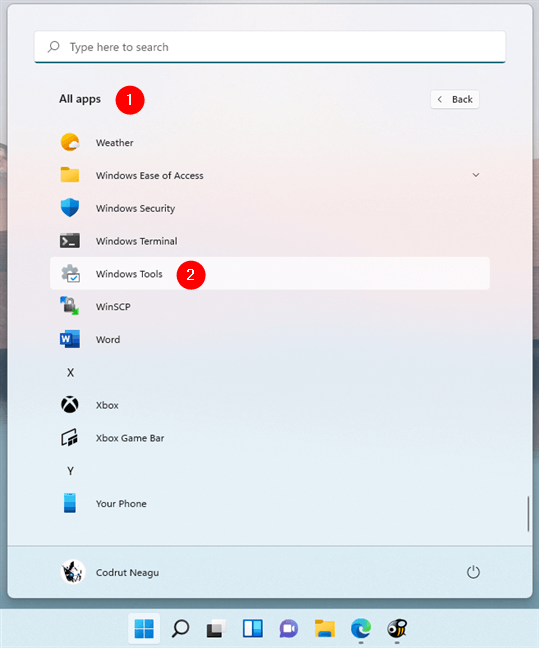
Windows Tools
The Windows Tools will appear on the screen. Click on Control Panel in the title bar to open it.
Method 10: Open Control Panel in Windows 10 Using the Taskbar Toolbar
You can add a Desktop toolbar to the taskbar to access the Control Panel. Simply follow these steps to perform this action.
The first step is to right-click on an empty space on the taskbar.
Next, select Toolbars from the context menu that appears on the screen.
You can now select Desktop from the Toolbars menu.
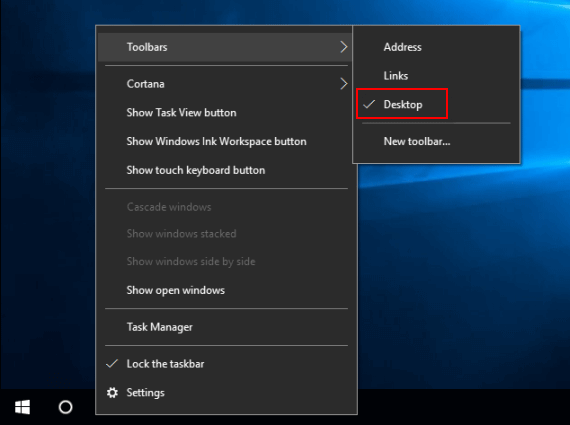
Desktop
Finally, click on the Desktop toolbar that is added to the right side of the taskbar and double-click on Control Panel to access it.
Method 11: Access Control Panel Using Command Line Tools
Although the process is not user-friendly for beginners, tools like Windows Terminal, Windows PowerShell, and Command Prompt allow you to open the Control Panel. Here’s how to access the Control Panel using these tools.
First, open Windows Search using the shortcut key Win+S.
Next, search for and open Windows Terminal, Windows PowerShell, or Command Prompt.
At this step, type Control Panel in the command line and press Enter.
Method 12: Run Control Panel via Shortcut
You can use the default Control Panel shortcut to access this tool. However, if you can’t find the shortcut, here’s how to create one.
To start creating the shortcut, right-click on an empty area of the desktop and select New from the context menu.
Next, choose Shortcut from the New menu to access the Create Shortcut window.
You can now enter %windir%\system32\control.exe in the box that appears on the screen and click the Next button.
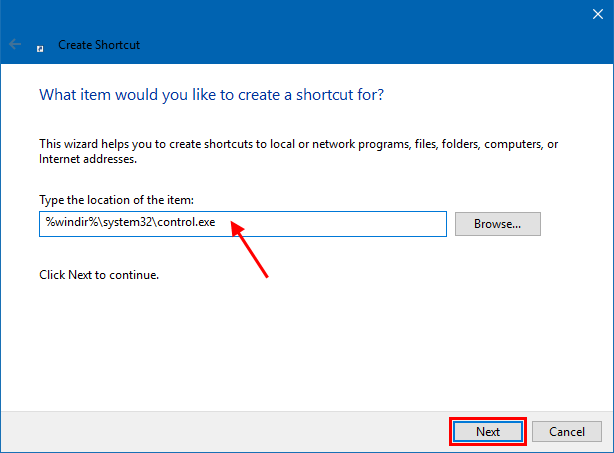
Enter a name (for example, Control Panel) and click the Finish button.
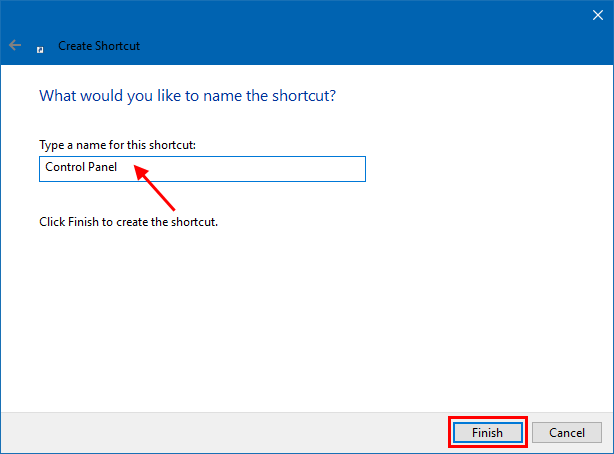
Enter name
Now, you can click on the Control Panel shortcut on your desktop to open it.
Conclusion
That’s all about how to open the Control Panel in Windows 11/10. We hope you can access it through the methods mentioned above. However, if you have any questions, feel free to reach out to us through the comments section, and we will do our best to address all your inquiries.


