

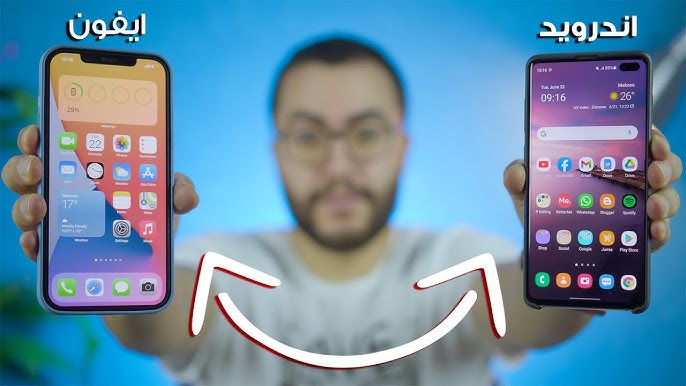
How to transfer photos from Android to iPhone without needing a computer: Unfortunately, Apple does not allow iPhone users to send or receive files from non-Apple devices via Bluetooth. Fortunately, this won't stop you from transferring photos from Android to iPhone, as some amazing methods are listed in this article that will help you send photos from iPhone to Android without Bluetooth or a PC.
How to transfer photos from Android to iPhone without needing a computer
If you want to know how to transfer photos from Android to iPhone, the following methods will help you send data to your iPhone regardless of the imposed restrictions.
Google Photos
Google Photos is also a cloud storage platform that allows you to store your data. Most importantly, you can share files from Android to iPhone through Google Photos.
After connecting to a Wi-Fi network, you will need the following steps to learn how to transfer photos from Android to iPhone without a computer.
Step 1: Log in using your Gmail account after launching Google Photos on your Android device.
Step 2: Select the settings option to proceed.
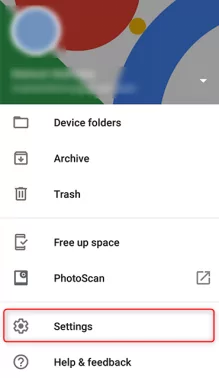
Step 3: Turn on the backup and sync icon, and your photos on your Android device will start syncing.
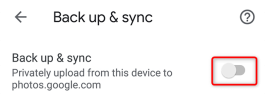
Step 4: Now, your Android device will upload the photos from your mobile to the cloud storage. Next, launch the Google Photos app on your iPhone and log in using the same Gmail account.
Step 5: Turn on the backup and sync switch after visiting the settings. Now, your iPhone will start uploading the photos. You can now access all the photos from your Android phone.
AirDroid Personal
The best way to transfer photos from iPhone to Android without a computer is AirDroid Personal. It’s a fantastic app available on Windows, Mac, iOS, Android, and the web that helps you manage your important files across platforms and devices.
AirDroid Personal allows you to share your files and essential documents wirelessly. Moreover, this app does not cause data loss, making it a great tool.
You can use Wi-Fi or a local network to transfer your data to different devices. Additionally, AirDroid also allows you to send your personal information to your family, friends, or other chosen individuals, thanks to the “Nearby” feature in AirDroid Personal.
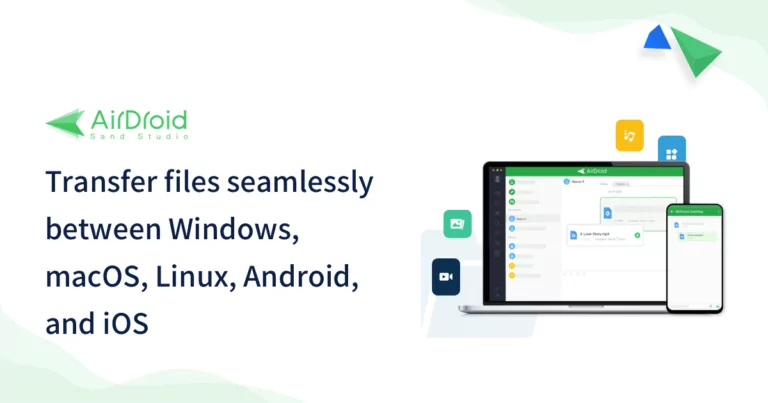
How to transfer photos from Android to iPhone
Step 1: Install the AirDroid app on both your iPhone and Android devices. Then, launch the app on your Android phone and tap the sign-in icon. Enter your credentials there to register in the AirDroid app.
Step 2: Once logged into the AirDroid app, you will need to enable AirDroid to access your files and grant permission for AirDroid to access the album.
Step 3: You will need to tap the add device icon after selecting the “My Devices” tab. Then, follow the on-screen instructions.
Step 4: Now that the iPhone and Android are connected, you can transfer photos from Android to iPhone.
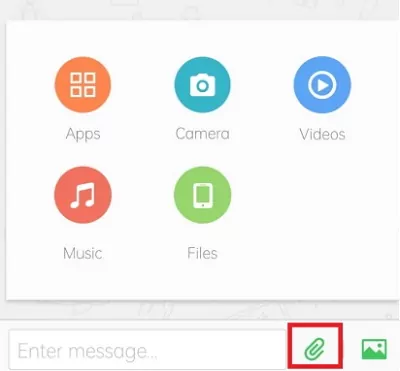
Next, select the “iPhone” option from the “My Devices” icon, and this process will open a conversation. You can click on one of the specified options to attach files through the “paperclip” option or tap the “photo” icon to share your pictures.
Move to iOS
The “Move to iOS” tool is Apple’s official tool that allows you to send photos from Android to iPhone. You can download this app from the Google Play Store.
Here’s how to do it.
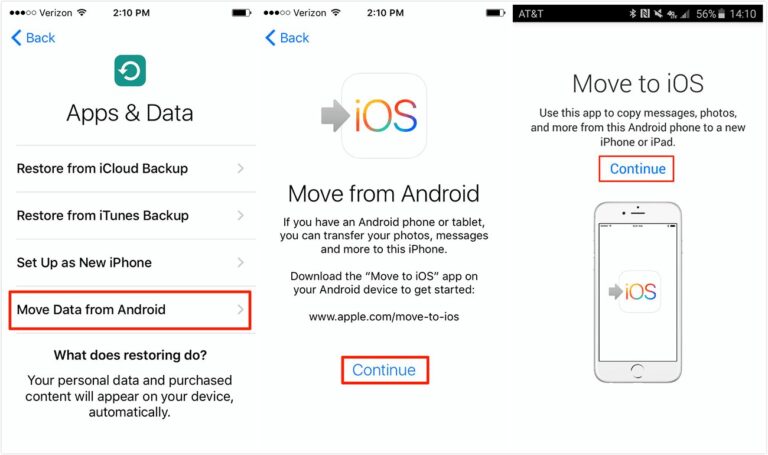
Go to the “Apps & Data” option on your iOS device and select the “Move Data from Android” icon.
Install the Move to iOS app from the Google Play Store. After launching the Move to iOS app, you will need to tap the “Continue” icon on both your Android and iOS devices.
Your Android device will ask you to enter the 12-digit code from your iOS device. After entering the 12-digit code, you will be able to transfer photos from Android to iPhone.
Send Anywhere
If you are concerned about the speed at which your data is transferred from Android to iPhone, choosing the Send Anywhere app might help. It’s a great app that enables you to share data between Android and iOS.
Here’s how to transfer photos from Android to iPhone.
Step 1: Download Send Anywhere on both iOS and Android.
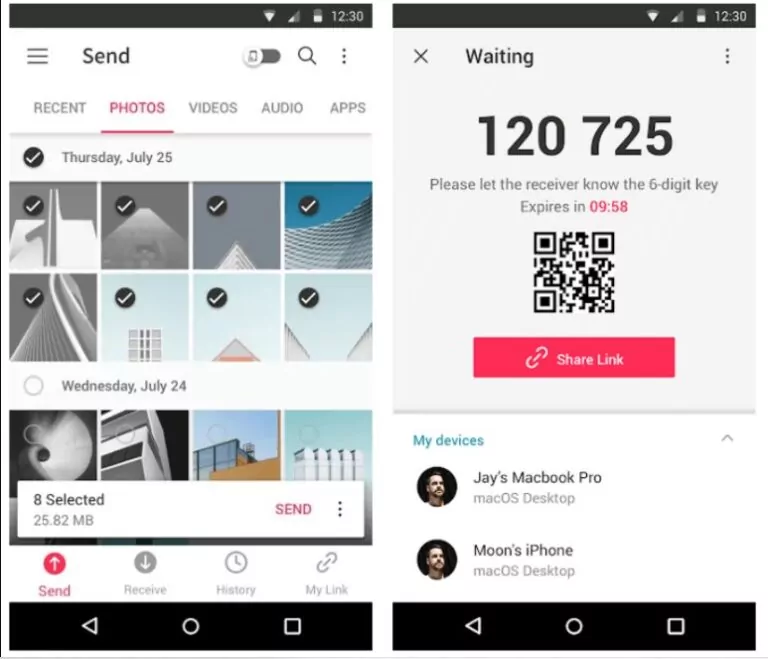
Step 2: Go to the “Photos” app on your Android device to select the photos you want to transfer.
Now, Send Anywhere will display a sharing link, QR code, or a 6-digit code on your Android device.
Step 3: Select the “Receive” icon on your iPhone and scan the QR code to start receiving photos from Android.
SHAREit
SHAREit is one of the fastest ways to transfer photos from Android to iPhone. From transferring photos and videos to documents and sharing audio files, SHAREit helps you share data with minimal effort.
Here’s a detailed step-by-step guide to transferring photos from Android to iOS.
Install SHAREit on both iPhone and Android devices and launch it.
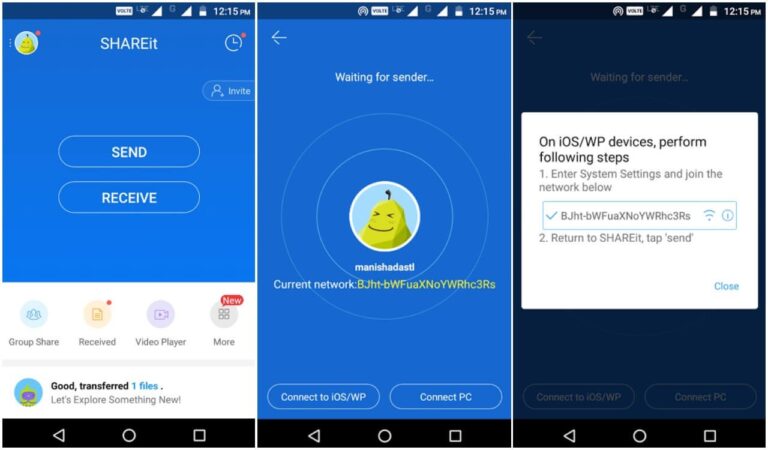
Tap “Send” on your Android device to select the photos you want to send to your iOS device.
When the screen turns blue on your Android device, choose “Connect to iOS/WP.” After that, a password and mobile hotspot name will appear on your screen.
You will need to enable the Hotspot option on your iPhone and launch SHAREit. Tap the “Receive” option to start sending photos from Android to iPhone.
Dropbox
If you don’t want to use a computer to transfer photos from Android to iPhone, Dropbox might serve your purpose. Dropbox is an excellent file storage platform that allows you to store or share your important files across devices.
Here’s how to transfer photos from Android to iPhone.
Step 1: Launch the Dropbox app on your Android device and select the “Settings” icon to change file sharing and backup settings.
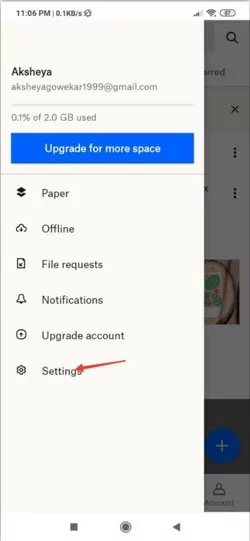
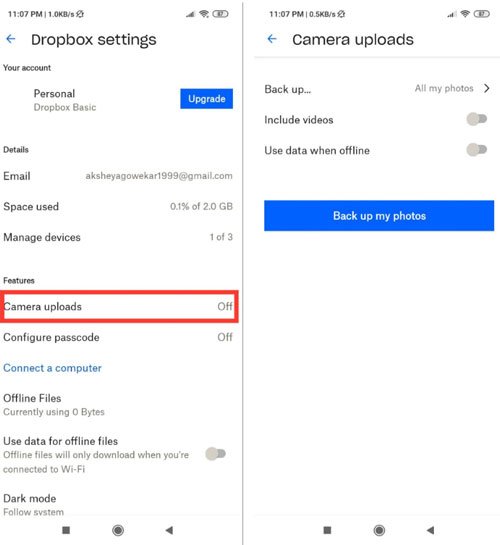
Step 2: After accessing the settings, you will need to enable “Camera Uploads” after selecting the “Sync Contacts” option. This process will automatically sync your photos with Dropbox.
Step 3: Tap the “+” icon to select the files you want to transfer to your iPhone.
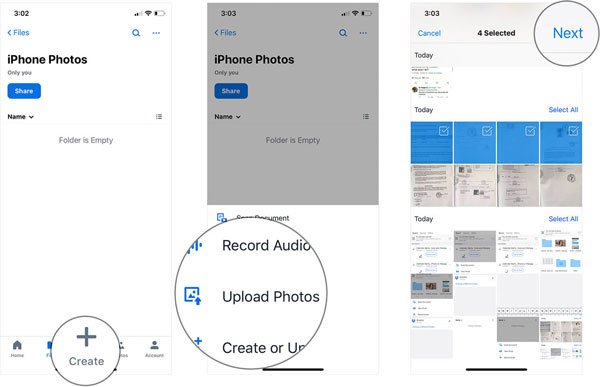
Step 4: Install Dropbox on your iPhone and log in with the same account. You can now download the files you uploaded from your Android device earlier.
Another way to transfer photos from Android to iPhone is via email. It’s a “back to basics” method that allows you to send or receive files through email.
Here’s how to transfer photos from Android to iPhone.
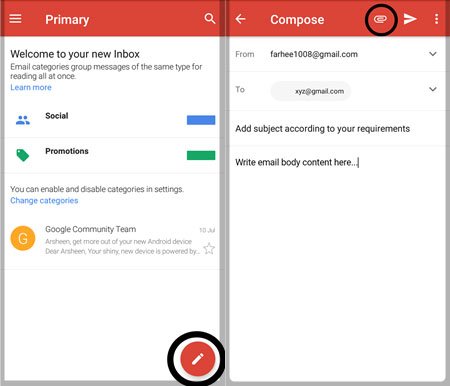
Launch the email app on your Android device and choose “New Message.” You can now direct your new email to your email address as if you were sending an email to yourself.
Add the photos you want to send to your iPhone by tapping the paperclip. Once you select the files, they will be attached to your email ID.
Tap the “Send” icon and then launch the email app on your iPhone. Now, you will be able to find the files you attached to the email on your Android device. You can download the files from there.
Conclusion
In this article, we discussed how to transfer photos from Android to iPhone without needing a computer. Although iPhone and Android devices have operating systems that do not make it easy for these two devices to share files, you can explore various methods to transfer files in this post.
In this article, you will find several reliable ways to transfer photos from Android to iPhone; all methods are worth your attention. You just need to choose what suits you best.


