

What is a BAK file and how can I open it on Windows? Have you come across a file with a .bak extension and are curious to learn more about it? If so, this article is written for you. Here, we will explore these files in more detail.
Files with the .bak extension, or BAK files, are backup files created by various applications to store data for backup and recovery. In this article, you will learn how to open these files. Before that, let’s shed some light on what these files are, their origins, applications, and benefits to clarify any related matters.
What is a BAK file?
In simple terms, a BAK file is a backup created by applications such as Notepad++, SQL Server, Google Chrome, XML Shell, etc., to store important information or settings. These files help you restore program settings and various files when the original file is corrupted or lost.
The origin of these files lies in database management systems. These files act as a copy of the database or a snapshot of the database at a specific time to protect against data corruption or loss or any such circumstances.
Moreover, these files play an important role in software development. Software developers often create such files to support their projects, protecting them from conflicts or unexpected errors. Developers can easily restore a working version of the project if a BAK file exists.
Now that we have learned about .bak files, let’s understand how to open them.
How to open BAK files
Before starting the process of opening these files, let’s clarify that there is no single application to open BAK files. However, this does not mean you cannot open them. You can view these files easily by following the simple steps below.
Identify the origin
The first step in opening a .bak file is to identify the source of the file. Identifying the origin of the file is as simple as ABC. Sometimes, these files have the same name as the original file and folder, so you can take a look at the file name and folder location to recognize it. For example, if the BAK file is in a video folder, it may be a media file. You can confirm this by opening the file with a media player to check if it plays.
In some cases, users may also create a .bak file to edit a program file without changing the original file. This helps in safely preserving data, so you can look for extensions like .reg in the file name to check if it was created by the user and determine its origin.
For instance, if the file has a .reg extension in its name, it may be a Windows registry file. The user might have created a copy of any registry file and renamed the original file with the .bak extension to keep it safe, ensuring that changes are made to the copy while the original file remains unchanged.
Convert the file
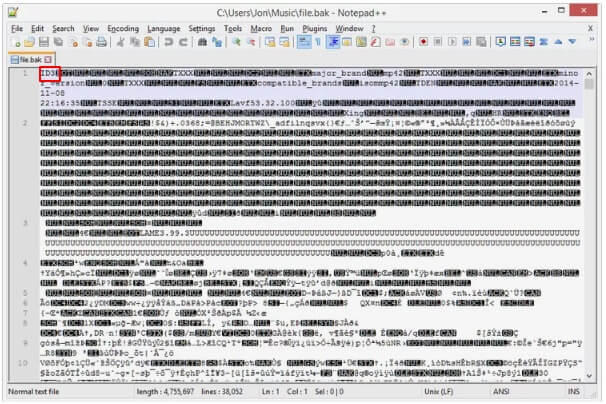
After identifying the origin of the BAK file, the next step is to convert the file. Since BAK is not a file format in the true sense, but rather a naming system, file converters may not be very useful. Therefore, you can use a text editor to open the BAK file as a text document to determine the file type. To open the file in a text editor like Notepad++, change the file extension to .docx.
Once the file is opened in a text editor, you can easily identify the file type. For example, if the file contains many table-like components, it might be a CSV file that you can open using Microsoft Excel after renaming the file from .bak to .csv. Another example, if the file shows ID3 in its contents, it might be an MP3 file that you can open after changing the extension from .bak to .mp3.
Convert the file
Here are the steps to open any .bak file other than SQL Server .bak files. If you want to open a SQL Server BAK file, you must first restore the file and then open it. Let’s learn how to do that in the next section.
Open a .bak file for SQL Server
You can take these steps to restore and open a SQL Server backup file.
Locate the database
The first step is to find the database you want to restore. You can do this by right-clicking on the data and selecting tasks from the menu that appears on the screen, then going to the restore option and choosing the database.
Find the location of the BAK file
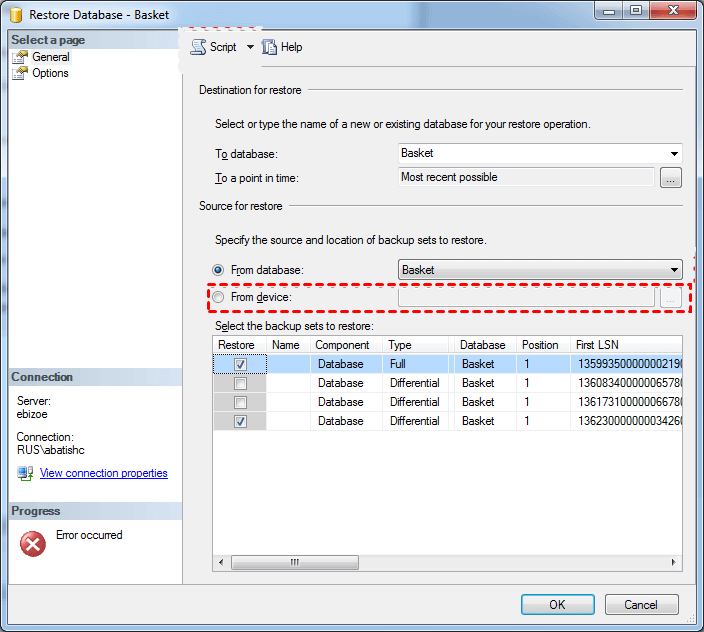
After locating the database, this step requires you to find the location of the file. You can select the browse button from the device to find the location.
Find the location of the BAK file
Add the file
This step is very straightforward; in this step, choose to add the .bak file.
Locate the folder containing the file
Now, you just need to locate the folder that contains the specified BAK file and choose to restore it, then click OK, and click OK again to proceed to the next step.
Select the backups you want to restore
Select the full backup and transaction log, then click OK for a successful restoration.
Frequently Asked Questions
Is it safe to delete .bak files?
If you know what the BAK file contains and no longer need it, it is safe to delete it. However, if you are unsure of its contents, consider creating a temporary folder to store the file.
What does a .bak file contain?
“bak” is a file extension commonly used to indicate a backup of a file. When a program is about to overwrite an existing file (for example, when a user saves the document they are working on), the program may first create a copy of the existing file, appending the .bak extension to the file name. This is common.
Where are bak files stored?
BAK files are created in the same folder as DWG files by default. You can change this either directly in the command line or by opening the options and switching to the "Open and Save" tab.
Why is my computer creating .BAK files?
A file with the BAK file extension is a backup file used by many different applications, all for the same purpose: to store a copy of one or more files for backup purposes. Most BAK files are created automatically by the backup storage program.
What can you open bak files with?
A .bak file is a general backup; it can be a text file, an image file, or in fact, any type of file, so there is no standard application to open it.
Conclusion
So, that was all about BAK files and how to open them. We hope this guide helps you understand these files and open them without needing to download any free BAK file opener on your computer. However, if you still have any questions or suggestions, feel free to reach out to us through the comments section.


