


What drivers should you install on a new computer for optimal performance? Setting up a new computer is always exciting! However, before diving into installing software, games, or productivity tools, there's a crucial step that often gets overlooked: installing the right drivers.
Drivers act as a bridge between the operating system and the hardware, ensuring smooth communication and performance. Without the appropriate drivers, you may experience system instability, slow performance, hardware failures, or even software crashes.
When should you install or update drivers?
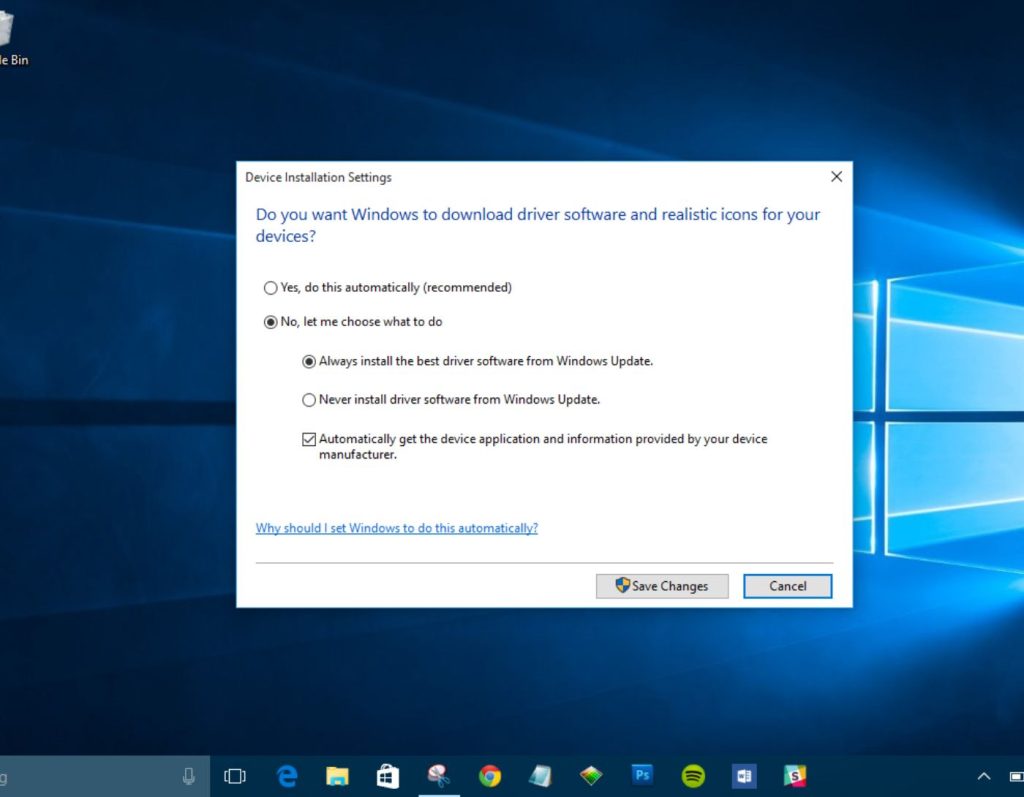
Drivers need to be updated in specific situations to prevent system crashes and enhance performance. Here are the main scenarios where updating or installing drivers is essential:
1- When drivers become outdated or unsupported
If your drivers are outdated or no longer compatible with the latest updates of Windows, they may cause performance issues or crashes. Updating them ensures good compatibility.
2- After installing a new game or software
High-performance games and applications often require updates to graphics, audio, and network drivers. Regularly updating them leads to:
Improved frame rates
Reduced lag
Prevention of crashes
For example, updating the Nvidia graphics driver could boost Skyrim's performance by up to 45%!
3- When prompted by an application or operating system
Windows or installed applications may notify you of outdated drivers. Ignoring these updates can lead to compatibility issues or loss of features in some applications.
4- When experiencing graphics issues
If your screen flickers, lags, shows distorted images, or goes dark, the problem is likely related to the graphics driver. Updating or reinstalling the graphics drivers will resolve most display issues.
5- When your computer is slow or freezes
Slow performance, system lag, or file loss can indicate damaged or outdated drivers. Check "Device Manager" for any yellow warning icons — these indicate old drivers that need updates.
6- When facing hardware issues
If devices like keyboards, mice, printers, Wi-Fi, or audio aren't functioning properly, their drivers may be missing or outdated. Installing the correct drivers allows you to quickly restore their full functionality.
For example, if your WiFi network isn't working despite having a functioning router, an outdated network driver could be the issue.
What drivers should you install on a new computer for optimal performance?
Now that you know when and how to update drivers, let's review the most important drivers that should always be installed for a stable and high-performing system.
1- Motherboard drivers
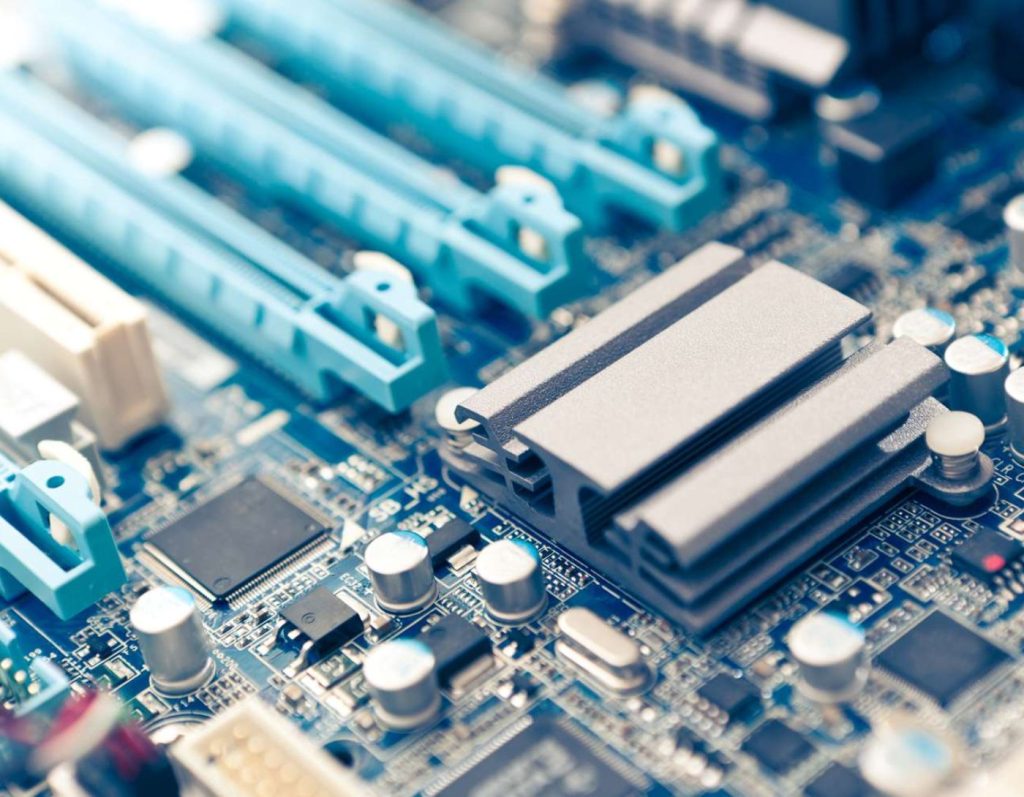
Motherboard drivers ensure that your system's core components, such as USB ports, SATA controllers, and chipsets, function correctly.
Where to get it: Download it from your motherboard manufacturer's website.
2- Graphics Processing Unit (GPU) drivers
Whether you have an integrated or dedicated graphics card, updating the graphics drivers ensures smooth video playback, gaming, and rendering.
Where to get it:
The official website of the manufacturer.
3- BIOS drivers
The Basic Input/Output System (BIOS) controls system startup and hardware initialization. Updating it isn't always necessary, but it may improve system stability in some cases.
Where to get it: The official website of the manufacturer.
4- Network drivers (WiFi and Ethernet)
Having the correct network drivers ensures a stable internet connection and faster data transfer.
Where to get it: Windows Update or your device manufacturer's website.
5- Audio drivers
Without the proper audio drivers, you may experience no sound, choppy audio, or microphone issues.
Where to get it: Realtek, Intel, or your motherboard manufacturer's website.
6- Peripheral drivers
Devices like gaming keyboards, webcams, external hard drives, and printers require specific drivers for proper operation.
Where to get it: The manufacturer's website for the device.
7- Touchpad drivers (for laptops)
If you're using a laptop, installing or updating touchpad drivers ensures smoother scrolling.
Where to get it: The manufacturer's website for the laptop.
8- Bluetooth drivers
For devices like Bluetooth headsets, wireless controllers, and smartwatches, updating your Bluetooth drivers ensures a seamless connection.
Where to get it: Windows Update or your computer manufacturer's website.
9- Storage controller drivers (NVMe and SSD)
If you're using an SSD or NVMe drive, updating storage controller drivers ensures faster read/write speeds and improved stability.
Where to get it: The manufacturer's website.
Frequently Asked Questions
1- What happens if I don't update my drivers?
Outdated drivers can cause system crashes, slow performance, and hardware failures. Updating drivers ensures a good experience.
2- Can I update drivers manually?
Yes! You can update drivers through Device Manager or download them from the manufacturer's website. However, automated tools like Win Riser save time and effort.
3- How often should I update my drivers?
It's recommended to check for updates every few months or when experiencing hardware issues. Core drivers, such as graphics, network, and storage drivers, should be updated regularly.
4- Should I always update BIOS drivers?
No. BIOS updates should only be installed if you're experiencing stability issues or if the manufacturer has released a significant update.
5- How can I check if my drivers are outdated?
Go to "Device Manager" (Windows + X > "Device Manager") and look for any yellow warning icons — these indicate outdated drivers.
Conclusion
What drivers should you install on a new computer for optimal performance? Now you know.
Installing the right drivers is essential to ensure your computer runs efficiently and error-free. Whether you update them manually or using WinRiser, regularly updating drivers will improve speed and performance, prevent crashes and errors, and help you get your work done.


