


Tips to Speed Up Your Windows 10 and 11 Computer Without Software: Are you tired of system freezes or frequent crashes, or slow Wi-Fi connections? Are you looking for an easy and effective solution to keep your computer running at its best? If your answer is yes, I recommend you continue reading this article, which will present some effective ways to speed up computers running Windows 10.
Best Tips to Speed Up Your Windows 10 and 11 Computer Without Software
If you are among the users concerned about how to speed up your computer running Windows and are looking for solutions, follow the suggestions below, which are listed in order. So, let’s jump right to the first suggestion and see if it works; if it doesn’t, we’ll move on to the next one.
1. Restart Your Computer
The first thing you can try is restarting your computer, which can automatically fix issues that may slow down your system's performance. Opening multiple programs, tabs, and browsers at the same time or keeping your device running for too long can ultimately slow down your computer.
If that happens, restart your computer and then only open the browser tabs, programs, and applications you need, and check if that helps speed up your Windows 10.
Additionally, many background applications running on your system can slow down the processing speed of your Windows computer, so the first thing to do when answering how to increase the speed of your CPU for Windows 10 is to restart the system.
If your computer is still slow? Move on to the next step.
2. Check for the Latest Windows Updates and Device Drivers
One of the best ways to configure and speed up your computer is to ensure that you have the latest version of Windows 10 installed.
To check for Windows updates:
Click the "Start" button, then go to Settings > Update & Security > Windows Update and select Check for updates.
Select any updates (if available), then click Download and install now.
Now, restart your computer and check if that improves the speed of your Windows 10 computer.
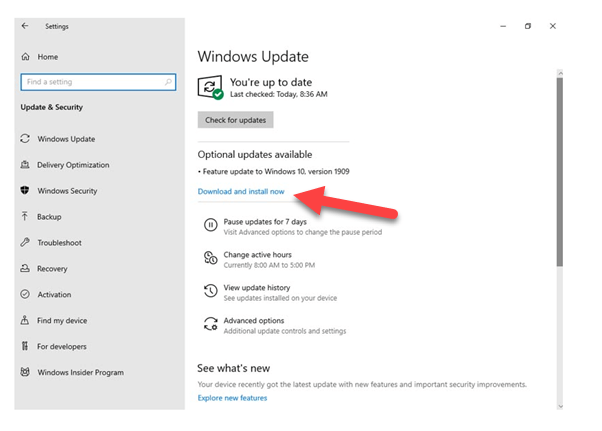
Latest Windows Updates and Device Drivers
When checking for the latest Windows updates, your system also looks for the latest device driver versions to avoid any compatibility and performance issues.
However, occasionally, you may need to manually search for the latest driver updates for several reasons. Downloading and installing the appropriate Windows 10 drivers manually can be a daunting task and can be really frustrating for those without technical expertise.
Therefore, it’s always a good idea to look for a utility to automatically update drivers that can help you install the latest official driver updates and improve your computer's overall performance without the need for manual searching.
3. Run the "Program Compatibility Troubleshooter" for Windows 10
If you have applications or programs installed from previous versions of Windows on a computer running Windows 10, this may slow down your system a bit. To improve your Windows 10 operating system, you can either check the manufacturer's website for an updated version or run the Program Compatibility Troubleshooter. Here’s how:
Select the "Start" button and search for "Troubleshoot settings."
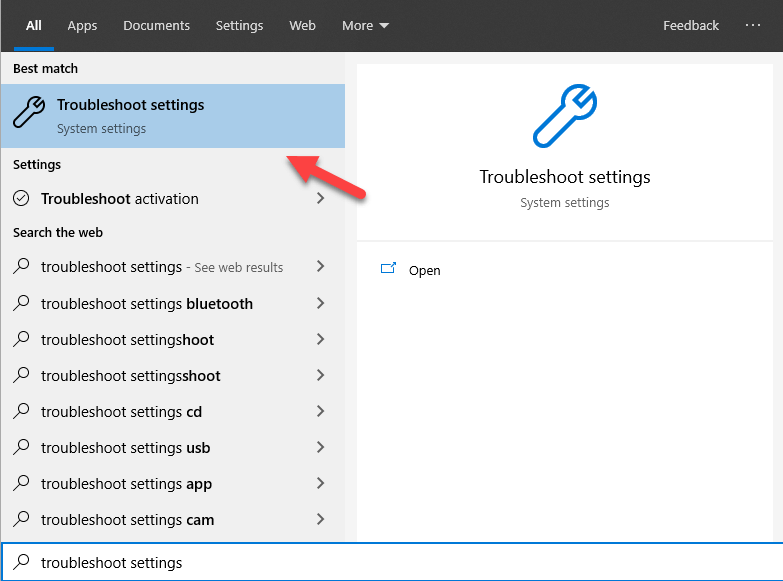
Search in Troubleshoot settings
Scroll through the list of troubleshooters, then click on Program Compatibility Troubleshooter > Run the troubleshooter.
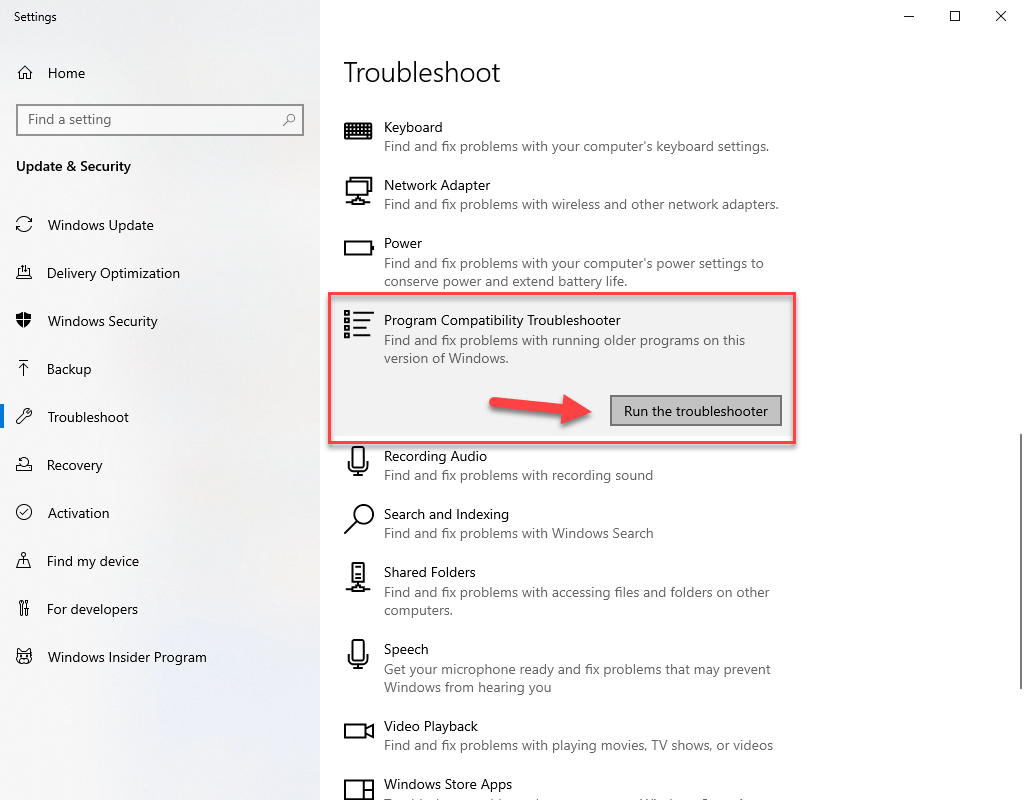
Run the troubleshooter
Now, select the program or application you are having compatibility issues with, then click "Next" and choose "Recommended compatibility settings" and check if that resolves the issue.
4. Limit Startup Programs
If your computer takes longer than usual to boot up, you may have some programs that start automatically and run in the background when Windows starts. Therefore, it’s always a good idea to disable programs that start automatically and are rarely or never used, as this can help boost the speed of Windows 10.
To disable unnecessary programs from starting automatically:
Press Ctrl + Alt + Delete or right-click the Windows icon or taskbar and select "Task Manager."
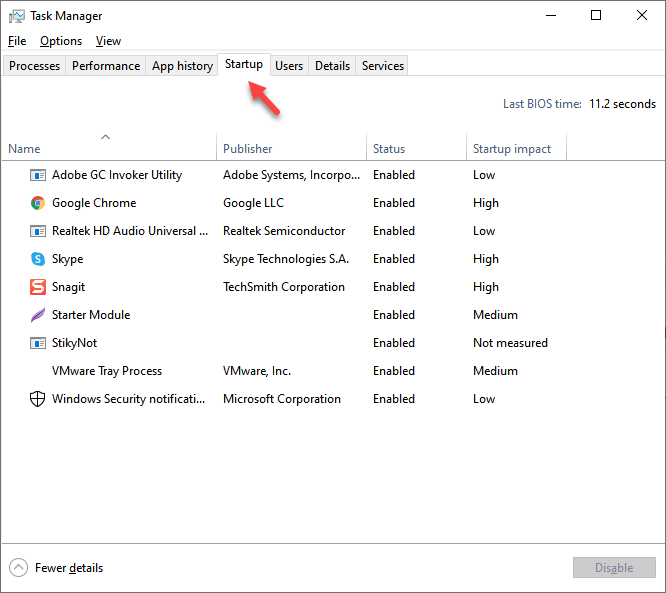
Restrict programs from starting automatically
Go to the "Startup" tab and select the program you want to prevent from starting automatically, then click "Disable."
5. Run Disk Cleanup
Disk Cleanup is a built-in utility for maintaining your Windows 10 computer, as it scans your hard drive and removes unnecessary temporary files from your device that are no longer useful.
To delete temporary files using Disk Cleanup:
Click the "Start" button or Windows icon and search for "Disk Cleanup", then select "Disk Cleanup."
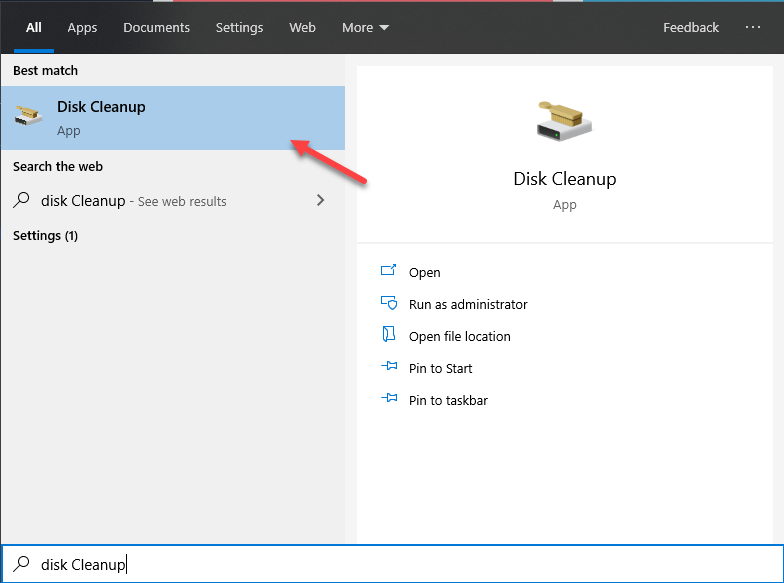
Delete temporary files using Disk Cleanup
Now, select the drive you want to clean, then click OK.
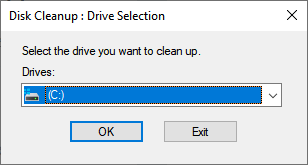
Disk Cleanup
From the list of files to delete, select the files you want to remove, then click OK.
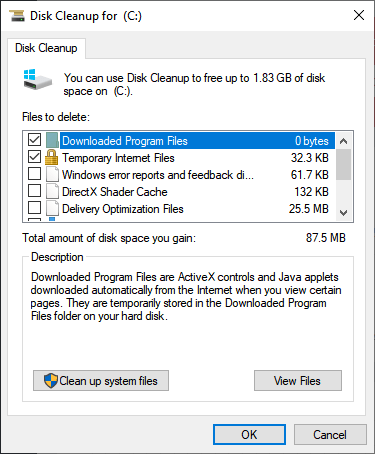
Files to delete
If you don’t notice any improvement in your Windows 10 speed, try uninstalling programs or applications that you no longer use.
6. Remove Unnecessary Programs or Applications
If the available storage on your device is still low, you can try removing applications and programs that you no longer need.
Steps to remove or uninstall programs and applications to speed up your Windows 10 computer:
Select the Start button and click on Settings > Apps > Apps & features.
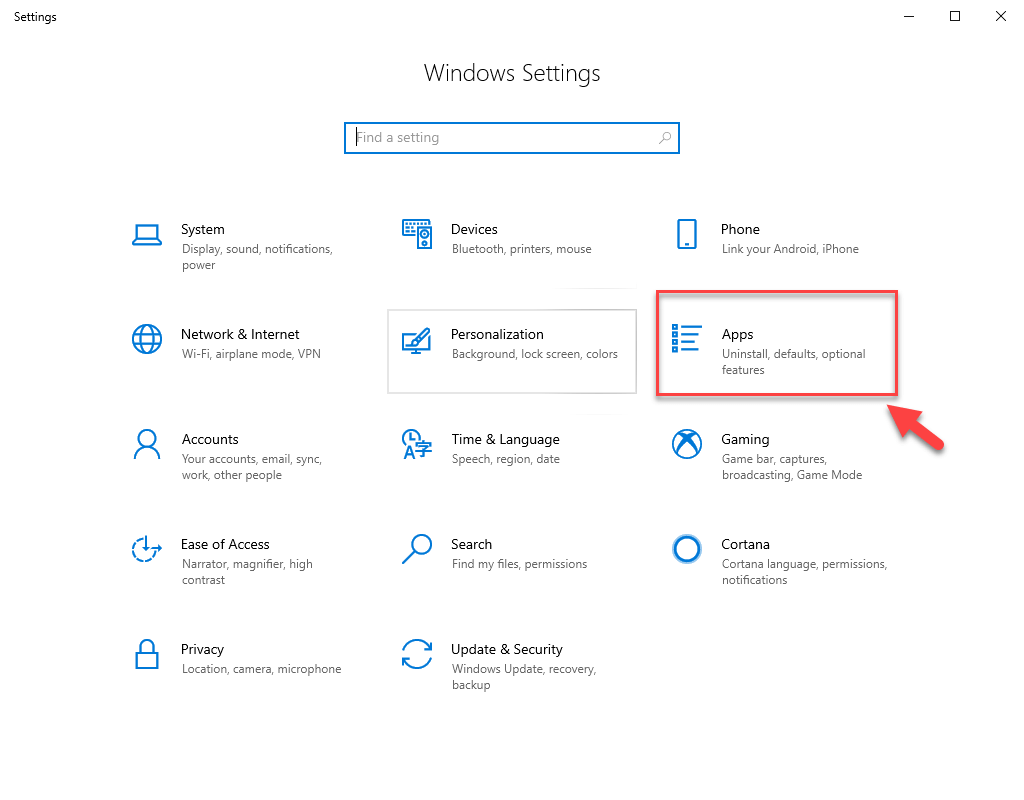
Remove unnecessary programs
Scroll through the list of applications or sort them to check which applications are taking up the most space on your computer's drive.
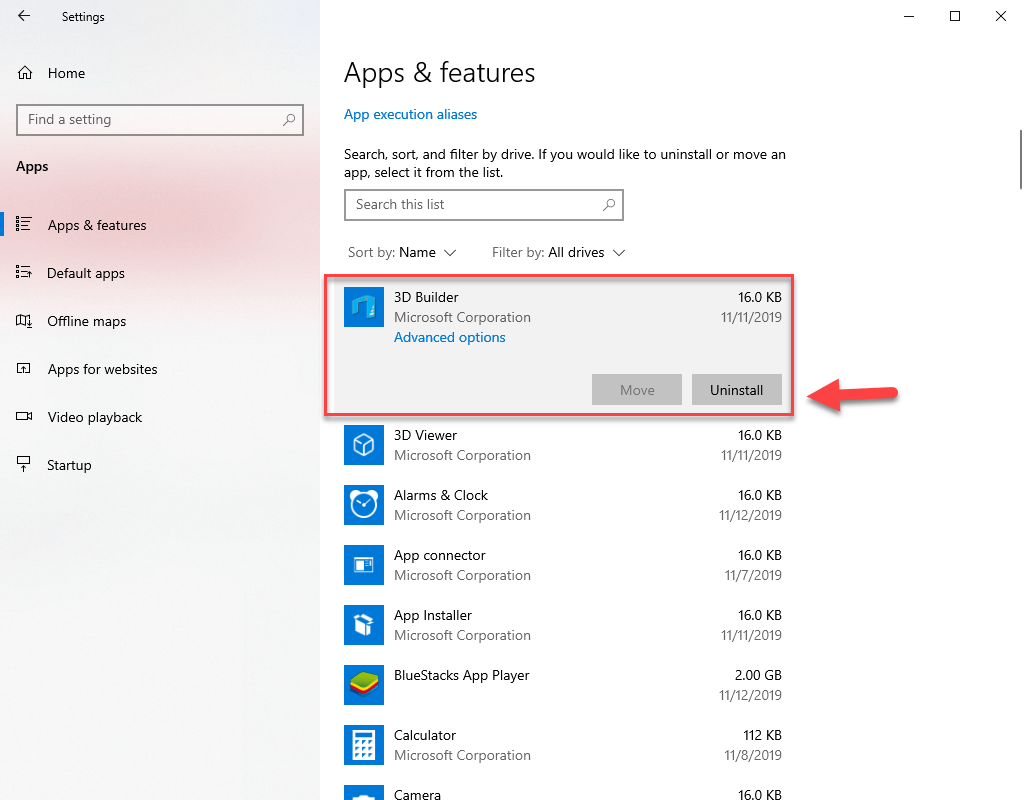
Uninstall programs and applications
Once you find an application to uninstall, select it from the list and click Uninstall.
If your Windows 10 computer is still slow, move on to the next step.
7. Pause OneDrive Syncing
Windows 10 settings allow users to choose where to save their files by default. You have the option to save files either on your computer or on OneDrive and sync files between the two locations. However, syncing files between your system and OneDrive can slow down your computer's processing speed.
To improve the performance and speed of your Windows 10 computer, you can temporarily pause OneDrive syncing. Here’s how:
On the taskbar, look for the blue or white OneDrive icon near the notification area.
Click on OneDrive > More > Pause syncing, and choose the duration for which you want to pause the syncing process.
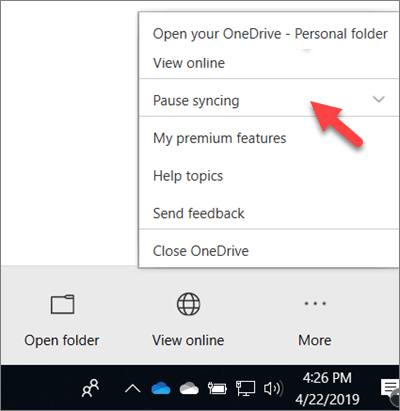
Pause OneDrive Syncing
Now, restart your computer and check if that helps resolve performance issues on your Windows 10 system.
8. Disable Visual Effects on Windows 10
One of the most common


