


(3 Ways to Start Windows 10 in Safe Mode) 3 Ways to Start Windows 10 in Safe Mode: Safe Mode is a unique and extremely useful feature in Windows 10. Most of the time, you need to run your Windows computer in Safe Mode to fix various issues.
If you have been using Windows 10 for a while, you may have noticed that pressing the F8 keys or SHIFT + F8 on the keyboard to enter Safe Mode no longer works. This method has stopped functioning because the Windows 10 startup process has become faster than ever. However, this does not mean that Windows 10 lacks Safe Mode; it simply means that to access Safe Mode in Windows 10, you need to follow different procedures.
In this article, I will share 3 ways to start Windows 10 in Safe Mode.
If you find your computer in trouble and cannot resolve the issue, you should use an advanced system repair tool to fix your problem.
Windows consists of a large number of dll files, exe files, sys files, various types of services, databases, and so on, so it's not possible to constantly monitor all files. A great PC optimization tool works to repair damages, fix errors, update Windows and drivers, and silently remove various types of bugs.
The Outbyte PC Repair Tool performs all the above tasks easily and provides you with a smooth and error-free Windows environment so you can focus solely on your work.
3 Steps to Fix This Error
Step 1. Download the Outbyte PC Repair Tool [File Size: 16.4 MB]
Step 2. Scan your Windows computer
Step 3. Click the "Repair" button to fix the error
3 Ways to Start Windows 10 in Safe Mode
Safe Mode is a way to run Windows in its simplest form. It only uses the most essential files and drivers.
For example, in Safe Mode, your screen will display only 16 colors and at a very low resolution, and you won't be able to print documents or hear sound, and it won't load many programs in the background.
Safe Mode is designed to help you troubleshoot and fix computer issues.
Sometimes, Windows 10 automatically starts in Safe Mode (for example, if there is a problem loading normally). But sometimes you will need to manually boot into "Safe Mode" (for instance, if you see a blue screen error message every time you start Windows). This article explains how to manually start Windows 10 in Safe Mode.
Method 1: Shift + Restart
This is the most common and easiest way to start Windows 10 in Safe Mode. Follow these steps to do so.
Step 1: Restart your computer.
Step 2: On the login screen, press Shift + Power > Restart. This will restart your computer with several options.
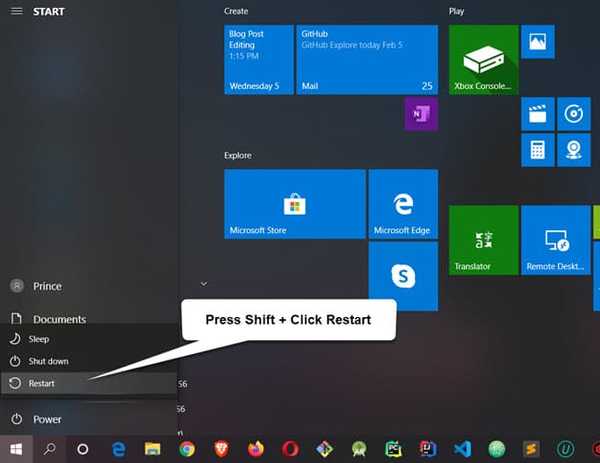
shift-restart-safe-boot
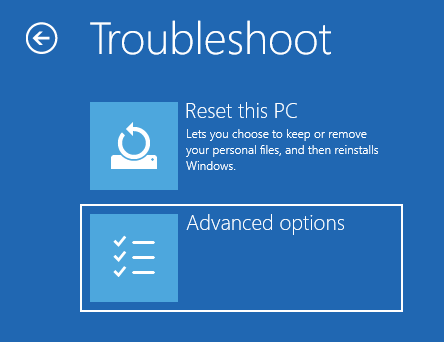
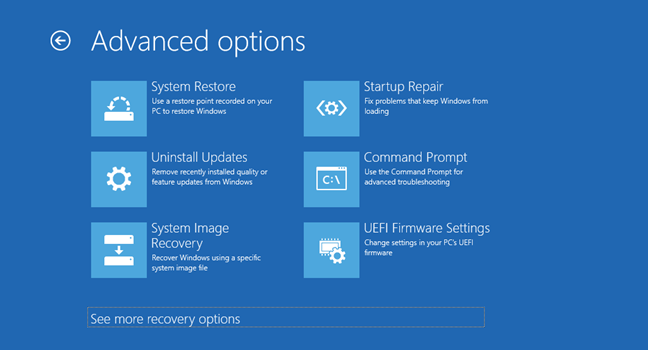
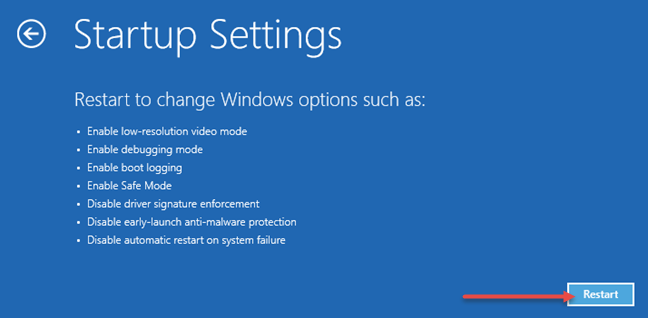
Step 3: Select Troubleshoot > Advanced options > Startup Settings > Restart. Your computer will restart again, but this time you will get the option to start your computer in Safe Mode.
win10_safe_mode_1
win10_safe_mode_2

win10_safe_mode_3
win10_safe_mode_4
Step 4: Choose option four by pressing 4 or F4 to start your computer in Safe Mode.
Method 2: From Windows Update Security
Step 1: Open Settings by pressing Windows key + I.
Step 2: In the Settings option, go to Update & Security > Recovery.
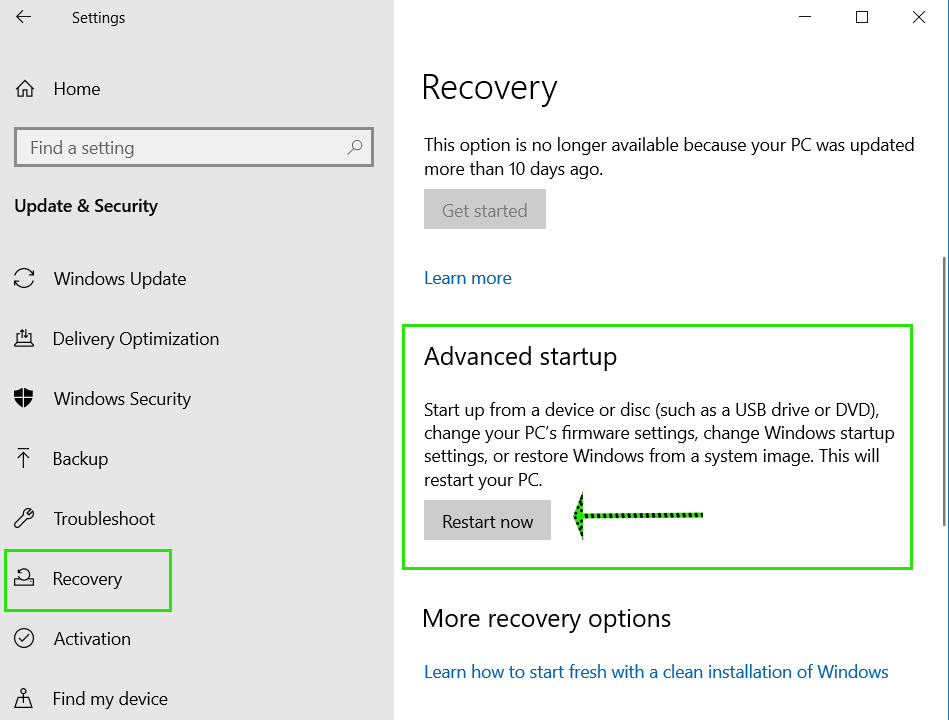
windowskey_recovery
Step 3: In Advanced startup, select Restart now.
Step 4: After the restart, select Troubleshoot > Advanced options > Startup Settings > Restart.
Your computer will restart again, but this time you will get the option to start your computer in Safe Mode.
Step 5: Choose option four by pressing 4 or F4 to start your computer in Safe Mode.
Method 3: If Windows 10 Won't Boot
If you cannot boot your Windows 10 computer, after 3 failed attempts, Windows will automatically boot into the Windows Recovery Environment. Here, you can easily find the Safe Mode option.
Step 1: Troubleshoot > Advanced options > Startup Settings > Restart. Your computer will restart again, but this time you will get the option to start your computer in Safe Mode.
Step 2: Choose option four by pressing 4 or F4 to start your computer in Safe Mode.
How do I exit Safe Mode in Windows 10?
Once you finish everything you were doing in Safe Mode, simply restart your computer, and it will boot normally.
Conclusion
Windows 10 is a fast operating system with a quick boot process. Accessing Safe Mode may not work the same way it did in older Windows operating systems, but the methods we shared do work.
In Safe Mode, Windows starts using only the necessary drivers, which helps boot your computer if there is a driver-related issue causing problems with Windows startup. In this article, I explained the best and easiest 3 ways to start Windows 10 in Safe Mode. Try out some of the methods we shared, let us know which one you used and which one you prefer the most, and let's discuss.


