

The best ways to fix the black screen issue on YouTube: YouTube is the best place to find the latest videos, but if you encounter a black screen error, you definitely won't be able to enjoy YouTube videos.
This usually happens when you click on a video to watch, and the video player opens with a black screen, the video doesn't play, and there's no image on YouTube. Sometimes the image may not appear for a short time, but in other cases, the screen remains black throughout the entire video.
It can be frustrating, but don't worry, we're here to help you deal with this issue.
This article will guide you through the best ways to fix the black screen problem on YouTube. We've gathered a set of solutions for you to try and choose what works best for you.
Best ways to fix the black screen issue on YouTube
If your YouTube videos are showing a black screen, here’s what you can do to resolve this issue.
Fix 1: Refresh your webpage
The simplest solution you can try when facing the black screen issue on YouTube is to refresh your webpage. You can press F5 or the reload icon in your web browser to refresh the page, which will also refresh the YouTube video and may start playing it easily.

Refresh your webpage to fix the black screen issue on YouTube
You can also restart your browser by closing the application and then reopening the web browser. Try accessing YouTube and see if the videos play properly.
Fix 2: Check your internet connection status
You may encounter the black screen issue on YouTube videos if your network connection is not working properly. There could be several scenarios causing this problem, so you can try a number of solutions to eliminate the black screen error on YouTube.
A) Check your internet connection and usage
First and foremost, check your internet connection and troubleshoot any issues related to outdated network drivers with the help of a driver update tool. Also, check your WiFi router or modem to ensure there are no issues. You can restart your router and see if that resolves the internet connection issue as well as the black YouTube screen.
Additionally, you can also disable network connections for programs or devices that may interfere with the network connection and slow down the network speed.
B) Try a VPN service
If your local internet connection is causing you problems and you are unable to view any images or videos on YouTube, you can try connecting to a VPN service that can resolve the issue for you.
Fix 3: Log out of the Google account you use to watch YouTube
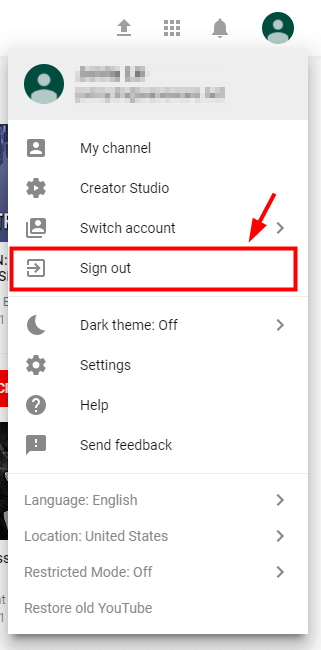
Log out of the Google account you use to watch YouTube
You generally access YouTube through your Google account. If you are facing a black screen on a YouTube video, you can log out of your Google account and log back in to fix the issue.
You can also try logging in with a different Google account to see if that helps resolve the video playback issue on YouTube.
Fix 4: Clear your browsing cache and cookies
You may have accumulated a lot of cache, which could be slowing down your browser. All you need to do is clear the cache and browsing data.
It’s also possible that some changes in the browser settings have led to the black screen appearing on YouTube.
Therefore, it is advisable to clear all browsing history, cache, and cookies to fix the black screen issue on YouTube.
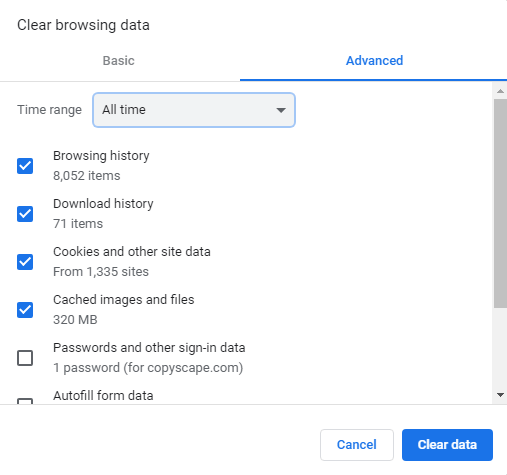
Follow these steps to clear your browsing history:
Press Ctrl, Shift, and Delete all at the same time, which will bring up the pop-up window.
Now in that pop-up window, select everything you think might be the cause.
While doing this, set the time range for clearing the browser to "All time."
Now click on the "Clear data" option, which will clear your browsing history, downloads, form and search history, cookies and cache, and activity logs all at once.
This will refresh your YouTube and make it work again.
Now check if your YouTube videos are playing or not; usually, this action is sufficient to get your YouTube site running properly.
Fix 5: Disable browser extensions
If you haven't had any luck yet in getting rid of the black screen on the YouTube video player, try disabling various browser extensions. Sometimes, browser extensions can interfere with the YouTube player, especially if you are using an ad-blocking extension.
Temporarily disabling the browser extension may resolve the issue. You can refer to the following steps to see how to disable browser extensions on your web browser.
Go to the extension settings according to the path below and disable ad-blocking tools.
For Google Chrome
Type the following in the browser's address bar and press Enter: "chrome://extensions"
Uncheck the box next to the "Enabled" status to disable it.
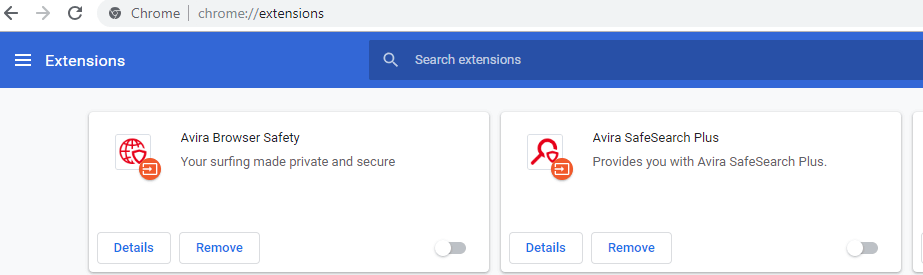
Disable browser extensions to fix the black screen issue on YouTube
For Firefox
Click on the menu button and then click on Add-ons.
You will see a disable button next to the ad-blocking tool. You can click on it to temporarily disable it.
Finally, open a YouTube video and see if you have a smooth video watching experience. If the issue is still not resolved, move on to the next solution.
Fix 6: Update your web browser application
You can easily update your web browser to resolve the black screen issue for YouTube videos. You can update the browser by uninstalling it and then downloading the latest version on your computer. Once the installation is complete, check to see if the black screen issue for YouTube videos has been resolved. If not, try the next fix.
Fix 7: Try a different browser
Last but not least, if all the above fixes have failed, you can change your browser and see if the black screen error on YouTube has been resolved.
It’s possible that your browser is not compatible with the YouTube platform. You can install a new browser and open YouTube to see if you can now play videos smoothly.
Fix 8: Automatically update your graphics card drivers
Finally, if you still see the black screen error on YouTube, try updating your graphics card driver to eliminate the problem once and for all.
To do this, you can install the best driver update software on your system. These programs can automatically scan for outdated or faulty graphics card drivers and download updated versions for you. You can easily install them with a single click and then try accessing YouTube to see if you can now play videos normally.
Another alternative is to manually update the graphics card driver. To do this, you can go to the manufacturer's website and search for the exact version of the graphics card driver.
You can download the file and then follow the on-screen


