

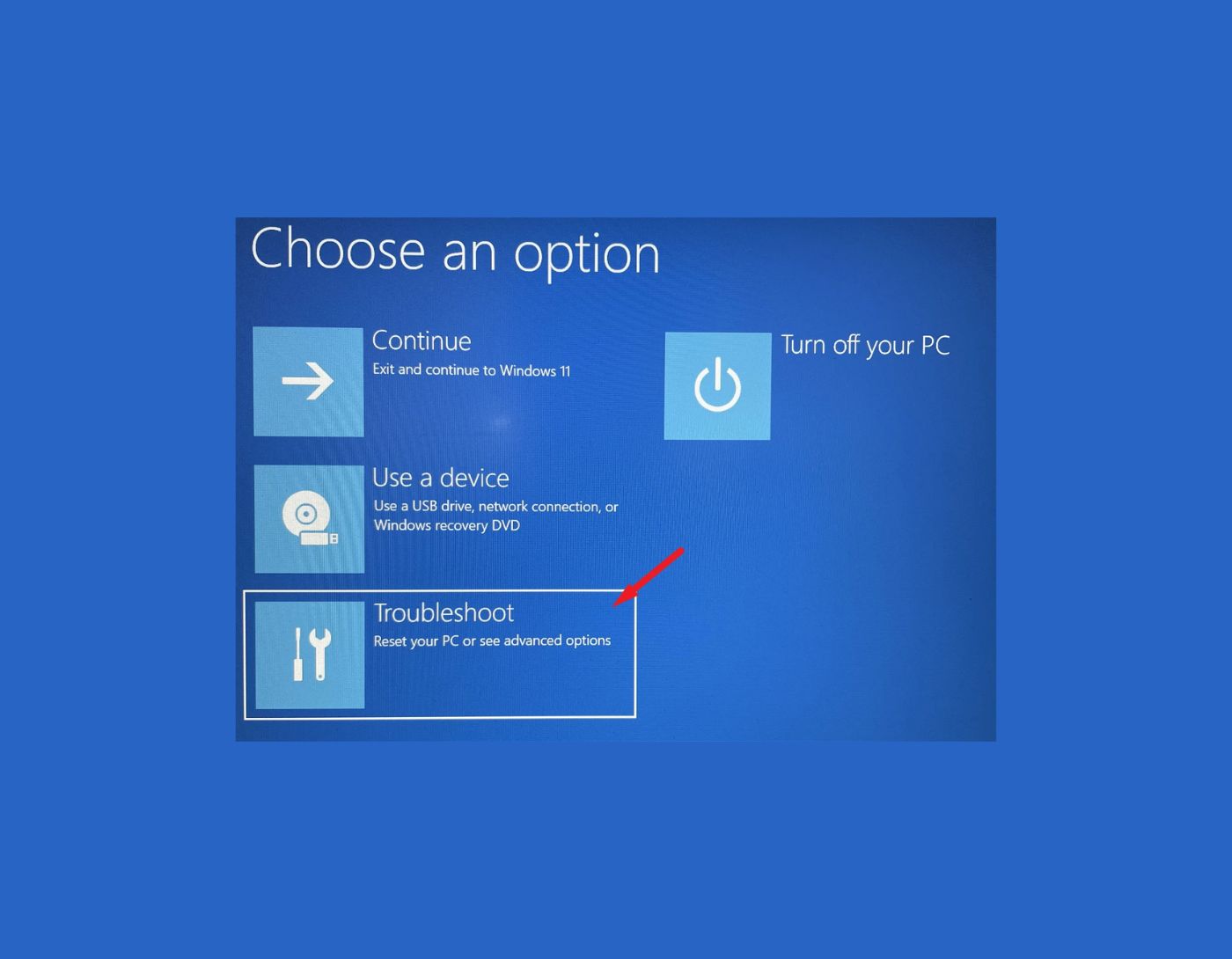
(Fix Secure Boot error on Windows 10 and 11) Fixing Secure Boot Error on Windows 10 and 11: Secure Boot is a crucial feature for the latest UEFI-based computers, preventing non-Microsoft software from running. This way, it protects your computer from malware attacks.
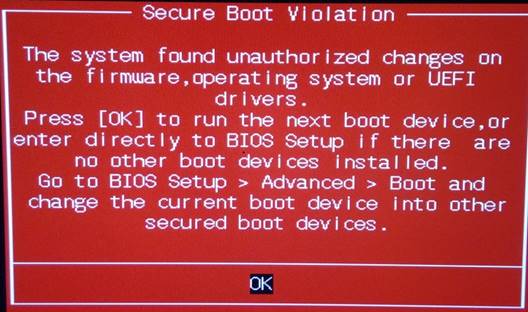
Secure Boot has the capability to check the operating system every time before it loads; if any discrepancies are found, it will halt the OS loading and trigger a secure violation error.
Sometimes, due to changes in system configuration, you may encounter a Secure Boot violation error on your device running Windows 8 or Windows 10 or Windows 11. The Secure Boot violation error occurs during the runtime of your computer. It is a very frustrating issue that prevents your operating system from loading.
In this article, we will find the solution to fix this problem.
Why am I receiving a Secure Boot violation error?
There are several reasons that can cause this issue, and here are some of them:
⚠ Changing the disk type from MBR to GPT using a third-party application.
⚠ An outdated BIOS version.
⚠ The system detected unauthorized changes to the firmware.
⚠ Installing the latest updates may disrupt the boot process.
⚠ Some essential system files are corrupted.
⚠ Corrupted registry files.
⚠ Virus or malware attacks, etc.
All the above-mentioned reasons are potential causes of the Secure Boot violation error. Now, let's take some time to fix this error.
How to Fix Secure Boot Error on Windows 10 and 11
There are some specific steps below that may help you resolve this error. Please continue reading this article and the steps carefully until your issue is resolved.
Method 1: Repair Using Advanced System Repair Tool
Often, small changes in the system can lead to this significant issue. Corrupted system files, driver issues, outdated Windows updates, corrupted registry files, etc., are other common reasons behind various computer problems. To resolve this issue, try optimizing and repairing your computer using an advanced system repair tool.
Windows consists of a large number of dll files, exe files, sys files, various types of services, databases, and so on, so it is not feasible to constantly monitor all files. A great PC optimization tool repairs damages, fixes errors, updates Windows and drivers, and silently removes various types of errors.
The Outbyte PC Repair Tool performs all the above tasks effortlessly and provides you with a Windows environment that is smooth and error-free so you can focus solely on your work.
3 Steps to Fix This Error
Step 1. Download the Outbyte PC Repair Tool [File Size: 16.4 MB]
Step 2. Scan your Windows computer
Step 3. Click the "Repair" button to fix the error
Method 2: Disable Secure Boot Using BIOS
If you are consistently receiving the error while booting your computer, the best solution is to disable Secure Boot in the BIOS settings. Read the steps below thoroughly before applying any changes.
Step 1: To open the BIOS settings, restart your computer and keep pressing the F2/F8/Del/Esc key when you see the manufacturer's logo during startup.
Manufacturers may have different methods for opening the BIOS settings. You should check the manufacturer's instructions for accessing the BIOS.
Step 2: Look for the Secure Boot option, usually found under the Boot tab.
Step 3: Disable Secure Boot or change the Secure Boot option from Windows UEFI Mode to another operating system.
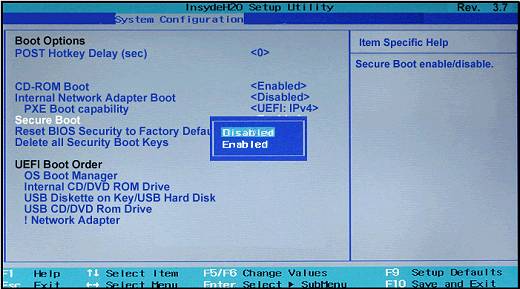
Disable Secure Boot violation in BIOS.
Step 4: Save and exit the BIOS.
Now, the BIOS will not check the operating system before loading, and you will not encounter another error related to Secure Boot violation.
Method 3: Disable Driver Signature Enforcement
Driver signature enforcement is another security feature in Windows computers. According to this feature, all kernel-based drivers must be digitally signed and verified every time before they are loaded into system memory. However, due to an issue with the drivers, DSE stopped loading kernel-based drivers into memory, resulting in a Secure Boot violation error.
Step 1: Restart Windows 10/11 in Advanced Startup Mode.
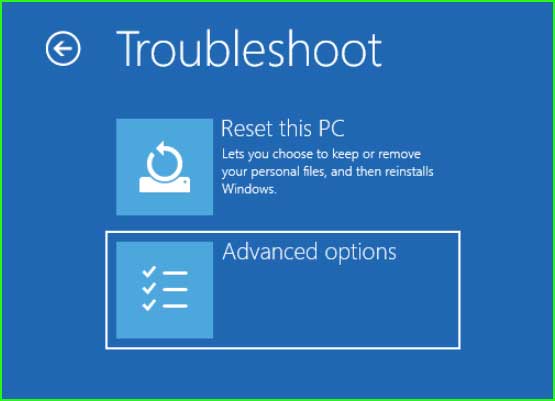
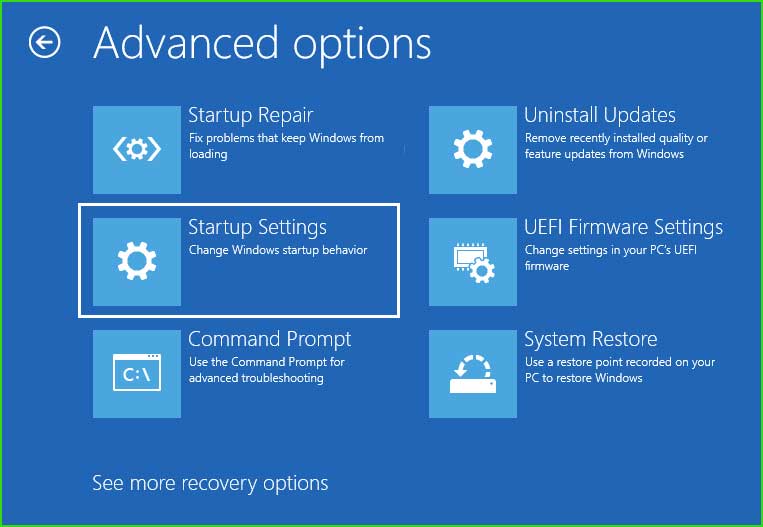
Step 2: Go to Troubleshoot ➜ Advanced options ➜ Startup Settings ➜ Restart.
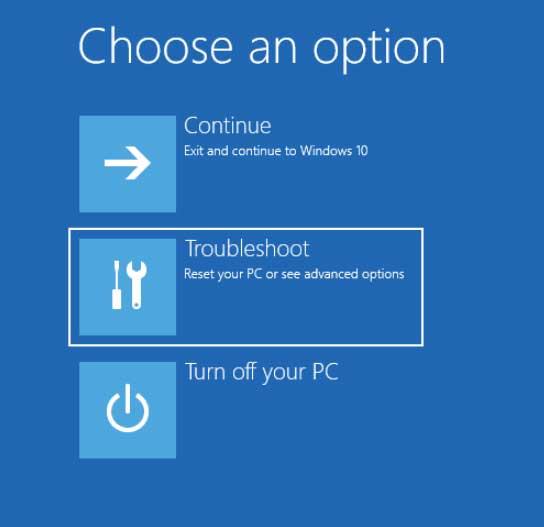
Troubleshoot in the Advanced Startup Menu for Windows 10 and 11
⇩
Advanced options for Windows 10 and 11
⇩
21_Startup Settings
⇩
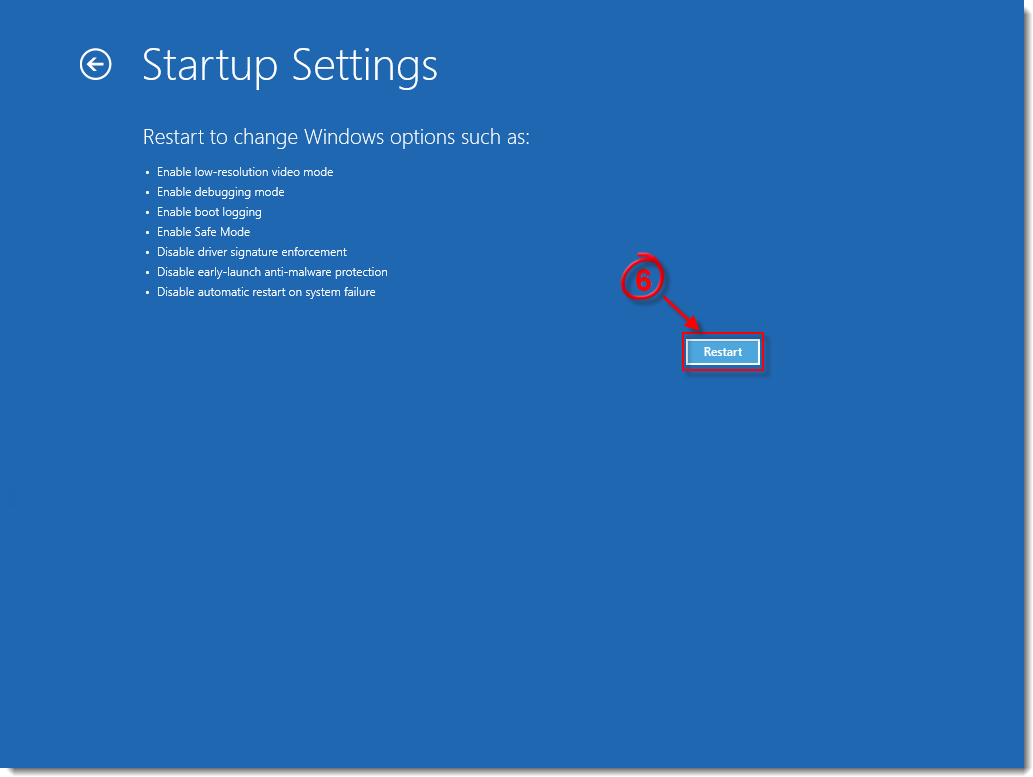
Safe Mode_Restart
Step 3: After your computer restarts, you will see various options to change, including disabling driver signature enforcement. Press the corresponding number to apply the changes. It is often number seven, so press 7 to enable the disable driver signature enforcement setting.
Method 4: Update BIOS
An outdated BIOS version can also cause boot-related issues. It is recommended to look for an updated version of the BIOS and install it. This will not only fix the Secure Boot violation error but also resolve many other issues and unlock new features in the BIOS.
⛔ Note: Installing mismatched BIOS versions or overwriting your system can be risky. Double-check the name, model number, and installed BIOS version before downloading the updated BIOS version.
Step 1: Find your BIOS information before downloading and installing the latest version, open the Run command by pressing Windows + R, type msinfo32, and press Enter; a System Information window will open.
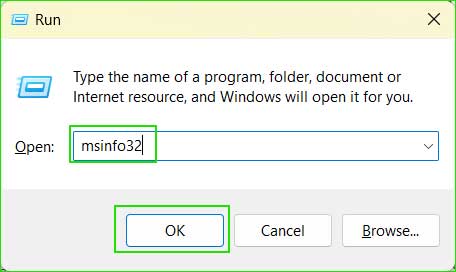
Run dialog box for msinfo32
Step 2: Look for BIOS information.
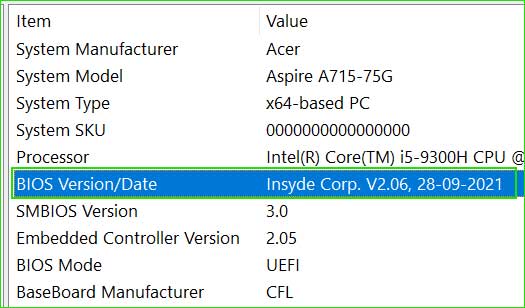
BIOS information
Step 3: Download the latest version of BIOS that matches your version.
Step 4: Follow the manufacturer's instructions to update the BIOS. The BIOS update sequence may vary from one manufacturer to another.
Method 5: Uninstall Recently Installed Updates
If you noticed that issues began after installing the latest Windows updates, uninstall the updates and restart your computer. However, updates are generally beneficial as they fix bugs and enhance security. But some computers may start facing issues after installing the latest Windows updates. Here are detailed instructions on how to uninstall updates from Windows 10 and 11.
Conclusion
In this article, we discussed how to fix the Secure Boot error on Windows 10 and 11.
The Secure Boot violation error is a boot-time error that prevents Windows from loading at startup. You can fix this error by disabling the Secure Boot option, disabling driver signature enforcement, and uninstalling the latest Windows updates.


