


(Fix Trusted Platform Module (TPM) error) Fixing the Trusted Platform Module (TPM) error: You may encounter the MS Office TPM error - the Trusted Platform Module on your computer has malfunctioned with the following applications.
- When trying to activate Microsoft Office 365
- Microsoft Outlook
In this article, we will present important methods to fix MS Office TPM errors on operating systems Windows 7, 8, 10, and 11. Try to follow the methods step by step to resolve this issue.
Fixing the Trusted Platform Module (TPM) error
Method 1: Repair using the Advanced System Repair Tool
Typically, the TPM malfunction occurs due to system issues such as corrupted system files, missing DLL files, outdated drivers, incorrectly configured registry entries, etc. To fix all these issues and optimize your Windows operating system, download and install the Advanced System Repair Tool.
Windows consists of a large number of dll files, exe files, sys files, various types of services, databases, and so on, so it’s not feasible to constantly monitor all files. This excellent PC optimization tool repairs damages, fixes errors, updates Windows and drivers, and silently removes various types of errors.
The Outbyte PC Repair Tool performs all the above tasks effortlessly and provides you with a smooth, error-free Windows environment to work in so you can focus solely on your tasks.
3 Steps to Fix This Error
Step 1. Download the Outbyte PC Repair Tool [File size: 16.4 MB].
Step 2. Scan your computer running Windows.
Step 3. Click the "Repair" button to fix the error.
Method 2: Reset TPM by Running the Security Processor Troubleshooter
When you clear the TPM settings, it resets the TPM to its default settings. It is recommended to back up your data before running the TPM reset. Save all open applications as this will cause your computer to restart several times during the reset process.
Step 1: Search for "Device Security" in the Start menu and open the applications.
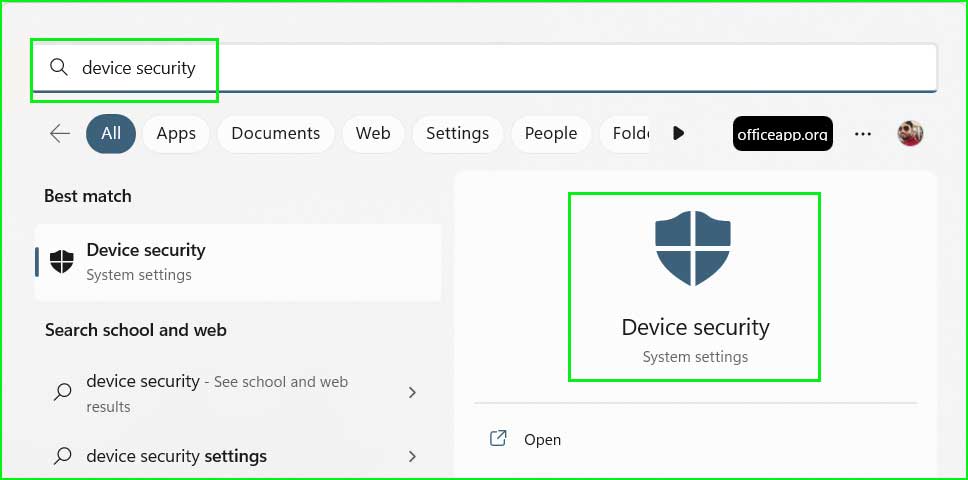
Search for "Device Security" in the Start menu for Windows 10 and 11
Step 2: Click on "Security Processor Details" under the Security Processor section.
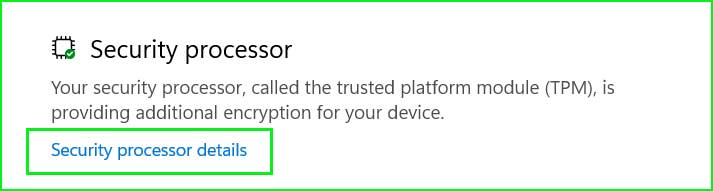
Open Security Processor Details in System Information Windows 10, 11
Step 3: Click on "Troubleshoot Security Processor" under the Status section.
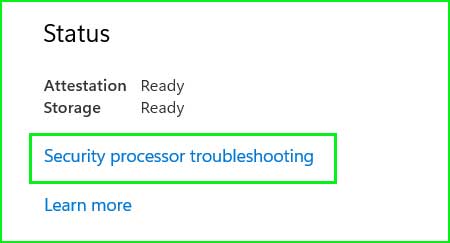
Troubleshoot Security Processor
Step 4: Here you will find the option to clear TPM.
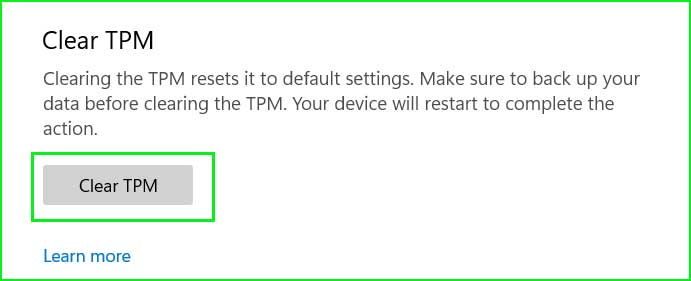
Reset or clear TPM settings for Windows 10, 11.
Method 3: Check TPM Status
You should check whether the TPM status is active or not. You can check the TPM status as follows:
Step 1: Open the Run command by pressing Windows + R, type tpm.msc, and press Enter.
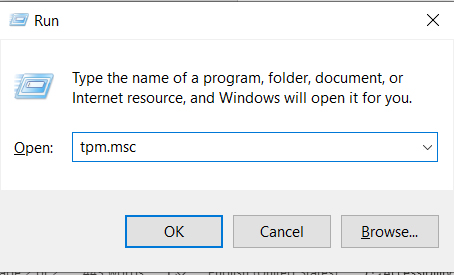
Open TPM Settings
Step 2: Here, you can check your TPM status.
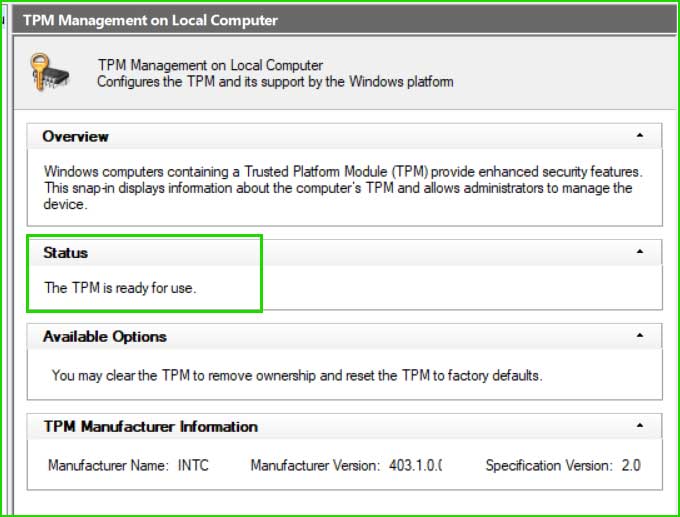
Check if TPM status is active or not
Method 4: Remove MS Office Credentials.
Step 1: Type "Credential Manager" in the Start menu and open the Credential Manager.
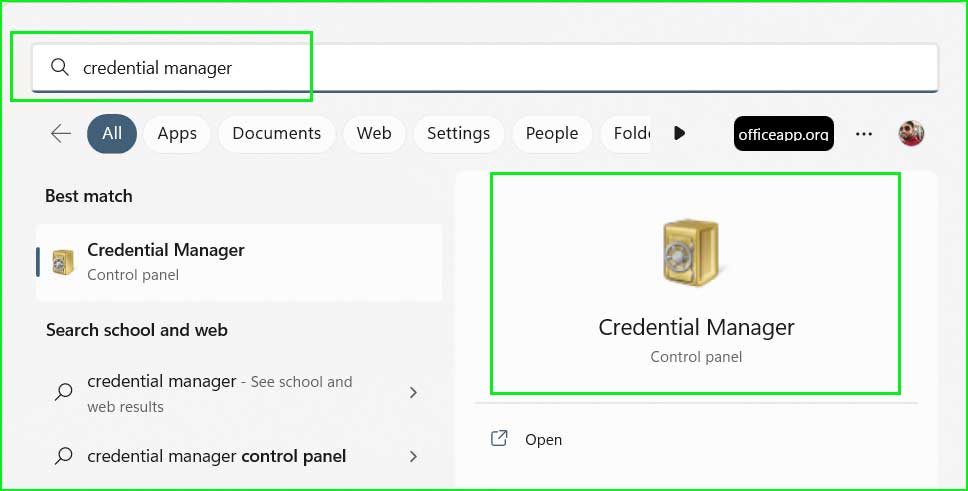
Credential Manager search
Step 2: Click on Windows Credentials and remove the Microsoft Office credentials.
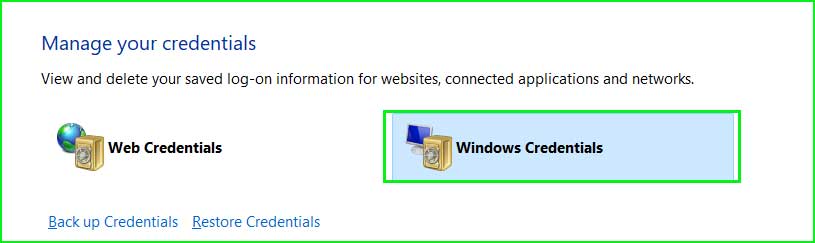
Remove Microsoft Office Credentials
Method 5: Enable Memory Integrity in Core Isolation
Step 1: Search for "Device Security" in the Start menu and open the applications.
Search for "Device Security" in the Start menu for Windows 10 and 11
Step 2: Click on "Core isolation details" under the Core Isolation section.
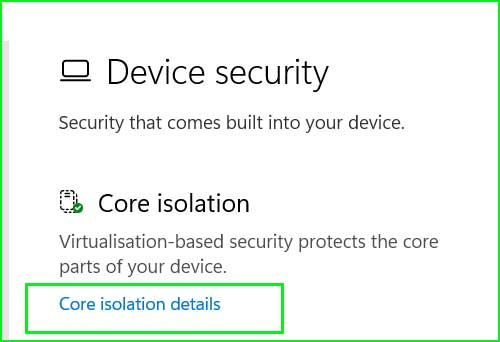
Core isolation details
Step 3: Turn on the Memory Integrity option.
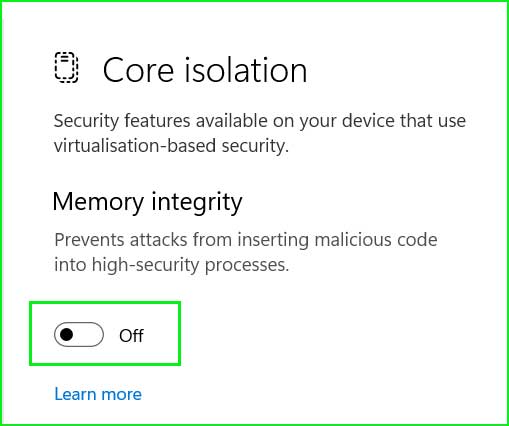
Enable Memory Integrity
Method 6: Enable Office Protection Policy
Enabling the Office Protection Policy may resolve the "Trusted Platform Module has malfunctioned" issue. You need to modify the registry file to enable the Office Protection Policy.
Step 1: Sign out of your Office account. Open any Office applications like Word or Excel and sign out of the account. Close the Office applications.
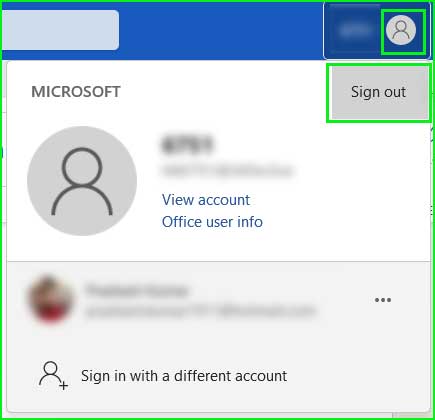
Office applications sign out
Step 2: Go to Windows Settings ← Accounts ← Access work or school.
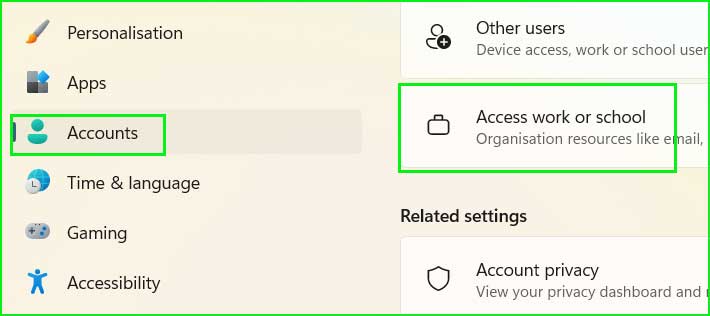
Access to work or school environment
Step 3: Select the work or school account and click the Disconnect button.
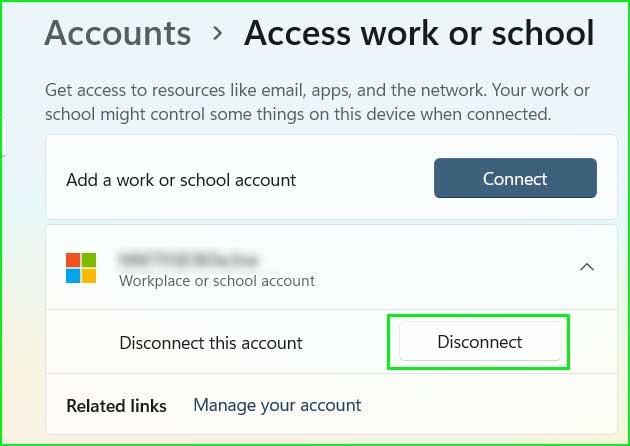
Disconnect Office account
Step 4: Open the Registry Editor. Type regedit in the Run command and press "OK" to open it.
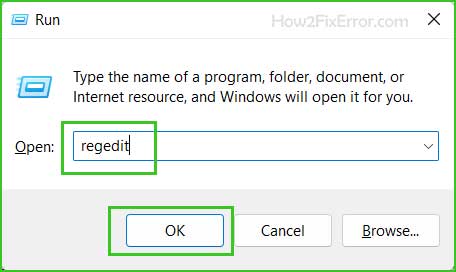
Open Registry Editor in Windows 10 and 11
Step 5: Navigate to the following locations.
HKEY_LOCAL_MACHINE\Software\Microsoft\Cryptography\Protect\Providers\df9d8cd0-1501-11d1-8c7a-00c04fc297eb
Step 6: Create a new DWORD value. Right-click on the empty space ➜ New ➜ DWORD (32-bit).
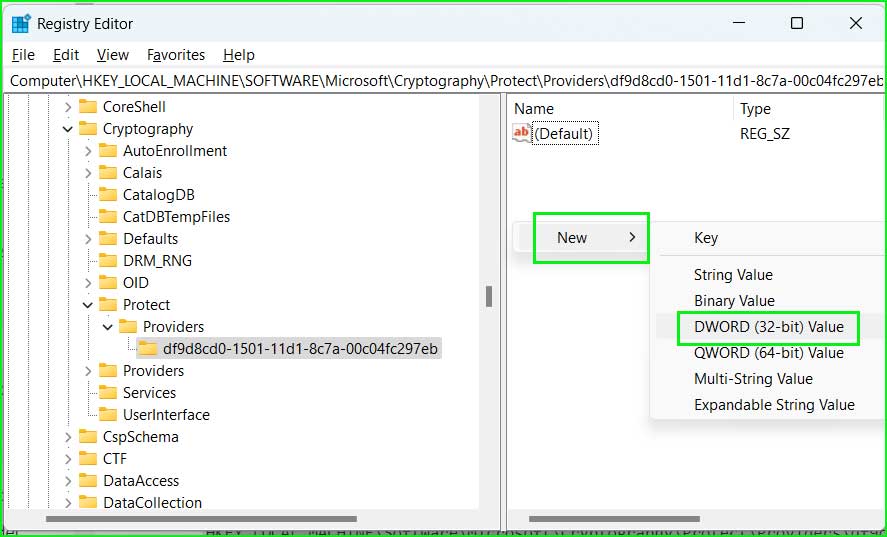
Create new DWORD value
Step 7: Rename it to ProtectionPolicy.
Step 8: Double-click the ProtectionPolicy key and set the value = 1.
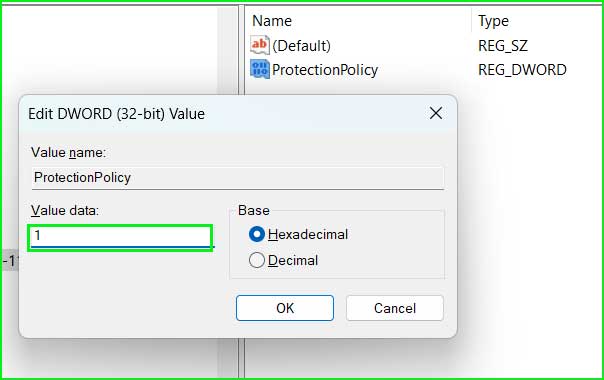
Set Protection Privacy value to 1
Step 9: Close the Registry Editor and restart your computer.
Conclusion
We discussed how to fix the Trusted Platform Module (TPM) error.
In this article, I tried to explain how to resolve the MS Office error "The Trusted Platform Module has malfunctioned." There are 5 methods outlined that will help you easily solve this issue.


