


(Fix Error 0x80070643 for Windows) Fixing Error 0x80070643 on Windows: If you encounter the following error message during a Windows update, you can resolve it by applying the methods outlined in this article.
Error Message:
Security update for SQL Server 2017 RTM GDR (KB5014354)
0x80070643
This is another type of update error message that frequently appears on Windows 8, 10, and 11 operating systems. In this article, I will guide you through several methods step by step so you can easily fix it without needing help from anyone else. Let's get started.
Fixing Error 0x80070643 on Windows
Method 1: Repair Using the Advanced System Repair Tool
This tool is highly effective for fixing Windows update errors and many other issues. It is one of the best Windows optimization tools that manages Windows errors and problems in the background, providing you with a smooth and error-free Windows environment to work on your computer so you can focus solely on your project.
Windows consists of a large number of dll files, exe files, sys files, various types of services, databases, and so on, making it impractical to constantly monitor all files. This excellent computer optimization tool repairs damages, fixes errors, updates Windows and drivers, and silently removes various types of errors.
The Outbyte PC Repair Tool performs all the above tasks effortlessly and provides you with a smooth and error-free Windows environment to work in so you can concentrate on your work only.
3 Steps to Fix This Error
Step 1. Download the Outbyte PC Repair Tool [File Size: 16.4 MB]
Step 2. Scan your Windows computer
Step 3. Click the "Repair" button to fix the error
Method 2: Download This Update from the Microsoft Catalog
Why stress yourself over something unnecessary when an easy solution for the "0x80070643 - Security Update for SQL Server" error is available?
The good news is that you don’t need to search your operating system unnecessarily if you’re facing a Windows update issue; just go to the Microsoft Catalog > search for your update file > then download and install it. It’s incredibly simple, yet you might still be confused! Let’s clarify with the following steps; all you need to do is follow along.
Step 1: Open your preferred web browser and search for the Microsoft Catalog website or visit the following URL.
https://www.catalog.update.microsoft.com/Home.aspx
Step 2: In the search box, look for your KB file. In my case, I receive errors during the update KB5014354.
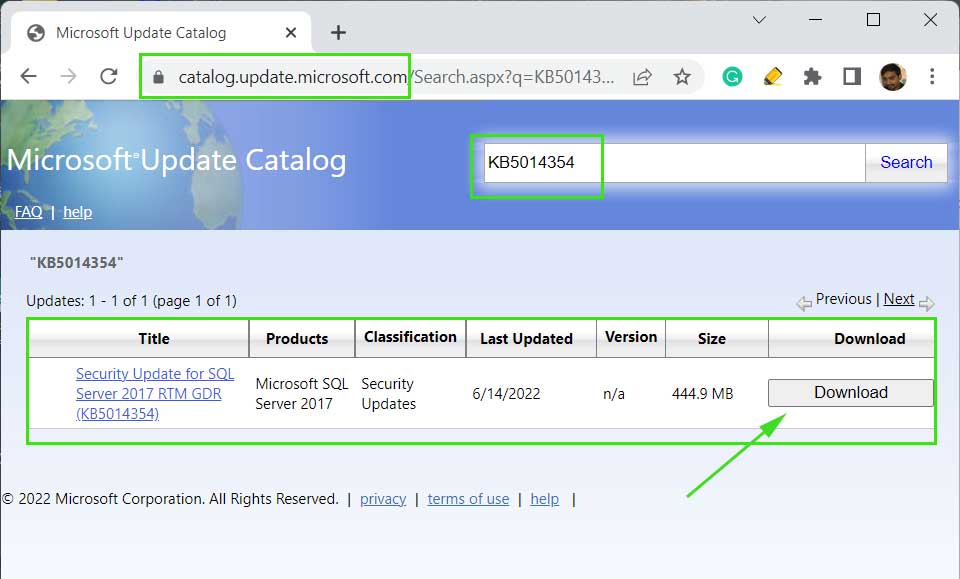
Download the update file and install it on your computer.
Download KB5014354 from the Microsoft Catalog
Method 3: Use SFC and DISM to Repair and Restore Windows Health
There are likely many corrupted files in your system that are preventing you from downloading and installing Windows updates, which is why you receive the "Security Update for SQL Server 2017 RTM GDR (KB5014354) 0x80070643" error. To repair Windows files and restore performance efficiency, first run the SFC command, then use the DISM command to restore health.
SFC Command
Step 1: Open Command Prompt, just search for cmd in the start menu > right-click and select the run as administrator option.
Step 2: Run the following command. Wait for the process to complete, and if all goes well, all corrupted Windows files will be repaired.
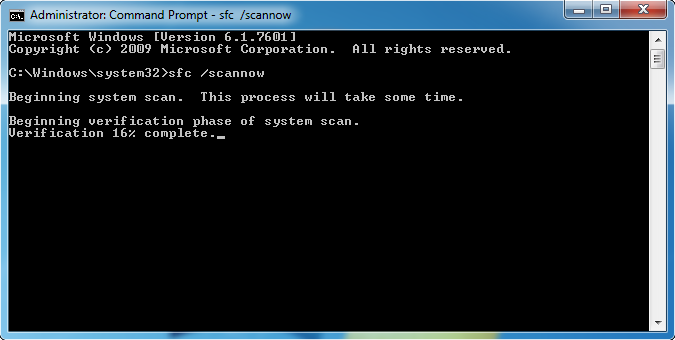
sfc /scannow
sfc scannow
DISM Commands
Step 3: Run the following commands one by one. It may take a few minutes to an hour, depending on your computer's health, so be patient and sit back and relax.
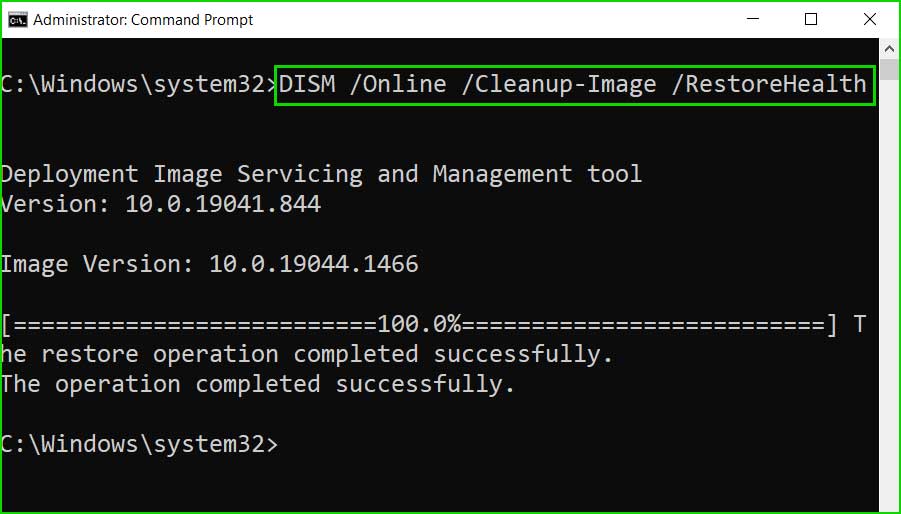
DISM /Online /Cleanup-Image /CheckHealth
DISM /Online /Cleanup-Image /ScanHealth
DISM /Online /Cleanup-Image /RestoreHealth
dism_restorehealth
Method 4: Use the Windows Update Troubleshooter.
I personally don’t have much faith in the Windows Update Troubleshooter. Most of the time, they can’t resolve many issues. If you’re lucky, it might work for you.
Step 1: Windows 11: Go to Start > Settings > System > Troubleshoot > Other Troubleshooters > Windows Update. Click the "Run" button to start the update.
Windows 10: Go to Start > Settings > Troubleshoot > Additional Troubleshooters > Windows Update > Run the Troubleshooter.
Step 2: Follow the troubleshooting steps and complete the troubleshooting process.
Conclusion
In this article, we discussed how to fix error 0x80070643 on Windows.
I have explained in this article how you can fix error 0x80070643 - for updates of Windows 10 and 11 security update for SQL Server 2017 RTM GDR (KB5014354) step by step.


