

Fixing Windows Update Installation Failure Error 0x80073701: Encountering error 0x80073701 typically indicates that the Windows Update components on your computer are not functioning properly. There are other reasons that could lead to this error and prevent you from updating your system. In this article, we will present various methods to overcome this issue and update your operating system. Stay with us.
Some other reasons for this error include corruption of the Windows Update cache, damaged Windows system files, interference from third-party applications with your updates, and more.
Fixing Windows Update Installation Failure Error 0x80073701
We will now present a series of steps that will help you fix the Windows Update installation failure error 0x80073701, as follows:
1. Restart Your Computer
When the update download or installation fails, restart your computer and see if that resolves your issue, as your computer may have a minor glitch that you can attempt to fix by rebooting the system.
Make sure to save any unsaved work before shutting down your computer.
- Press the Windows key or select the "Start" menu icon to open the Start menu.
- Select the power icon from the menu.
- Choose Restart to reboot your computer.
- Run Windows Update once your computer is back on.
2. Use the Windows Update Troubleshooter
Windows 11 and 10 include several troubleshooting tools to help you fix various issues on your device. You can use the Windows Update Troubleshooter when you encounter problems updating your operating system. This tool automatically searches for issues related to your updates and helps you resolve them.
On Windows 11
- Open Settings by pressing Windows + I.
- Select System from the left sidebar and Troubleshoot from the right pane.
- Choose Other troubleshooters to view all troubleshooting tools.
- Click Run next to Windows Update to launch the troubleshooter.
- Allow the tool to detect and resolve update issues.
On Windows 10
- Open Settings using Windows + I.
- Select Update & Security in Settings.
- Choose Troubleshoot from the left sidebar.
- Select Additional troubleshooters from the left pane.
- Select Windows Update and choose Run the troubleshooter.
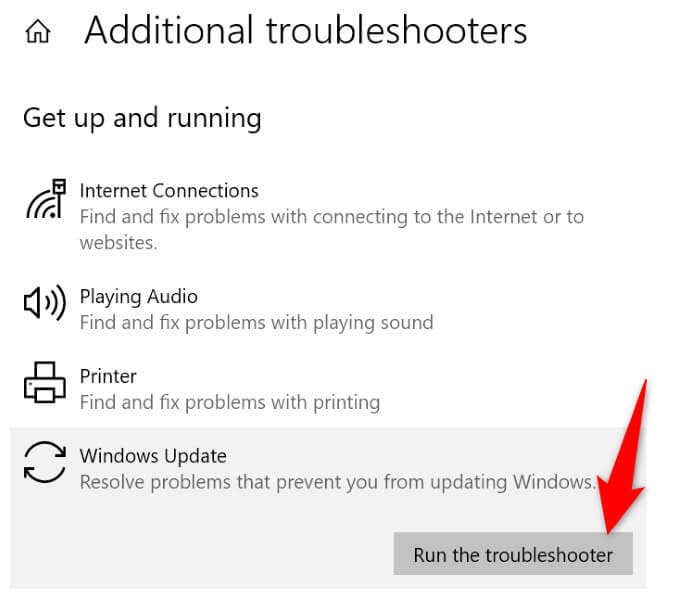
- Allow the troubleshooter to find and fix your computer's update issues.
3. Clear the Windows Update Download Cache
One fix you can use when update downloads or installations fail is to delete the Windows Update cache, as some downloaded update files may be corrupted, causing the issue.
Windows will re-download the required files after clearing the cache. Note that you will use the same steps on both Windows 10 and 11 to remove the update cache.
1. Open the Run dialog by pressing Windows + R.
2. Type the following in the box: services.msc and press Enter.
3. Locate the Windows Update service in the list, right-click on the service, and select Stop. Keep the Services window open as you will return here to start the service again.
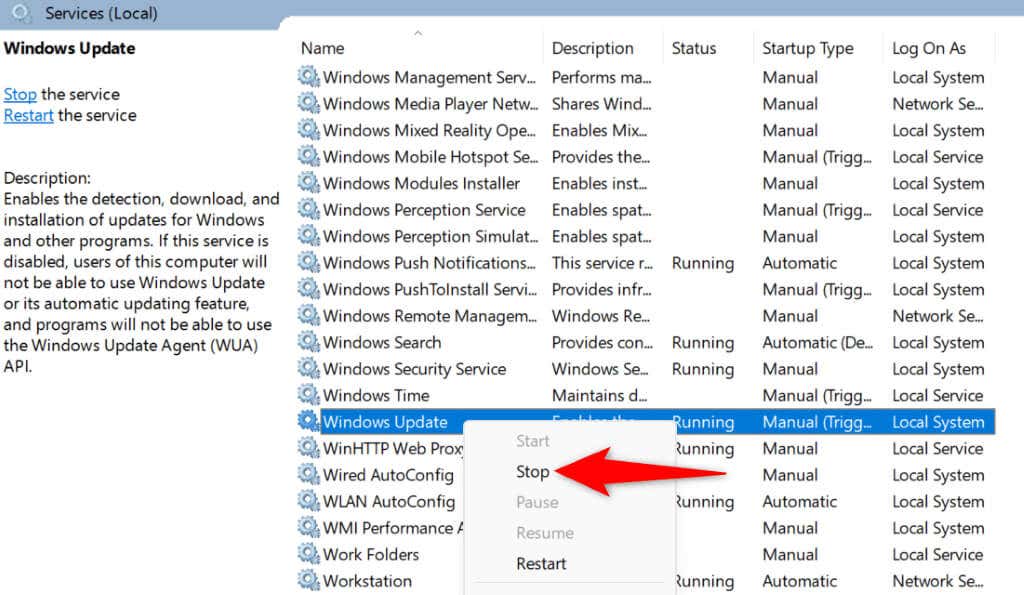
4. Open the Run dialog again, type the following: \C:\Windows\SoftwareDistribution, then press Enter
5. Select all files in the folder by pressing Ctrl + A.
6. Right-click on the selected files and choose Delete.
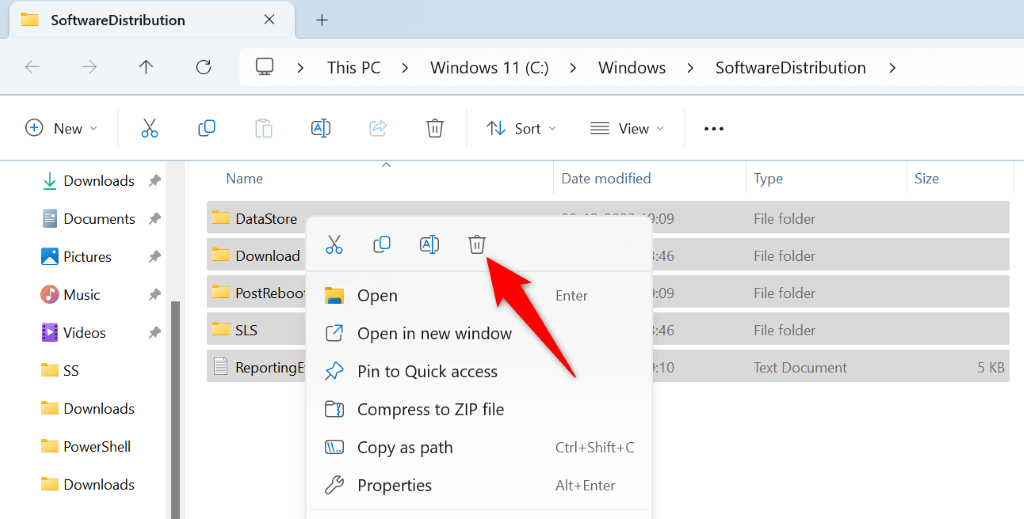
7. Empty your Recycle Bin to permanently remove the Windows Update cache.
8. Return to the Services window, right-click on Windows Update, and select Start.
9. Run Windows Update and update your computer.
4. Reset Windows Update on Your Computer
If the error 0x80073701 persists while updating Windows, reset the update components on your computer to fix your issue. The update components may be experiencing problems, and resetting these elements should resolve your issue.
You will use a batch file to reset the Windows Update components on your Windows 11 or 10 computer.
1. Download the reset batch file for Windows 11 or Windows 10.
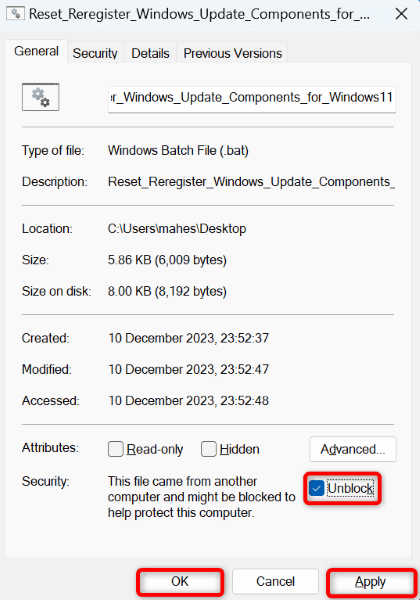
2. Right-click on the downloaded file and select Properties.
3. Select the Unblock option and choose Apply followed by OK, then close the properties window.
4. Double-click the batch file.
5. Select Yes at the prompt.
6. Wait for your computer to restart, then try updating your system.
5. Repair Corrupted System Files in Windows
If the core Windows files are corrupted, this may be the reason you cannot update your system. This issue can occur for various reasons, including interference from other applications and infections from viruses or malware.
In this case, use the built-in SFC (System File Checker) tool on your computer to find and replace the corrupted system files with working ones. This tool automatically detects corrupted files.
- Open the Start menu, search for Command Prompt, and select Run as administrator.
- Choose Yes at the User Account Control prompt.
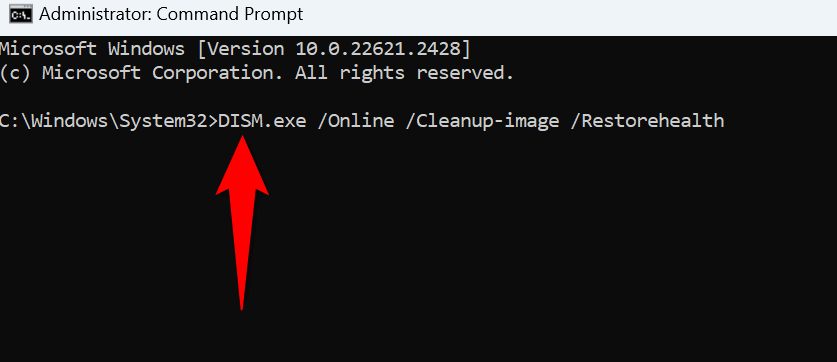
- Type the following command in CMD and press Enter; this command will download the necessary files to repair the corrupted files on your system: DISM.exe /Online /Cleanup-Image /RestoreHealth.
- Next, run the following command to repair your corrupted system files: sfc /scannow
- Restart your computer.
6. Perform a Clean Boot on Your Windows Computer
If the failure to download or install Windows updates continues, there may be a third-party application causing interference. One way to check this is to perform a clean boot of your computer, where your system loads only the essential files to run your computer.
1. Open the Start menu, search for "System Configuration," and select the item with that name in the search results.
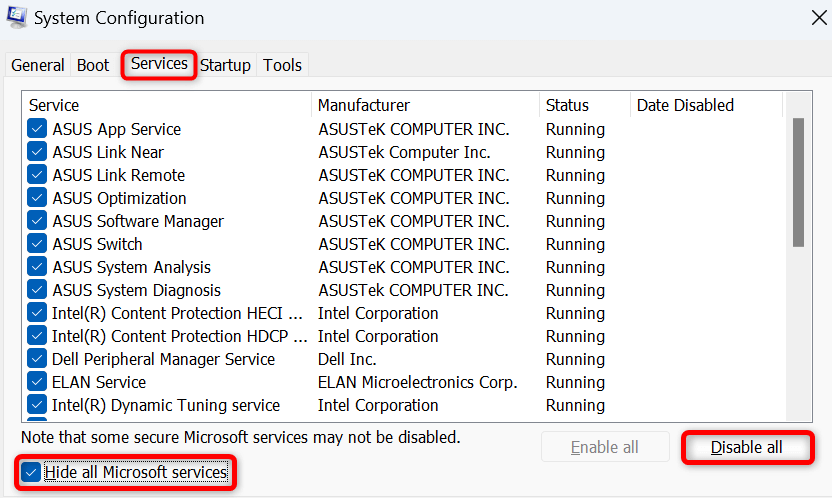
2. Access the "Services" tab in the System Configuration window.
3. Enable the Hide all Microsoft services option and choose Disable all.
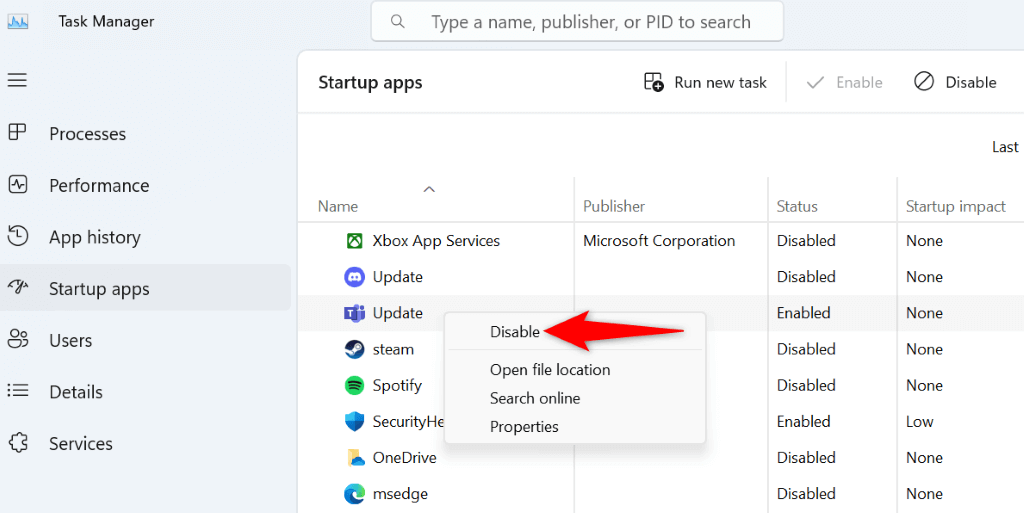
4. Access the "Startup" tab and select "Open Task Manager."
5. Right-click on each enabled item in its status column and choose Disable, ensuring that no startup applications run when cleaning your operating system, then close Task Manager.
6. Select OK in the System Configuration Startup tab.
7. Restart Your Computer.
8. Try updating your Windows system as usual. If the system updates successfully, third-party applications are likely the cause. In this case, remove these applications from the Settings app on your computer.
Conclusion
In this article, we discussed how to fix the Windows Update installation failure error 0x80073701. It is important to keep your Windows system updated, but errors like 0x80073701 can prevent you from installing the latest updates. By using the methods mentioned above, you can specifically fix this issue and allow Windows to download and install available updates without any hindrances. We hope this article helps you.
You might also like
Fixing the Error of Unreadable Content Found in Excel
Fixing the Bad Image Error xc000012f


