


(Fix TrustedInstaller.exe high CPU usage issue) Fixing the high CPU usage issue of TrustedInstaller.exe: Have you ever experienced your computer running so slowly that browsing the web becomes a challenge? If you checked the Task Manager and noticed that TrustedInstaller.exe is consuming over 50% of the CPU, then keep reading because you’re in the right place.
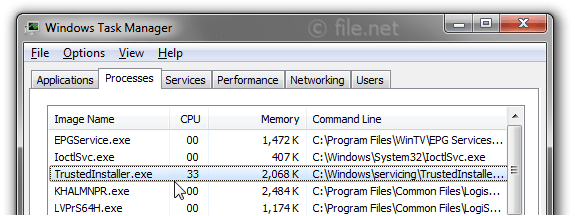
The executable file TrustedInstaller.exe is used by a service called "Windows Module Installer," which is responsible for installing Windows updates and hotfixes.
It runs automatically in the background and quietly installs updates. While having TrustedInstaller.exe running in the background isn’t a problem, issues arise when it starts consuming an excessive amount of processing power and memory, causing the system to freeze.
If you notice that TrustedInstaller is always running in the background and consuming a lot of CPU, you should identify the services using this program and stop them. Many viruses and malware utilize this program to download and spread harmful content from the internet.
What is TrustedInstaller.exe?
TrustedInstaller.exe is a critical system process found in Microsoft Windows operating systems. It is essential for managing and enforcing file permissions and ownership, especially for system files and folders. It is associated with the Windows Modules Installer service, which handles the installation, modification, and removal of Windows updates and optional components.
What is the purpose of TrustedInstaller.exe?
TrustedInstaller.exe is designed to protect core system files and prevent unauthorized modifications that could jeopardize the stability and integrity of the operating system. By default, TrustedInstaller.exe has full control over system files and directories, ensuring that only trusted and authorized system processes can make changes to them.
High CPU, Disk, and Memory Usage Due to TrustedInstaller.exe
Although TrustedInstaller.exe is a vital system process, it can sometimes lead to issues. One such issue is high CPU or disk usage, which can cause the system to slow down or freeze. This usually occurs when the process is installing or updating Windows components. However, if resource usage remains excessive for an extended period or happens frequently, it may indicate an underlying problem that needs attention.
In some cases, malware may attempt to mimic TrustedInstaller.exe to hide its actions. If you notice any suspicious behavior, such as unexpected network traffic or system modifications attributed to TrustedInstaller.exe, it is crucial to conduct a thorough malware scan using a reputable security program. This step will help keep your system secure.
How to Fix High CPU Usage Issue of TrustedInstaller.exe in Windows 7/8/10 and Windows Server
In the Task Manager, if you find that TrustedInstaller.exe consistently uses high CPU, consuming 50% or more of processing power, this is a warning for you to address the issue as soon as possible. In this article, I will explain most of the tested methods to fix this problem.
Method 1: Fix Using Advanced System Repair Tool
Often, missing dll files cause this issue. Some services require a specific dll file to function correctly, but when that file disappears from your computer, the service remains in a halted state while running in the background. The advanced system repair tool scans your computer for issues and fixes almost every corner of your system. It repairs missing system files like dll, exe, ocx, sys files, etc., and fixes the registry.
Windows consists of a large number of dll files, exe files, sys files, various types of services, databases, and more, so it’s not feasible to constantly monitor all files. The excellent PC optimization tool repairs damages, fixes errors, updates Windows and drivers, and silently removes various types of errors.
The Outbyte PC Repair Tool performs all the above tasks effortlessly, providing you with a smooth and error-free Windows environment to focus solely on your work.
3 Steps to Fix This Error
Step 1. Download the Outbyte PC Repair Tool [File Size: 16.4 MB]
Step 2. Scan your Windows computer
Step 3. Click the "Repair" button to fix the error
Method 2: Run Boot Time Scan Using Registered Antivirus Tool
Cleaning the system with antivirus software is not enough, and you need to run Boot Time Scanning to stop TrustedInstaller.exe if it is consuming too much CPU. Almost all antivirus programs have a boot time scan option; you just need to enable it and start the scan. When you restart your computer, this scan will begin and remove most critical services.
Method 3: Disable Automatic Updates
Windows always checks for the latest updates, and when available, it automatically starts downloading and installing them on your computer. This is when TrustedInstaller.exe kicks in to complete the update process. Sometimes, for unknown reasons, the updates fail to complete, and the TrustedInstaller.exe process remains running in the background. In this case, disable Windows automatic updates and restart your system; hopefully, the TrustedInstaller.exe process will disappear from the Task Manager.
Method 4: Stop the Windows Module Installer Running TrustedInstaller.exe
If no solution is available, stop the Windows Module Installer that runs TrustedInstaller.exe. Here’s the complete guide to stopping the Windows Module Installer.
1. Open the Run dialog, type msconfig, and press Enter. The configuration window will open; go to the Services tab and look for Windows Module Installer.
2. Uncheck the box and click "OK" to save.
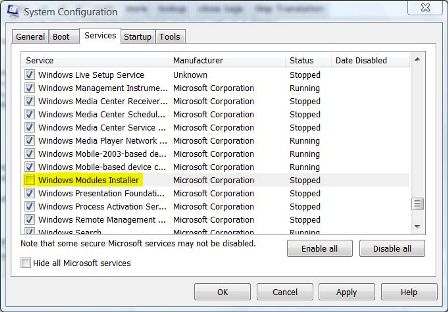
Windows Module Installer
3. Open Windows Services. Type in the Run dialog and press "OK".
4. Find Windows Module Installer and double-click it. The properties window will open; change the Startup type to MANUAL, then save and exit.
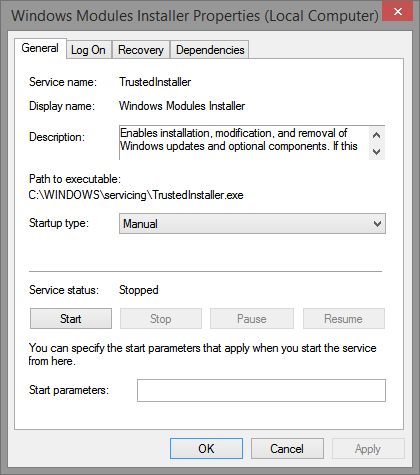
Stop TrustedInstaller
5. Restart your computer, and you will find that the TrustedInstaller.exe process has stopped and disappeared from the Task Manager.
Method 5: Repair Registry Issues
If there are some incorrect, missing, or corrupted entries in the registry directly related to Windows Update, you may face difficulties at various times. Repairing the registry yourself is not easy and can cause serious system issues later on. You can only restore the registry if you have made a backup beforehand. If you don’t have a backup, use the advanced system repair tool to fix the registry.
Conclusion
In this article, we discussed how to fix the high CPU usage issue of TrustedInstaller.exe. If you are experiencing performance slowdowns on your computer, you can follow the above steps to help you.
You might also like
The Essential Guide to Fixing High CPU Usage of WMI Host
How to Fix USB Stick/Pen Drive Not Showing Up in Computer


