


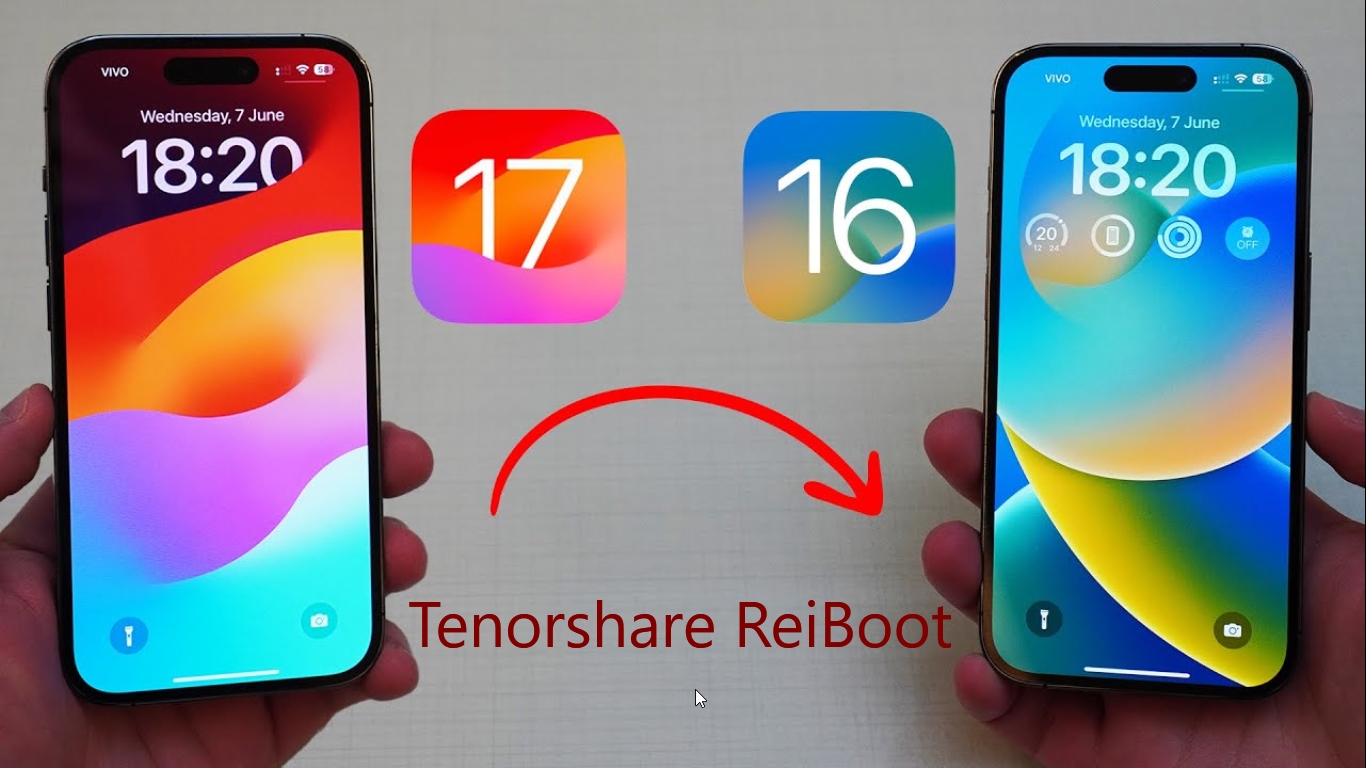
If you've installed the iOS 17 Beta through Apple's Developer Program or Beta Program, you might find yourself wanting to revert to an earlier version due to usability or stability issues. Keep reading to learn how to do this.
Why Would You Want to Downgrade to an Older Version of iOS After Upgrading to a Newer System?
Every iOS update comes packed with tons of new features and improvements. It's no surprise that many iPhone users rush to upgrade their iOS software as soon as it's available. However, updating can also lead to various system issues such as call drops, constant crashes, and ghost touches. Therefore, if you've recently upgraded to the iOS 17 beta but are tired of ongoing software bugs, it might be time to revert to iOS 16.
Are you scouring the internet for an answer to your question, 'Can I downgrade from the iOS 17 beta?' We've got you covered! With the exciting launch of iOS 17 Beta, it's hard to resist the temptation to install it and explore all the fantastic new features it offers. However, the Apple Beta profile often comes with its own set of issues. If you find yourself facing such difficulties, this comprehensive guide is here to provide you with step-by-step instructions on how to downgrade from iOS 17 Beta to iOS 16 without using iTunes. So, keep reading!
If you're looking to downgrade to iOS 16 effortlessly, the Tenorshare Reiboot is the perfect solution. The software ensures a smooth transition, eliminating the risks of data loss and removing the reliance on iTunes.
Why Choose Tenorshare ReiBoot:
- With just one click, you can enter or exit recovery mode.
- Resolve over 150 issues, including boot problems, black screens, and recovery mode loops.
- Quickly and effortlessly reset your iOS device without relying on iTunes.
- Enjoy comprehensive support for all iOS devices and models.
- Return your device in minutes without needing iTunes.
- User-friendly interface that is easy for beginners to navigate.
Now, let’s explore how to downgrade to iOS 16 without iTunes from iOS 17 Beta using ReiBoot:
How to Downgrade to iOS 16 After Upgrading to iOS 17
First: Download and install ReiBoot on your computer to downgrade to iOS 16 from the following links:
Download ReiBoot for Windows here, and for Mac here
Second: Now, simply connect your iPhone to the computer using a USB cable or the appropriate cable.
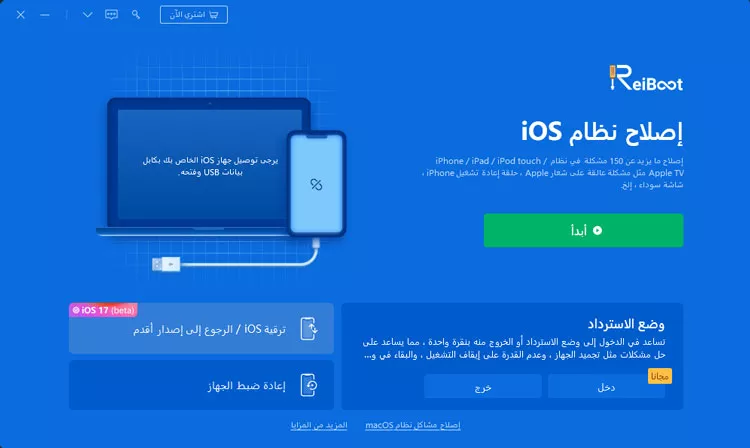
You will see an interface like this (see the next image) with a set of options; choose ( Click on the Downgrade/Upgrade option )
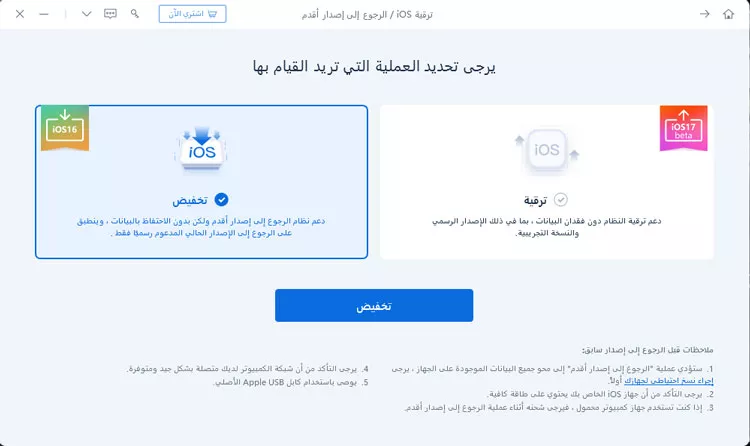
Third: The next step is to click on the (Downgrade) option located on the left side of the screen, as shown in the next image.
Fourth: At this step, the program will present you with the firmware package you want to downgrade to; just click on (Download), and the program will automatically download the packages without redirecting you to any external sites. Just wait until the download is complete.
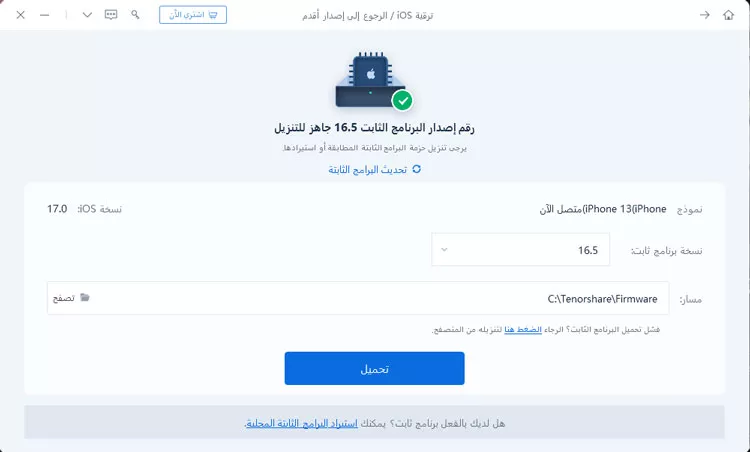
Fifth: After the program finishes downloading and installing the package, click on the (Start Downgrade) button.
The program will begin the process of downgrading your iPhone.
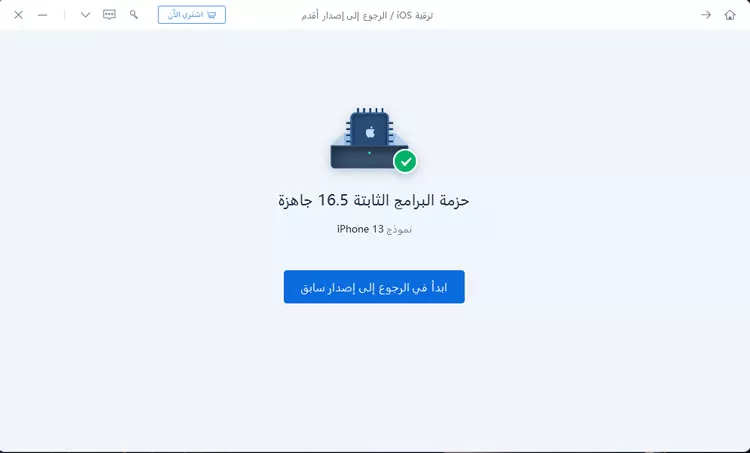
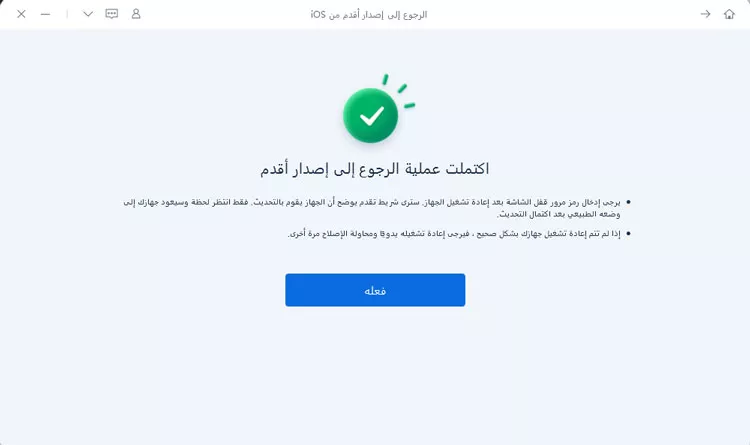
Sixth: Wait for the program to complete the process and do not click on anything during this time; just wait. Once the downgrade to the specified version is complete, you will notice that your phone is restarting, and at this point, you can be sure that everything has been successful. A message will appear on the Tenorshare ReiBoot program informing you that the downgrade process has been completed.
A Complete Video Guide for Downgrading from iPhone 17 to 16 Again
There is also a complete guide covering all the features of the ReiBoot program that you can check out by visiting the page provided by the official website of the program (How to Fix iOS System)
Services That Set Tenorshare ReiBoot Apart from Others
You might wonder why we provide instructions for downgrading to the previous iOS version using ReiBoot over other programs. Let me simply tell you that it is undoubtedly the best for several reasons, especially regarding support:
- Providing customer support from the company that developed the tool, Tenorshare, which aims to satisfy all customers by offering free technical support around the clock and throughout the week. You can contact them through their official website or via the company's social media pages.
- Money-back guarantee if you are not satisfied with the program and want a refund. Don't worry; you have a trial period during which you can get your money back if you don't like the program. Just contact support, and your refund will be processed shortly.
- The price of ReiBoot is affordable, with a monthly fee of $24.95 before the 30% discount from the coupon mentioned above. After applying the coupon (PF007B), the monthly price drops to $17.50.
Conclusion
We have presented the solution to the upgrade problem faced by iPhone users and followed the easiest and most commonly used methods to tackle this issue, which is by using the Tenorshare ReiBoot, the best tool for handling such situations. We recommend our followers to try the program as it offers a trial period allowing you to test it without any payment.
Programs You Might Like
- The best solution when iPhone is unavailable
- Fake GPS program to change location for iPhone without jailbreak
- The best way to unlock iPhone after forgetting the passcode
- Recover deleted files on iPhone | Tenorshare Ultdata – iOS
- Program to exit iPhone from recovery mode | Tenorshare ReiBoot
- Program to manage iPhones on the computer | Tenorshare iCareFone
- Program to unlock iPhone and iPad | Tenorshare 4uKey


