


Backing up and restoring your files in Windows 10: Backing up your data is incredibly important. It can help you save important files and folders. There are times when users experience system crashes, data deletion, or hardware issues. All these types of problems can lead to data loss, and often you won't be able to recover it unless you have a backup of your files and folders.
If you're looking for how to back up and restore your files in Windows 10, this article is written just for you. Stay with us.
Backing up and restoring your files in Windows 10
Here are some of the best methods you can use to easily back up files in Windows 10.
1. Using an external hard drive
An external hard drive is a very easy and convenient tool for storing data and files. There are many brands and different capacities of drives available, so you can choose one based on your requirements. Before making any purchase, we recommend reading user reviews and expert tips about the brand and quality of the hard drive. You might find many brands offering drives at low prices, but the quality may not be up to par, so try to buy from a reputable and trusted brand.
Follow the steps below to create recovery and backup files in Windows 10.
Connect the external hard drive and then open the Control Panel.
In the Control Panel, go to the System and Security section.
Now click on the "Backup and Restore" option.
Click on "Backup and Restore".
Then click on the "Create a system image" option.
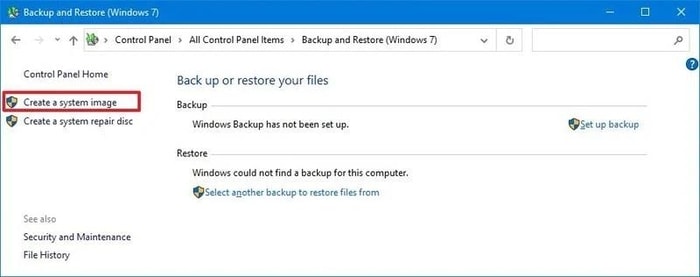
Click on "Create a system image".
Now select your external hard drive from the dropdown list of drives.
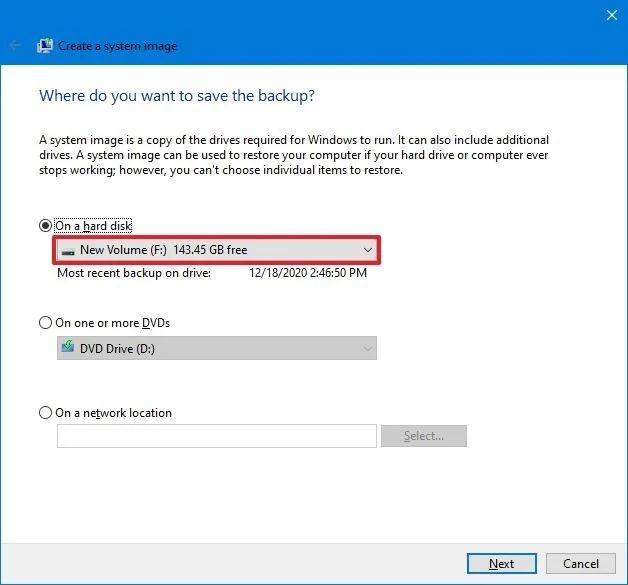
Select your external hard drive
Next, choose the backup location and start the backup.
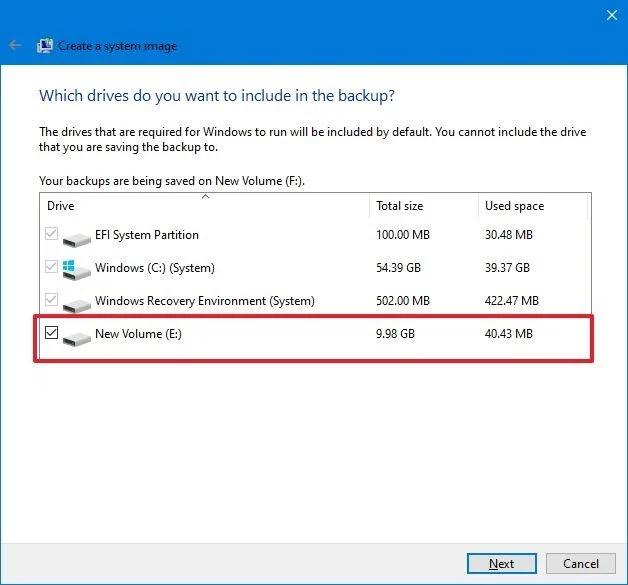
Select the backup location
The process may take some time depending on the amount of data to be backed up. Once it starts, you can use your computer normally for all other tasks.
You will be notified once the backup process is complete, and you will be asked if you want to create a system repair disk. If your computer has a CD drive, you can proceed by agreeing to the option, or you can skip this option.
Using this method, you can easily find a solution for how to back up files in Windows 10 to an external drive.
2. Using system drives
This is a basic and very easy method to find a solution for how to back up files. You can select any drive you want to store your data in. For step-by-step help, read the following steps:
Click on the Start or Windows button at the bottom left corner of the screen.
From the menu that appears, click on the "Settings" option.
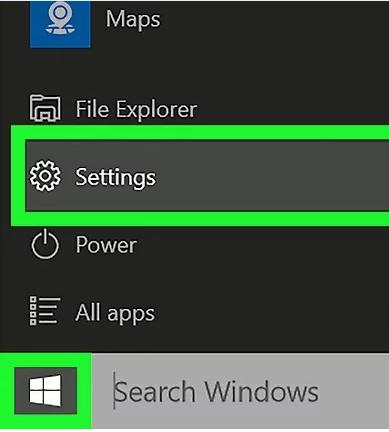
Click on the "Settings" option.
In the Settings window, select the "Update & Security" option.

Select "Update & Security"
Select the backup option.
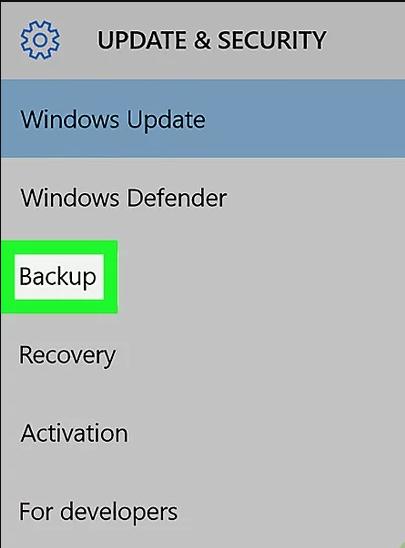
Select the backup option
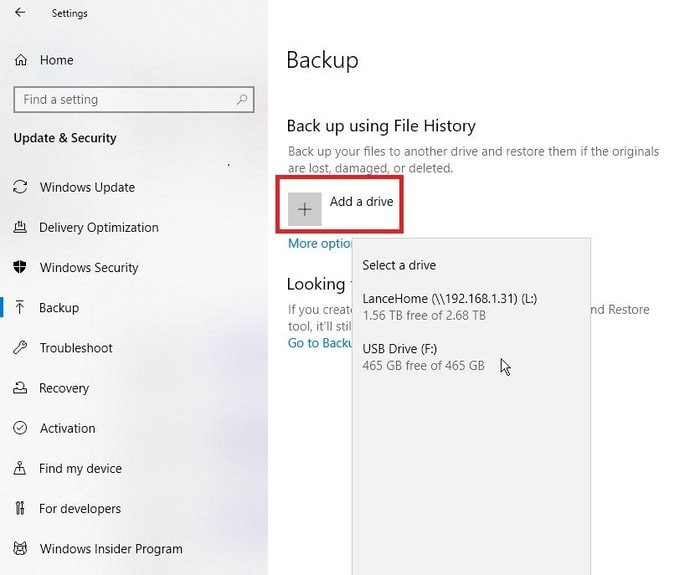
Then click on the "Add a drive" option.
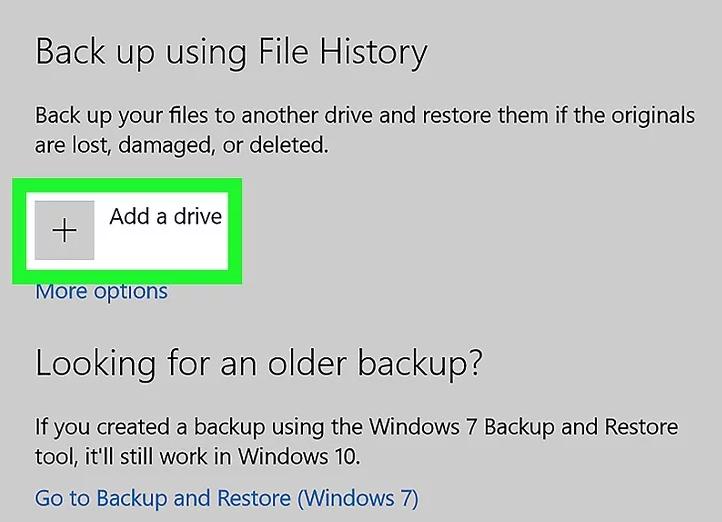
Click on the "Add a drive" option.
You can now select the drive where you want to store the backup.
3. Use cloud storage
If you're looking for a more convenient option that allows you to store your files and access them easily, cloud storage is the best option you can choose. The services offered by providers depend on the subscription plan, and you'll have to pay fees based on your storage requirements. The more storage you need, the more you'll have to pay.
The best part about backing up files using cloud services is that you can easily access these files from anywhere and restore them. The chance of data loss is very low. There are many cloud storage services available, and you can choose any of them and subscribe to their services.
After choosing a cloud service, you can easily upload files in the way you prefer. You may need a good internet connection to upload files; otherwise, the upload speed will be slow. Once you upload the files, you can access them easily from your computer or mobile phone. You can also download the files back to your system storage if needed.
These are the methods through which you can easily back up files in Windows 10 and earlier versions. The speed of the process may vary from system to system and can also depend on the size of the backup. Be patient while backing up data, as interruptions during the process can also lead to data loss. We have observed some cases where users attempted to stop the process, resulting in data loss.
Data loss brings us to our second subtopic, which is restoring files in Windows 10 and earlier versions. So let's move on to the methods you can use to restore files on Windows 10.
Best ways to restore files on Windows 10
After you have backed up files in Windows 10, after some time when you need to bring those files back to your computer, you can easily restore them. Follow the methods mentioned below to assist you in the restoration process.
1. Using Image Tool
The Image Tool method is the one we used in the backup section to create a backup using an image. Similar to that process, we will restore the files. Keep reading for the details.
Connect the bootable USB drive and the drive that contains the backup files for Windows 10.
Turn on the computer.
When the prompt to boot from the USB drive appears, press any key.
A new Windows setup page will appear; click next on that page.
Now, click on the lower option on the screen, which is to restore your computer.
Click on the "Troubleshoot" option.
Then click on Restore system image.
Select your Windows operating system.
From the "Reimage your computer" page, select the recently added system image and click the "Next" button.
Now click the "Next" button, then the "Finish" button.
After completing the steps, the file restoration process will begin, and all your files will be restored back to the system. The restoration time will vary from computer to computer and also depends on the size of the files you want to restore.
You should be patient during the restoration process and wait until it finishes. If you interrupt the process, the restoration may fail, and the device may become unbootable. While the restoration process is active, we recommend keeping the device plugged into power, especially laptops and battery-operated equipment.
After the restoration process is complete, you can proceed with updates. To update, go to Settings and then the Update & Security section. In the Update & Security section, you need to click on "Windows Update" and then click on Check for updates. After these steps, the system will start searching for the latest updates and install them on your computer.
The new update will make your computer run faster and compatible with most software. You can skip the system update if you wish.
2. Restore files in Windows 10 from cloud storage
Using cloud storage is a very convenient and easy method. You can easily upload your files and keep them in storage for as long as you want, and the files will be safe for a lifetime. It's very easy to back up files on Windows 10 using cloud storage, and restoring them is also very simple.
To restore files, you need to download them or save them back to the device either one by one or the entire folder. You can choose the method according to your preferences. Unlike other backup methods, here you have the option to back up the files you want and restore only the required files, which is a great feature.
The best part of the restore feature is that you can save files on all types of devices. You can store files on mobile phones, laptops, or even tablets, and you can access them from anywhere at any time.
To save them, all you have to do is locate the files you want to restore and select them. After selecting the files, you can either right-click or click on the menu to save the files. After clicking to download or save the files, in just a few seconds, you can easily access these files from your system.
3. Restore files with File History
This is another way you can restore lost files in Windows 10. If you have backed up files on the system, you can easily find them by following the steps mentioned below.
Click on the search option in the taskbar and type file recovery.
The options list will highlight the option to restore files using File History.
A new window will open containing all the files you can restore; click on the files you wish to restore.
You can restore the version of the file you want to recover, and after selecting the version, you can restore it anywhere according to your preferences.
Conclusion
In this article, we discussed backing up and restoring your files in Windows 10. The methods mentioned above can help you find a solution for how to back up files in Windows 10. You can choose the method that suits you and then follow the steps. This way, you can easily back up or restore files in Windows 10. If you have any questions about the steps, feel free to write them in the comments section.
You might also like
<a href="https://3almalt9nia.com/%d8%a8%d8%b


