

Fixing the automatic restart issue on Windows 10: Why does the Windows 10 operating system restart randomly? How can you resolve the automatic restart problem on Windows 10? Is this a minor issue or could it cause significant damage to my computer? We will answer these questions and more in this article.
The Windows 10 operating system was made public in 2014 as a successor to Windows 9, and one of the advantages of this new operating system was Microsoft's introduction of updates, making it difficult to disable the update feature. While this is great, it also means that your Windows 10 system will automatically restart after every update by default.
This can be very frustrating, especially if you are working on something very important. Aside from the update issue, there are several other reasons why a Windows computer might restart automatically.
Fixing the automatic restart issue on Windows 10
Before we discuss how to stop Windows 10 from restarting automatically, we need to share an important piece of information: you should learn how to back up your files regularly if you haven't done so already. The reason for this is that you will lose unsaved files as soon as Windows 10 restarts.
Now, let’s show you different methods to fix the automatic restart issue on Windows 10.
Note: Microsoft does not support disabling the automatic restart feature on Windows 10. As such, you are learning these procedures at your own risk; if you encounter any issues, you can always restore the "restart option" at any time.
Fix 1: Disable the Windows Restart Task
As mentioned above, Windows 10 is configured to restart automatically when new updates are downloaded and installed. You can disable this Windows restart task to prevent that; the challenge is that your new updates and any future updates will not be applied by default.
Here’s how to disable the Windows restart task:
Step 1: Click the "Search" button and search for "Task Scheduler."
Step 2: In Task Scheduler, click on Library > Microsoft > Windows > Update Orchestrator.
Step 3: Go to the right pane, right-click on "Restart," and then select "Disable."
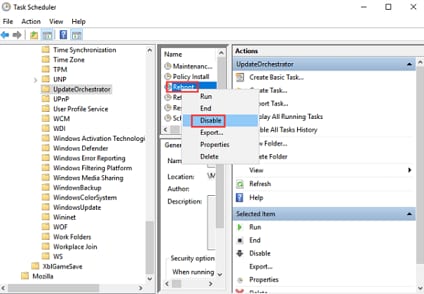
stop-windows-10-restart-1
Once you do this, you have disabled the Windows restart task, and your new updates will now be applied when you manually restart your computer.
Fix 2: Rename the Restart File
You can resolve the issue by renaming the restart file; check the steps below to see how to do this:
Step 1: Press "Windows key + R" on your keyboard simultaneously to open the "Run" command.
Step 2: Type or copy and paste this path into the box in the "Run" window:
%windir%\System32\Tasks\Microsoft\Windows\UpdateOrchestrator
Step 3: Click "OK" or press the "Enter" key on your keyboard.
Step 4: Right-click on the "Reboot" file that has no extension and click "Rename" from the options menu.
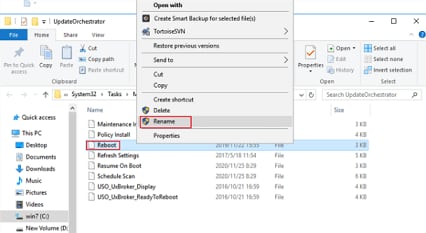
stop-windows-10-restart-2
Step 5: Rename this restart file to "Reboot.old."
Step 6: Right-click on the folder, then select "New" from the options menu and click on "Folder." Rename this folder.
You can always revert the changes by going back to "UpdateOrchestrator" and deleting the restart folder. After doing this, rename "Reboot.old" back to "Reboot."
Fix 3: Disable Automatic Restart
Another way to fix the automatic restart issue on Windows 10 is to disable automatic restart; in this case, your computer will display error messages frequently.
If this is not a problem for you, here’s how to disable automatic restart on your Windows 10 computer:
Step 1: Click the "Search" button and search for "View advanced system settings," then open it.
Step 2: Go to the "Startup and Recovery" section and click on "Settings."
Step 3: Select the "System failure" section and uncheck the box next to "Automatically restart," then click "OK" when done.
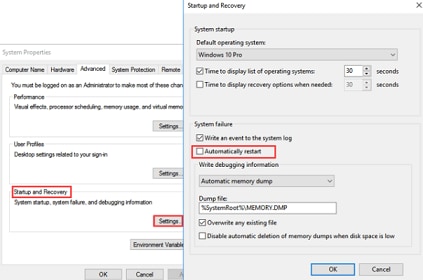
stop-windows-10-restart-3
Step 4: Restart your computer to apply the changes.
Fix 4: Turn Off Automatic Restart for Updates During Active Hours
Windows 10 is a smart system that knows your active hours and your computer's idle hours; as such, you can program your computer to stop automatic restarts after updates during active hours. You can also set your active hours by entering your times manually.
The steps below can guide you:
Step 1: Click "Search" and type "gpedit.msc" in the search box, then press "Enter."
Step 2: Go to "Local Group Policy Editor," click on "Computer Configuration," then "Administrative Templates." After that, click on "Windows Components," then "Windows Update."
Step 3: Double-click on "Turn off automatic restart for updates during active hours."
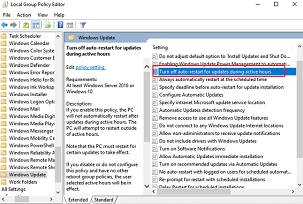
stop-windows-10-restart-4
Step 4: Click "Enabled" and select the entire day to be your "active hours."
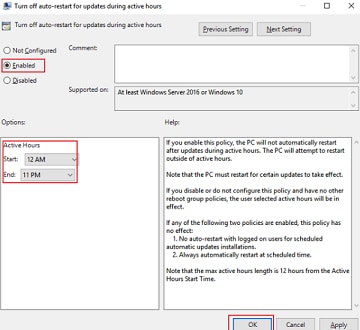
stop-windows-10-restart-5
Step 5: Click "OK."
Fix 5: Uninstall Windows Update
If you just had a Windows update and started experiencing "automatic restart on Windows 10," it’s likely that the update is the issue. In this case, what you need to do is uninstall the last update; once you do this, the problem should stop.
Step 1: Press "Win + I" at the same time on your keyboard to open "Settings," then click on "Update & Security."
Step 2: Click on "Update history" and "Uninstall updates."
Step 3: Select the update you want to uninstall by clicking on it.
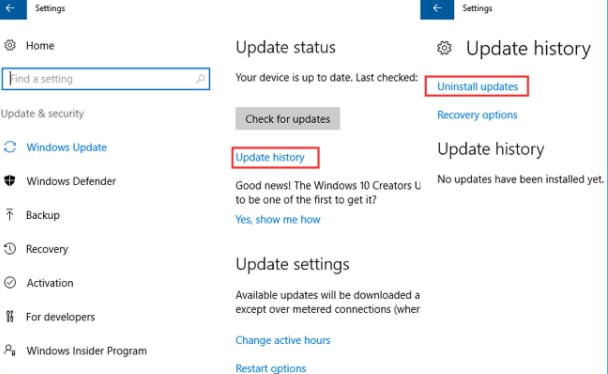
stop-windows-10-restart-6
Step 4: Right-click on the update, then click "Uninstall" and follow the on-screen commands to complete the process.
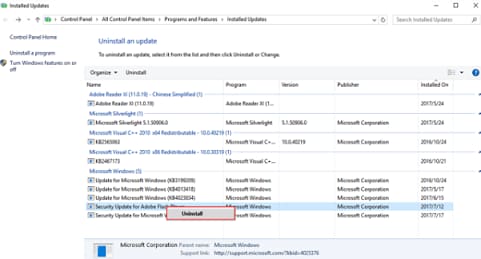
stop-windows-10-restart-7
Fix 6: Run Disk Check
As mentioned earlier, a computer does not restart automatically only when updating Windows; sometimes, you may experience random restarts on Windows 10 if the hard drive has some issues. One way to find out if this is the problem is to run a disk check.
Here’s what you need to do to perform a disk check:
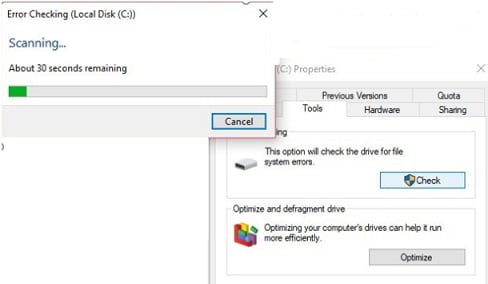
Step 1: Right-click on the hard drive (make sure it’s running Windows) and select "Properties" from the options menu.
Step 2: Go to "Tools," then visit "Check for errors," and click "Check."
stop-windows-10-restart-8
Step 3: Click "Scan Drive" once prompted.
Step 4: Wait a few minutes for the process to complete.
Taking this step usually fixes errors on your hard drive or reveals issues that need to be addressed.
Fix 7: Uninstall Recently Installed Programs or System Changes
If you just installed new software or updated any of your drivers and this issue occurred, you should uninstall it immediately. It’s possible that the program or update is corrupted or has a problem. One easy way to do this is to use "System Restore," which takes your system back to a previous date before the installation. To avoid issues with updates and software or driver installations, make sure to use trusted sources.
Fix 8: Run Malware Scan
You might be experiencing automatic restarts on Windows 10 due to a malware issue. If you have tried the above methods and the problem persists, you should scan your computer for malware.
There are many malware removal tools you can use, and you can also take advantage of Windows Defender, which comes with every Windows computer. If you don’t find any malware, move on to the other fixes we will suggest.
Fix 9: Repair System File
Corrupted system files can negatively affect your computer and lead to many issues, including "automatic restart on Windows 10." How can you check the integrity of your system files? One easy way to do this is to perform an "SFC scan."
This scan checks the system files on your computer for corrupted files.
Here’s how to perform an SFC scan:
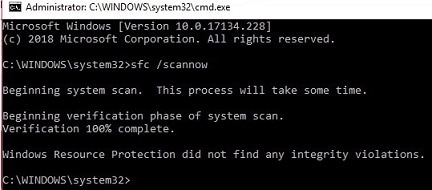
Step 1: Press "Windows key + S" at the same time on your keyboard.
Step 2: Type "CMD," then right-click on "Command Prompt." Select "Run as administrator."
stop-windows-10-restart-9
Step 3: Type "sfc/scannow" and then press "Enter" on your keyboard. Once you do this, the scan will start, and you can restart your computer once it’s done.
Note: Make sure to close the Windows repair disk or installation disk during the scan; this way, you can replace any corrupted system file that is not available in <a href="https://3almalt9nia.com/%d8%a3%d9%8a-%d9%85%d8%aa%d8%b5%d9%81%d8%ad-%d9%8a%d8%b3%d8%aa%d8%ae%d8%af%d9%85-%d8%b0%d8%A7%d9%83%d8%B1%d8%a9-%d9%88%d8%b5%d9%88%d9%84-%d8


