


How to fix the issue of not finding an app to open a URL on Android: Are you having trouble accessing URLs on your Android phone due to the error message "No app found to open the link"? You might encounter this error when trying to visit a website using the Google app or any other app. The good news is that this annoying problem can be resolved on all Android devices, so keep reading!
Android, "a mobile operating system created by Google," is now one of the most widely used mobile operating systems. It is built on the Linux kernel and a few open-source programs. This software was first introduced to the public in 2007, and the latest stable version, known as Android Pie (Android 9), was released in 2018. Over two billion people now use the Android operating system.
The error "No app found to open URL" has been reported on several Android phones recently, preventing users from opening URLs. This article will provide solutions to eliminate this issue.
How to fix the issue of not finding an app to open a URL on Android
Here, we will discuss some effective methods to resolve the "No app found to open the link" message on Android.
Solution 1: Check Disabled Apps
Your mobile device comes with several pre-installed applications, some of which are essential for the operating system. Therefore, we will assess whether any system apps have been disabled. To do this, follow these steps:
Step 1: Pull down the notification panel from the top of the screen, then tap the settings gear.
Step 2: Scroll down until you reach the "Apps" option, then select it.
It's important to note that this setting may be found under the "Battery" option on some mobile devices.
Step 3: Choose the "App Manager" option from the list.
Please note that if the "App Manager" setting is not available, you will need to manually enable system apps by going to "Settings > Apps."
Step 4: Check if any system apps, especially "Browser" and "Google Play Store," are listed among the disabled apps.
Step 5: If they are not currently active, you can enable them by tapping the toggle switch.
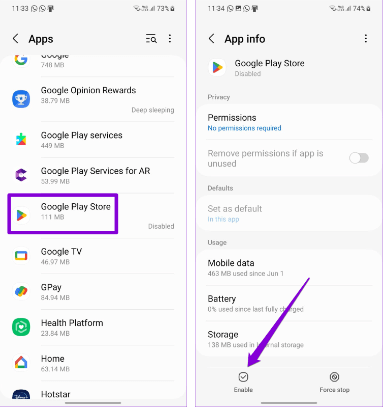
Google Play Store Enable Service
Check if the problem persists after enabling the apps. If you still face the issue of not finding an app to open a URL on Android, continue with the solutions below.
Solution 2: Reset App Preferences
If the problem continues, you can resolve it by resetting app preferences on your phone. This will remove any restrictions that may be causing the issue and reset all app permissions. Follow these steps to reset app preferences to fix the "No app found to open the link" issue on Android:
Step 1: Go to the Apps section in the Settings app.
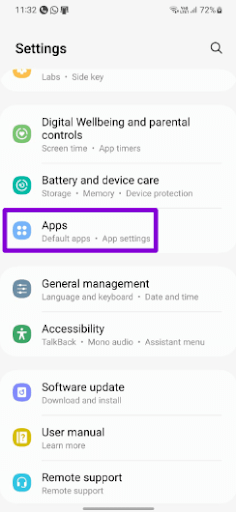
Apps section in the Settings app
Step 2: In the top right corner of the screen, tap the menu icon that looks like three dots, then select Reset app preferences from the menu that appears.
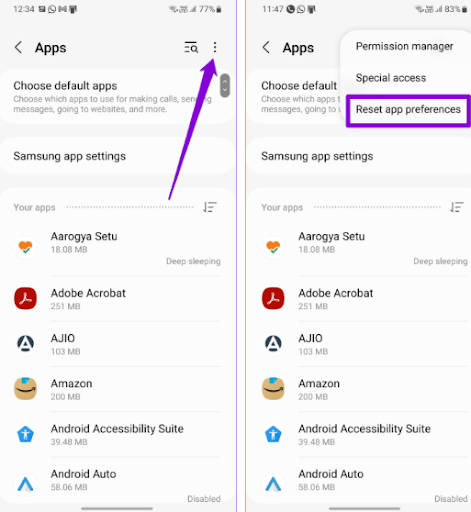
Reset app preferences from the menu
Step 3: Before proceeding, choose the reset option.
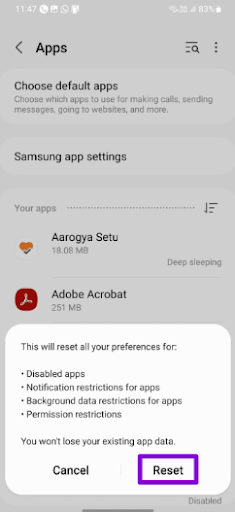
Select the reset option
Now, check if the error of not finding an app to open the link has been resolved. If not, continue with the methods shared below.
Solution 3: Disable Open Supported Links for the Affected App
Another reason the app might display the message "Unable to recognize URL" is if there is an issue with the in-app browser. The error "Open with another app" will appear. The following steps will allow you to set the app to open links using the browser you typically use:
Step 1: First, long-press the icon of the app causing the issue, then select the info icon from the menu that appears.
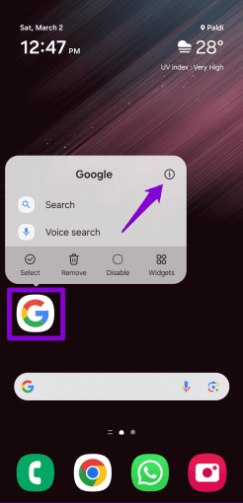
Disable Open Supported Links for the Affected App
Step 2: Select the "Set as default" option and turn off the toggle next to "Open supported links."
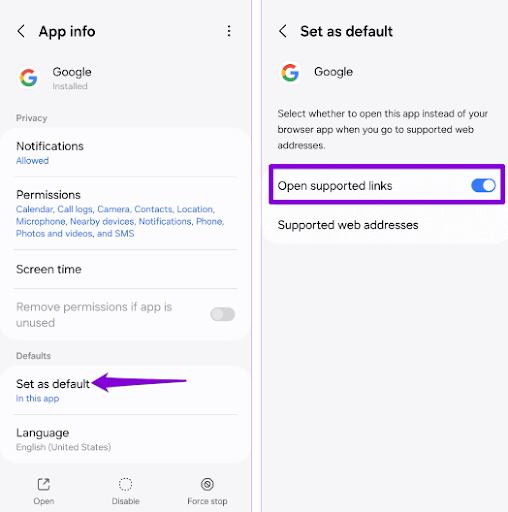
Open supported links
Once you have done that, try accessing the link from the problematic app and check if the issue still occurs.
Solution 4: Change the Default Web Browser
It is also possible that apps cannot access websites if there are issues with the default browser app. Changing the pre-installed browser on your phone is something you can try to see if it helps.
Step 1: First, open the Settings app and go to the Apps section, then tap the button to choose default apps.
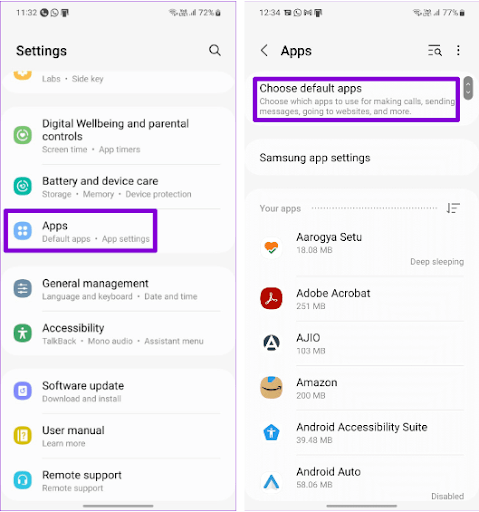
Select the button to choose default apps
Step 2: Select a different browser from the list that appears when you tap on the browser app.
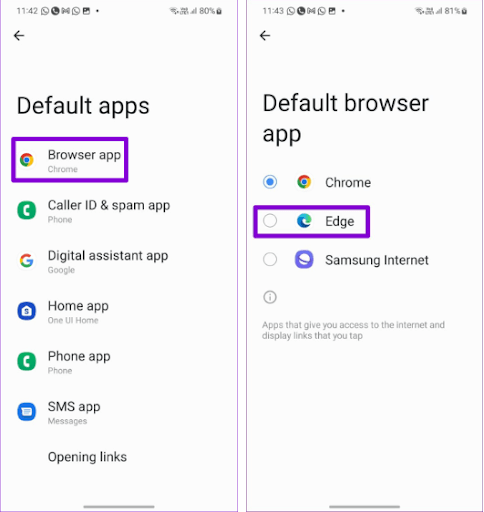
Different browser from the list
After changing the default browser on your phone, check if any apps can access URLs.
Solution 5: Clear App Cache
There is a possibility that a glitch in the cache data on your phone is causing the app to fail to access links. Fortunately, clearing the cached data is a relatively simple process. The steps you can take are as follows:
Step 1: Long-press the icon of the app causing the issue, then tap the info icon that appears in the menu.
Step 2: Next, go to the storage menu and select the Clear cache option located in the bottom right corner.
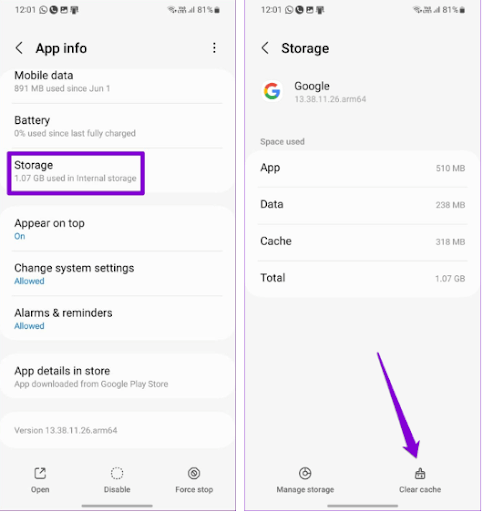
Clear app cache
Solution 6: Update the App
If clearing the cache does not resolve the issue, you can try updating the app. You should also ensure that the default browser app on your device is updated to the latest version while you're at it. If there is a bug within the app causing the error message, upgrading the app should help address the issue.
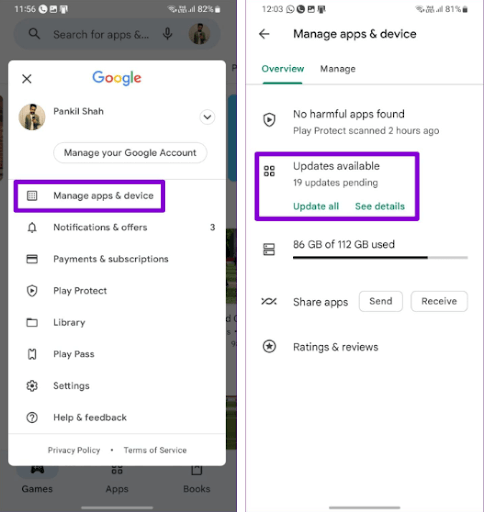
To manage your apps and device, open the Google Play Store, tap your profile picture in the top right corner, then select "Manage apps and device." Next, choose the "Updates available" option to check for any pending updates and install them.
Solution 7: Install Android Updates
Having bugs and glitches within the Android system or having a custom skin on your phone could contribute to this type of issue. Therefore, if nothing else works, it’s a good idea to install any pending software updates.
Step 1: First, launch the Settings app on your mobile device.
Step 2: Next, scroll down until you find the Software Update option, then select "Download and install" from the menu that appears.
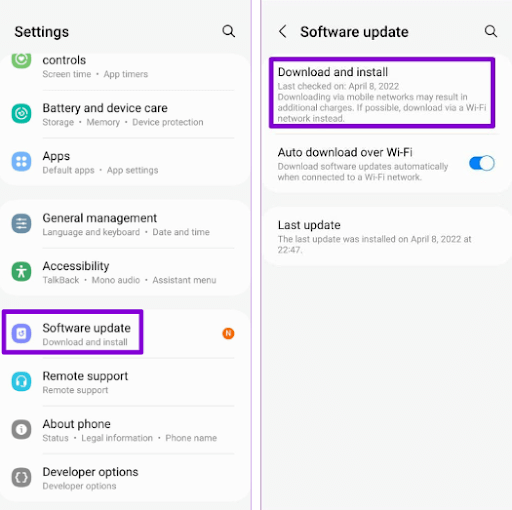
Install Android updates
Wait for the pending updates to download and install on your phone.
Conclusion
When Android apps do not work as intended, it can be very frustrating. Misconfigured app options or outdated software are the most common reasons for such errors. Try the solutions listed here, and hopefully, you will be able to resolve the issue and have your Android device open links as usual.
So, that’s all about fixing the issue of not finding an app to open a URL on Android. We hope you found the information helpful. If you have any questions or further suggestions, please let us know in the comments section below.


