


How to enable spatial audio in Windows 10 and 11: Spatial audio is said to have revolutionized the audio experience on devices running Windows 10 and 11. This feature is built into the operating system, but many users are unsure how to activate it. In this article, we present the best methods to enable or disable spatial audio in Windows 10/11. However, before diving into the steps, let's understand what spatial audio is in Windows 10 and how it works.
What is Spatial Audio?
Microsoft offers a platform-level solution to support spatial audio on Windows 10, known as Windows Sonic.
So, what is spatial audio in Windows 10? Surround sound allows you to track sound changes and movement from left to right and vice versa, while spatial audio enables you to control sound movement from top to bottom.
Imagine this scenario: when watching a show or playing a game, you can hear helicopters not just flying around you but also directly overhead. This experience can be achieved through the spatial audio feature in Windows 10.
Generally, when trying to enhance the audio experience on a Windows PC, the regular aspects of sound are adjusted. Surround sound is used to achieve similar results, but traditional surround sound lacks the advanced features and enhancements that spatial audio provides. Spatial audio creates an enriched atmosphere in a 3D space, which traditional surround sound formats cannot provide.
Some games and shows can naturally support spatial audio, providing a good audio experience. However, if you enable spatial audio on Windows 10, all your shows and games will sound better.
Spatial Audio Formats
There are several spatial audio formats you can choose from: Windows Sonic for Headphones, Dolby Atmos for Headphones, and Dolby Atmos for Home Theater.
Windows Sonic for Headphones: When you select this option, the "Enable Virtual Surround Sound 7.1" box will be automatically checked, allowing you to use any pair of stereo headphones to hear content that previously could only be experienced in multi-channel setups through a home theater system, which would have used linear mixing through the headphones.
Dolby Atmos for Headphones and Home Theater: When you choose this for the first time, you will be prompted to download the Dolby Access app. Additionally, Dolby Atmos for Home Theater is listed as a "Bitstream format" option only when connected to devices that report support for this format via Extended Display Identification Data (EDID).
When spatial audio is enabled in Windows 10, your Windows PC will mix audio using positional data, providing a virtual spatial audio experience. So, if you're playing a game and hear sound coming from above your character and to the right, the sound is already mixed before being sent to your headphones.
If you're confident that your show or game supports spatial audio, let's find out how to enable spatial audio in Windows 11/10.
How to Enable Spatial Audio in Windows 10 and 11
You can use the methods outlined in this guide to easily enable spatial audio in Windows 10/11. Here’s the complete process to enable spatial audio in Windows 10/11; all you need to do is follow these steps, enable the setting, and enjoy the amazing surround sound feature in every aspect. So, follow the instructions right away:
First, press the Win+X keys and select Settings from the dropdown menu.
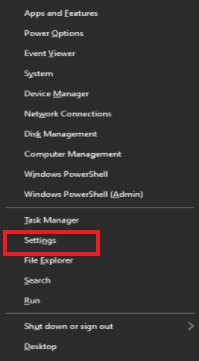
Click on Settings
When the system settings appear, click on "System" to proceed.
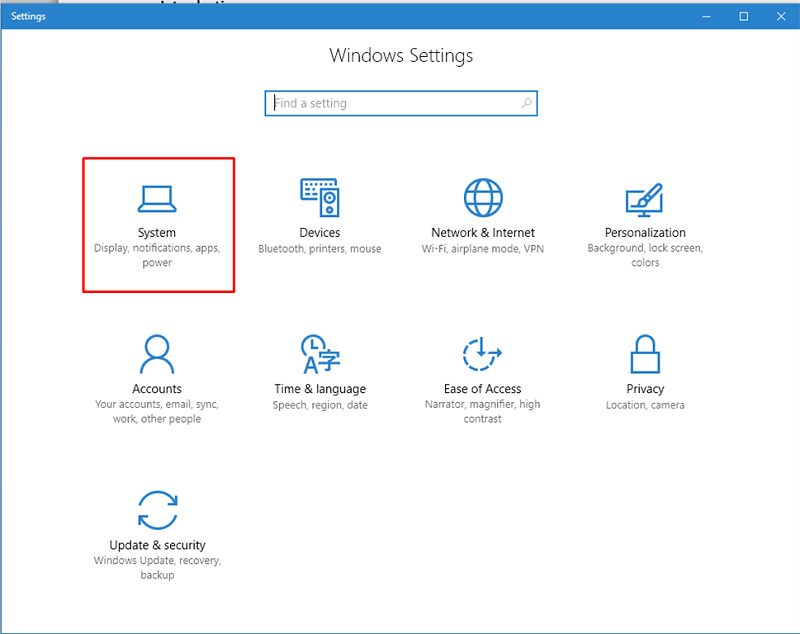
Select System Settings
From the right pane, select Sound.
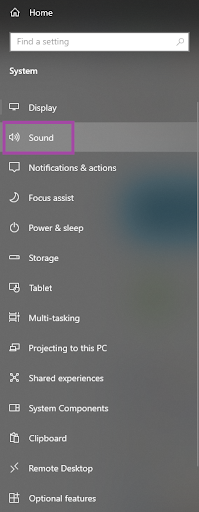
Click on Sound Settings
Under Sound Settings, click on the Sound Control Panel option under Related Settings.
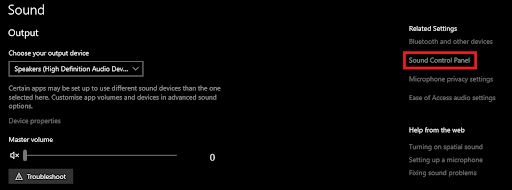
Open Sound Control Panel
A list of audio devices will now appear. Click on the device you want to use and open its properties dialog.
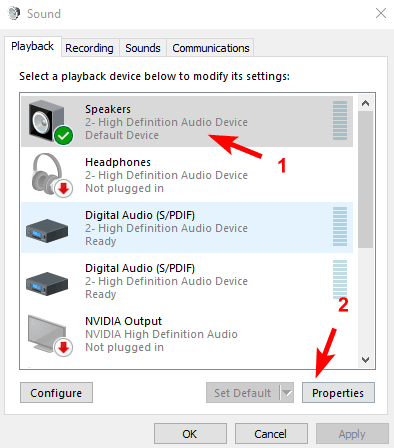
Select your speakers and click on "Properties" to continue
When the "Sound" tab appears, click on "Spatial Sound" and use the dropdown to select the appropriate spatial audio format.
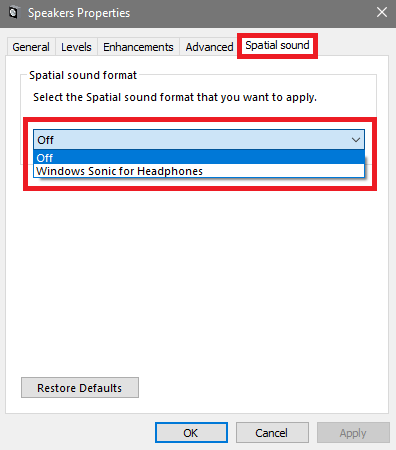
Spatial Sound
Click "Apply" then "OK".
How to Choose the Right Spatial Audio Format?
When trying to enable spatial audio in Windows 11/10, you may find different formats available for using this feature. You may see up to three categories, depending on the audio devices connected to your system. The Windows Sonic for Headphones option is suitable if you want to enjoy an amazing experience with headphones. If you have a Dolby Atmos device, you can select either the Dolby Atmos for Headphones or Dolby Atmos for Home Theater option as needed.
Therefore, based on the device you are using, you can select the appropriate spatial audio format. If your home theater setup is connected to your PC and you want to enable or disable spatial audio in Windows 10, you also need to adjust the settings in the Dolby Access app.
How to Enable Spatial Audio in Windows 10/11 for Home Theater?
If you have a home theater, you can enjoy an amazing audio experience on your Windows PC. However, to get the most out of the device, you need to enable the relevant settings in the Dolby Access app.
Follow these steps to find out what you need to do:
First, press the Win+S keys, search for Microsoft Store, and open the Microsoft Store app on your Windows device.
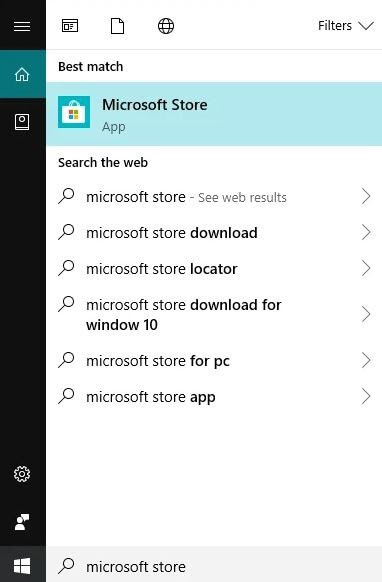
Search for Microsoft Store and select the best match
In the app, search for the Dolby Access app and install it on your device.
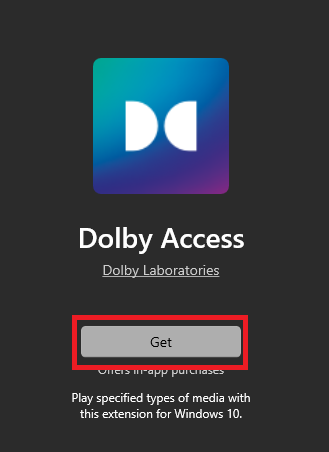
Click Get for Dolby Access
Launch the app and click on the "Products" tab.

Official Dolby Products
Select the option that shows Dolby Atmos for Home Theater and click Select.
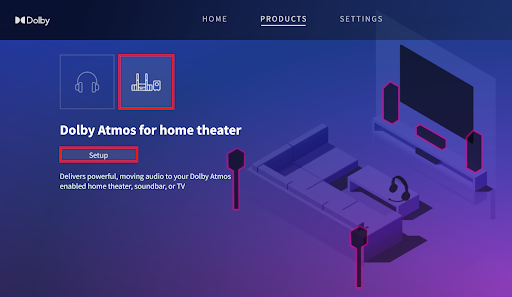
Setting up Dolby Atmos for Home Theater
Follow the on-screen instructions to set up the device for your Windows PC.
Conclusion
In this article, we discussed how to enable spatial audio in Windows 10 and 11. If you want to activate this feature on Windows 11/10, this article has surely helped you do so. You can take advantage of the steps and solutions provided here to use spatial audio. If you need assistance in enabling spatial audio in Windows 10/11, feel free to reach out to us through the comments section.


