


How to Remove Watermark from Word File for Free: Watermarks can be distracting or unwanted in your document, especially if you're sharing it with others or sending it for official purposes. In this article, you'll learn how to quickly and efficiently remove watermarks, so stay with us.
Removing watermarks in Word is a straightforward process that doesn't require special skills or advanced software. We'll show you how to do it using the built-in tools and features in Microsoft Word. Whether you're a student, a professional, or someone who needs to edit their documents, this article is for everyone.
We'll provide detailed instructions, and you'll see that removing watermarks from your Word documents can be done in just a few simple steps. So, if you're ready to make your documents watermark-free, let's get started.
Why Remove the Watermark from Word?
Have you ever wondered why some documents have those faded and transparent images or texts in the background known as watermarks? Generally, watermarks are used to maintain branding or protection.
However, there may be times when you need to remove them for the following reasons:
Clarity: Removing watermarks can make the document look clearer and more professional, ensuring that the content takes center stage without distractions.
Editing: If you want to edit a document that contains a watermark, removing it first will make the editing process smoother and easier.
Aesthetics: Removing watermarks can enhance the overall appearance of your work. It makes Word documents suitable for various purposes and beneficial for a wider audience.
How to Remove Watermark from Word File for Free
Watermarks are an excellent way to ensure document security and ownership. However, in some cases, you may need to remove the watermark from a Word document to promote it across a wide network.
You can remove watermarks from MS Word on both Windows and Mac operating systems using these methods.
Method 1: Delete Watermark in Word Using Header and Footer
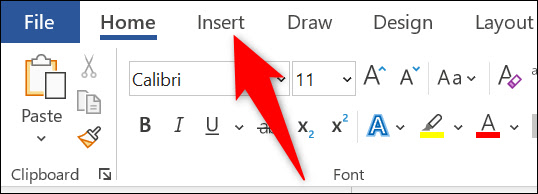
You can follow the step-by-step strategy below to remove the watermark and other watermark words from your document.
First, double-click the top section of the page to display the header and footer.
Now, hover your mouse over the watermark until the cursor changes to a four-headed arrow.
You should now click on the watermark.
Press the Delete key on your keyboard to remove the watermark from the Word document.
Now, you can repeat the above process for all watermarks present on the page.
Finally, close the header and footer to continue editing the document normally.
Method 2: Use the Design Tab in Word to Remove Watermark

You can delete the watermark in a Word document using the Design tab.
Here’s the step-by-step procedure to do this.
First, select Design from the menu bar at the top of the Word document.
Now, choose the watermark icon from the ribbon that appears.
Click on the Remove Watermark option from the available menu.
Method 3: Try Saving the Document as an XML File
Although this method is a bit complex, you can save your document in XML format to remove the watermark from the Word document.
Here’s the step-by-step method to do this.
First, open the document and save it as an XML file.
Now, open the saved XML document using Notepad.
Locate the watermark phrase using Ctrl and F on your keyboard.
Now, enter the watermark phrase in the Finder window and click on Find Next.
Remove the watermark phrase.
Repeat the process until all watermark words are deleted.
Finally, save these changes and reopen the document using MS Word.
The above information was about removing watermarks from Word documents on Windows. Now, let’s learn how to do this on a Mac.
Method 1: Use the Design Tab
You can remove the watermark from a Word document on Mac using the Design tab. Here are the steps to do this.
First, open the document and select Design from the top menu.
Now, choose the watermark tool from the ribbon.
Select the No Watermark option.
Finally, click the OK button to remove other watermark phrases from the Word document draft.
Method 2: Remove Watermark from Word Document Online
If you want to delete a watermark in Word with minimal effort, you can do it for free using the best online applications to remove watermarks from Word documents. Here are some applications you can use for this purpose.
ScanWritr
One application that allows you to remove watermarks from Word files online for free is ScanWritr. You can use it on both Windows and Mac to permanently remove the watermark. To delete watermarks using this application, simply visit ScanWritr, upload the document you want to edit, and use the contrast tool to complete the watermark removal.
DocHub
DocHub is another application you can use to remove watermarks from Word documents online. All you need to do is visit DocHub, upload your document, locate the remove watermark option, select it for free, and save or share the document.
In the section above, we shared different methods to remove watermarks from Word files. Now, let’s answer some related questions to clear up any confusion you may have.
Frequently Asked Questions
Below, we answer all your questions about deleting watermarks from a Word document.
Q1. Why is there a watermark on my Word document?
The main purpose of a watermark in a Word document is to maintain the copyright of the document, preventing people from making false claims about ownership.
Q2. Can you remove watermarks from documents?
Fortunately, it is possible to remove the watermark in MS Word if you do not wish to keep it; you can do this easily.
Q3. How can I remove a watermark from a Word document on Mac?
There are several ways to delete a watermark from a Word file on Mac. We shared the best ones in the section above of this article.
Q4. How can I remove the watermark in Windows 11 and 10?
There are many ways to remove watermarks from a Word document, such as through the Design tab, headers, and footers, etc. We explained them in the section above.
Conclusion
This article introduces you to how to remove a watermark from a Word file for free in various ways. You can use any of them depending on whether you have a Windows or Mac computer.
Feel free to leave us a comment if you know better ways to remove watermarks from Word documents or have any questions about this topic.
You might also like
Programming Text Editing Software on Android
Best Alternatives to SpeedWrite
Story Writing with Artificial Intelligence


